
Published 9 October 2026, Updated 9 October 2026
These two tabs contain sensitive information about members. Access depends on your role, and what you read here should be handled confidentially.
Private Notes tab
Private Notes is an organization-wide summary of accessible private notes attached to members. It is not limited to the highlighted comparison selection. You cannot open the private-note thread attached to your own profile.
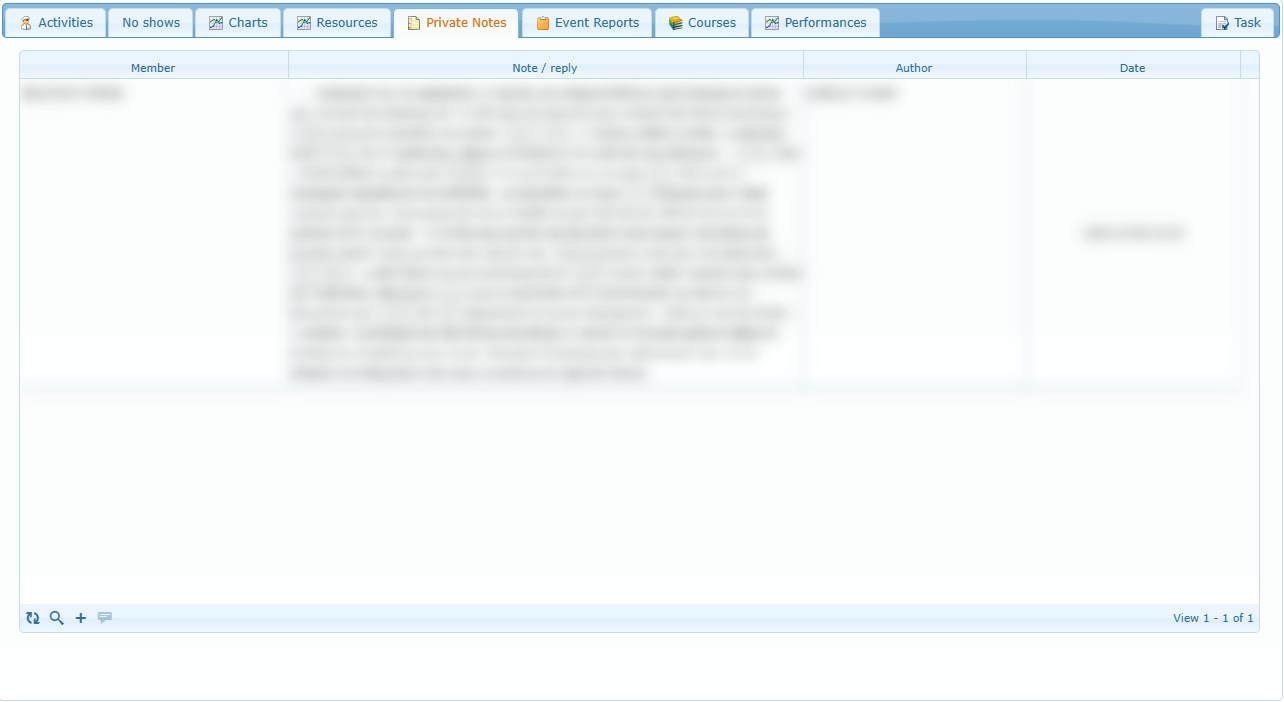
Search and open a thread
Use the magnifying glass in the footer to filter by member, note text, author or date. A date can be a single day or an inclusive range. Double-click a row to open that member’s thread and focus the related note or reply.
Add one private note
- Select the add-note control (+) in the footer.
- Start typing a member name.
- Choose the member from the suggested list; typed text alone is not a confirmed selection.
- Continue to the thread.
- Enter the note and select Add note.
When exactly one eligible member is selected on the left, the dialog can prefill that person.
Add the same note to several selected members
Select more than one member on the left, then use Selected members → Add a private note in the member right-click menu. Review the captured recipients, enter the note and save. A separate top-level note is created for each displayed recipient.
Reply and delete
- Select Reply, enter the answer and save it.
- Expand or collapse replies with the triangle control.
- You can delete only a note you wrote and only while it has no replies.
- Notes and replies are limited to 10,000 characters and cannot be blank.
- There is no edit action; add a correction reply when context must be preserved.
Event Reports tab
Event Reports is a read-only browser for regular or regulatory reports concerning one member. It excludes hazard, squawk and QA reports.
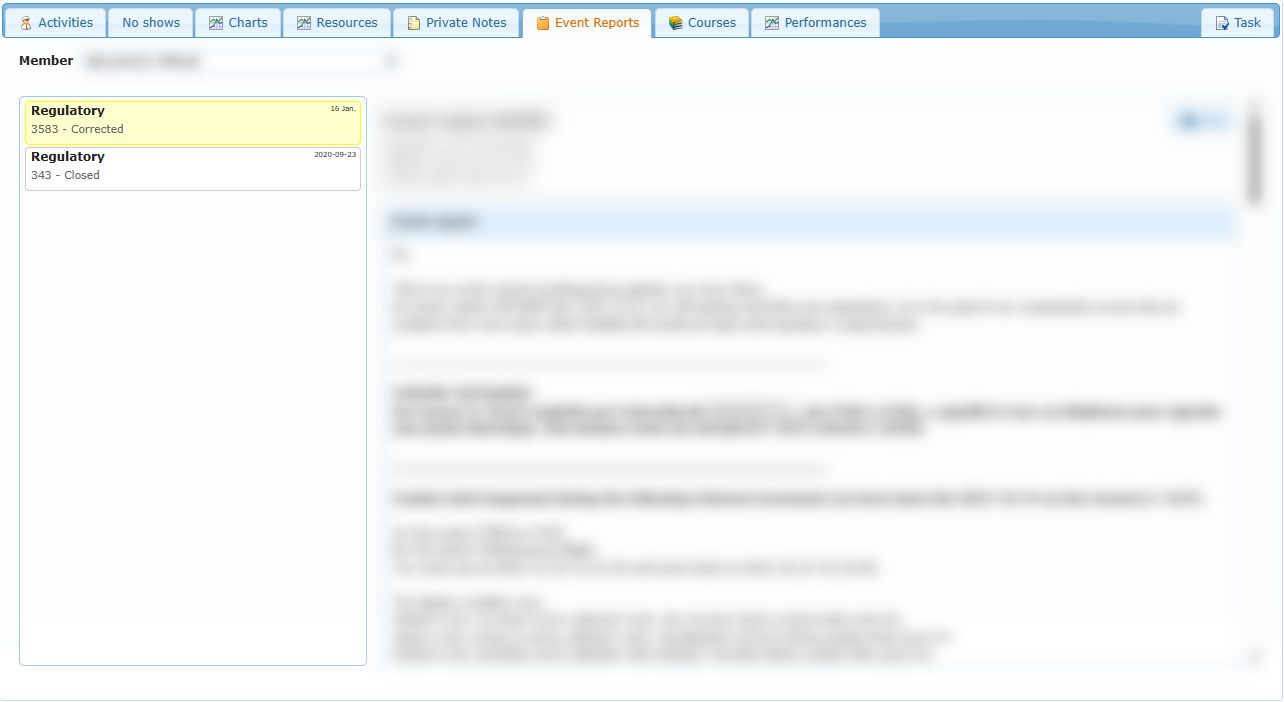
- Choose a member in the tab’s Member selector.
- Select a report from the left list.
- Read the report information on the right.
List statuses mean:
| Status | Meaning |
|---|---|
| Closed | The SMS closure date has been recorded. |
| Corrected | Corrective-action text exists, but the report is not closed. |
| Waiting answer | The report is not closed and no corrective action has yet been recorded. |
The detail can show the regulatory reference, written date and time, activity date, event text, answer, corrective action, occurrence category, subcategory, root cause and closed date. Empty SMS analysis values appear as N/A.
Select Print to open the corrective-action PDF. This printout is the corrective-action document, not a copy of every section displayed in the browser pane. It may state that the plan is not yet approved.