
Published 9 October 2026, Updated 9 October 2026
Click Grid list to open the Schedules grid view, a table of the project’s lessons and the group’s live schedules. It is the fastest way to review a whole course, fill in missing instructors or rooms, and print the timetable.
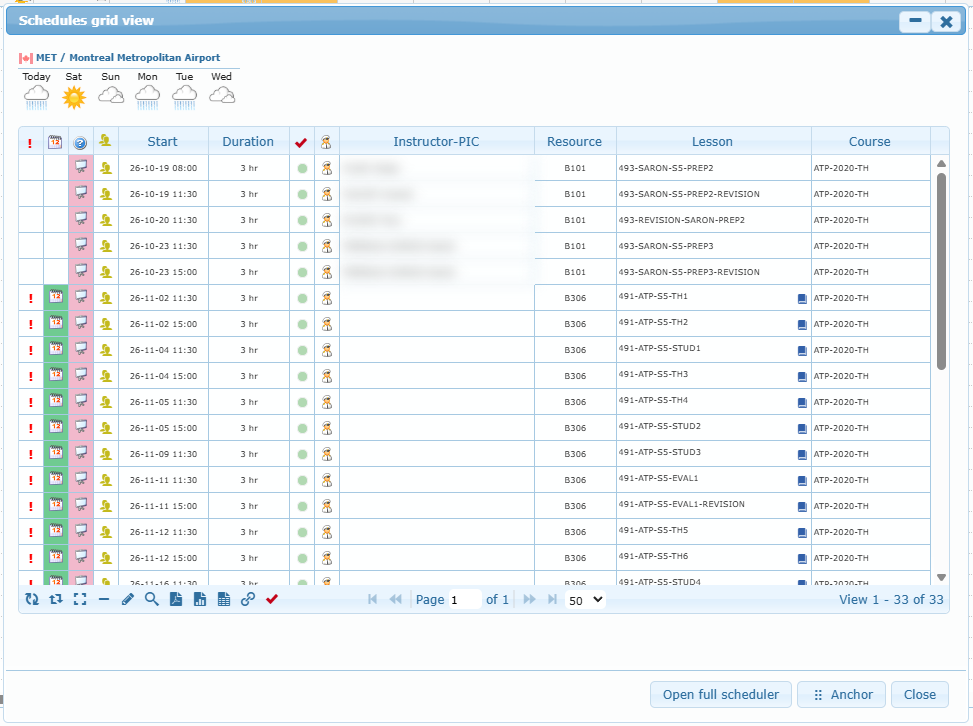
Columns
| Column | Meaning |
|---|---|
| ! (red) | A member or additional participant is unavailable. |
| Calendar icon | Highlighted for project schedules. Filter: From Flight Record (live) or From project. |
| ? (type) | Activity type and colour. You can filter by type. |
| Yellow people icon | The lesson has additional participants. You can filter by it. |
| Start / Duration | Date, time, and length. |
| Red/green check | Instructor competency result (after you run the competency check). Hover over a red mark to see what is missing or expired. |
| Pilot icon | Click to open the list of suitable instructors and assign one. |
| Instructor-PIC | Click to type another instructor. On project rows, the small cross removes the instructor. Past live schedules cannot be changed. |
| Resource | On project rows, click to choose from the rooms free at that time. |
| Lesson | On project rows, click the book icon to swap the lesson. |
| Course | Course of the lesson. You can filter by course. |
Pager buttons
| Icon | Name | Action |
|---|---|---|
| Circular arrows | Refresh | Reloads the table. |
| Two arrows | Display whole visual selection | Shows only the dates currently visible on the calendar. |
| Full-screen | Display whole project data | Shows every date of the project. |
| Minus | Delete Schedule | Project rows are removed immediately. Live rows ask for confirmation. |
| Edit | Modify Schedule | Opens the modify dialog (project rows only). |
| Magnifier | Toggle Search Toolbar | Shows or hides the filters. |
| Print whole list as PDF | Prints the filtered list. | |
| Spreadsheet | Print whole list as EXCEL table | Exports the filtered list. |
| Table | Print whole list as weekly TIMETABLE | Prints a week-by-week timetable, ideal for posting for students. |
| Link | Sync (no bypass) | Synchronizes the selected project row with all checks. |
| Red check | Check Instructor’s competencies of each schedule | Fills the competency column. |
Double-click a row to open its dialog. Double-click the Start cell to jump to that date on the calendar. Anchor docks the grid under the calendar, and Open full scheduler opens the live scheduler.
