Published 9 October 2026, Updated 9 October 2026
Move a lesson
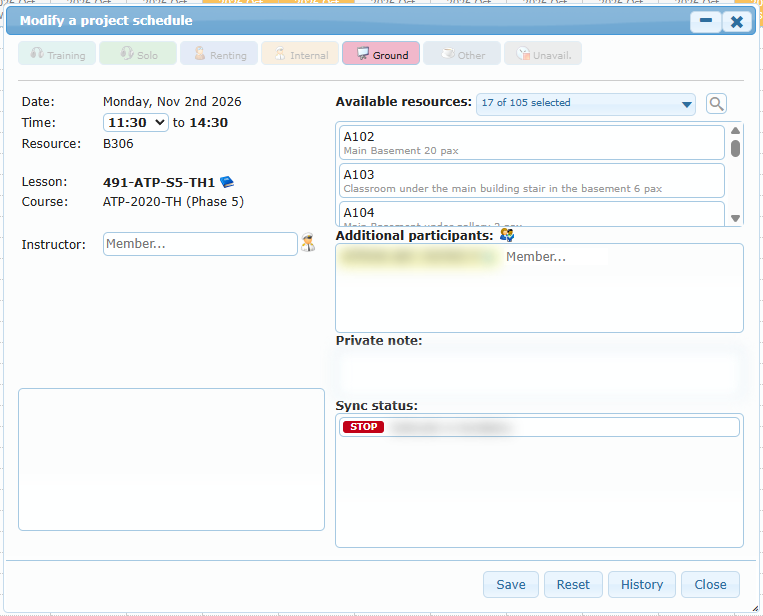
Drag a project box to another day or time. The Modify a project schedule dialog opens with the new date and time and refreshed alerts. Click Save to confirm. If you close the dialog instead, the box returns to its original place.
Modify a lesson
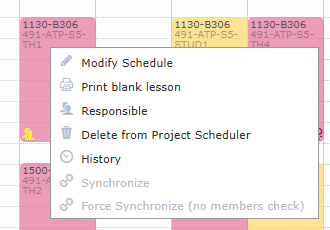
Double-click a project box, or right-click it and choose Modify Schedule. The dialog is the same as when adding. When modifying, you can:
- change the start time, room, instructor, participants, activity type, or private note;
- click the book icon next to the lesson title to swap it for another lesson of the course;
- click History to see who changed what.
Right-click menu of a project schedule
| Menu entry | Action |
|---|---|
| Modify Schedule | Opens the modify dialog. |
| Print blank lesson | Opens the lesson sheet as a PDF. |
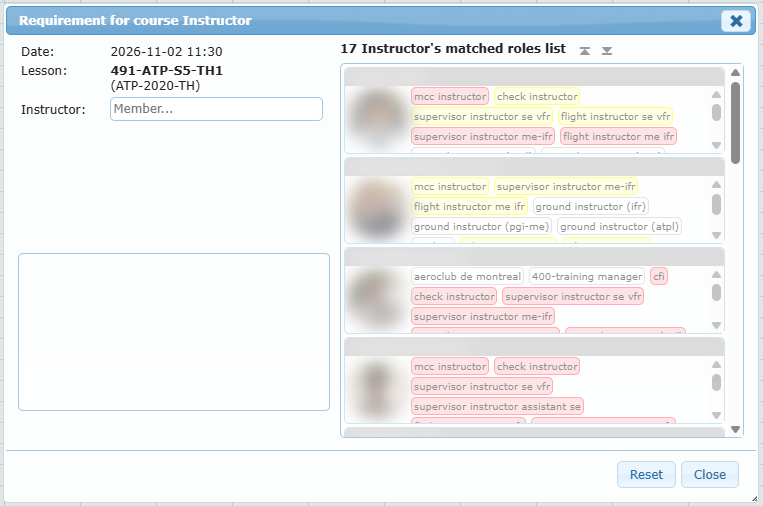
| Responsible | Opens Requirement for course Instructor: the instructor’s competencies and the list of matching instructors. Select another one and click Set selected instructor. |
| Delete from Project Scheduler | Removes the lesson from the project immediately, without confirmation. |
| History | Change history of the lesson. |
| Synchronize | Publishes this lesson alone, with all checks. Disabled while the instructor or resource is missing. |
| Force Synchronize (no members check) | Publishes this lesson without blocking on student or participant unavailability. Use it only when you know the conflict is acceptable. |