
Published 9 October 2026, Updated 9 October 2026
What the Group Scheduler is for
The Group Scheduler is a planning workspace. It lets you build the timetable of a ground course for a whole group, such as a promotion of ATPL or PPL theory students, without immediately booking anything in the live scheduler.
You work inside a project. A project belongs to one student group. Inside a project you:
- Drag lessons from the course syllabus onto a calendar grid.
- Choose a classroom or other resource and an instructor for each lesson.
- Check conflicts with rooms, instructors, students, and other groups.
- Synchronize (publish) the lessons to the live scheduler when the plan is ready.
Until a lesson is synchronized, it exists only in the project. It does not reserve the room or the instructor, and members do not see it in their schedule.
| Term | Meaning |
|---|---|
| Project | A planning file for one student group, for example “ATPL Theory – Fall intake”. |
| Project schedule (not synced) | A lesson placed in the project but not yet published. You can move it freely. |
| Synced schedule | A lesson published to the live scheduler. It now reserves the room and instructor and appears in everyone’s schedule. |
| Live scheduler | The organization’s main scheduler (the full scheduler page). |
| Resource | A classroom, simulator, or other bookable item. |
| Additional participants | Extra members or groups who attend the same lesson. |
Who can use it
The page is available only to staff whose profile includes the Group Scheduler permission. Some options appear only with extra rights:
- Course analytics (in Actions on Group) needs statistics or responsible rights.
- Scheduler (in Actions on Group) appears only when the flight records/live scheduler module is enabled.
- Printing attendance sheets may be limited to schedules within a set number of days, depending on your profile.
Page layout
The page title reads Group Scheduler Projects. Once a project is loaded, the project title, group name, and number of members appear at the top right.
| Tab | Purpose |
|---|---|
| Scheduler | The planning calendar, with the buttons below it. |
| Library | Documents attached to the project (course outline, room plans, and similar files). |
| Dashboard | Project statistics: items to sync, synced items, completion, instructor workload, and room occupancy. |
| Task (right side) | Your task list, the same one used elsewhere in the application. |
Library and Dashboard remain disabled until a project is loaded.
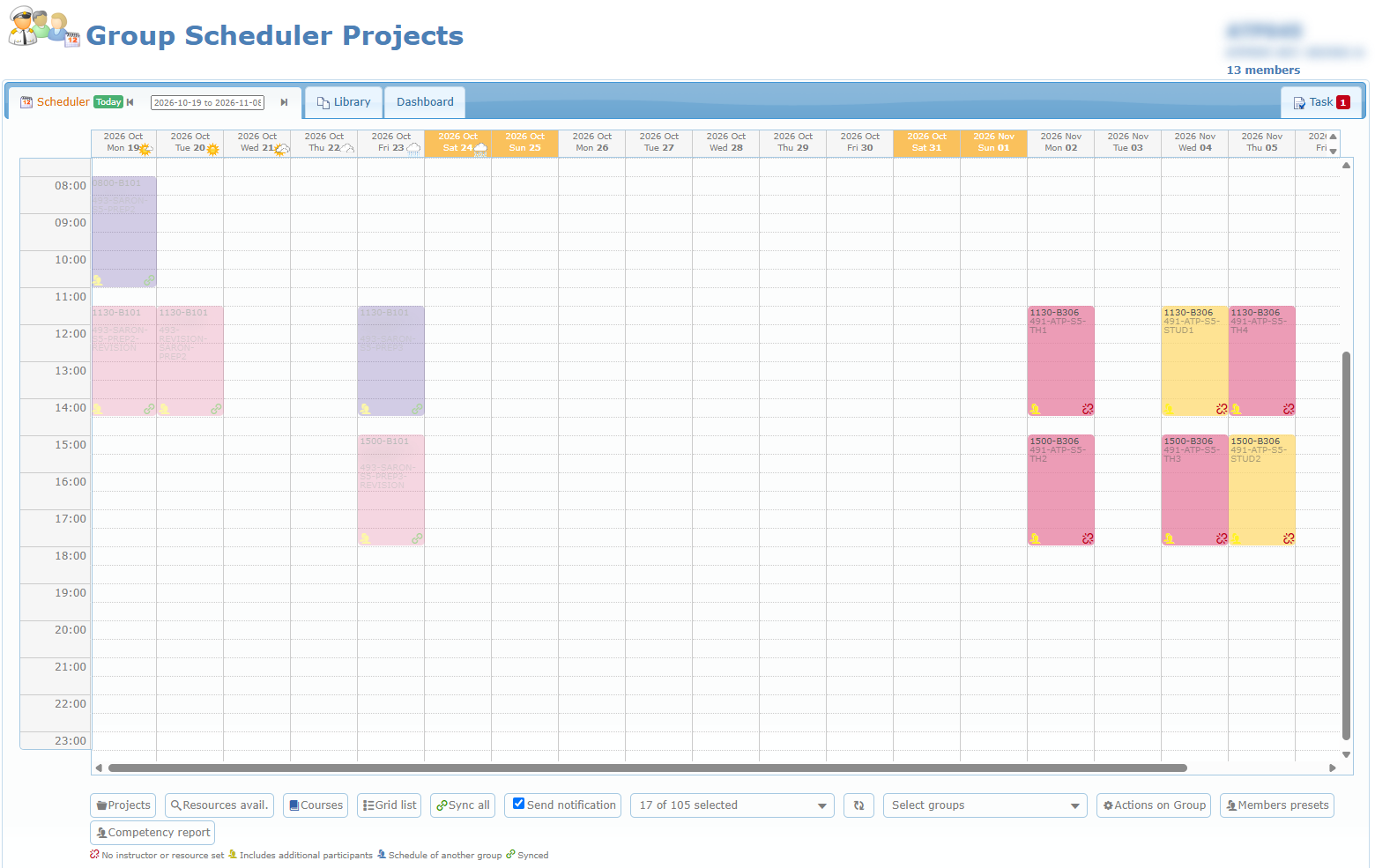
Typical workflow for a ground course
- Open Projects and create or load the group’s project.
- Click Courses, choose the course, and drag each lesson to its date and time.
- In the dialog that opens, choose the activity type, room, and instructor, then Save.
- Use the availability shading and the Grid list to find conflicts and missing instructors or rooms.
- Run Sync all → Simulation to see what would block.
- Fix the problems, then run Sync all → Sync for the period you want to publish.
- Follow progress in the Dashboard.
Articles
- Managing projects
- Reading the scheduler grid
- Planning lessons with drag and drop
- Modifying, moving, and deleting project schedules
- Checking availability
- Working in the Grid list
- Synchronizing with the live scheduler
- Managing synced (live) schedules
- Group tools – actions, presets, and competency report
- Library, Dashboard, and Task tabs
- Troubleshooting