
Published 9 October 2026, Updated 9 October 2026
Courses and Performances each use their own Member selector, independent of the highlighted members on the left. Task is a shared follow-up list.
Courses tab
Courses shows open course registrations assigned to one responsible member. The line above the grid tells you how many open course assignments were found and whether drag and drop is enabled for you.
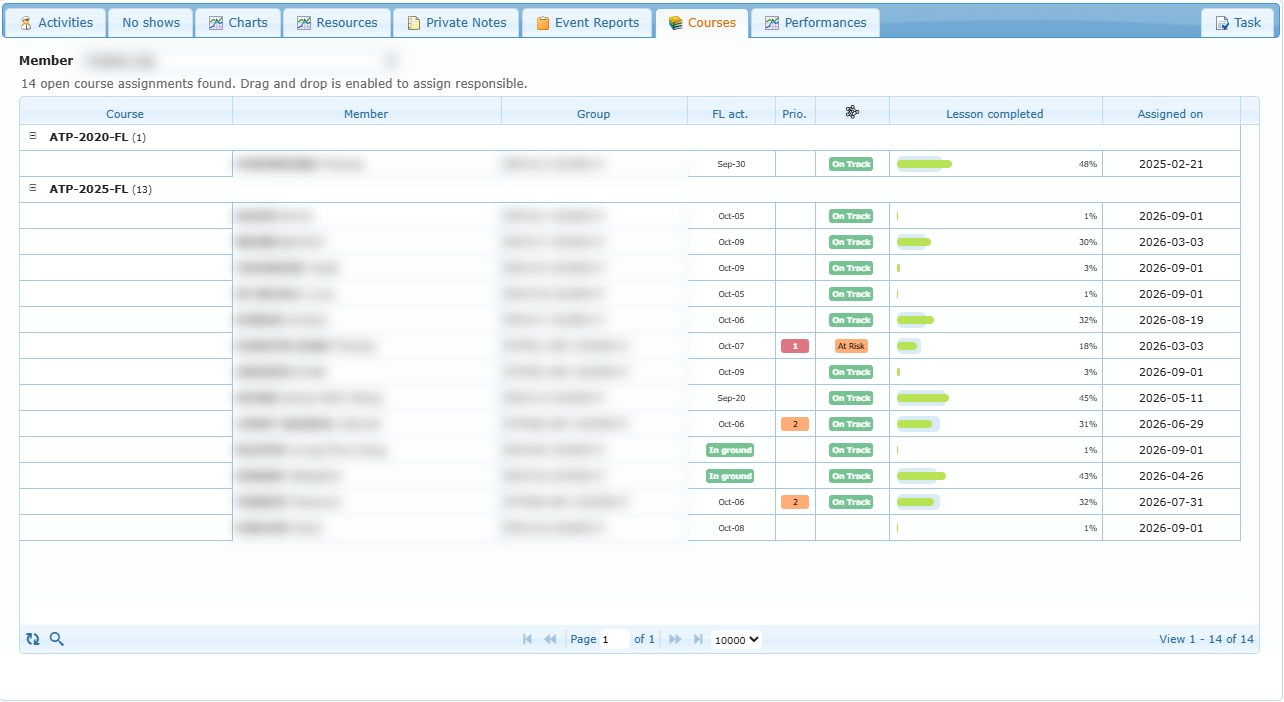
Read the grid
Rows are grouped by course and start expanded. Common columns include:
| Column | Meaning |
|---|---|
| Member | Student assigned to the selected responsible; hover for profile and course context. |
| Group | Student’s current group. |
| FL act. | Current In flight / In ground state, or the date of the latest qualifying flight activity. |
| Prio. | Course priority and who or what set it. |
| AI indicator | Behind, At Risk, On Track or Complete, when AI analysis is enabled and visible to you. |
| Lesson completed | Green bar for the member’s completion percentage. A blue background bar can show the same-course group average. |
| Assigned on | Course-assignment creation date. |
Hover the completion bars to see the member percentage, group average and number of members included. The comparison is progress through course lessons, not a grade.
Search and filter
Select the magnifying glass in the footer to show the filter row. You can filter by course, member, group, assigned-date range, latest flight-activity range, priority and AI state where available. Closing the search toolbar clears its filters.
Course actions
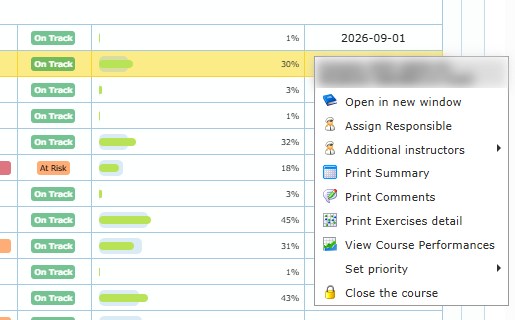
Right-click a course row. Depending on your permissions, actions can include:
| Action | Use it to |
|---|---|
| Open in new window | Open the student’s Training Record for this course. |
| Assign Responsible | Assign, change or remove the responsible member. |
| Additional instructors | Update the additional instructors of the course. |
| Print Summary / Print Comments / Print Exercises detail | Print the corresponding course report. |
| View Course Performances | Open the course performance view. |
| Set priority | Set the course priority shown in the Prio. column. |
| Close the course | Close the course and record a close reason. |
When assignment permission is available, you can also drag a course row onto a member in the left list. Review the confirmation, optionally select Alert by message, and save.
Performances tab
Performances focuses on recommendation outcomes for one member. It is the full-page version of the recommendation drill-down described in Activities and No shows.
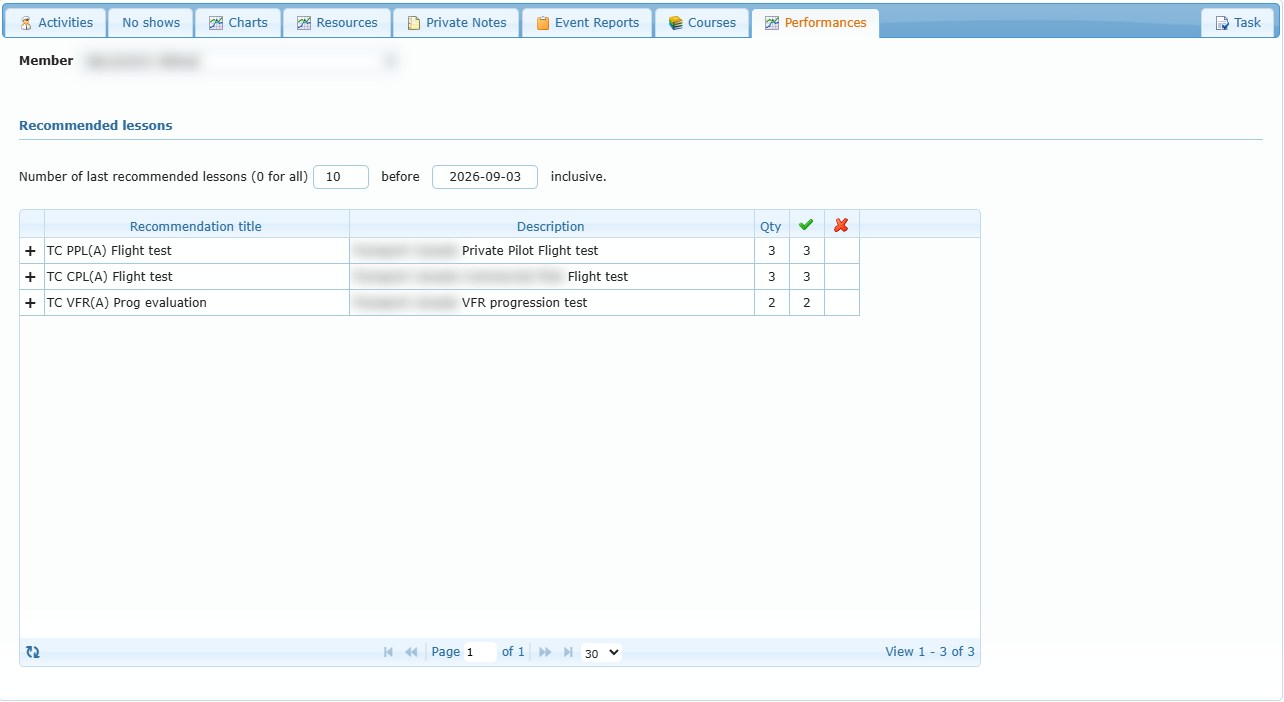
- Choose a member.
- Enter how many recent recommendations to include; 0 means all.
- Choose an inclusive before date.
- Expand a recommendation lesson (+) to view attempts.
- Double-click an attempt to open the corresponding course record.
Use the passed (green check), failed (red cross) and total (Qty) counts together. A recommendation with a low volume should not be interpreted in the same way as one based on many attempts.
Authorized users can mark an attempt unaccountable or restore it, using the same confirmation rules as the Activities recommendation dialog.
Task tab
Task is the shared Responsible analytics follow-up list. It is independent of the current member selection.
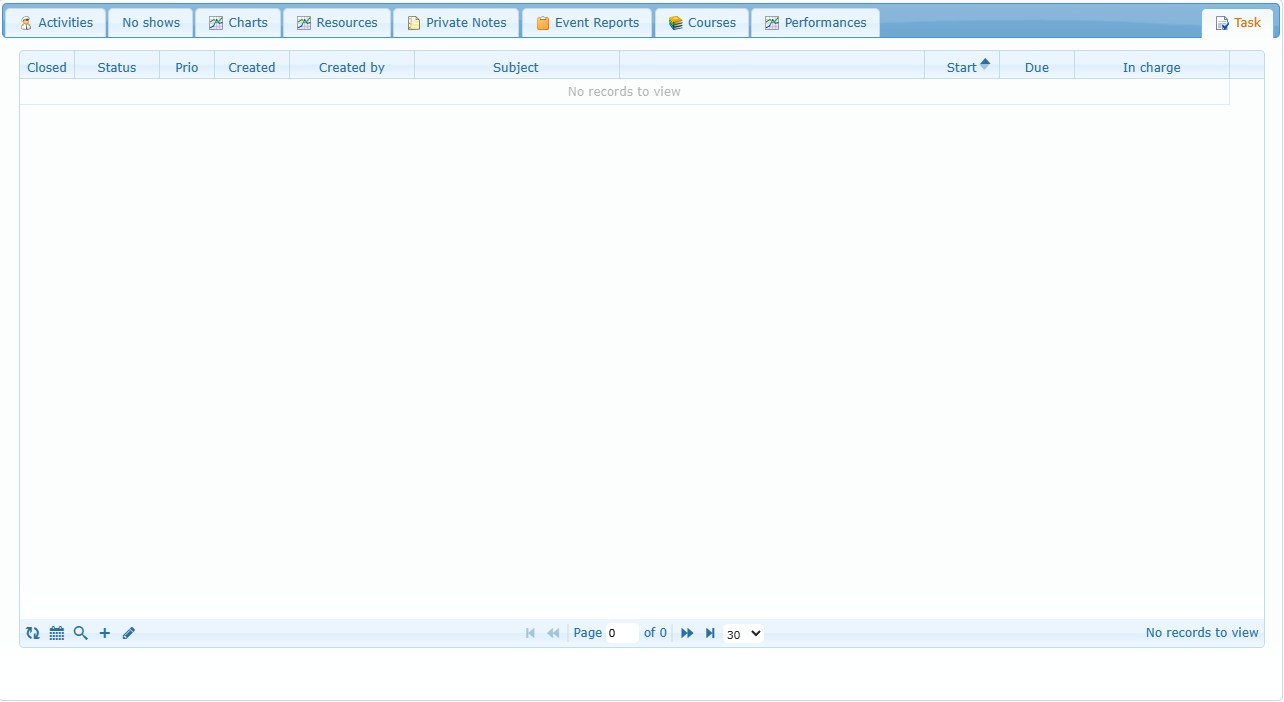
Typical controls are:
- refresh the list
- show or hide search filters
- add a task
- edit the selected task
- double-click a row to open it
- right-click Status, Priority, Closed or In charge for quick changes
The default view focuses on open tasks. If a task disappears, change the Closed filter to All or Closed.
Recurring tasks
After setting a Start date, use the calendar control beside Recurrence to create a daily, weekly, monthly or yearly rule. You can end the series by a date, after a number of occurrences, or leave it without an end date.
Late open occurrences appear in light red. Daily series can combine several missed occurrences into one row marked with a multiplier. Acting on an individual occurrence gives it its own history. To stop a series permanently, remove its recurrence and then close it.
The complete task workflow is described in the Tasks and Task Center chapter.