
Published 10 October 2026, Updated 10 October 2026
All these actions are available from the icons on the card and from the right-click menu of the card. They appear only for the courses of the areas you manage.
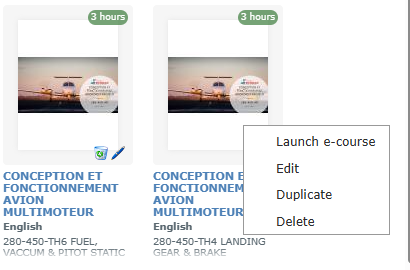
| Menu entry | What it does |
|---|---|
| Launch e-course | Opens the course like a member. |
| Edit | Opens the Modify a Course window. |
| Duplicate | Opens an Add Course window pre-filled with the settings of the course (title followed by “(copy)”, area, language, roles, options). Upload the content, adjust the fields and click Add. Useful to create the French version of an English course, or a new edition. |
| Delete | Deletes the course after confirmation (see below). |
| Un-delete | Shown on inactive courses: reactivates the course. |
Deleting a course
Click the recycle bin on the card (or Delete in the menu). Confirm with Delete in the message “Are you sure you want to delete this course. If it is in use, it will be set as inactive!”. Click Cancel to keep the course.
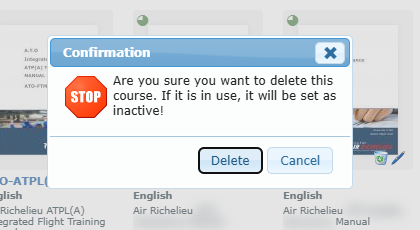
- A course nobody has opened is deleted with its files.
- A course already opened by at least one member is only set as inactive, so the members’ progress history is kept. The message “This project has been used! project has been set as inactive!” confirms it.
Showing and reactivating inactive courses
Switch on Display inactives under the search box. Inactive courses appear with a faded cover and an undo arrow. Click the arrow, or right-click and choose Un-delete, to make the course available again.