
Published 10 October 2026, Updated 10 October 2026
The E-courses Center is the management side of the E-courses page. It lets authorized staff organize courses into course areas, add and update e-courses, choose who can follow them and, when your organization uses it, review every new or modified content before members can see it.
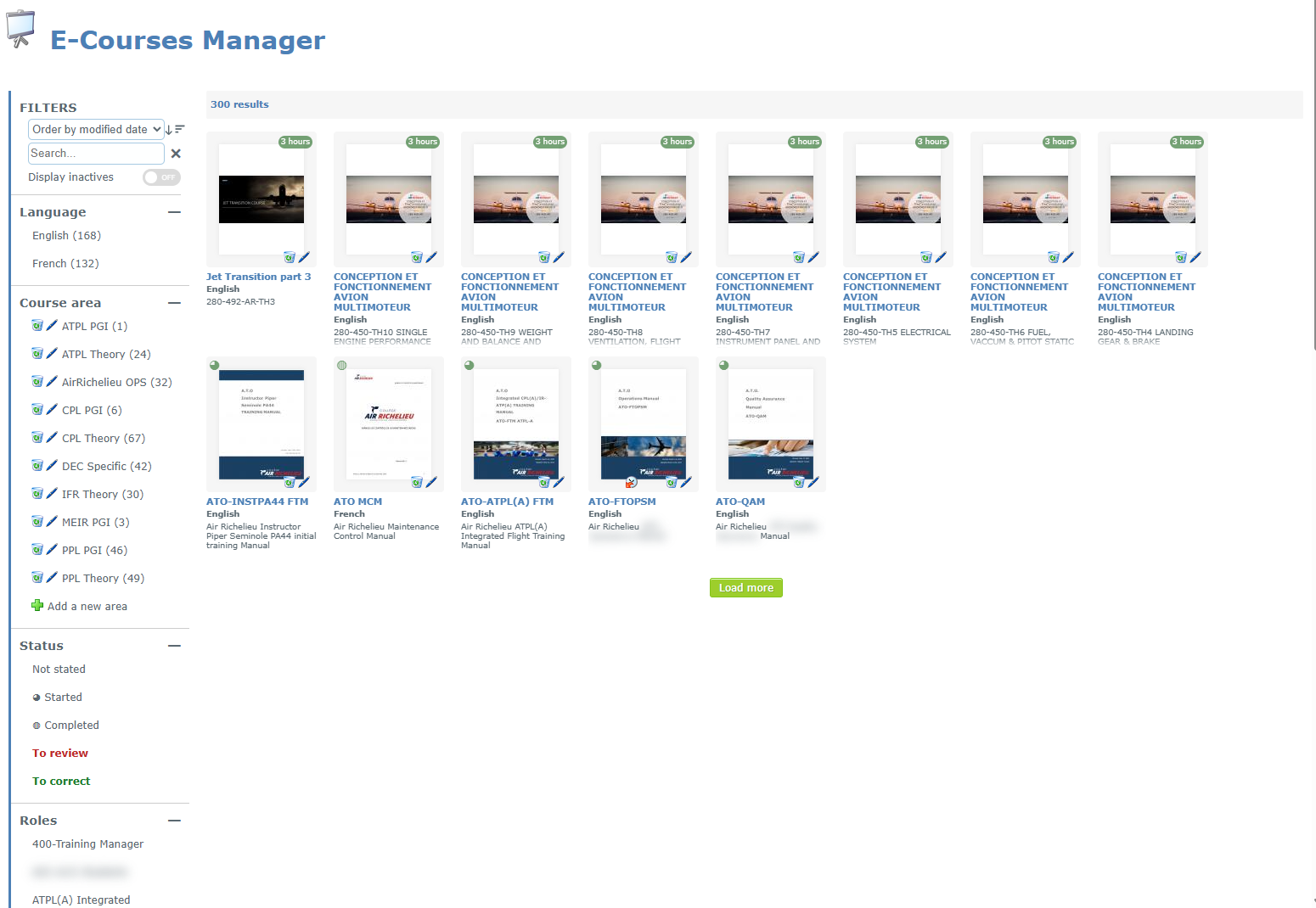
The page is the same as the members’ E-Courses page, but its title reads E-Courses Manager and extra controls appear: edit icons on each card and on each course area, Add a course, Refresh, Advanced view, the Roles filter, the Display inactives switch and the review statuses.
Who can do what
What you see depends on three member credentials (set in the member’s credentials page) and on the course areas you are attached to.
| Credential | What it allows |
|---|---|
| Can manage E-courses | Opens the manager view: all courses (including inactive ones), Add a course, Add a new area, Advanced view, Roles filter. You can modify, duplicate or delete only the courses of the course areas where you are listed as a Responsible. |
| Can review E-courses | Makes you a reviewer: you see the To review and To correct statuses and you can Set as Reviewed, handle correction requests and Restore backup files, for the course areas where you are listed as a Reviewer. Members with this credential receive a message when a course is waiting for review or correction (if your organization enabled these notifications). |
| Can see and launch all E-courses | Shows and opens every e-course, even those not open to your roles. It doesn’t give any editing right. |
Senior administrators are treated as responsible and reviewer of every course area.
Important: being a Responsible or a Reviewer of a course area is not enough on its own. The member must also have the matching credential (Can manage E-courses or Can review E-courses). The course area window reminds you of this.
Icons used in the E-courses Center
| Icon | Where | Meaning |
|---|---|---|
| Blue pen | Course card, course area | Open the course or area in its edit window. |
| Recycle bin | Course card, course area | Delete (or deactivate) the course or area. |
| Undo arrow | Inactive card or area | Reactivate (Un-delete). |
| Rubber stamp | Course card | The course is waiting for review: click to set it as reviewed. |
| Hand | Course card | Correction requests are waiting for this course. |
| Clock with arrow (red) | Course card | Backups of earlier course files exist: click to restore one. |
| Faded cover | Course card | The course is inactive (visible only with Display inactives). |
Articles in this chapter
- Course areas, responsibles and reviewers
- Adding and modifying an e-course
- Deleting, duplicating and reactivating courses
- Reviewing e-courses, corrections and backups
- Advanced view