
Published 22 February 2026, Updated 8 October 2026
This guide explains how operational staff can use the Courses Center page to manage students, courses, attendance sessions, operational indicators, and follow-up tasks in a flight school environment.
This page is organized into tabs:
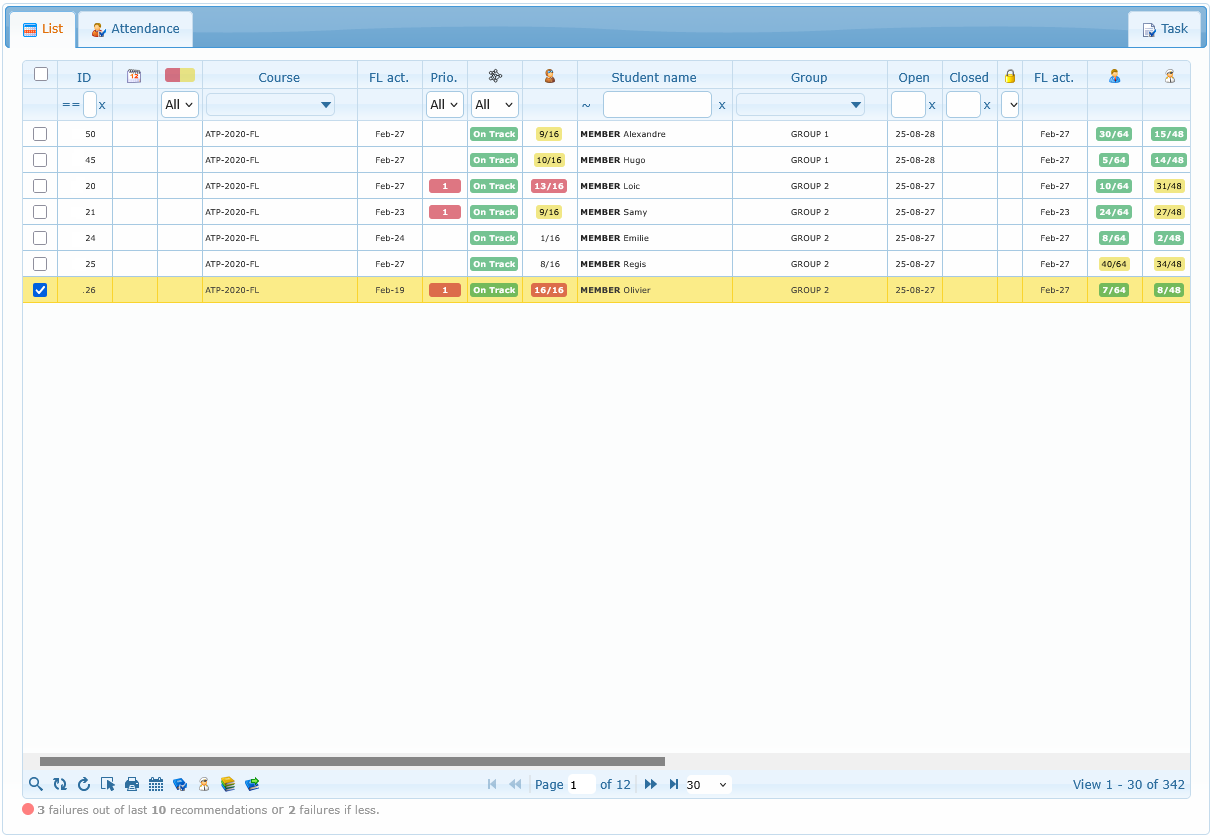
- List
- Attendance
- Dashboard
- Task
Use this document as a practical operations guide. You do not need technical knowledge to follow it. Use Dashboard to prioritize current enrolments and review management trends. Use the Task tab for course-related follow-up; the same task controls are explained in the Tasks and Task Center guide.
The Dashboard loads only when you open its tab. It provides live overview cards, an attention list, charts, and responsible workload. The existing screenshot below predates this additional tab and is retained for reference.
Before You Start
What you can see depends on your permissions. If a button, menu, icon, or full tab is missing, your account role likely does not include that action.
The table below helps you identify role-based visibility quickly.
| Feature area | If your role allows it | If your role does not allow it |
|---|---|---|
| Attendance tab | You see the Attendance tab and can manage session actions | The Attendance tab is hidden |
| Scheduler and Flight Records actions | Scheduler and Flight Records entries appear in menus/toolbars | Those entries are hidden |
| Responsible center tools | You can open Responsible center and assign responsible from course menu | Responsible actions are disabled or hidden |
| Responsible analytics / Course analytics | Analytics launch buttons and selected-members analytics actions are available | Analytics actions are hidden |
| Course control actions | You can set priority, close, and re-open courses | Those actions appear disabled or are hidden |
| Competency quick add list | The Add Competency submenu shows available competencies | Competency list is empty or unavailable |
| No-shows analytics action | All Courses NoShows appears in trainings submenu | No-shows entry is hidden |
| AI status column | AI status filter/column is visible | AI status filter/column is hidden |
| Responsible global rank | Global rank column/icon is visible | Rank-specific indicators are hidden |
| Dashboard tab | You see live operational cards, an attention list, charts, and responsible workload | AI-specific indicators remain hidden unless your role can use AI analysis |
| Task tab | You see the course task area and the task actions your role is allowed to use | The task area or restricted task actions are hidden |
Articles
- List
- Attendance
- Attendance Toolbar
- Understanding Session and Student Rows
- Right-Click Actions in Attendance
- Session Details
- Close Session Workflow
- Common Attendance Blocking Conditions
- How Duration Is Interpreted for Pay and Student Credit
- Set Session Inactive / Reactivate
- Session History and Printing
- Attendance Statistics
- Dashboard
- Operational Best Practices
- Troubleshooting
- Quick Action Checklist