
Published 10 October 2026, Updated 10 October 2026
Testing an e-training
Open the e-training and click Test the project. It opens in a new tab under the test name “Testing”, so you can check the content before members use it.
Deleting an e-training
- Open the e-training and click Delete.
- A confirmation window opens.
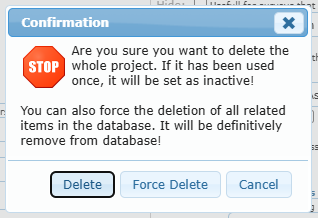
| Button | Result |
|---|---|
| Delete | Deletes the e-training and its files if nobody used it. If it has been used, it is set as inactive instead and the message “This project has been used! project has been set as inactive!” is shown. Members’ results are kept. |
| Force Delete | Deletes the e-training, its files and all members’ results and survey answers. This cannot be undone. |
| Cancel | Closes the window without changes. |
Prefer Delete or Set as inactive: members’ results are often needed as evidence of training.
Deactivating or hiding
- Set as inactive: members no longer see the e-training. It stays in the list in light grey and can be reactivated by unchecking the option and clicking Modify.
- Hide: members don’t see it in their lists, but it can still be launched from a memorandum.