Published 10 October 2026, Updated 10 October 2026
Adding an e-training
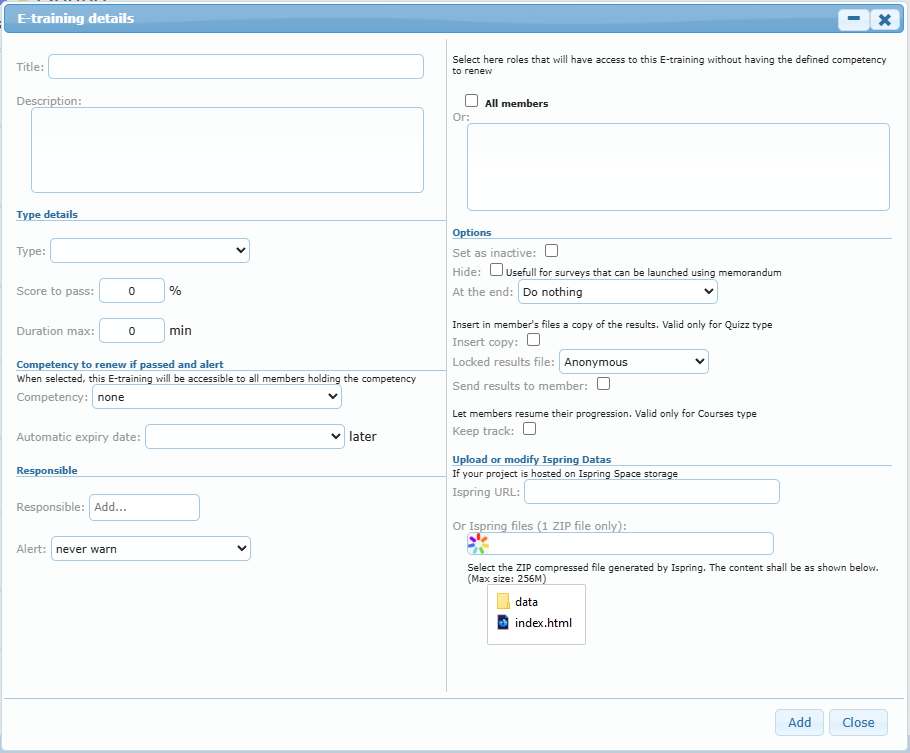
Click Add a project (bottom right of the list).
Fill in the E-training details window (see the option reference below).
Select the iSpring ZIP file, or enter the iSpring URL.
Click Add. The list is refreshed.
Empty E-training details window opened with Add a project, with the Add and Close buttons
Modifying an e-training
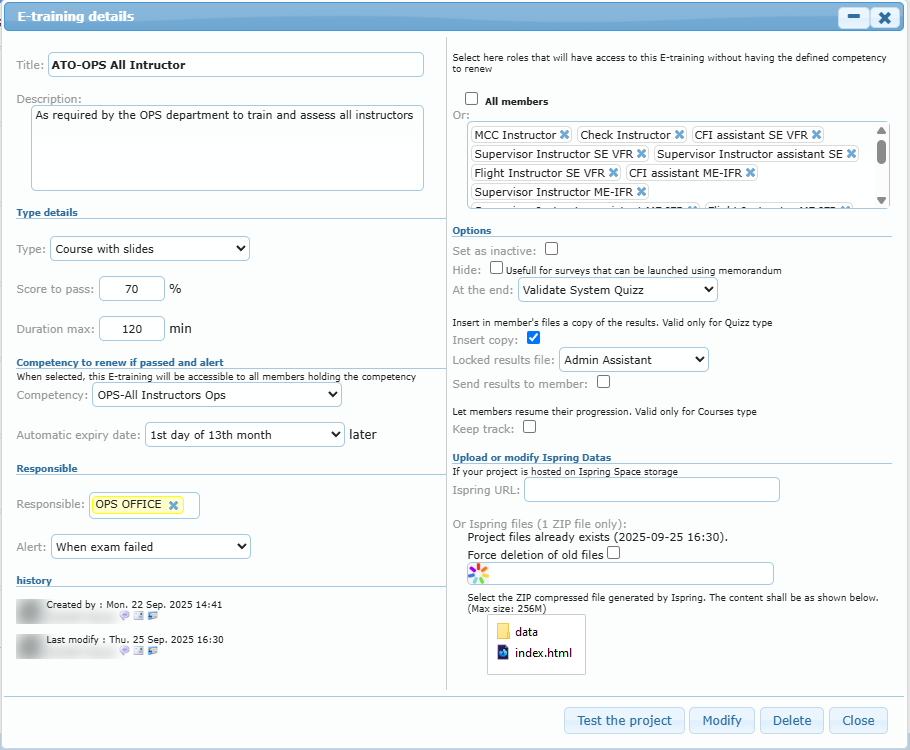
Click the e-training in the list.
Change the fields in the E-training details window.
Click Modify.
The history section at the bottom left shows who created the e-training and who modified it last.
E-training details window of an existing e-training with the Test the project, Modify, Delete and Close buttons
Option reference
Left side: description and rules
Option
What it is used for
Title
Name shown to members. Mandatory.
Description
Short text shown under the title.
Type
Course with slides, Evaluation Quizz, Course and quizz or Survey. It sets the icon and label members see.
Score to pass
Minimum score in % (0 to 100). 0 means finishing is enough.
Duration max
Maximum time in minutes, shown to members. 0 means no limit shown.
Competency
Competency added or renewed when the member passes. See Linking an e-training to a competency.
Automatic expiry date
How the new expiry date of the competency is calculated: 30 days, 60 days (the date is calculated as 90 days later, and members see “90 days”), 180 days, 1, 2, 3 or 6 months, 1 year, or the 1st day of the 7th, 13th, 25th, 37th or 61st month. “none” sets no expiry date.
Responsible
Member who receives an email about results. Type at least 2 letters and pick the member.
Alert
When the responsible is warned: never warn, When exam passed, When exam failed, when failed or passed.
Right side: access and options
Option
What it is used for
All members
Opens the e-training to every member. Use it only when no roles are selected.
Or: (roles box)
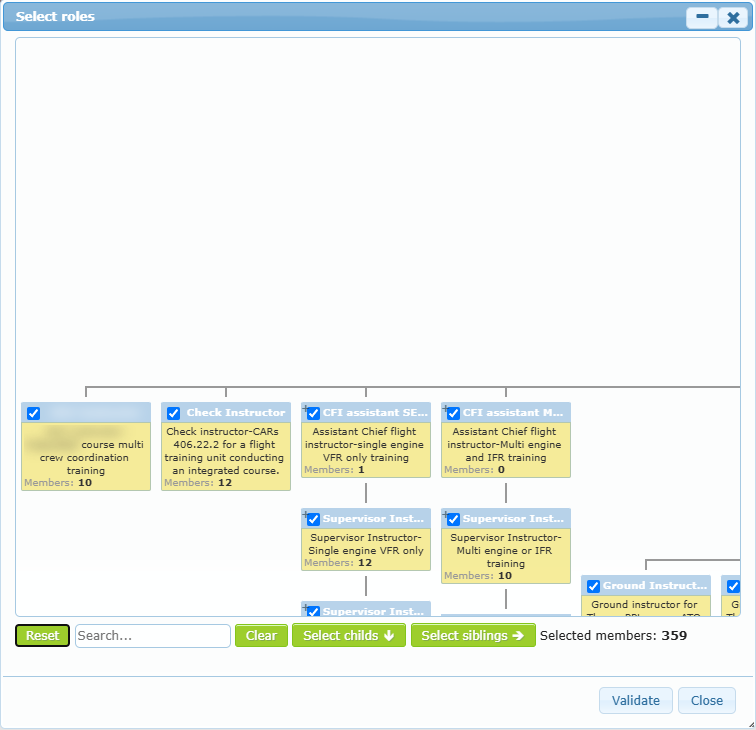
Click the box to choose roles in the organization chart. Members of these roles can follow the e-training even without holding the competency.
Set as inactive
Removes the e-training from members’ lists without deleting it.
Hide
Hides the e-training from members’ lists. Useful for surveys launched from a memorandum.
At the end
Do nothing, Validate System Quizz (records the result as an e-training, with competency renewal) or Validate System Memoranda (marks the memorandum that launched it as read and saves the answers).
Insert copy
Saves a copy of the results in the member’s files. Valid for quizzes.
Locked results file
Level a person needs to open that copy in the member’s files.
Send results to member
Marks the results to be sent to the member. Ask your administrator whether this is active for your organization.
Keep track
Lets members leave a course and resume at the last slide. Valid for course types.
Select roles window (organization chart) with search, Clear, Select childs and Select siblings, and the number of selected members
Upload or modify iSpring data
Option
What it is used for
Ispring URL
Address of the e-training when it is hosted on iSpring Space. Members open it in a new tab.
Or Ispring files (1 ZIP file only)
Click the field to select the ZIP exported by iSpring. At its root, the ZIP must contain the data folder and the index.html file, as shown in the window. The maximum size is shown under the field.
Force deletion of old files
Shown when files already exist. Check it to replace the existing content with the new ZIP. Without it, the new ZIP is ignored on modification.
To send results back to AirSupervision, the iSpring project must be configured with the results address shown at the top of the E-training Manager page.
Messages you may see
Message
Cause and solution
Title is mandatory!
Enter a title.
Type of project not valid!
Choose a type.
file is not a ZIP file!
Select the ZIP exported by iSpring, not a folder or another file.
File error!
The ZIP could not be opened or does not contain index.html at its root. Export again from iSpring and retry.
Responsible does not exists!
Remove the responsible and pick the member again from the suggestions.
Project does not exists!
The e-training was deleted meanwhile. Reload the page.