
Published 8 February 2023, Updated 9 October 2026
Every member has a profile page that brings together their identity, training, competencies, files and history. This chapter explains how organization staff use that page to manage a member. The sub-chapters describe the main management tasks in detail.
Open a member’s profile
- Click the member’s name or photo anywhere in the portal (lists, scheduler, flight records, tooltips), then click See profile.
- From the Members Center page, double-click a member or use the right-click menu.
- To open your own profile, use your name in the main menu.
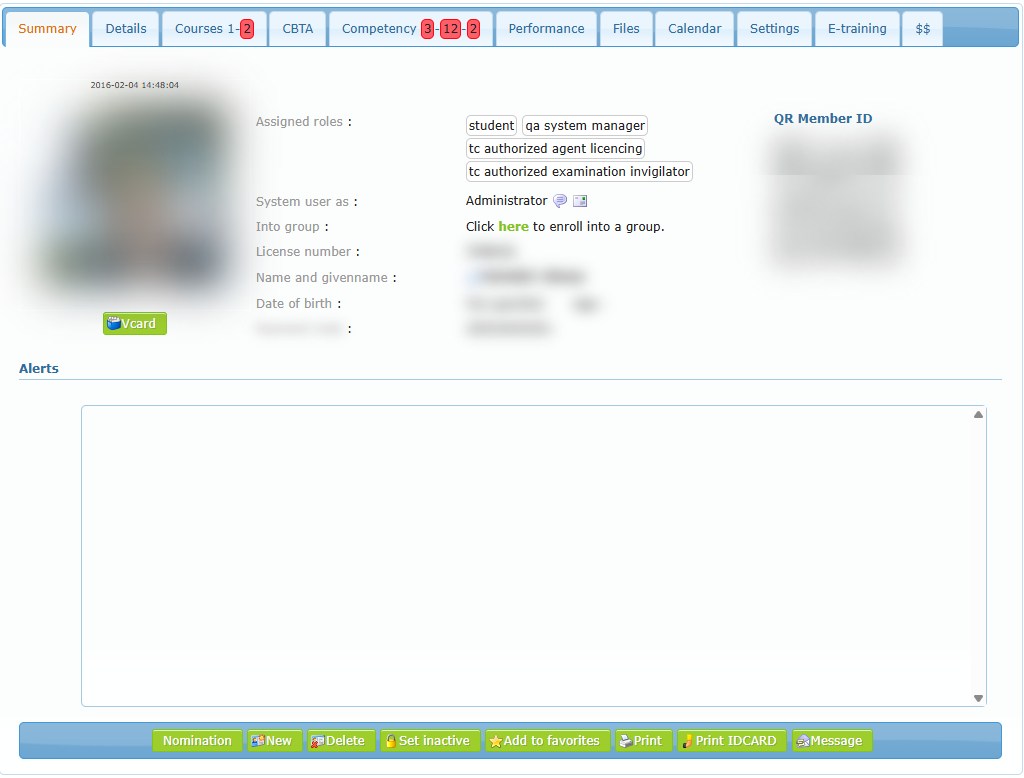
Profile tabs used by staff
The tabs shown depend on your credentials and on the modules activated for your organization.
| Tab | What staff use it for |
|---|---|
| Summary | Overview of the member: photo, assigned roles, level of power, group, licence number, alerts, and the action buttons (Nomination, New, Delete, Set inactive / Set active, Add to favorites, Print, Print IDCARD, Message). |
| Details | Identity, contact details, addresses, licences and other registered information. Use Modify to update them. Some fields are visible only with the credential to see sensitive information. |
| Courses | Courses the member is enrolled in, with their progress. |
| CBTA | Competency-based training and assessment results, when available. |
| Competency | Roles, competencies and duties attached to the member, with their validity dates. |
| Performance | Performance indicators and statistics related to the member. |
| Files | Personal files and folders attached to the member. Locked files require additional credentials. |
| Calendar | The member’s planned activities. |
| Notes | Internal notes about the member, written by staff. Notes can be locked so that only members of a sufficient level can read them. Not shown on your own profile. |
| Settings | Your personal preferences. Visible only on your own profile. |
| E-training | E-trainings assigned to the member and their results, when the module is active. |
The general content of each tab is also described in General knowledge > Profile details.
Management tasks
| Task | Sub-chapter |
|---|---|
| Register a new member or prospect | Add a member |
| Attach a member to a group or cohort | Member group |
| Give organization email addresses | Complementary emails |
| Stop access or remove a member | Disabling a member |
Good practices
- Check that the member does not already exist before adding a new one: names, licence number and primary email address must be unique.
- Keep the primary email personal to the member: it is used for login and password recovery.
- Prefer Set inactive to Delete when the member has a history in the system.
- Who can access a member’s profile, and what they may change, is controlled by credentials. Managers will find these settings in Managers > Members > Setting member credentials.