
Published 28 October 2026, Updated 28 October 2026
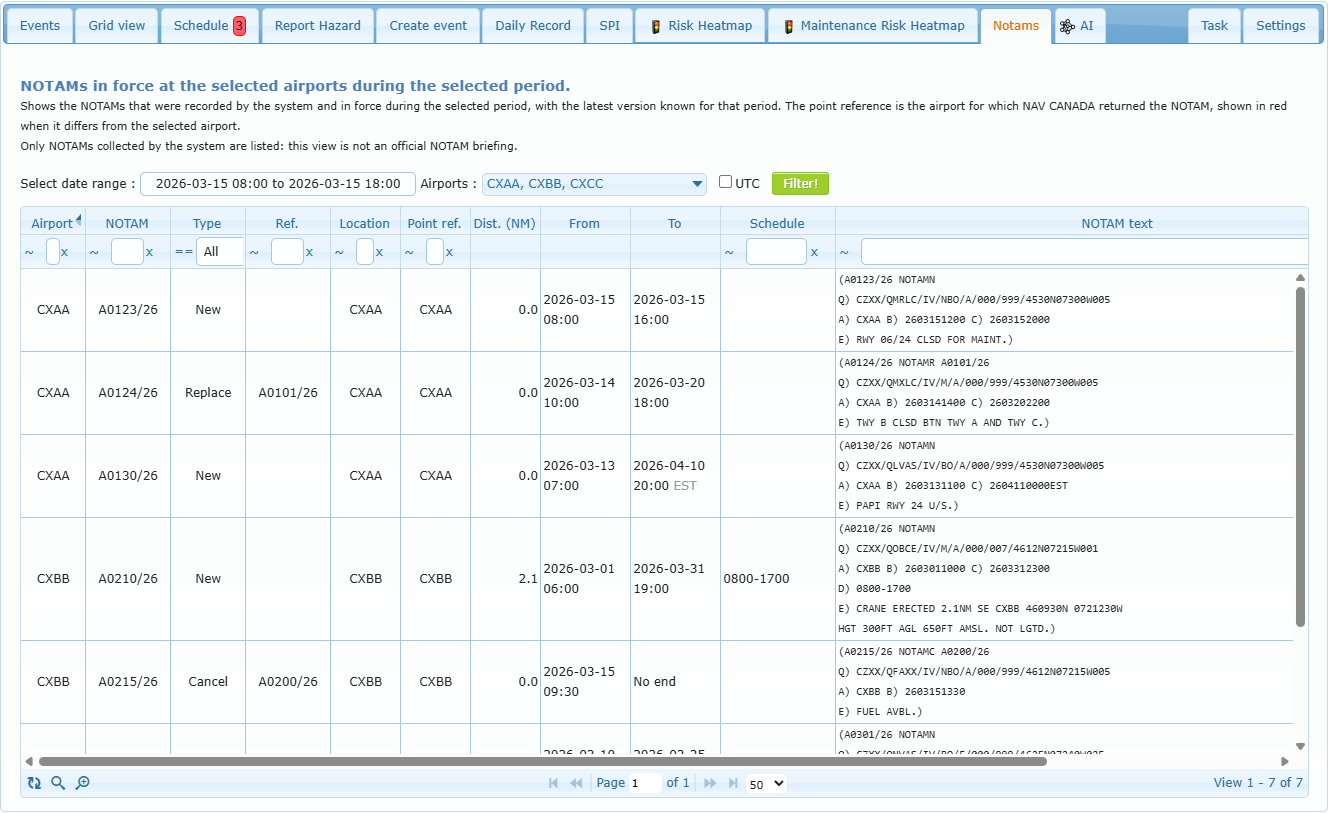
The Notams tab lists the NOTAMs (Notices to Air Missions) that were in force at one or more airports during a period you choose, as they were recorded by the system. Use it during an investigation to check what was published for an airport at the time of an event: closed runway or taxiway, unserviceable navigation aid or lighting, obstacle, airspace restriction, reduced services…
The tab appears when your organization uses the flight record, for the members who can see the Maintenance Risk Heatmap tab. The first time you open it, the list loads automatically for today and for all the airports followed by your organization.
Where the NOTAMs come from
The NOTAMs are collected automatically by AirSupervision; nobody has to enter them.
| Question | Answer |
|---|---|
| Source | NAV CANADA, through its public flight planning website (CFPS, the Collaborative Flight Planning Services). The English version of each NOTAM is used. |
| Which airports | The airports followed by your organization, chosen by your administrator (usually your main and secondary airports). An airport removed from this list stays in the Airports list of the tab, unticked, so that its history can still be consulted. |
| How often | About once an hour, around the clock. The frequency is set by your administrator. |
| How it is fetched | At each collection, the AirSupervision server sends one request to NAV CANADA for all the followed airports at once, over a secure connection, and receives the list of NOTAMs currently published for them. |
How each collection is processed:
- Sorting by airport. NAV CANADA tells, for each NOTAM, the airport it was attached to (the Point ref. column) and the distance from it (Dist. (NM)). The system uses this to file each NOTAM under the right airport. A NOTAM published for several followed airports is kept for each of them. If a NOTAM cannot be attributed to one of the followed airports, the whole collection is set aside and nothing is changed; the next collection tries again.
- Comparison with what is already known. The new list of each airport is compared with the NOTAMs already recorded: a NOTAM that was not known yet is recorded, with the time of the collection in Recorded; a NOTAM whose text or validity changed is recorded as a new version, and the previous version gets a Removed time; a NOTAM that NAV CANADA no longer publishes (cancelled, expired or replaced) gets a Removed time; a NOTAM that did not change is left as it is.
- Reading the NOTAM text. From the text of each new version, the system reads the NOTAM number, its type (New, Replace or Cancel) and the NOTAM it replaces or cancels, the Q) line (region, subject, levels and area), the real start (B), which can be later than the issue time), the estimated end (C) … EST) and the active hours (D), shown in Schedule).
Because nothing is ever overwritten, the system can show which NOTAMs were in force at any past moment since it started following an airport. Old versions are kept for as long as your administrator decides.
What this means for you:
- The validity dates published by NAV CANADA are in UTC; the Recorded and Removed times are the times of the collections. Tick UTC or hover over a date to see the other time zone.
- A NOTAM published and cancelled between two collections (less than about an hour) may be missing.
- If NAV CANADA cannot be reached, that collection is skipped and the list keeps the last known state until the next successful collection.
Choose the period and the airports
- Click Select date range. Choose a start and an end date with their times, or click a predefined range (Now, Today, Yesterday, Tomorrow, Last 7 Days, Next 7 Days, This Month, Last Month), then click Apply.
- Open Airports and tick one or more airports. Use the search box to find an airport quickly, and All / None to tick or untick them all. The list contains the airports followed by your organization (ticked by default) and the airports that were followed in the past (not ticked).
- Tick UTC to enter and show all dates and times in UTC (marked Z). Leave it unticked to use the local time.
- Click Filter!. The button appears again as soon as you change the period, the airports or the UTC box, to remind you that the list does not match your choices yet.
To check one precise moment, choose the same day as start and end and set the times around the moment you are interested in (for example 14:25 to 14:35), or click Now for the current moment.
Which NOTAMs are listed
A NOTAM is listed when both conditions are met:
- The system knew it during the period: it was received before the end of the period and was not removed or replaced before its start.
- It was in force during the period: it starts before the end of the period, and it ends after the start of the period or has no end.
Each NOTAM appears once, with the latest version known during the period. When a NOTAM was modified during the period, the line shows its latest text; the Recorded and Removed columns tell you when this version was received and when it was removed or replaced.
Read the list
| Column | Meaning |
|---|---|
| Airport | The airport for which the NOTAM was collected. |
| NOTAM | NOTAM number (for example A1234/26). |
| Type | New, Replace (replaces the NOTAM shown in Ref.) or Cancel (cancels the NOTAM shown in Ref.). |
| Ref. | The NOTAM that is replaced or cancelled. |
| Location | The location indicator written in the NOTAM. It can be a flight information region rather than the airport itself. |
| Point ref. | The airport to which NAV CANADA attached the NOTAM. It is shown in red when it differs from the Airport column. |
| Dist. (NM) | Distance from that airport, in nautical miles, given by NAV CANADA. |
| From / To | Start and end of validity. No end means that no end is published. EST means that the end is an estimate and may be extended or cancelled by another NOTAM. |
| Schedule | Active hours, when the NOTAM is active only at certain times (for example 0200-0400). |
| NOTAM text | The full text of the NOTAM. |
| Recorded / Removed | When the system received this version of the NOTAM, and when it disappeared or was replaced. Empty Removed: still current. |
Hover over a date to see it in the other time zone (local time or UTC). The Point ref., Dist. (NM) and Schedule columns are hidden when this information is not available on your installation.
Search, sort and view a NOTAM
- Search toolbar (under the column titles): type a text under Airport, NOTAM, Ref., Location, Point ref., Schedule or NOTAM text, or choose a value in the Type list. The small symbol in front of each box chooses how the text is compared (contains, equals, begins with, does not contain…). The search applies to the period and airports already chosen.
- Sort: click a column title; click it again to reverse the order. By default the list is sorted by airport, then by start date, the most recent first.
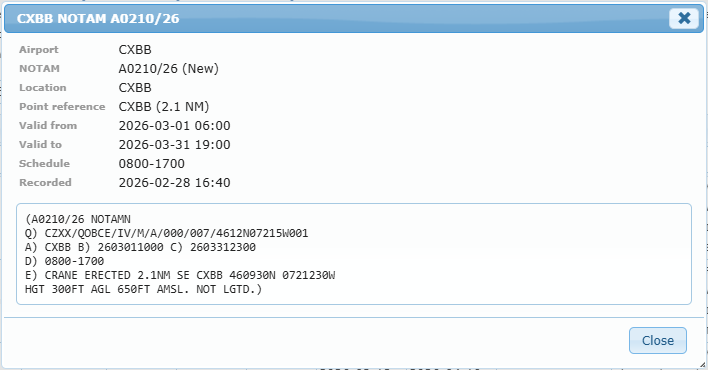
- View a NOTAM: double-click a line, or select it and click the View the selected NOTAM icon (magnifier with a plus) at the bottom left. A window shows the airport, number, type, location, point of reference, validity, schedule, recording dates and the full text.
- At the bottom left, Reload Grid (circular arrows) reloads the list and Toggle Search Toolbar (magnifier) shows or hides the search boxes. At the bottom right, choose the number of lines per page (20 to 500).
Messages and empty list
| What you see | Why | What to do |
|---|---|---|
| Select at least one airport! | No airport is ticked. | Tick at least one airport, then click Filter!. |
| An empty list | No NOTAM recorded by the system matches the airports and the period. | Widen the period or tick other airports. The system only knows the NOTAMs collected since it started following each airport. |
| NOTAMs are not available: the NOTAM tables are not installed. | NOTAM collection is not set up for your organization. | Contact your administrator. |
| Unable to load the NOTAMs! | The list could not be loaded. | Click Reload Grid; if the problem continues, reload the page or contact your administrator. |
Use it responsibly
This list is not an official NOTAM briefing. It contains only the NOTAMs collected by the system for the airports followed by your organization, at regular intervals: a NOTAM published and cancelled between two collections may be missing. Use it to document an investigation or a safety review; for flight planning, always use the official NOTAM sources.
Practical example: a runway excursion is reported at your home airport on a given day at about 14:30 local time. In the Notams tab, choose that day from 14:00 to 15:00, tick only that airport and click Filter!. Type RWY under NOTAM text to keep the runway NOTAMs, double-click a NOTAM to read it, and quote its number in the Notes or the root cause analysis of the event report.