
Published 4 October 2026, Updated 9 October 2026
What this page is for
Responsible analytics is a comparison and investigation page. Use it to answer questions such as:
- Who has been active recently?
- Who has upcoming or past scheduled activities?
- Which members are responsible for open courses?
- Are recommendation results improving or declining?
- Which no-show or cancellation reasons recur?
- Which private notes or event reports require follow-up?
- Which courses and tasks currently belong to a responsible member?
The page remembers much of your display state, including filters, selections, tab, dates, expanded sections and grid settings. When you return, first check that the restored filters and date ranges still match the work you intend to do.
Understand the page layout
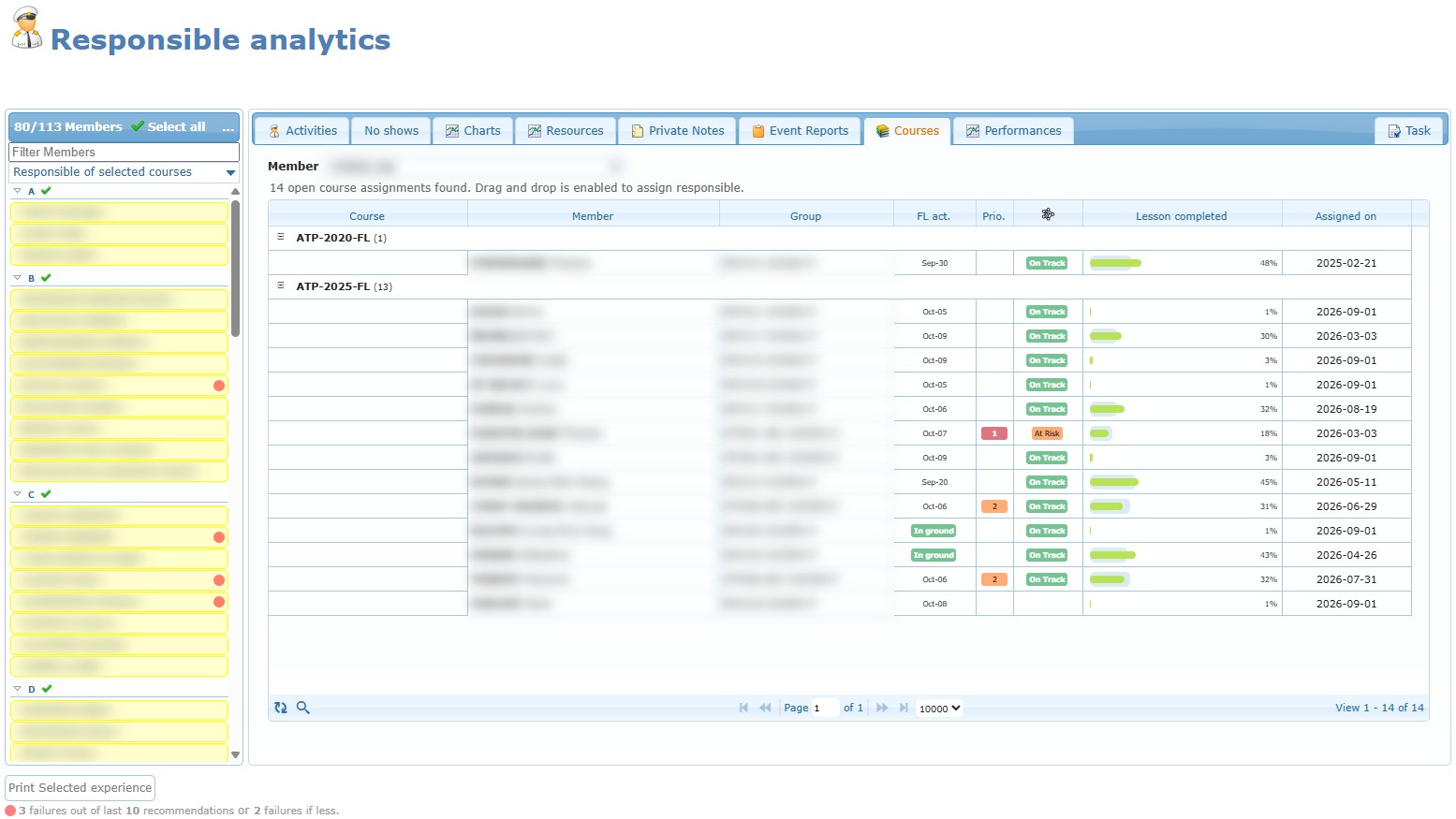
The page has three main zones:
- Members, on the left, is where you search, filter, order and select people.
- The tab workspace, on the right, contains Activities, No shows, Charts, Resources, Private Notes, Event Reports, Courses, Performances and Task.
- Print Selected experience and the recommendation follow-up legend appear below the workspace.
There is no tab literally named Dashboard on this page. The dashboard-style information is divided between Charts, which combines selected-member charts with two organization-wide recommendation trends, and Resources, which shows organization-level resource and instructor-allocation statistics.
The tabs are explained in four sub-articles:
| Sub-article | Tabs |
|---|---|
| Activities and No shows | Activities, No shows |
| Charts and Resources | Charts, Resources |
| Private Notes and Event Reports | Private Notes, Event Reports |
| Courses, Performances and Task | Courses, Performances, Task |
Find and filter members
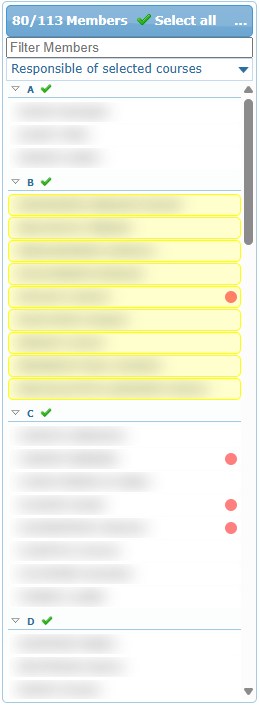
The number beside Members tells you how many entries are currently visible. When filters hide part of the list, the counter shows the visible number compared with the total.
Name filter
Type in Filter Members to narrow the list by member name. Clear the field to restore the other matching members.
Course-responsibility filter
The course selector below the name filter finds members who are responsible for one or more selected open courses. You can choose several courses. Use All or None inside the selector to change the complete selection quickly.
More options menu
Select the … button to open the complete filter and ordering menu.
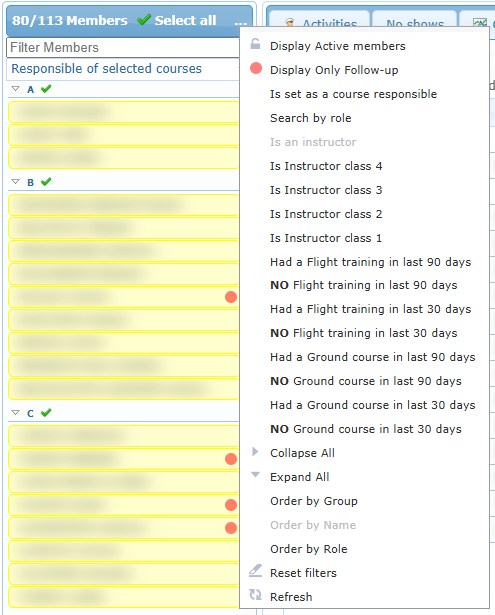
| Choice | What it does |
|---|---|
| Display Active/Inactive members | Changes whether inactive accounts are included. Read the menu wording carefully: it offers the state you can switch to. |
| Display Only Follow-up | Keeps members marked by the recommendation follow-up rules. The red follow-up mark identifies these members. |
| Is set as a course responsible | Keeps members currently responsible for at least one open course. |
| Search by role | Opens a searchable checklist. A member is kept when at least one selected role matches. |
| Is an instructor / Is Instructor class 1–4 | Keeps instructors, optionally at the selected highest recorded class. |
| Had / NO Flight training in last 30 or 90 days | Filters by recent qualifying flight-training activity. |
| Had / NO Ground course in last 30 or 90 days | Filters by recent ground-course activity. |
| Collapse All / Expand All | Closes or opens the member-list headings. |
| Order by Group | Groups members under their main organization group. |
| Order by Name | Lists members alphabetically. |
| Order by Role | Groups members under roles. A person with several roles can appear under more than one heading. |
| Reset filters | Clears the text, course, role, instructor-class, activity and responsibility filters and restores the normal display state. |
| Refresh | Reloads the member information from the system. |
Filters can be combined. If the list becomes unexpectedly empty, use Reset filters, then apply the filters again from broadest to narrowest.
Select members correctly
The comparison tabs use the highlighted members from the left column.
- Click one member to replace the previous selection.
- Hold Ctrl while clicking to add or remove members from a multi-selection.
- Select Select all to select every currently visible member.
- Select the check icon on a group, letter or role heading to select the visible members in that section.
Select all means all visible members, not every member hidden by filters. This makes it useful for building a comparison from a carefully filtered population.
Changing the selection refreshes the active comparison tab. Activities, No shows and the first four Charts depend on this selection. Other tabs use a different scope:
| Area | Uses highlighted left-side members? |
|---|---|
| Activities | Yes |
| No shows | Yes |
| Charts 1–4 | Yes |
| Charts 5–6 | No; organization-wide recommendation trends |
| Resources | No; organization-wide data |
| Private Notes | Organization-wide summary; actions can use selected members |
| Event Reports | Uses its own Member selector |
| Courses | Uses its own Member selector |
| Performances | Uses its own Member selector |
| Task | No; shared Responsible analytics tasks |
Useful double-click shortcut
Double-click a member card when you want to investigate that person. The page selects that member for Private Notes, Event Reports, Courses and Performances, while also keeping the normal comparison selection behavior.
Use the member right-click menu
Right-click a member card, portrait or supported member name to open the shared member menu. Depending on your permissions and the member’s information, it can provide profile, course, communication, scheduling, files, qualifications and page-specific actions. The top of the menu summarizes the member’s first flight training date and recent flight and ground activity.
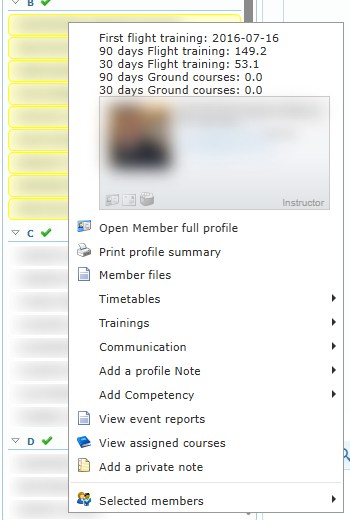
Responsible analytics adds these actions:
- View event reports opens Event Reports for that person and opens the newest report.
- View assigned courses opens Courses for that responsible member.
- Add a private note opens that member’s private-note thread.
When several members are selected, Selected members can provide bulk private note, system email, external email, internal normal or blind-copy message, SMS, scheduler and week-calendar actions. Options appear only when the required contact details and permissions are available.
Always review the recipients before sending a bulk message or creating a bulk note.
Print selected flight experience

Use Print Selected experience to print the flight experience of the highlighted instructors.
- Select at least one member in the left list.
- Select Print Selected experience.
- Choose Letter, Legal, A4 or A3.
- Choose landscape or portrait.
- Start the print and review the output in the new tab.
If no member is selected, the dialog asks you to select at least one instructor.
The legend under the button explains the red follow-up mark: it appears on members who reached the configured number of failures among their most recent recommendations.
Recommended first-use workflow
- Open … → Reset filters so you know the starting population.
- Choose Order by Name while learning the page.
- Search for one member and select them.
- Review Activities and understand the section definitions.
- Review No shows with an intentional date range.
- Review Charts and distinguish selected-member Charts 1–4 from organization-wide Charts 5–6.
- Open Resources and review the organization-level context.
- Double-click the member, then inspect Private Notes, Event Reports, Courses and Performances.
- Record follow-up in a note or task only after confirming the correct member.