
Published 11 October 2026, Updated 11 October 2026
Settings
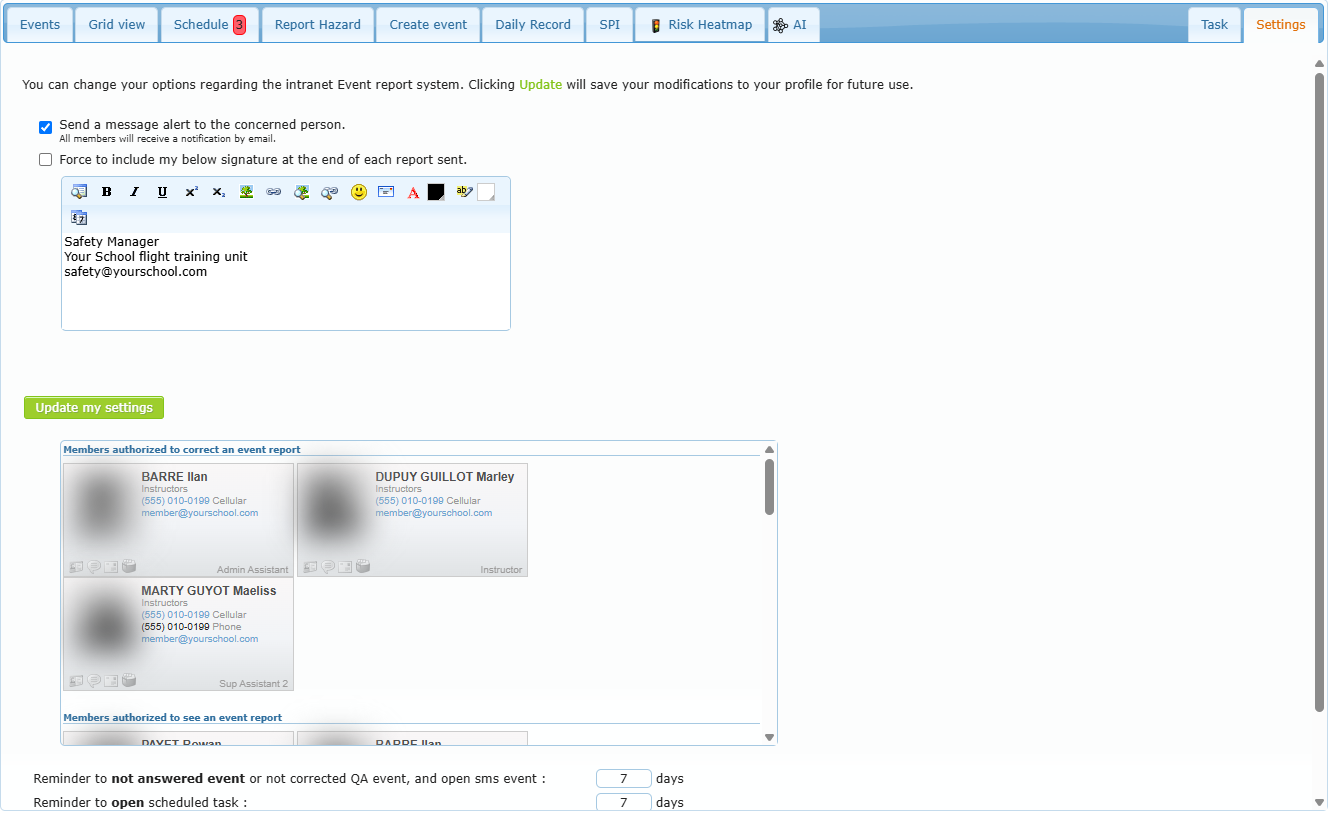
| Option | Effect |
|---|---|
| Send a message alert to the concerned person | When checked, each report you create sends an internal message (and an e-mail) to the member. The note below tells whether members can refuse e-mails. |
| Force to include my below signature at the end of each report sent | Adds the signature typed in the box to every report you create. |
| Update my settings | Saves these two options and the signature in your profile. |
| Authorized members lists | Who can correct, see, evaluate SMS, belongs to the QA team, or always sees reports (read-only). Hover over a card for contact details. |
| Reminder delays (read-only) | Days between automatic reminders for unanswered events, uncorrected QA findings and open SMS files; days between reminders for open scheduled actions; number of reminders before the QA team is alerted. They are set by an administrator in the system settings. |
Task list
The Task tab is the safety team’s own task list: use it for follow-up work that is not a corrective action of a specific report (prepare the safety meeting, publish a safety bulletin, review the hazard log…). It works exactly like the other task lists of AirSupervision: + adds a task (subject, start and due dates, status, priority, recurrence, description), the pencil edits the selected task and shows its history, the calendar icon shows or hides tasks scheduled to start later. Overdue due dates are shown in red, and the red number in the Task tab title tells how many tasks are overdue.
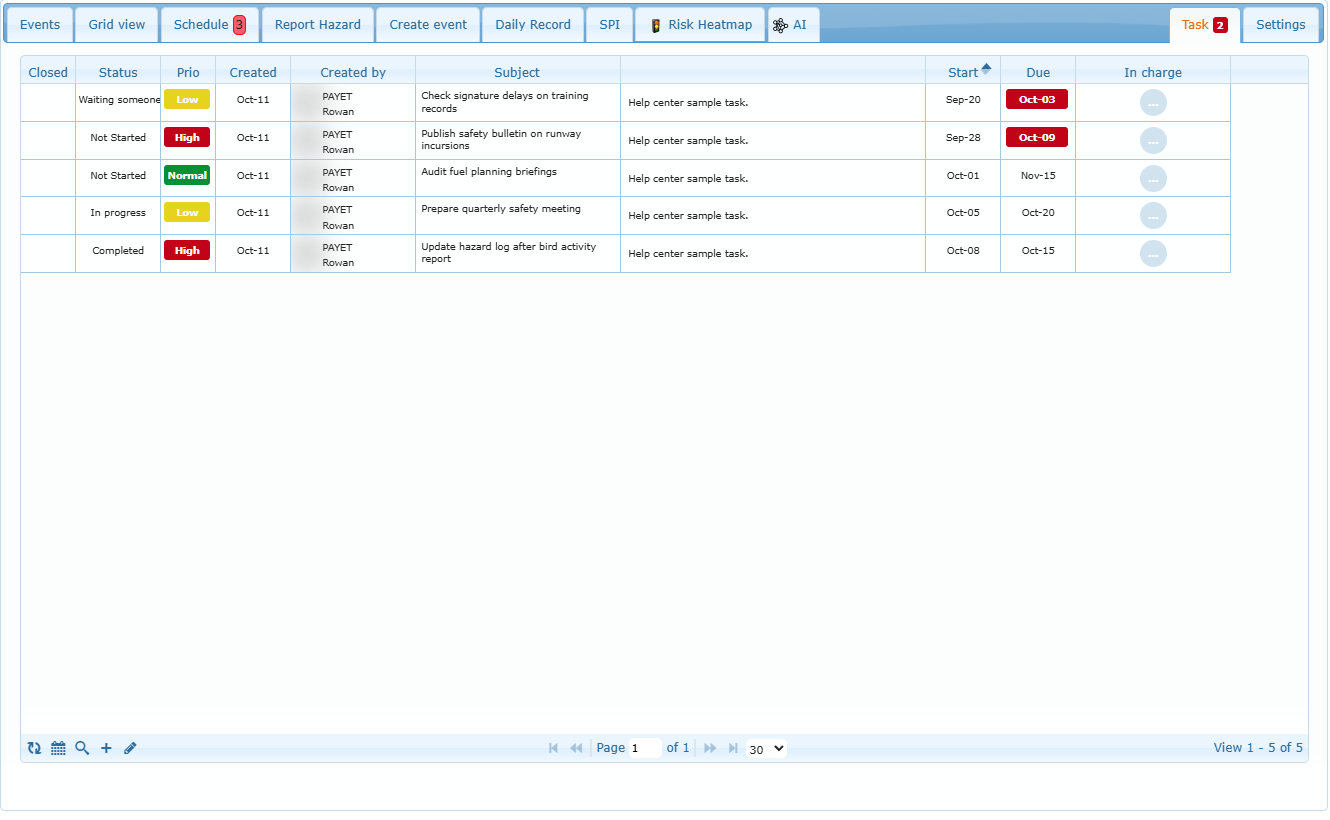
For the complete explanation (creating, assigning, recurring tasks, searching), see Tasks and Task Center.
Automatic reminders
| Situation | What the system does |
|---|---|
| Event report not answered | Sends a reminder to the member at the configured interval. After the configured number of reminders, the QA team is alerted. |
| QA finding not corrected / SMS file open | Reminders at the same interval. |
| Scheduled action open | Reminders to the person in charge of the action. |
| Manual reminders | Red envelope next to the member concerned, next to each person in charge, or right-click › Alert by email. A confirmation shows “A message has been sent to concerned member…”. |
The counters of reminders are shown at the bottom of the History.
Restrictions for members who do not answer
When an event report is not answered within the delays set by your organization (counted from Written the):
- the member can no longer be scheduled (red calendar icon on the report, red bar on their profile);
- the member can no longer start an activity (ramp out refused; red table icon);
- if your organization uses the home-page lock, the member is locked on the home page until they answer (or until an overdue scheduled action assigned to them is closed).
The restrictions disappear as soon as the member requests an evaluation, when you add an answer manually, or when the report is corrected. Check Activities allowed on a report (or right-click › Allow activities for concerned member) when the report must never restrict the member. Administrators can also give a member the profile option that prevents the home-page lock.
Troubleshooting
| Problem | Solution |
|---|---|
| I cannot find a report | Select All events (or the right folder: hazards, QA and squawks have their own), clear the date filter, then search with ID: and the number. |
| The Correct window only has Save | You do not hold the correction option. Ask a member listed under Members authorized to correct an event report. |
| The SMS fields are greyed | Only SMS evaluators can change them. |
| Closed date is refused | A scheduled action has a projected date without a closing date. Close or remove the action first. |
| “Can not delete this event report.” | The report is answered or corrected. Reopen the steps first, or keep the report. |
| “Your answer is the same or you have already request an evaluation.” | The member already requested an evaluation with the same text. |
| The member says they are locked | Check the red icons on the report; add the answer manually if they answered by another means, or check Activities allowed if appropriate. |
| A reminder failed (“Check if email sending is activated”) | The member has no e-mail or e-mail sending is disabled; use an internal message. |
Manager checklist
- ☐ Every new event report has the right member, category, reference and clear questions.
- ☐ Not corrected is reviewed weekly; answers are evaluated and events closed.
- ☐ Every report is assessed in Security SMS (no report left in Not assessed).
- ☐ Every action has a person in charge, a description and a projected date.
- ☐ Red squares and red Schedule lines are followed up.
- ☐ Hazard reports are reviewed and marked relevant or unrelated.
- ☐ SPI and Risk Heatmap are reviewed at each safety meeting.
Sources for the SMS summary
- ICAO Annex 19 — Safety Management, and ICAO Doc 9859 Safety Management Manual (four SMS components, safety risk probability and severity tables, example 5 × 5 safety risk matrix and tolerability). Summaries: ICAO SRM methodology – risk matrix, SKYbrary – Risk Assessment.
- ICAO ADREP taxonomy and CAST/ICAO Common Taxonomy Team (CICTT) occurrence categories: ICAO taxonomy.
- Safety performance indicators: SKYbrary – Safety Performance Monitoring and Measurement.