
Published 12 October 2026, Updated 12 October 2026
The CSS content and JS Content tabs are advanced tools. They require some knowledge of web development; links to free learning resources are listed at the end of this article.
Custom CSS (CSS content tab)
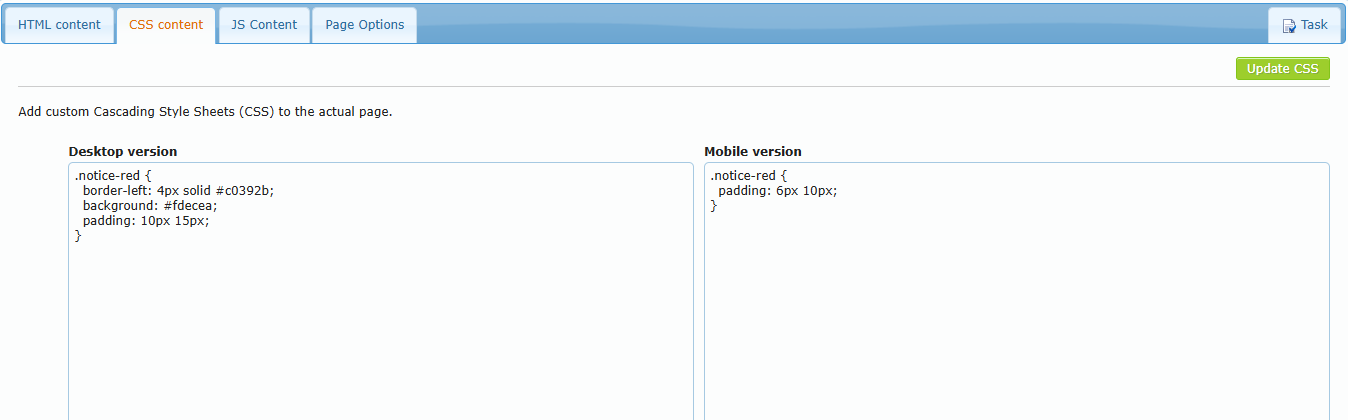
CSS (Cascading Style Sheets) controls the look of the page: colours, fonts, spacing, borders, and layout. The CSS content tab adds styles that apply to this page only.
| Field | Applies to |
|---|---|
| Desktop version | The page as seen on a computer |
| Mobile version | The page as seen in the mobile app |
Click Update CSS to save. The message “Custom Cascading Style Sheet saved!” confirms it.
How to use it with classes
- Add a class to a block (right-click → Block → Manage classes, for example
notice-red), to a button or list (Classes field), or to the whole page (Page Options → Classes). - In the CSS tab, write the style for that class:
.notice-red {
  border-left: 4px solid #c0392b;
  background: #fdecea;
  padding: 10px 15px;
}- Click Update CSS, then check with Desktop Preview and Mobile Preview.
Important rules
- Use single quotes, not double quotes, inside your CSS (for example
font-family: 'Open Sans', sans-serif;). Double quotes can stop the styles from loading. - Use
/* … */for comments. Do not use//. - Prefix your selectors with your own class names so you do not change the rest of AirSupervision by mistake.
- The desktop and mobile styles are separate. Copy your rules to both if needed.
Custom JavaScript (JS Content tab)
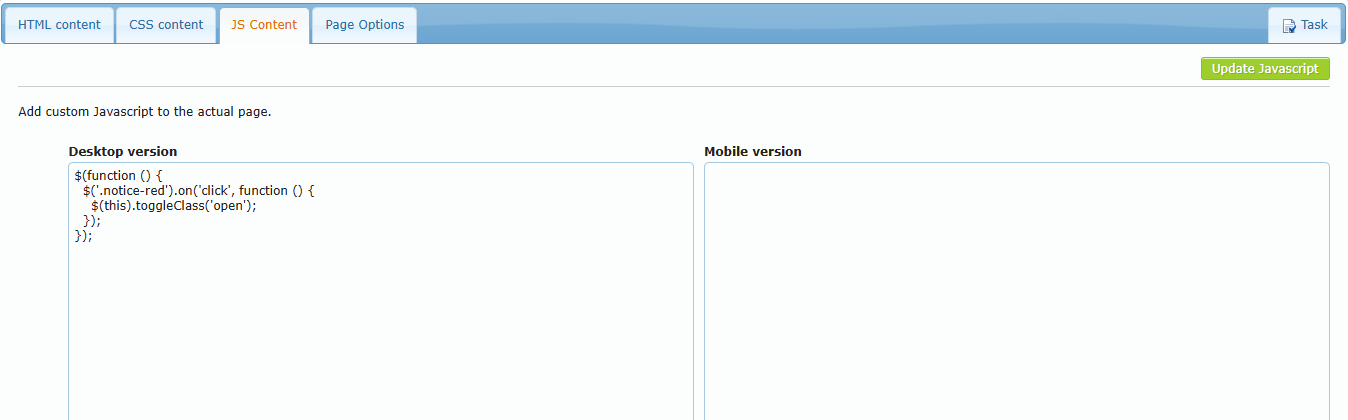
JavaScript adds behaviour: small interactions, counters, show/hide effects, and so on. The JS Content tab has a Desktop version and a Mobile version. Click Update Javascript to save (“Custom Javascript saved!”).
Good practices
- Write plain JavaScript only. Do not add
<script>tags; AirSupervision adds them for you. - jQuery is available. Wrap your code so it runs once the page is ready:
$(function () {
  $('.notice-red').on('click', function () {
    $(this).toggleClass('open');
  });
});- The script runs when members view the page (and in the previews), not inside the editor.
- Test with Desktop Preview / Mobile Preview before publishing. Open your browser’s developer console (F12) to see errors.
- Never paste code from an unknown source. Scripts run with the viewing member’s session.
Learning resources (HTML, CSS, JavaScript)
| Topic | Resource |
|---|---|
| HTML basics | MDN – Learn HTML: https://developer.mozilla.org/en-US/docs/Learn/HTML |
| CSS basics | MDN – Learn CSS: https://developer.mozilla.org/en-US/docs/Learn/CSS |
| CSS reference & tutorials | W3Schools CSS: https://www.w3schools.com/css/ |
| Learn CSS (structured course) | web.dev – Learn CSS: https://web.dev/learn/css |
| Flexbox layout guide | CSS-Tricks: https://css-tricks.com/snippets/css/a-guide-to-flexbox/ |
| JavaScript tutorial | The Modern JavaScript Tutorial: https://javascript.info/ |
| JavaScript reference | MDN JavaScript: https://developer.mozilla.org/en-US/docs/Web/JavaScript |
| jQuery | jQuery API documentation: https://api.jquery.com/ |
| Browser compatibility | Can I use: https://caniuse.com/ |
| Colour picking | MDN color picker: https://developer.mozilla.org/en-US/docs/Web/CSS/CSS_colors/Color_picker_tool |