
Published 12 October 2026, Updated 12 October 2026
The HTML content tab is where you build the page itself, block by block. This article explains the toolbar, how to add blocks, and how to edit text and blocks with the right-click menus.
Toolbar
| Button | Purpose |
|---|---|
| Blocks | Opens or closes the block library (left side panel) |
| List view | Shows every block of the page as a tree. Click an item to jump to it; hover to highlight it |
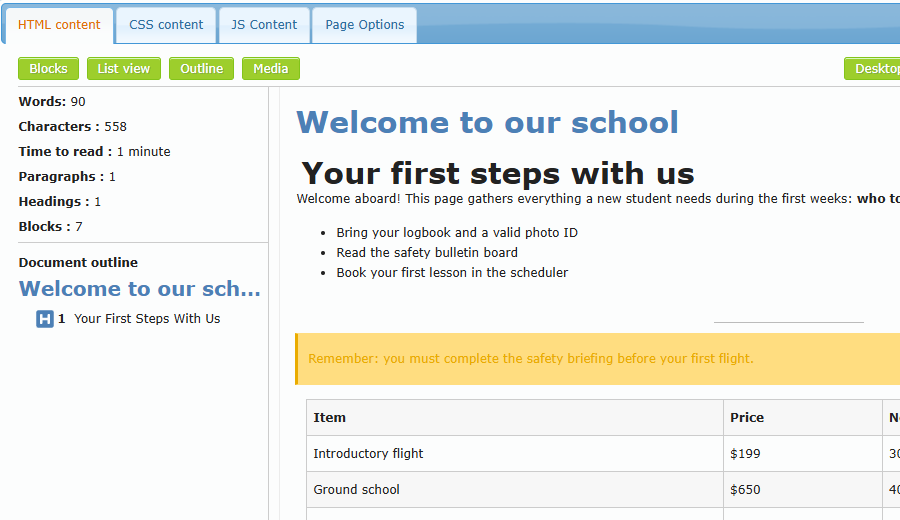
| Outline | Shows statistics (words, characters, reading time, paragraphs, headings, blocks) and the heading structure. A red heading icon warns about an incorrect heading level (for example, H1 followed directly by H3) |
| Media | Opens the media library to upload or manage files |
| Desktop Preview | Opens the current (even unsaved) version in a new browser tab as on a computer |
| Mobile Preview | Same, using the mobile layout |
| Status button (Publish, To be reviewed, or Switch to draft) | Changes the page status (see the article Saving, review and publishing) |
| Save button (Save draft or Update Content) | Saves the page content |

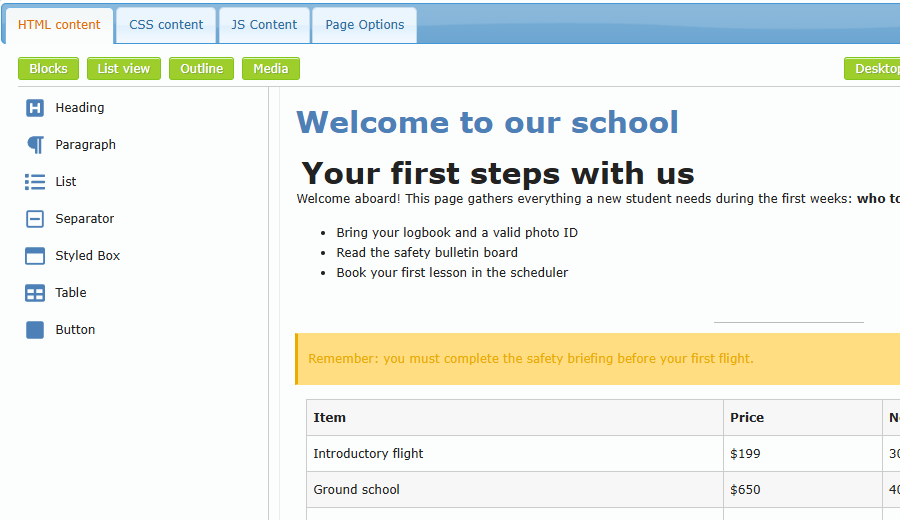
Adding blocks
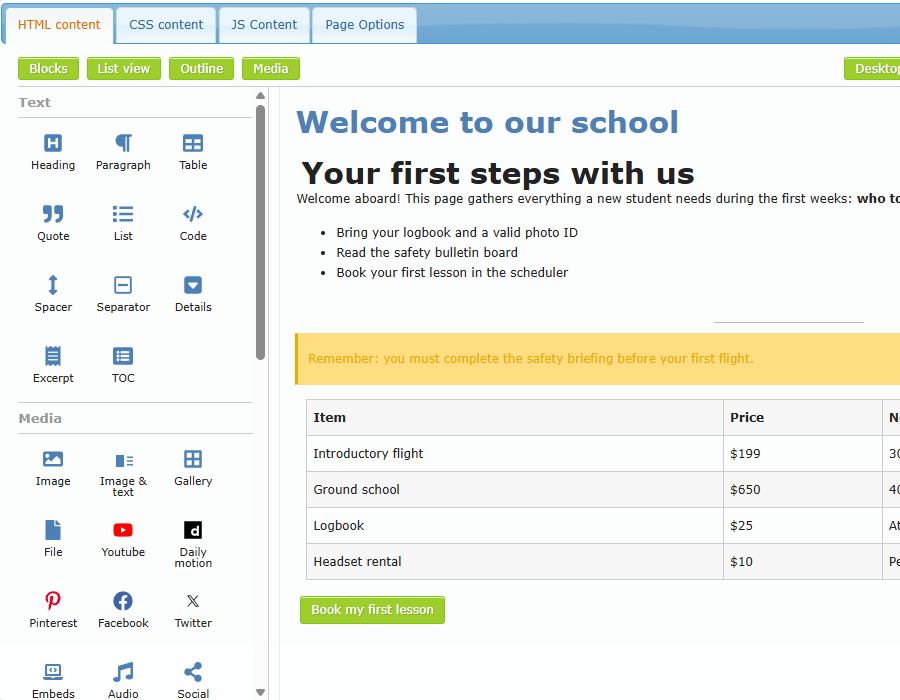
- Click Blocks. The library opens, organized by category: Text, Media, Widget, Transport Canada, AirSupervision.
- Hover over a block to see a preview thumbnail (when available).
- Click the block. It is added at the end of the page. Some blocks first open a small dialog for settings (URL, number of rows, and so on). Click Insert to confirm.
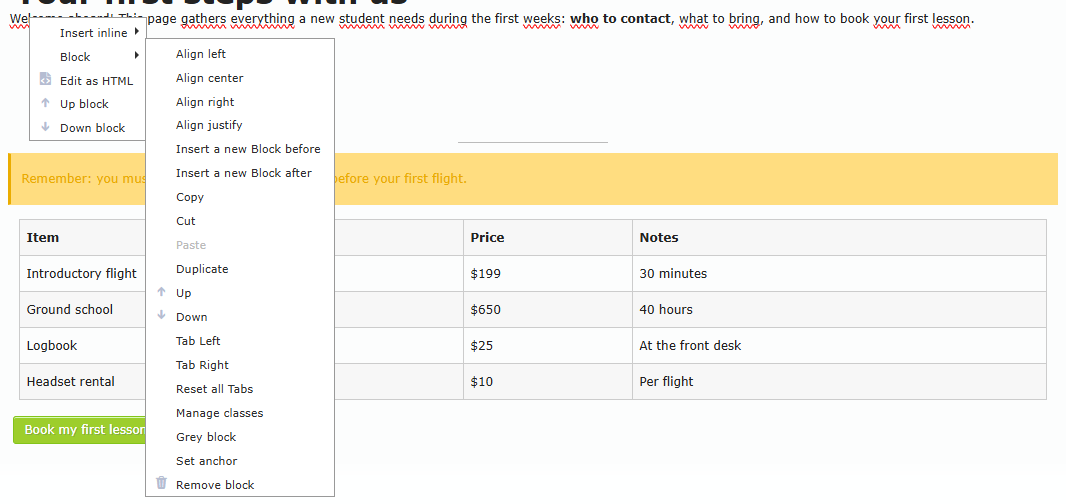
To insert a block at a specific place, right-click an existing block → Block → Insert a new Block before or Insert a new Block after, then choose the block in the library.
Editing text
Most text blocks are edited directly: click inside and type. Pressing Enter inserts a line break inside the same block. To start a new paragraph block, insert a new Paragraph block.
Text right-click menu
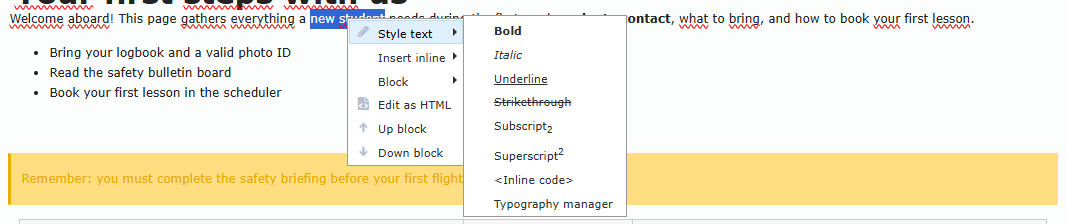
Select some text and right-click:
| Menu | Options |
|---|---|
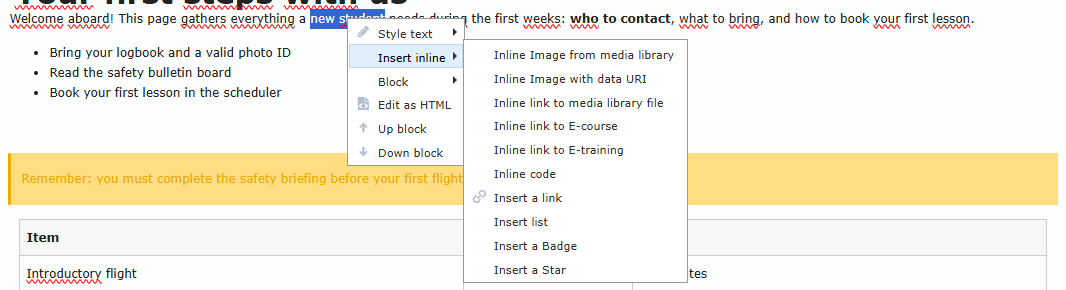
| Style text | Bold, Italic, Underline, |
| Insert inline | Inline image from the media library, inline image with data URI, inline link to a media library file, inline link to an E-course, inline link to an E-training, inline code, Insert a link (URL, classes, new window), Insert list, Insert a Badge, Insert a Star |
Block right-click menu
Right-click any block and open Block:
| Option | What it does |
|---|---|
| Align left / center / right / justify | Aligns the block content |
| Insert a new Block before / after | Chooses the insertion position for the next block |
| Copy / Cut / Paste / Duplicate | Copies or moves blocks |
| Up / Down | Moves the block one position |
| Tab Left / Tab Right / Reset all Tabs | Indents the block |
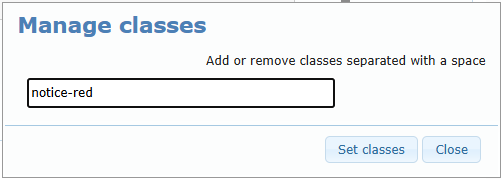
| Manage classes | Adds CSS classes to the block (space-separated), then click Set classes |
| Grey block | Displays the block on a grey background panel |
| Set anchor | Gives the block a name so a link can jump to it with #anchorname |
| Remove block | Deletes the block |
Two more items are available on any block: Edit as HTML (see Edit as HTML below) and Up block / Down block.
Media library
Click Media (or choose an image/file block) to open the media library.
- Upload: click Browse, select the file, give it a name in and named it, then click Upload.
- Search: type in Search… and click Search. Use Clear Search to reset. Exact word searches for exact words; when unchecked, the search also finds similar-sounding words.
- Selected image bar: Replace with (replace the file with a new upload), Width and Height (px), New window.
Edit as HTML (advanced)
Right-click a block → Edit as HTML. The block becomes a text box showing its HTML code. Make your changes, then right-click → Render HTML to return to the visual view.
Caution: broken HTML can break the page layout. Use Export content first, and check with Desktop Preview.
