
Published 11 October 2026, Updated 11 October 2026
Create an event report
Open the Create event tab.
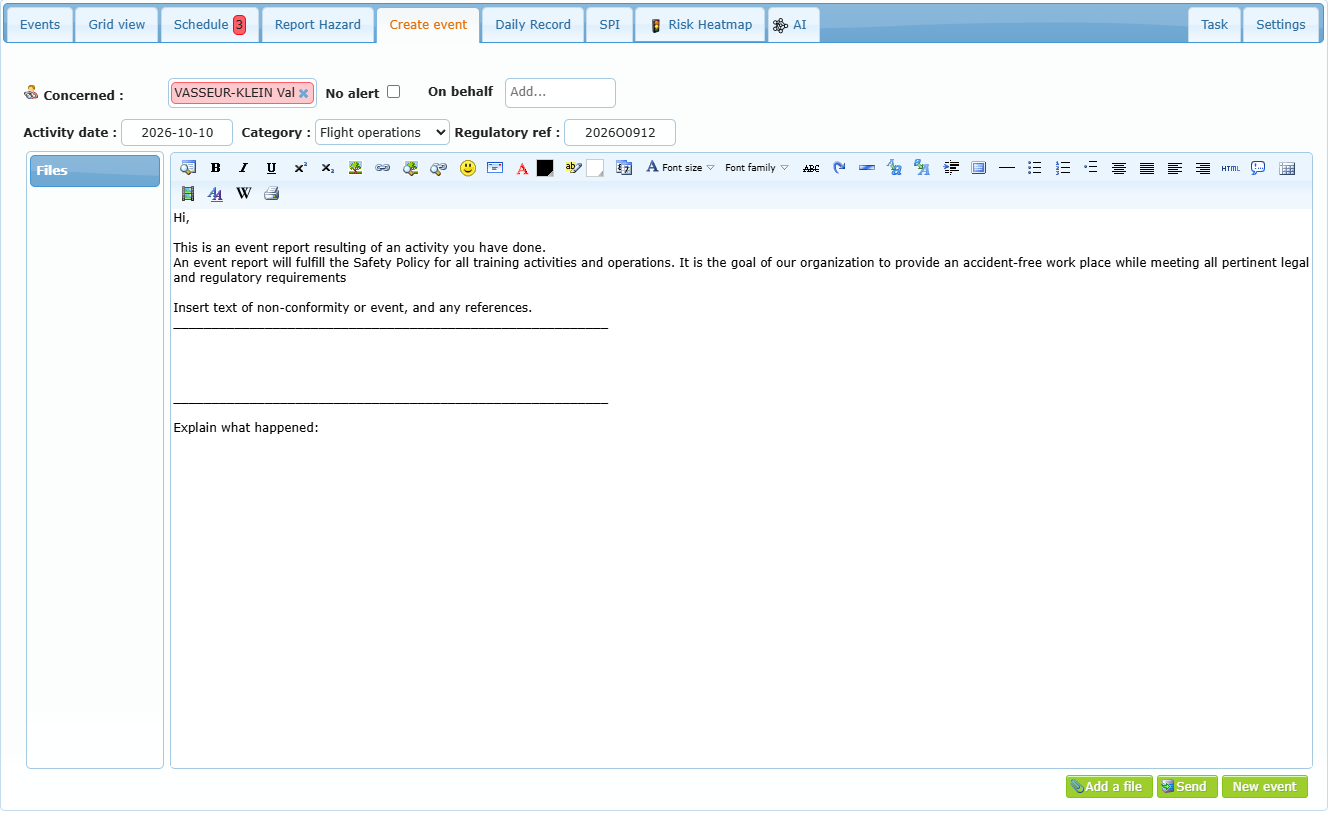
| Field | Use |
|---|---|
| Concerned | Type two letters and choose the member involved. A red name means the member has no e-mail address: they will only receive the internal message. Click the small cross to remove the member. |
| No alert | Check it to create the report without sending the message/e-mail to the member (for example to prepare the report before talking to them). |
| On behalf | Choose another member to appear as the creator (for example you type a report for the Chief Flight Instructor). |
| Activity date | Date of the activity. |
| Category | Event group of the report. |
| Regulatory ref | Reference of an occurrence report sent to the authority, if any. |
| Text | The report. A template invites you to describe the non-conformity and ask “Explain what happened”. Write facts and the questions the member must answer. |
| Files / Add a file | Attach photos, documents or recordings (maximum size shown in the button tooltip). Add a file opens the Choose a file source window: your computer, a scanned file or a cloud service, when available (see The files). Click a file to open it, the small cross to remove it. |
Click Send. The report is created, and, unless No alert is checked and if Send a message alert to the concerned person is checked in Settings, the member receives an internal message and an e-mail inviting them to answer. If your organization has a safety e-mail address, the message is sent in the name of the safety team.
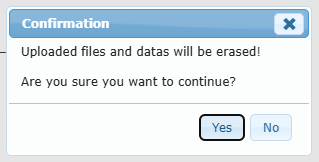
New event clears the form and the uploaded files after a confirmation.
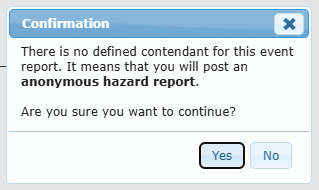
If you click Send without a member in Concerned, the page warns that you will post an anonymous hazard report. Click Yes to send it as a hazard report, No to go back and choose a member.
Practical example: the tower calls about a runway incursion. Create an event report addressed to the pilot, category Flight operations, reference = tower report number, text = facts + questions (“What clearance did you read back?”). The pilot receives the alert, answers, and the report appears in Not corrected with Waiting for evaluation.
Create a report from a flight (Daily Record)
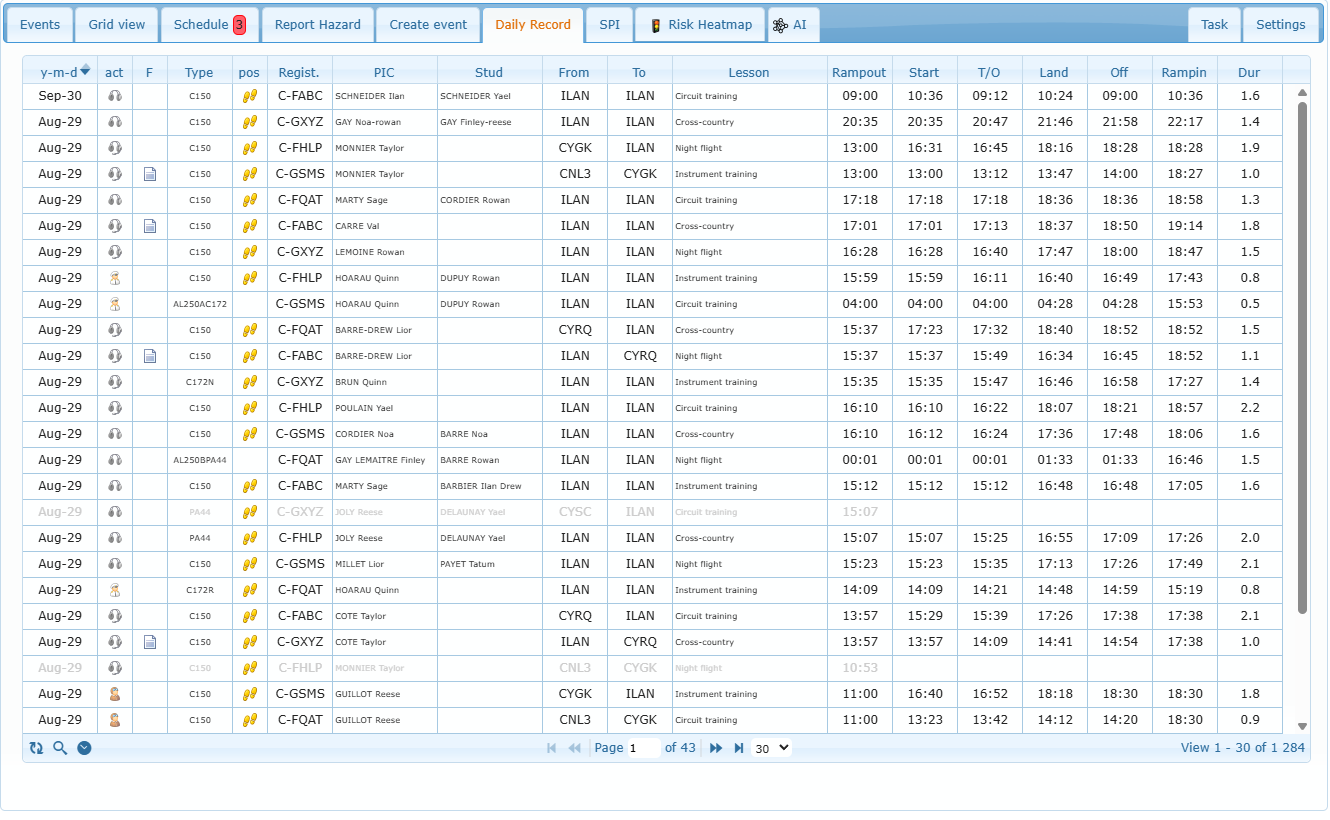
The Daily Record tab lists the recorded flights (date, aircraft type and registration, pilot in command, student, airports, lesson and times). Use the search toolbar (magnifier) to filter, and the clock icon to switch to UTC times.
Double-click a flight: the Create event tab opens with the activity date, the pilot in command as Concerned and a text describing the flight. Complete the text and click Send.
Report a hazard
The Report Hazard tab contains your organization’s hazard form (confidentiality statement, date, time, place, aircraft, description, suggestion). Fill it in, set the Activity date and click Send the report. Clear the form empties it.
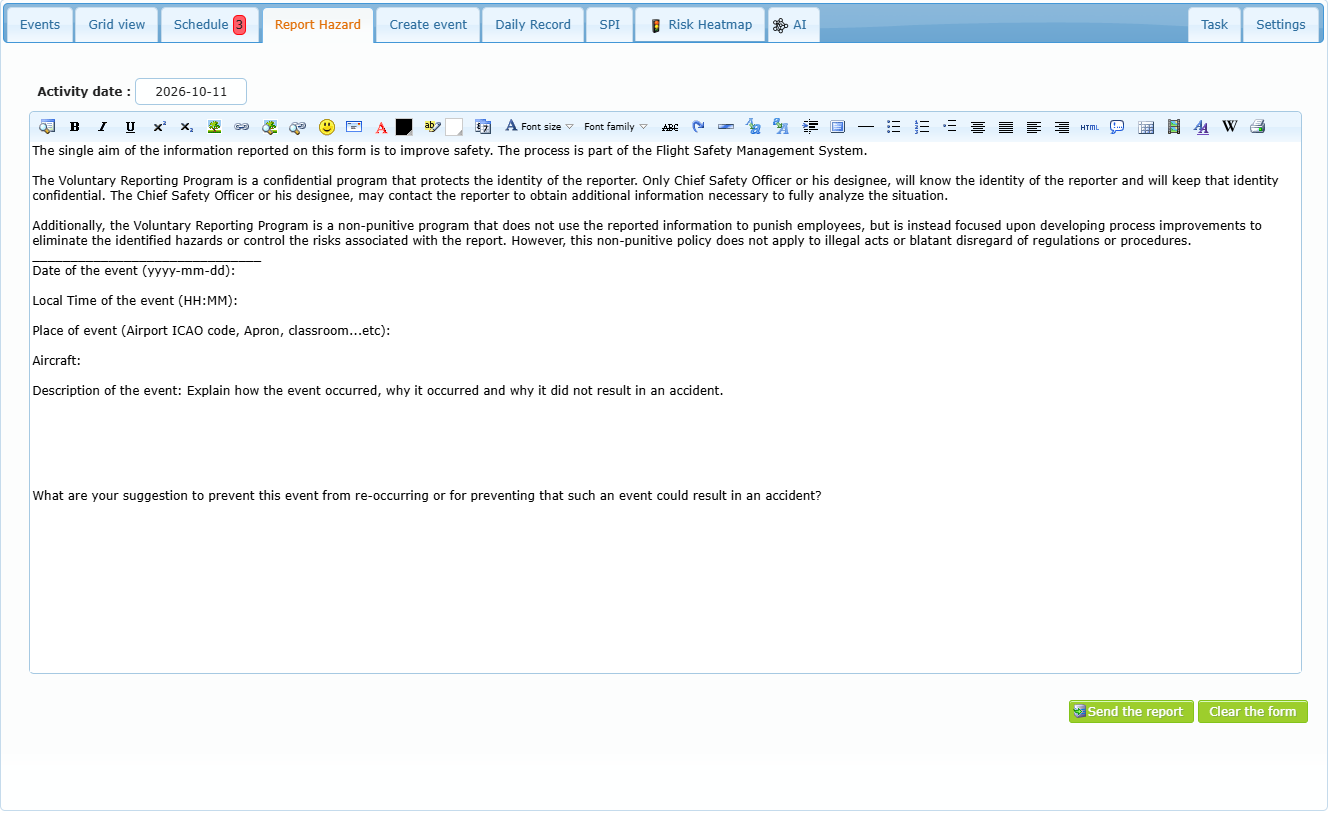
The hazard report goes to the Hazards folder; nobody has to answer it. The members designated by your organization receive a message asking them to evaluate it. The member who reported it can follow, in their own Hazards folder, whether it was reviewed, considered relevant, its occurrence categories, safety index and root cause.