
Published 8 October 2026, Updated 18 October 2026
Course Design Center is the workspace where you build the training programs that your organization uses every day. A course is made of phases, and each phase contains lessons. Everything you configure here — publication, access, lesson rules, prerequisites, durations, exercise items, competencies, documents and certificates — decides what instructors can record later and what students see in their training record.
Important: a course that is already assigned to students is a live training program. Changing it can affect progress, prerequisites, signatures, documents, qualifications, the Scheduler and the Flight Record. Prepare changes carefully and run the Check Integrity tool after any structural change.
Who can open it
Open Courses Center › Course Design Center. The page is available only to members whose profile allows them to create and manage courses. Some tools appear only when your profile allows them:
| Tool button (bottom of the page) | Shown when your profile allows |
|---|---|
| CBTA and OBs | Managing competency-based training |
| Dynamic docs | Creating dynamic documents |
| Exercises items | Creating exercise items |
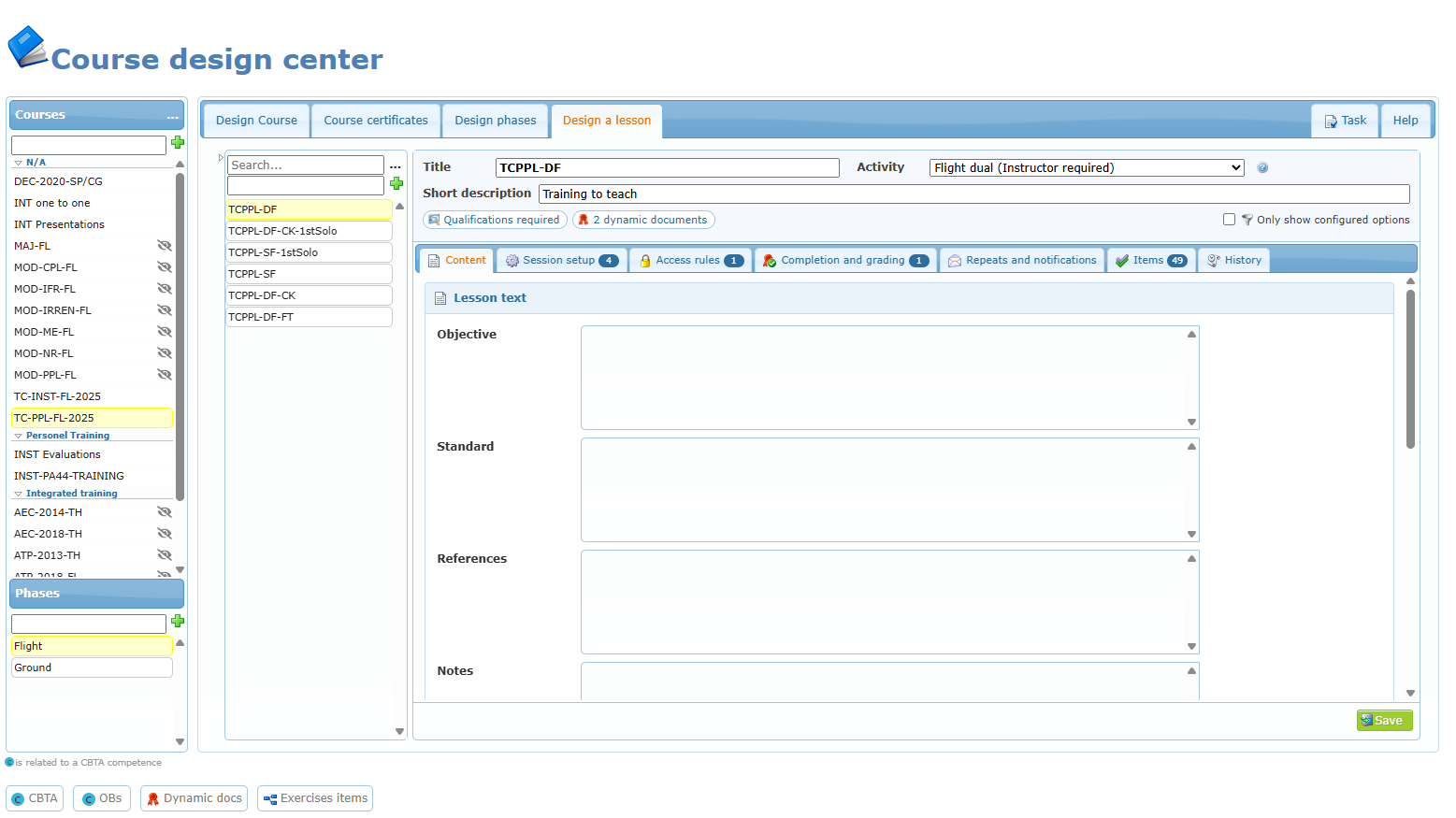
A small blue C marker beside a lesson means that the lesson is linked to a CBTA competency (see the legend under the course list).
The workspace
| Area | What it contains |
|---|---|
| Courses (top left) | The course list, organized in groups, with the field and + button used to create a course, and the … options menu. |
| Phases (bottom left) | The phases of the selected course, with the field and + button used to add a phase. |
| Design Course tab | All the settings of the selected course. |
| Course certificates tab | The certificates that can be printed for this course. |
| Design phases tab | The settings of the selected phase (appears when a phase is selected). |
| Design a lesson tab | The lesson list of the selected phase and the settings of the selected lesson. |
| Task and Help tabs | Tasks related to course design, and a short built-in reminder of course structure, lesson types and grading scales. |
| Tool buttons (bottom) | CBTA, OBs, Dynamic docs, Exercises items. |
The tabs appear progressively: select a course to see Design Course and Course certificates, then select a phase to see Design phases and Design a lesson.
How every designer works
The Design Course, Design phases, Design a lesson and certificate designers share the same layout, so once you know one, you know them all.

| Element | What it does |
|---|---|
| Header | Shows the main fields (title, print title, activity, published switch…). |
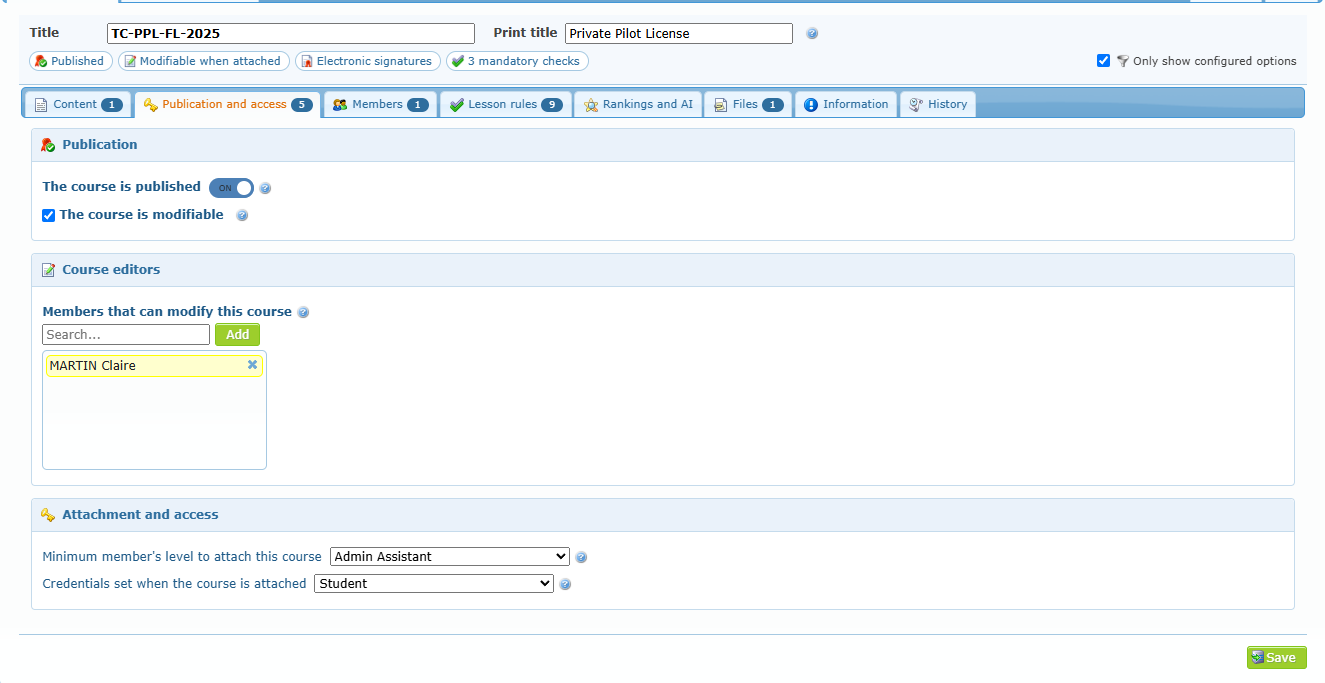
| Rule badges | Small labels under the header that summarize the important rules already set (for example Published, Electronic signatures, 3 mandatory checks, Must pass, 2 pre-requisites). Click a badge to jump to the sub-tab where that rule is configured. No specific rule set means that nothing particular is configured. |
| Sub-tabs with counters | Settings are grouped in sub-tabs. The number on a sub-tab tells you how many options are configured in it. |
| Only show configured options | Tick it to hide every option that is not set and review at a glance how the course, phase or lesson is configured. Your choice is remembered on your computer and applies to all designers. |
| Unsaved changes | This warning appears as soon as you change a field. Click Save (bottom right) to keep your changes. |
| ? icons | Hover them to read a short explanation of the option. |
| Dimmed options | An option that depends on another one stays dimmed until its parent option is set (its value is kept). |
| Check box + number | Options such as Limit the course duration to are switched on with the check box; unticking means “no limit / no check”. |
Two-list pickers. Lists such as required resources, pre-requisite lessons, credited lessons or dynamic documents use two columns: available items on the left and selected items on the right, each with its own Search… field and a counter. Select items (click several to select more than one) and use the green arrow buttons, double-click an item, or drag and drop it from one column to the other.
When a course can no longer be changed
A course can be modified freely until it is assigned to at least one student. After that, its content is locked unless the course option The course is modifiable is ticked. In a locked course the fields are shown read-only, the add fields and Save buttons disappear, and the course title is shown in grey in the list. An inactive course is also read-only.
Chapters of this guide
| Chapter | Use it to |
|---|---|
| Creating a course step by step | Follow the recommended order to build a new course from scratch. |
| Course list and course groups | Create, find, group, deactivate, delete and restore courses. |
| Design Course: course settings | Understand every course option. |
| Phases | Add, order, duplicate, publish and configure phases. |
| Lesson list: add, find and organize lessons | Manage lessons inside a phase. |
| Design a lesson: content, session setup and access rules | Configure what a lesson contains and who can do it. |
| Design a lesson: completion, repeats, items and history | Configure how a lesson is passed, graded, repeated and credited. |
| Exercise items and Observable Behaviours | Manage the item and OB libraries. |
| CBTA competencies | Link lessons to competency frameworks. |
| Dynamic documents and course certificates | Produce documents and certificates. |
| Course tools: duplicate, print, sequence and integrity check | Use the course right-click tools. |
| What users see later, troubleshooting and checklist | Check the result and solve common problems. |
Articles
- Creating a course step by step
- Course list and course groups
- Design Course: course settings
- Phases
- Lesson list: add, find and organize lessons
- Design a lesson: content, session setup and access rules
- Design a lesson: completion, repeats, items and history
- Exercise items and Observable Behaviours
- CBTA competencies
- Dynamic documents and course certificates
- Course tools: duplicate, print, sequence and integrity check
- What users see later, troubleshooting and checklist