Published 25 October 2026, Updated 25 October 2026
The Settings tab is shown to administrators only. It has four parts.
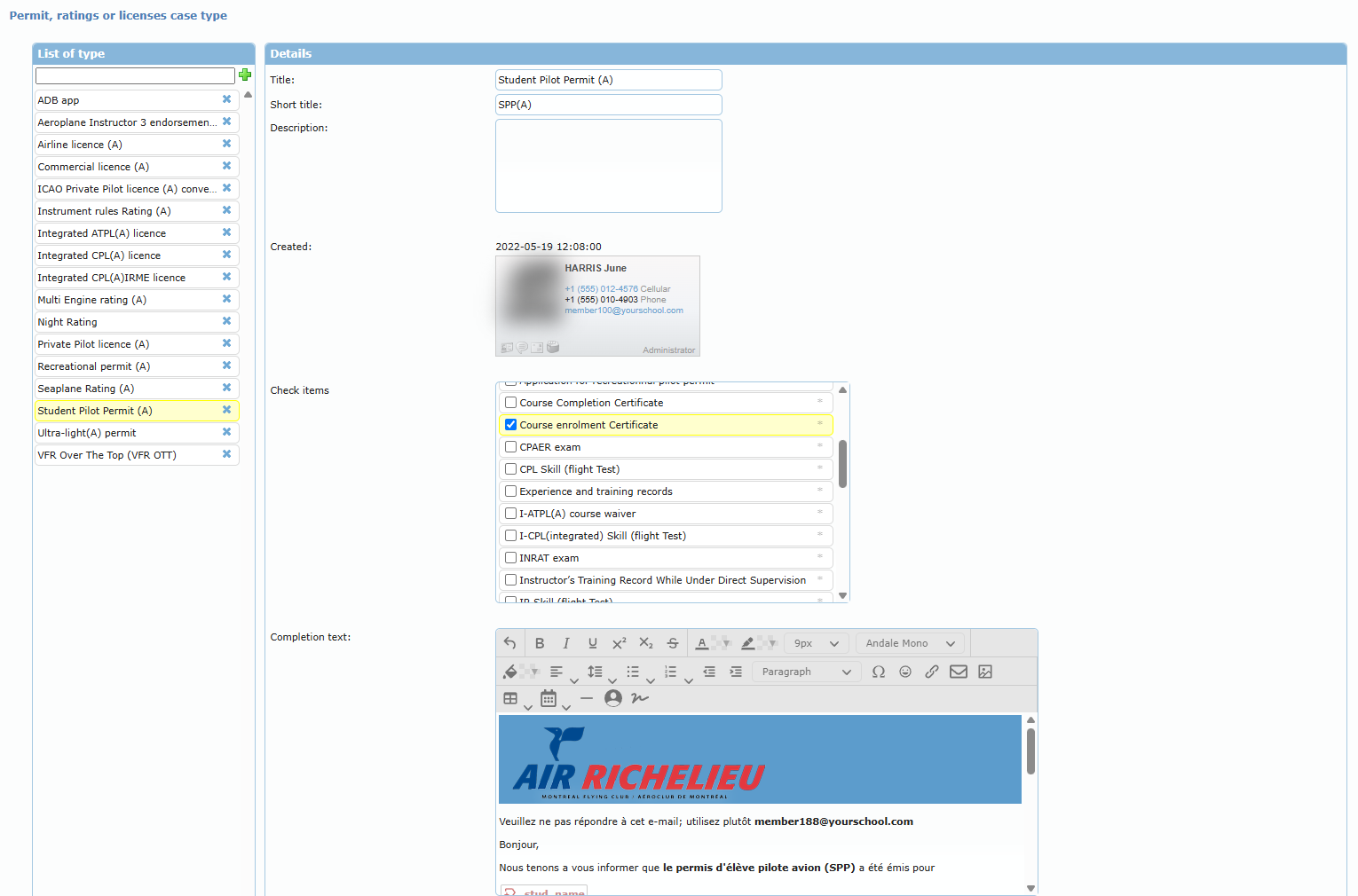
Permit, ratings or licenses case type
The left box lists the case types. Type a title in the field at the top and click the green + to add a type; click the blue x of a type to remove it. Click a type to open its details:
| Field | Purpose |
|---|---|
| Title / Short title | Full name (for example Student Pilot Permit (A)) and the short name shown in the list (for example SPP(A)). |
| Description | Internal description. |
| Created | Creation date and author. |
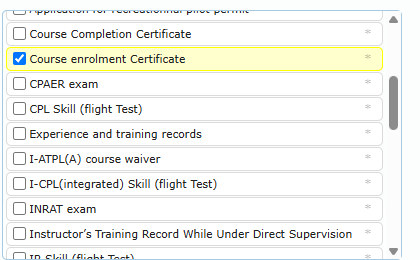
| Check items | Tick the items that make up the checklist of this type. Click the * of an item to mark it to be printed. |
| Completion text | The text of the completion notification. Tags insert the applicant’s name, group, licence number or the case type. When empty, Send completion notification is not offered. |
| Additional Completion members | Members who also receive the completion notification. |
| Send request to additional members | Members who also receive the requests sent to applicants. |
| Authorized agent | Members allowed to sign the cases of this type. |
| Infos URLS | Reference links (title and address) shown in URLs resources of the right-click menu. Use + to add a line and the bin to remove one. |
Click Save under the details to save the type.
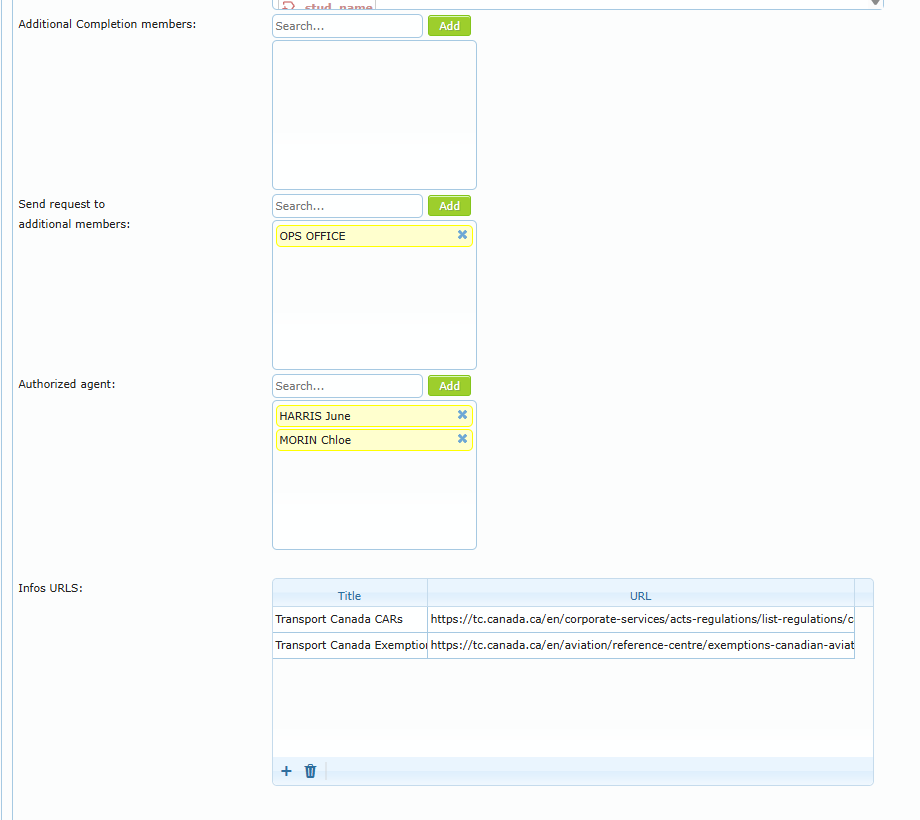
To add a member to one of the lists, type part of the name in Search…, pick the member and click Add; click the x of a member to remove them.
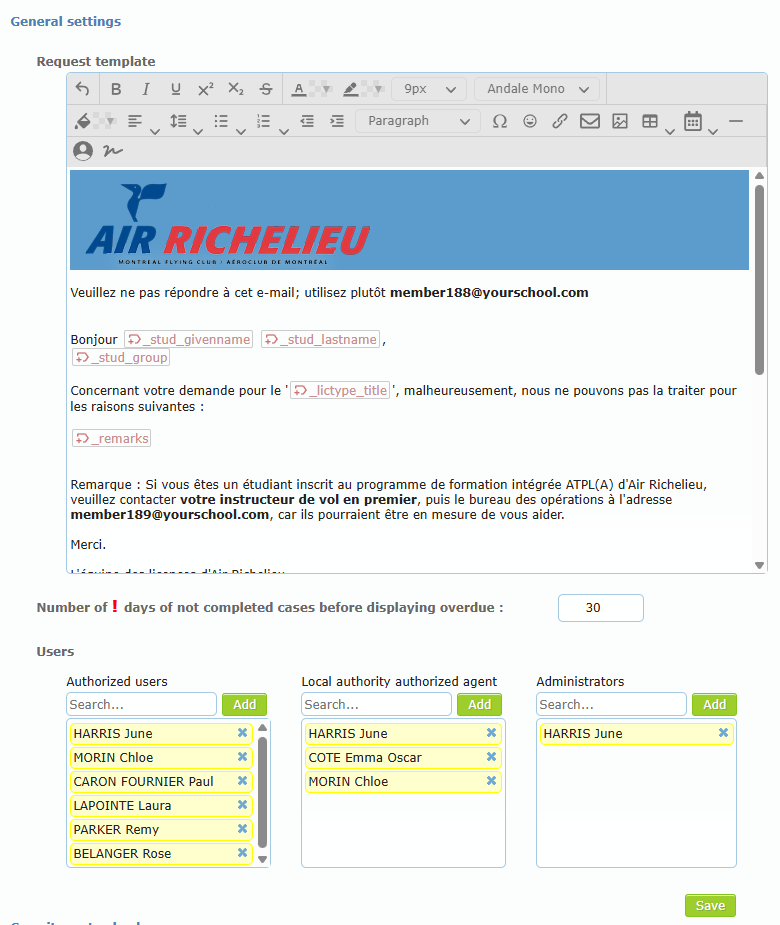
General settings
- Request template: the text of the requests sent to applicants. Tags insert the applicant’s given name, last name, group, the case type and the list of reasons typed when sending.
- Number of ! days of not completed cases before displaying overdue: the overdue delay used by the list, the dashboard and the mobile version.
- Users: the Authorized users, Local authority authorized agent and Administrators lists (see Who can use the Licensing Center).
Click Save under the users to save these settings.
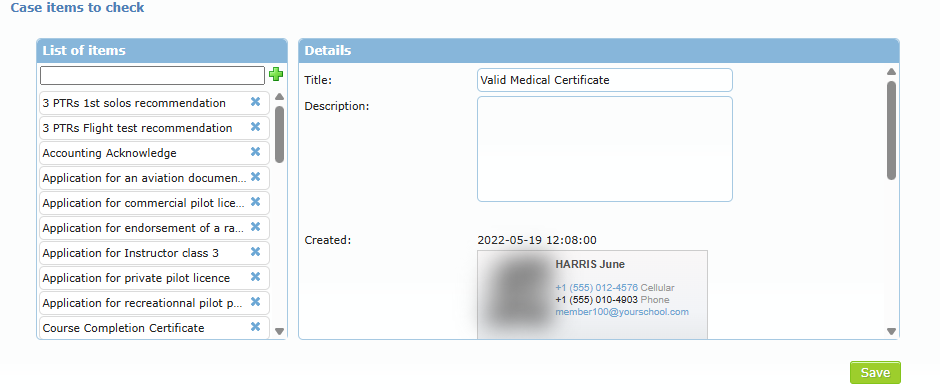
Case items to check
The list of all the items that can be used in the checklists. Add an item with the field and the green +, remove one with its x, click an item to edit its Title, Description and Infos URLS, then Save. After creating an item, tick it in the Check items of the case types that need it.