Published 25 October 2026, Updated 25 October 2026
The case details
Tap a case to open it. The top shows the case type, the status and extra badges and, when signed, Signed by … on …. Tap the photo to open the member’s contact details.
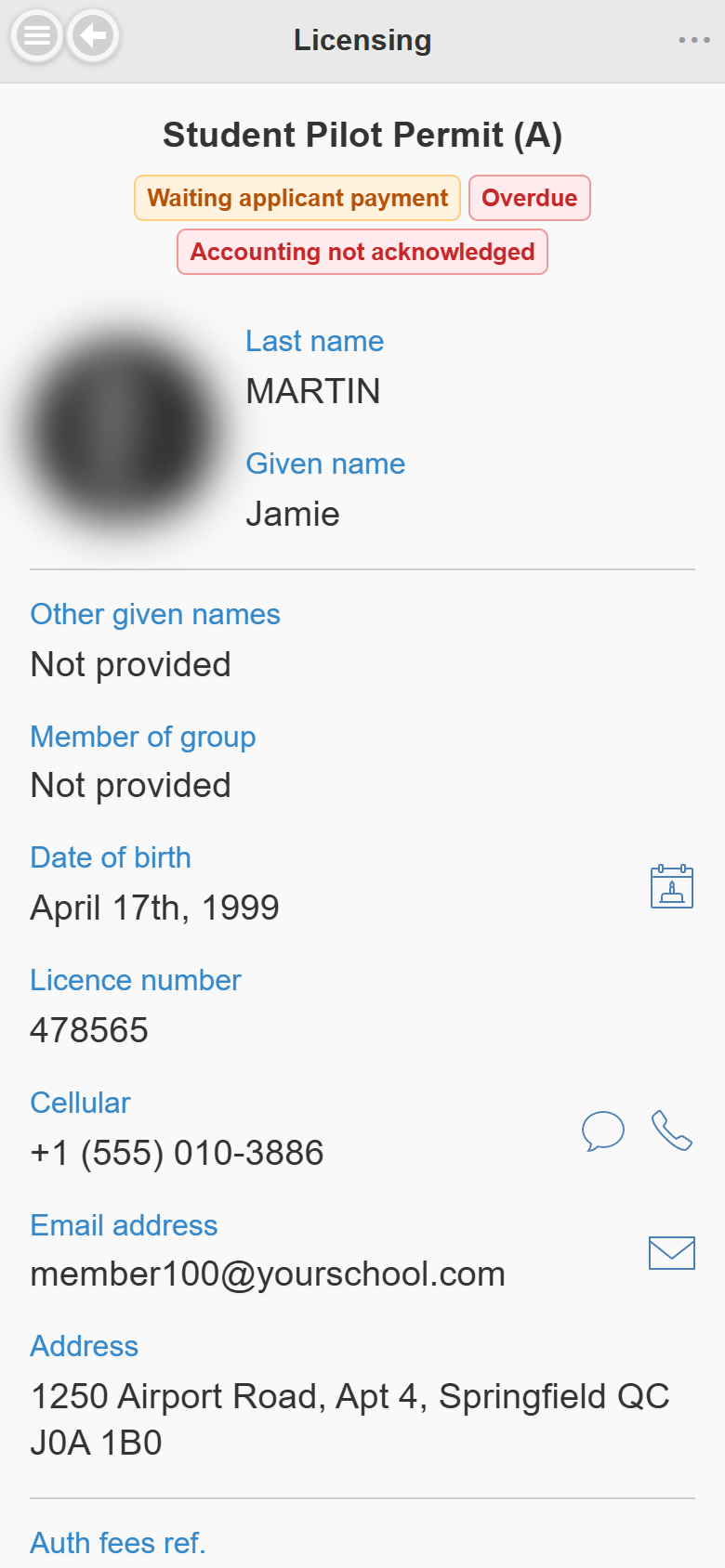
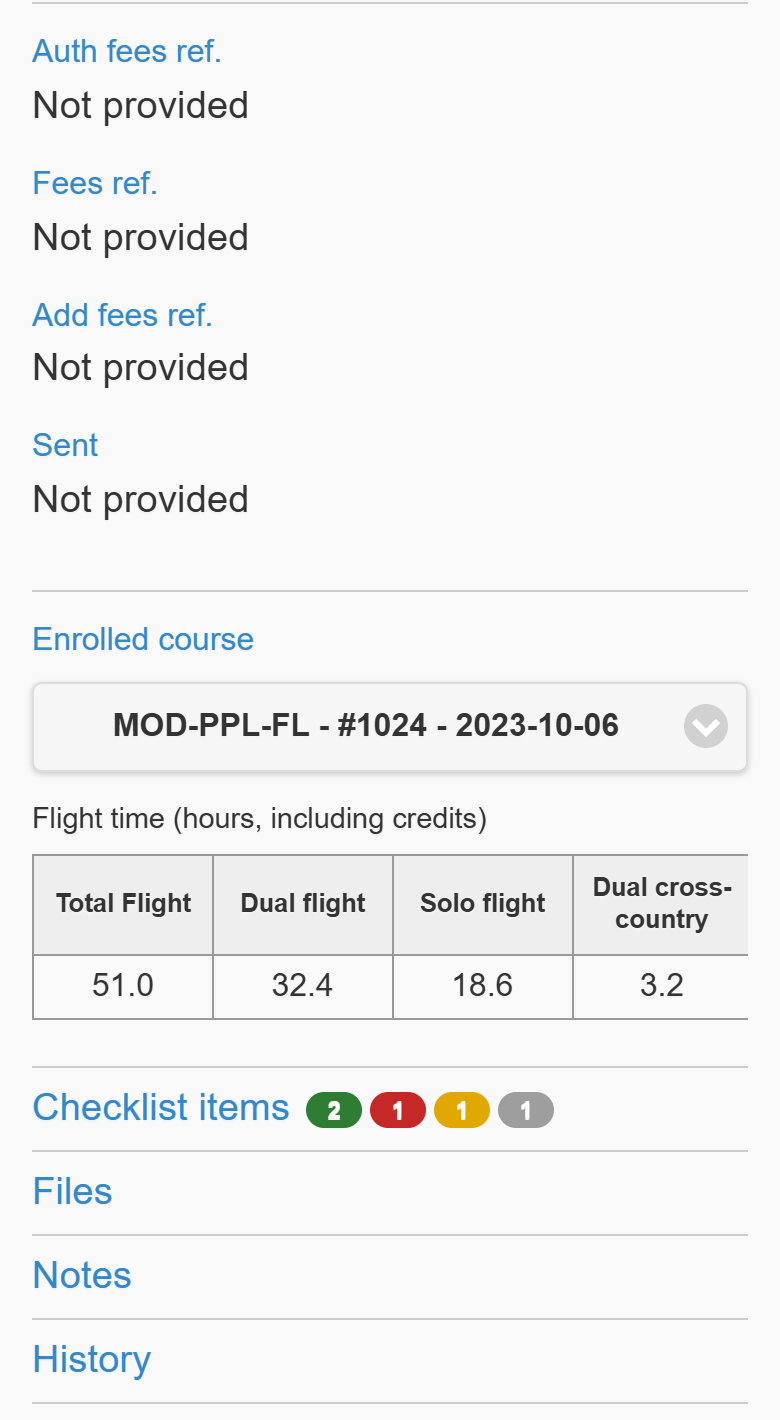
The details list other given names, the member’s group (and the group at creation when different), the date of birth (calendar icon to add the birthday to your calendar), the licence number, the phone (SMS and call icons), the email (mail icon), the address (tap it to open the map), the fee references and the sent date. Choose an Enrolled course to see its flight time, credits included.
The ⋯ button (More actions)
The ⋯ button in the top right corner of the header opens the case actions:
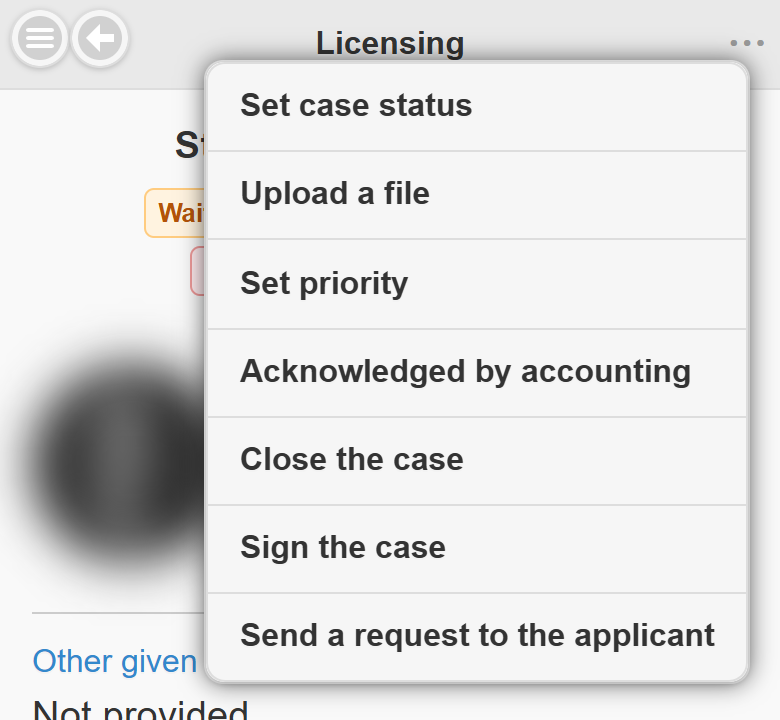
| Action | What it does | When it is shown |
|---|---|---|
| Set case status | Opens the status list with coloured badges; the current status has a check mark. | Always |
| Upload a file | Takes a photo or picks a file, then asks for its name. | When file uploads are allowed |
| Set priority / Set normal | Sets or removes the priority. | Always |
| Acknowledged by accounting | Confirms the accounting acknowledgment. | Until it is set |
| Close the case / Reopen the case | Closes or reopens after confirmation. | Always |
| Sign the case / Change the signature | Opens the signature window. | Authorized agents of the case type |
| Send a request to the applicant | Writes the reasons, previews and sends the request. | Unsigned cases |
| Send completion notification | Previews and sends the completion email. | Signed cases whose type has a completion text |
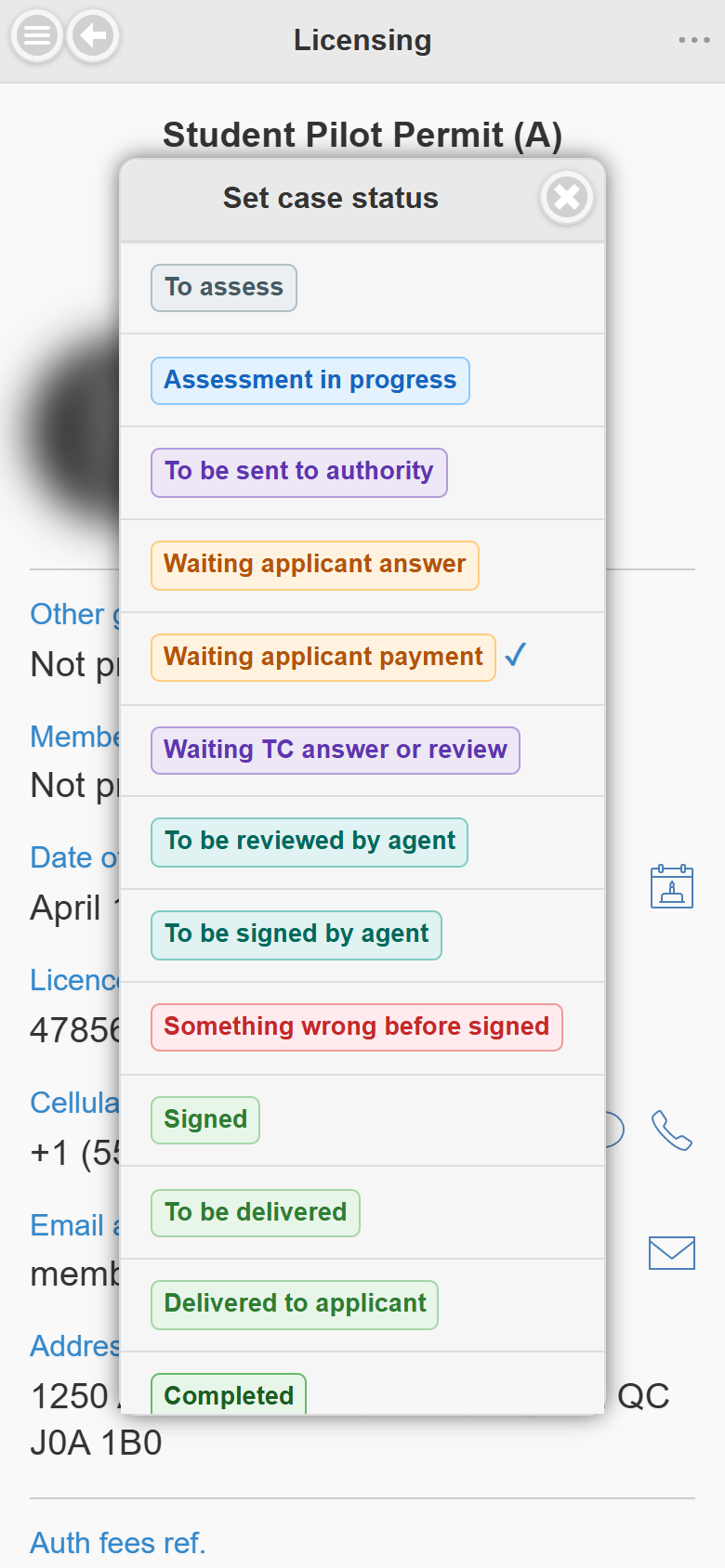
Choosing Signed or Completed, or signing, while accounting has not acknowledged the case shows the same warning as on desktop, with the acknowledgment option ticked by default.
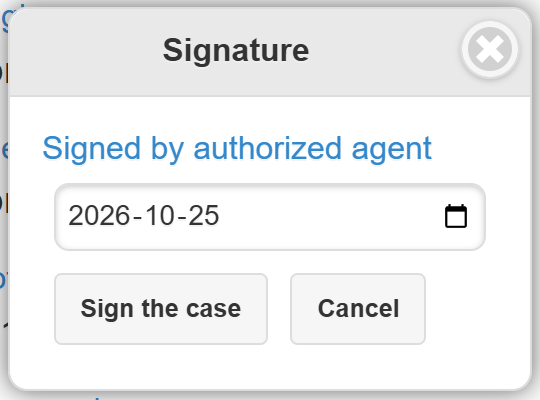
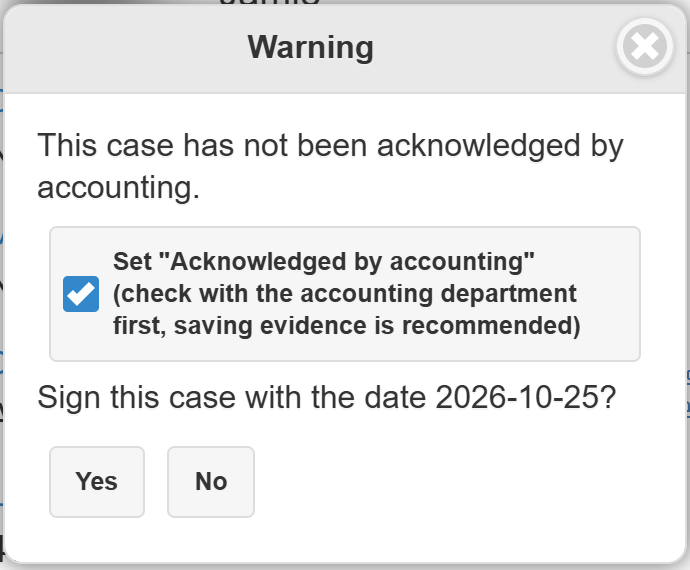
The signature date cannot be in the future. When the case is already signed, the window offers Change signed date and Remove signature.
Requests from the phone
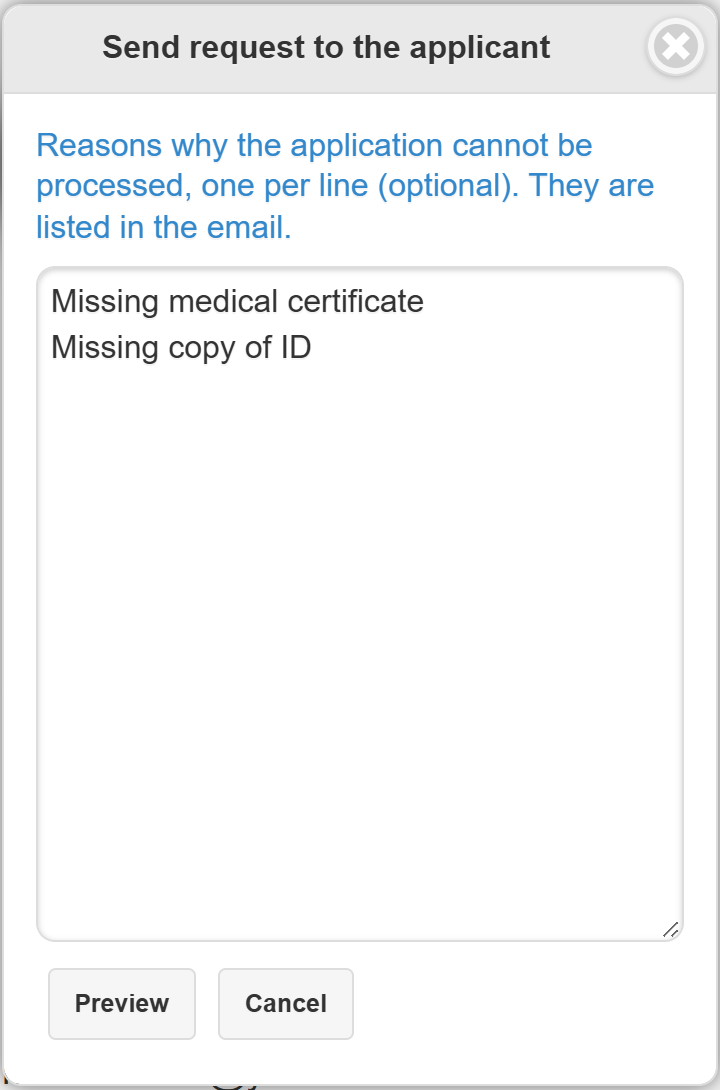
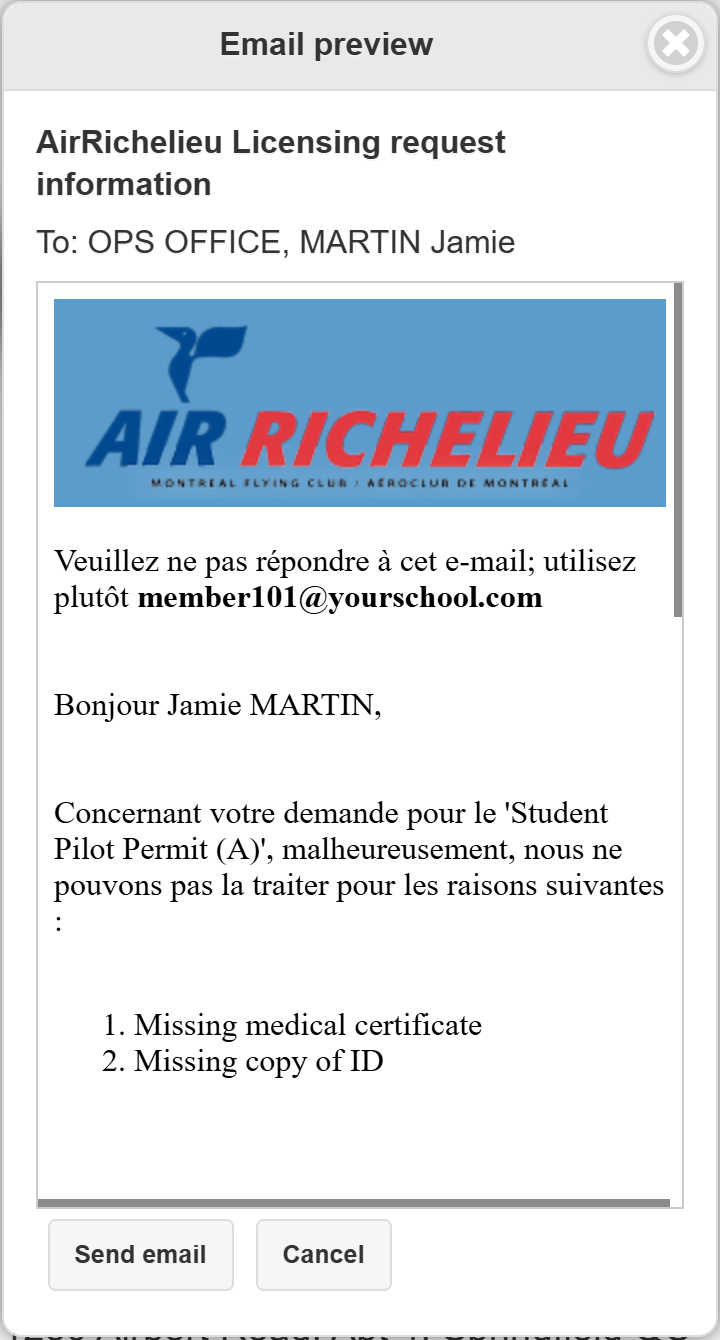
Send a request to the applicant opens a box where you type the reasons, one per line (optional). Tap Preview to see the email exactly as it will be sent, with its subject and recipients, then Send email (or Cancel). The email is recorded in the history.