
Published 18 October 2026, Updated 23 October 2026
The lesson designer has a header and seven sub-tabs: Content, Session setup, Access rules, Completion and grading, Repeats and notifications, Items and History (administrators). This chapter covers the header and the first three sub-tabs; the others are in Design a lesson: completion, repeats, items and history.
Click Save (bottom right) after your changes. The Save button is shown to the course editors and to top-level administrators, and only while the course can be modified.
Header

| Field | Purpose |
|---|---|
| Title | Lesson name shown in the course sequence and training records (for example PPL-DF3). |
| Activity | How the lesson is performed (flight dual, solo, ground, simulator…). Activities marked (Instructor required) need an instructor when the lesson is recorded. The Help tab describes each lesson type. |
| Short description | A few words that distinguish similar lessons (for example Circuits). |
Badges summarize the lesson rules: Must pass, Must be scored, Failed below n%, All items graded, Co-pilot, n pre-requisites, Pre-requisite exercises, Qualifications required, Recency n days, Max n repeats, No repeat once passed, Renews n competencies, Credits n lessons, n dynamic documents, CBTA.
Content
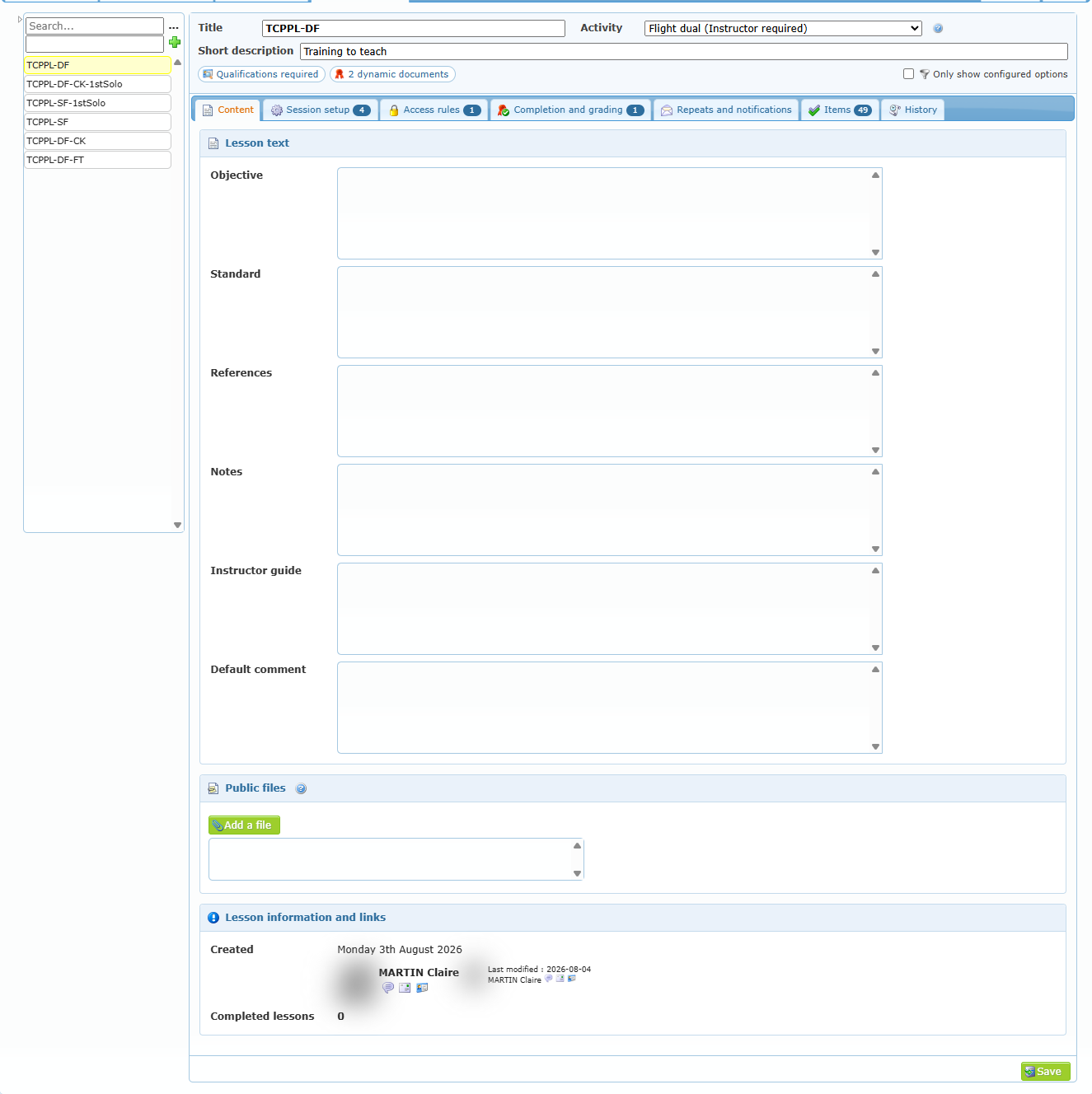
| Field | Purpose |
|---|---|
| Objective | What the student must achieve. |
| Standard | The required performance standard. |
| References | Documents to study. |
| Notes | Other guidance. |
| Instructor guide | Guidance for the instructor only. |
| Default comment | Text pre-filled in the comment when the lesson is recorded. |
| Public files | Files attached to the lesson and available to its users. Click Add a file. |
| Lesson information and links | Creation and last modification, number of Completed lessons, Is a prerequisite of (lessons that require this one), Locks these lessons when passed, and the CBTA trainings and competencies linked to the lesson. |
Session setup
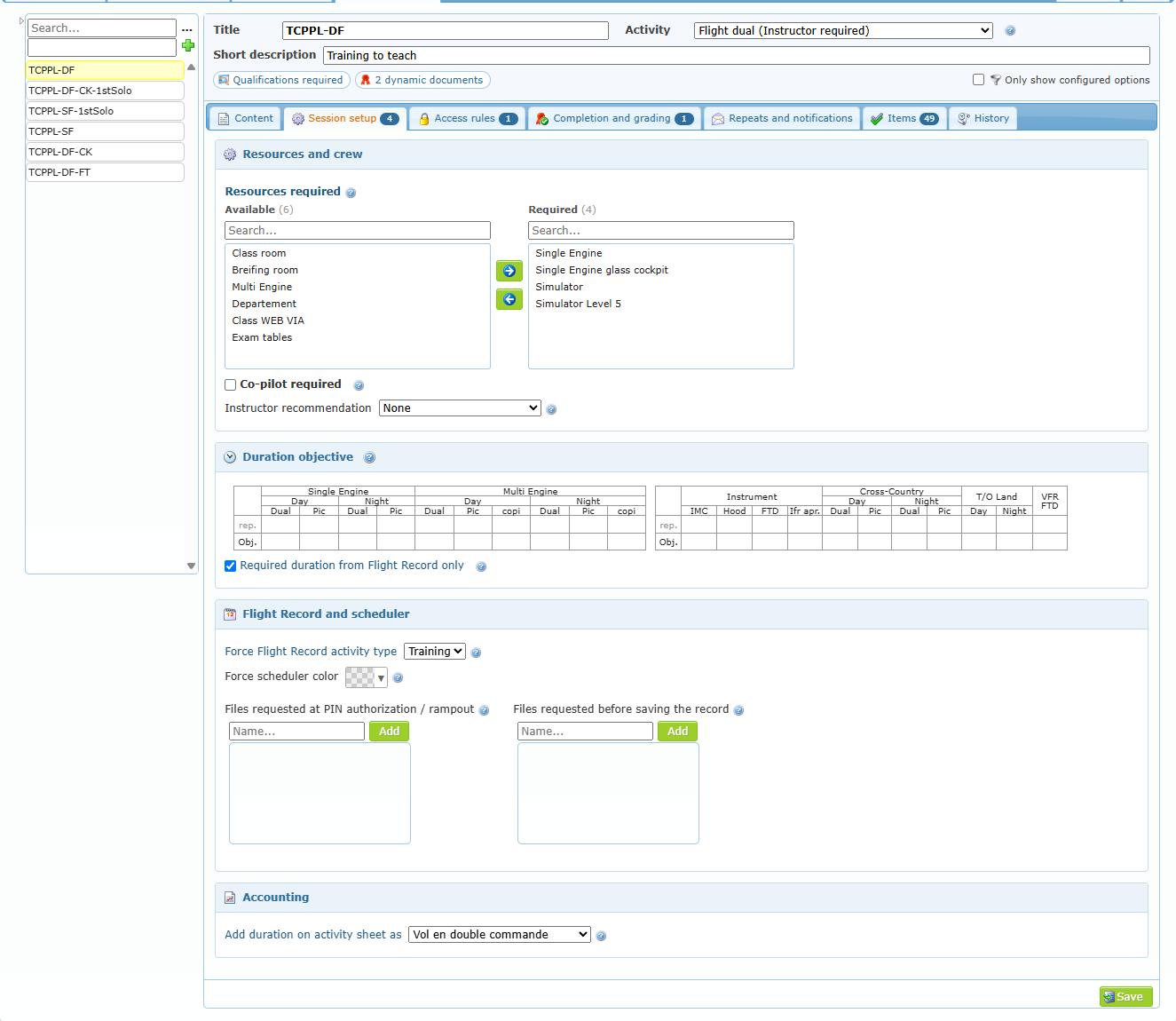
Resources and crew
| Option | Effect |
|---|---|
| Resources required | Resources that can be used for this lesson (aircraft types, simulators, rooms…). Move them from Available to Required. The flight and ground tables of the duration objective follow the selected resources. |
| Co-pilot required | A second crew member (co-pilot or student) must be selected when recording. |
| Instructor recommendation | Requires a recommendation from the selected source before the lesson. |
Duration objective
Enter the planned times for the lesson in the flight table (single and multi engine, day/night, dual/PIC/co-pilot, instrument, cross-country, take-offs and landings, VFR FTD) and in the ground table (theory, preparatory, study, exams). The rep. row shows the total already planned by the previous lessons of the course. These objectives feed course progress, statistics and time comparisons.
Tick Required duration from Flight Record only when durations typed by hand must not satisfy the lesson.
Flight Record and scheduler
| Option | Effect |
|---|---|
| Force Flight Record activity type | Training, Solo, Renting, Internal, Ground, Other, or None to keep the usual choice. |
| Force scheduler color | Color of this lesson in the Scheduler. Leave empty for the default color. |
| Files requested at PIN authorization / rampout | Names of documents that must be uploaded at PIN authorization (if used) and at ramp-out in Flight Record. Type a name and click Add. |
| Files requested before saving the record | Documents that must be uploaded before the record is saved. They can be viewed by the trainee, the trainer, the course responsible and high-level members. |
Accounting
Add duration on activity sheet as — choose the activity type under which the lesson duration is added to the activity sheet, or None.
Access rules
Access rules decide when a student can do the lesson.
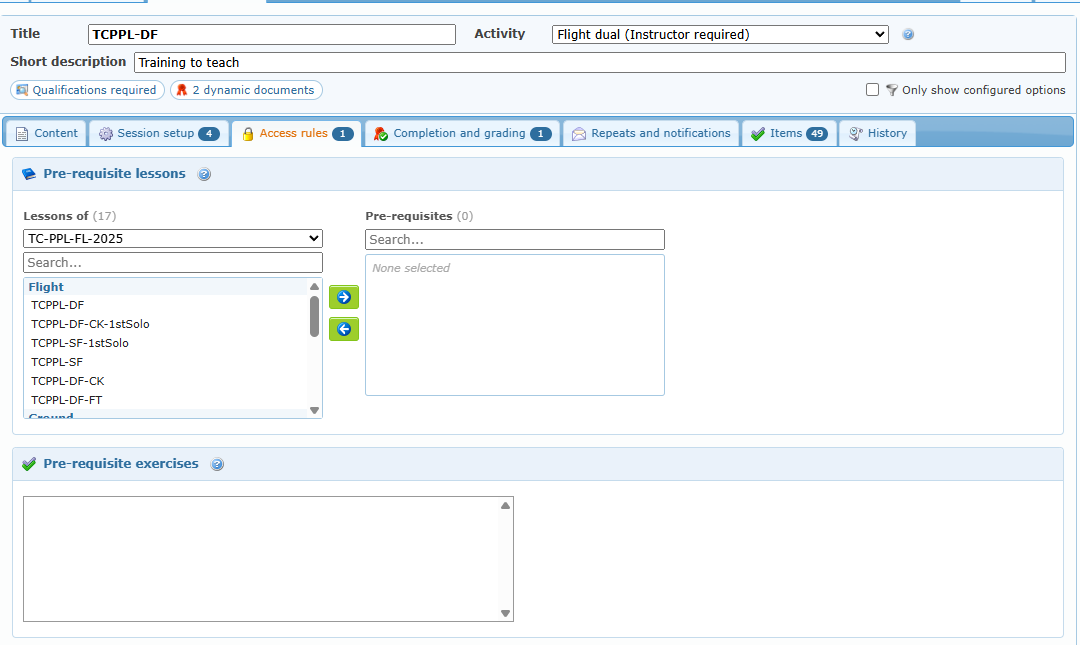
Pre-requisite lessons — Lessons that must be completed before this lesson becomes available. Choose a course in Lessons of (the current course is selected by default), then move lessons to Pre-requisites. Lessons of another course are marked with [].
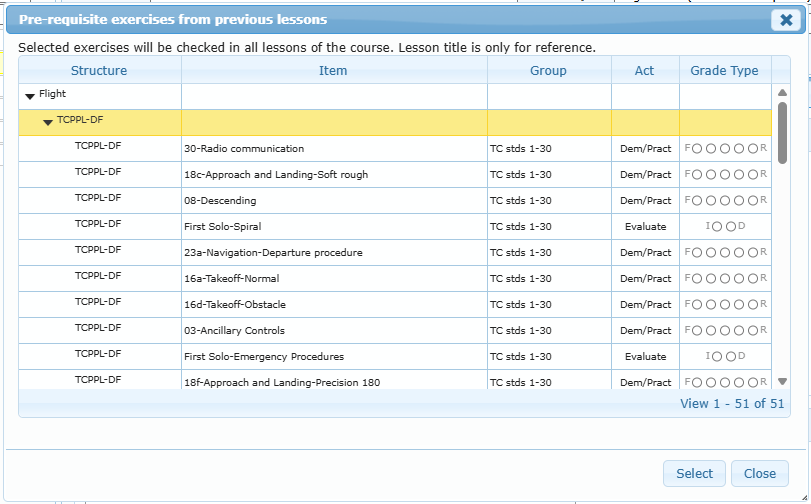
Pre-requisite exercises — Click the box to open Pre-requisite exercises from previous lessons. Expand a lesson, select the exercises and their required grade, then click Select. The selected exercises are checked in all lessons of the course; the lesson title is only a reference. Remove an exercise with its cross.
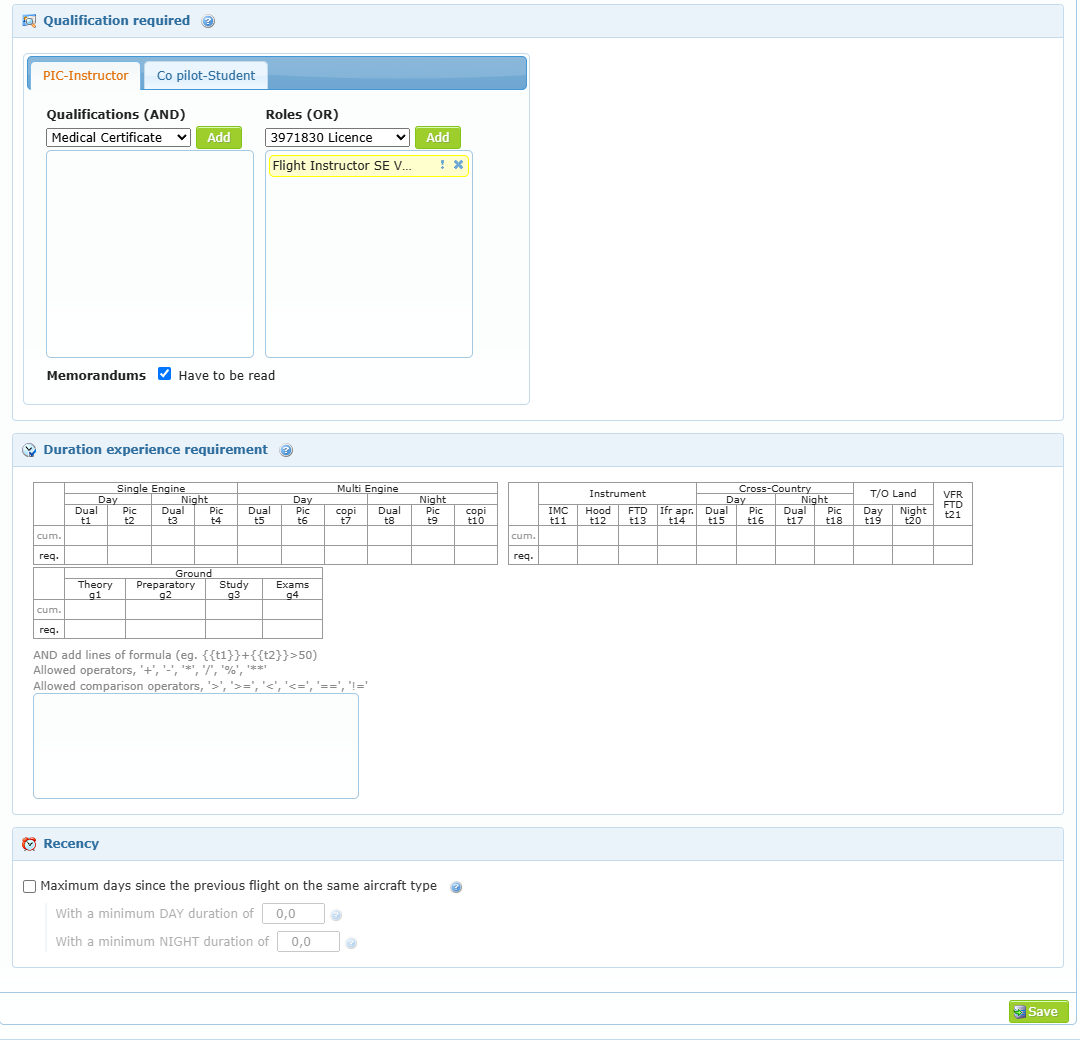
Qualification required — Separate conditions for the PIC-Instructor and the Co pilot-Student (two tabs):
| Part | Rule |
|---|---|
| Qualifications (AND) | Every listed qualification must be valid. |
| Roles (OR) | At least one listed role is enough. |
| ! (NOT) | Click the exclamation mark on a line to reverse it: the member must not have that qualification or role. |
| Memorandums — Have to be read | The member must have read the memorandums that concern him. |
Choose an item in the list and click Add; click the cross to remove it.
Tip: when the course option The PIC when dual session is searchable is on (Design Course › Publication and access), the PIC-Instructor conditions of a dual lesson become searchable in the training record: a search icon lists the members who currently meet them. It only appears when at least one PIC qualification or role is set; a memorandum condition alone is not enough.
Duration experience requirement
The duration experience requirement makes sure a member has accumulated enough time in the course before they can fly or perform the lesson. It has two parts, and both must be satisfied:
- Minimum durations — type a minimum in the req. row of a column (for example 10 in Day SE Solo). Each filled column is checked on its own.
- Formulas — below the tables, for rules that combine several columns (for example Day SE Dual + Day SE Solo ≥ 50). Every formula must be true (AND).
Which hours are counted? The total of the durations of all the lessons the member has recorded in this course (all phases), plus the hours credited to the member in this course, column by column, in decimal hours (1.5 = 1 h 30). Hours flown outside the course are not counted, unless a formula explicitly uses another course (see below). The cum. row only shows what the previous lessons of the course plan; it is a design aid and is never used to unlock the lesson.
Credited hours are the hours entered in the trainee training record, Credits tab, Credited hours table (row Credit), for experience gained before the course. They count in both parts of the requirement, the minimum durations and the formulas, in the same column as the recorded time. For example, a member with 3 h of Night SE Solo recorded in the course and 2 h of Night SE Solo (PIC) credited has 5 h: Night SE Solo ≥ 5 is met. A credited lesson (Credit a lesson) adds no hours. When no hours are credited, only the recorded time counts.
Writing a formula
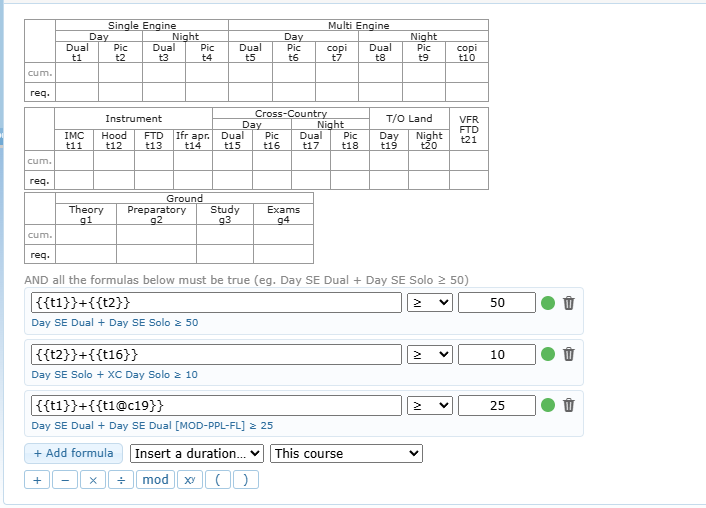
- Click + Add formula. A new line appears with three fields: the formula (left), the comparison (≥, >, ≤, <, =, ≠) and the value (right).
- Click in the formula field, then choose a column in Insert a duration…. Durations are grouped by Single engine, Multi engine, Instrument, Cross-country, Other and Ground. The duration is inserted at the cursor as a short code, for example
{{t1}}for Day SE Dual. - Use the operator buttons to combine durations: +, −, ×, ÷, mod (remainder of a division), xʸ (power) and the parentheses ( ). Numbers can be typed directly (for example
{{t1}}*0.5). - Choose the comparison and type the required value in hours (or a number of take-offs/landings for the T/O columns). The value can also be a calculation.
- Check the line: a green dot means the formula is valid, and the line below translates it in plain words (for example Day SE Dual + Day SE Solo ≥ 50). Click the trash icon to remove a formula.
- Click Save.
Durations of another course — to count time recorded in another course, select that course in the list next to Insert a duration… (default This course) before choosing the duration. The inserted code then carries the course, and the plain-words line shows the course name in brackets, for example Day SE Dual [MOD-PPL-FL]. The hours recorded and the hours credited to the member in that course are counted; if the member has neither, its durations count as 0.
| Code | Duration | Code | Duration |
|---|---|---|---|
| t1 / t2 | Day SE Dual / Day SE Solo (PIC) | t11 / t12 / t13 | Instrument IMC / Hood / FTD |
| t3 / t4 | Night SE Dual / Night SE Solo (PIC) | t14 | IFR approaches |
| t5 / t6 / t7 | Day ME Dual / Solo (PIC) / Co-pilot | t15 / t16 | Cross-country Day Dual / Day Solo |
| t8 / t9 / t10 | Night ME Dual / Solo (PIC) / Co-pilot | t17 / t18 | Cross-country Night Dual / Night Solo |
| g1 / g2 | Ground: Theory / Preparatory | t19 / t20 | Take-offs and landings Day / Night |
| g3 / g4 | Ground: Study / Exams | t21 | VFR FTD |
| Example (plain words) | When to use it |
|---|---|
| Day SE Dual + Day SE Solo ≥ 50 | A total of 50 h on single engine by day, whatever the split between dual and solo. |
| Day SE Solo + XC Day Solo ≥ 10 | At least 10 h of solo time, local or cross-country. |
| Inst IMC + Inst Hood + Inst FTD ≥ 40 | Instrument time from any source. |
| Inst FTD ≤ 20 | A maximum: no more than 20 h of FTD credited in the course. |
| Day SE Dual + Day SE Dual [MOD-PPL-FL] ≥ 25 | Dual time recorded in this course and in a previous course added together. |
| TO Night ≥ 5 | A minimum number of night take-offs and landings. |
Invalid formulas
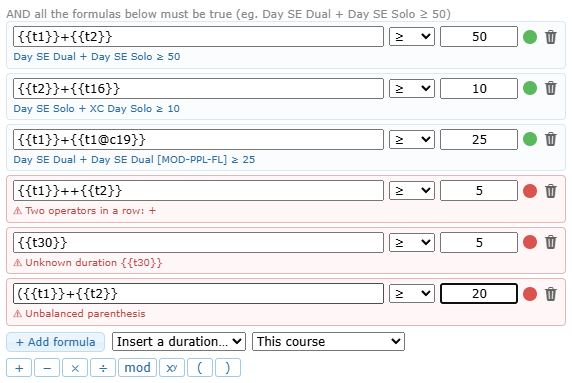
The editor checks each line while you type. An invalid line turns red, its dot becomes red and the message ⚠ explains the problem (also shown when you hover the dot):
| Message | Meaning and fix |
|---|---|
| Formula is empty / Value is empty | One side of the comparison is missing. Fill it or remove the line. |
| Unknown duration … | The code does not exist (for example {{t30}}). Insert the duration from the list instead of typing it. |
| Unknown course (ID …) | The other course used in the formula no longer exists. Select an existing course and insert the duration again. |
| Invalid character… | Only durations, numbers, operators and parentheses are allowed. Letters or units such as h are not. |
| Invalid number … | Use a dot as decimal separator, once (1.5, not 1,5 or 1.5.0). |
| Two operators in a row / A value is required before … / … ends with an operator | An operator has nothing on one side, for example {{t1}}++{{t2}}. |
| Missing operator before … | Two values are side by side without an operator, for example {{t1}}{{t2}} or 2(. |
| Unbalanced parenthesis / Missing value before ) | Each ( needs its ), with something inside. |
What happens when you save or modify the lesson
| Situation | Result |
|---|---|
| All formulas valid (green) | The lesson is saved. The rule applies immediately to the next checks in Flight Record; nothing already recorded is changed. |
| A formula is invalid (red) | The lesson is still saved, with the formula as typed: the warning does not block Save. Because an invalid formula can never be true, the lesson becomes blocked for every member concerned (see Flight Record below) until the formula is corrected. |
| Empty lines | Ignored. |
| A formula is removed or relaxed | Members who were blocked are accepted at the next check, without any other action. |
After each change, run Check Integrity (course tools). It tests every formula against the durations planned by the previous lessons (the cum. values; for another course, the durations planned by that course) and reports, as important findings:
- … contains an invalid duration experience formula: … — the formula cannot be calculated. Correct it.
- … has duration experience requirement(s) that cannot be reached from previous lesson objective durations: … — the formula is valid, but a student who follows the course plan will not have enough time when they reach this lesson. Lower the requirement or increase the objectives of the previous lessons.
In the trainee training record, the lesson details list the minimum durations and the formulas in plain words, so instructors can see what is required.
What happens in Flight Record
Flight Record checks the requirement each time an activity linked to this lesson is displayed, prepared for ramp-out or ramped out. The totals are recalculated at every check, so a member is accepted as soon as their recorded and credited time is sufficient. The check applies to the member being trained:
| Activity type | Member checked |
|---|---|
| Training (dual), Internal, Ground | The student (not the instructor) |
| Solo, Renting | The pilot in command |
| Formula result | What the user sees |
|---|---|
| True | Nothing: the requirement is met. |
| False (not enough time) | The member gets a STOP marker and the formula is listed in plain words among their missing requirements (for example Day SE Dual+Day SE Solo>=50). A missing minimum duration shows as Requires 10 Day SE Solo duration. |
| Invalid | Treated exactly like a false formula: STOP marker with the formula text, for every member, whatever their hours. Only correcting the formula in the Course Design Center removes it. |
At ramp-out, a STOP marker has the same effect as the other blocking conditions (qualifications, memorandums…), according to your Flight Record settings: either the ramp-out is refused until the requirement is met, or the ramp-out is accepted and recorded with its stops, and a Ramp Out bypass alert is sent to the configured recipients.
Recency — Maximum days since the previous flight on the same aircraft type: when exceeded, ramp-out is refused in Flight Record. Optionally require a minimum DAY or NIGHT duration within that previous activity. Untick for no limit.
Important: an impossible or circular prerequisite, or a wrong formula, blocks the lesson for every student. Run Check Integrity after changing access rules.