Published 25 October 2026, Updated 25 October 2026
The case sections
The bottom of the case details page has four sections; tap a title to open it.
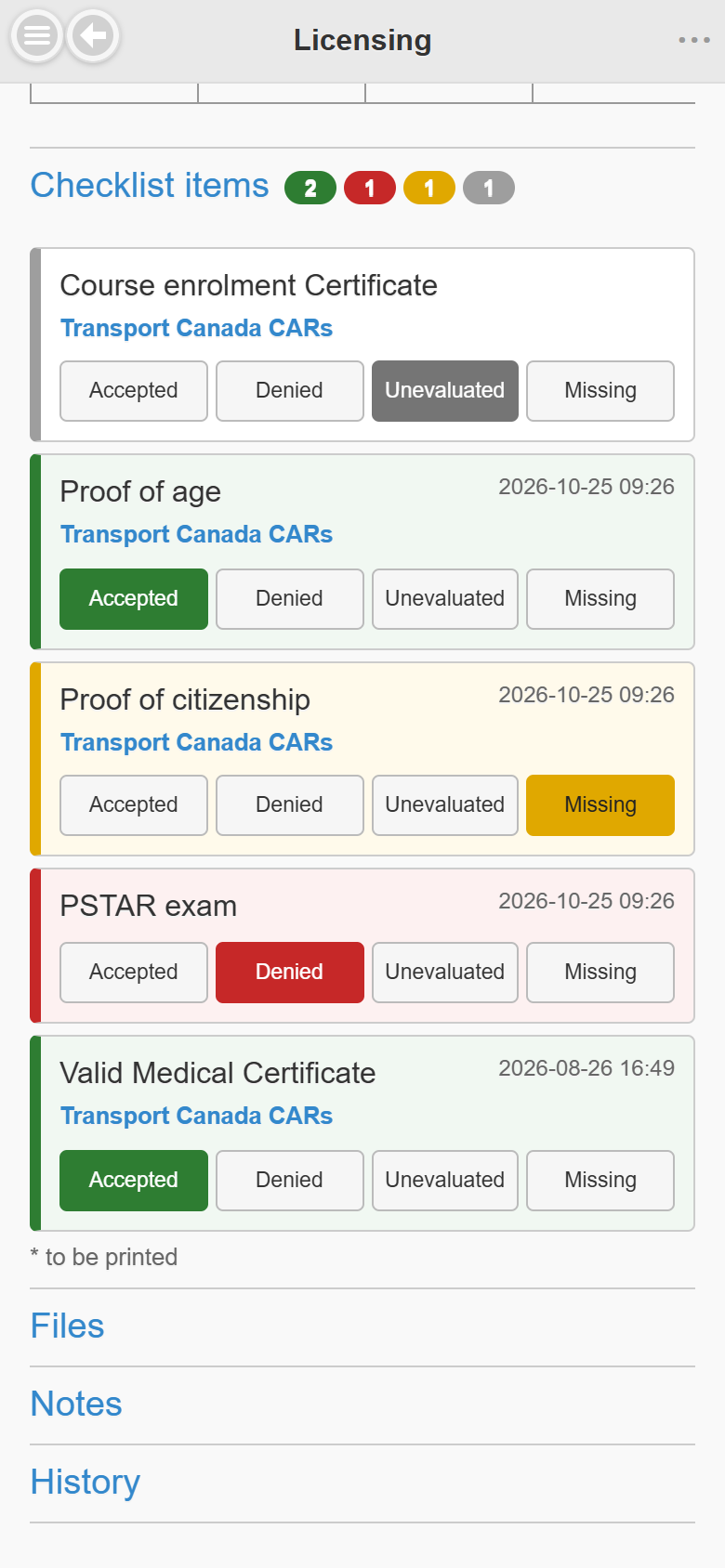
- Checklist items: coloured counters (accepted, denied, missing, unevaluated) next to the title. Each item has four buttons, Accepted, Denied, Unevaluated and Missing, its last change date and its reference links.
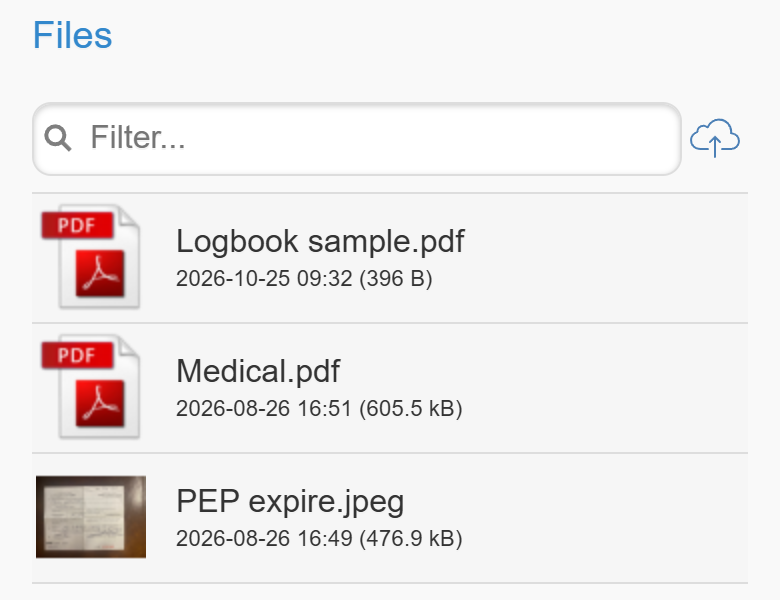
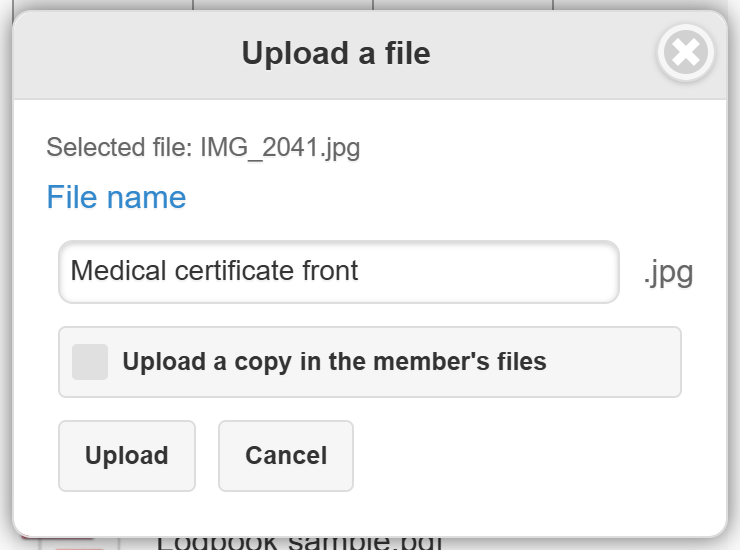
- Files: filter the list, tap a file to open it, tap the cloud icon to upload a photo or a file. In the Upload a file window you can change the File name (the extension is kept) and tick Upload a copy in the member’s files.
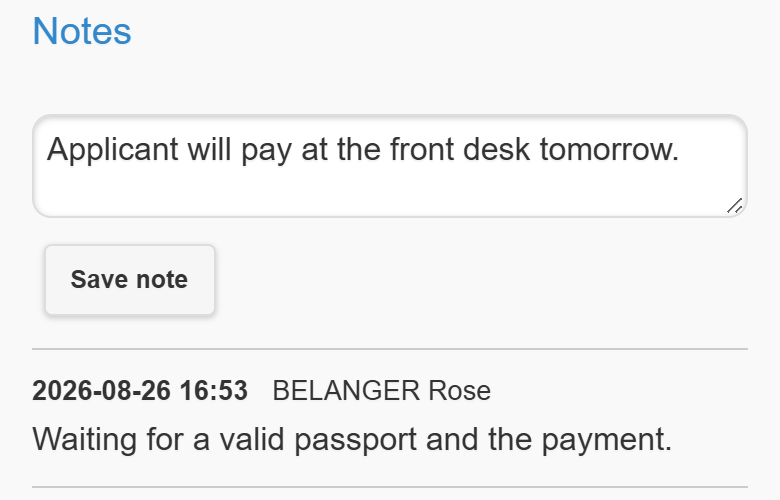
- Notes: type a quick note and tap Save note.
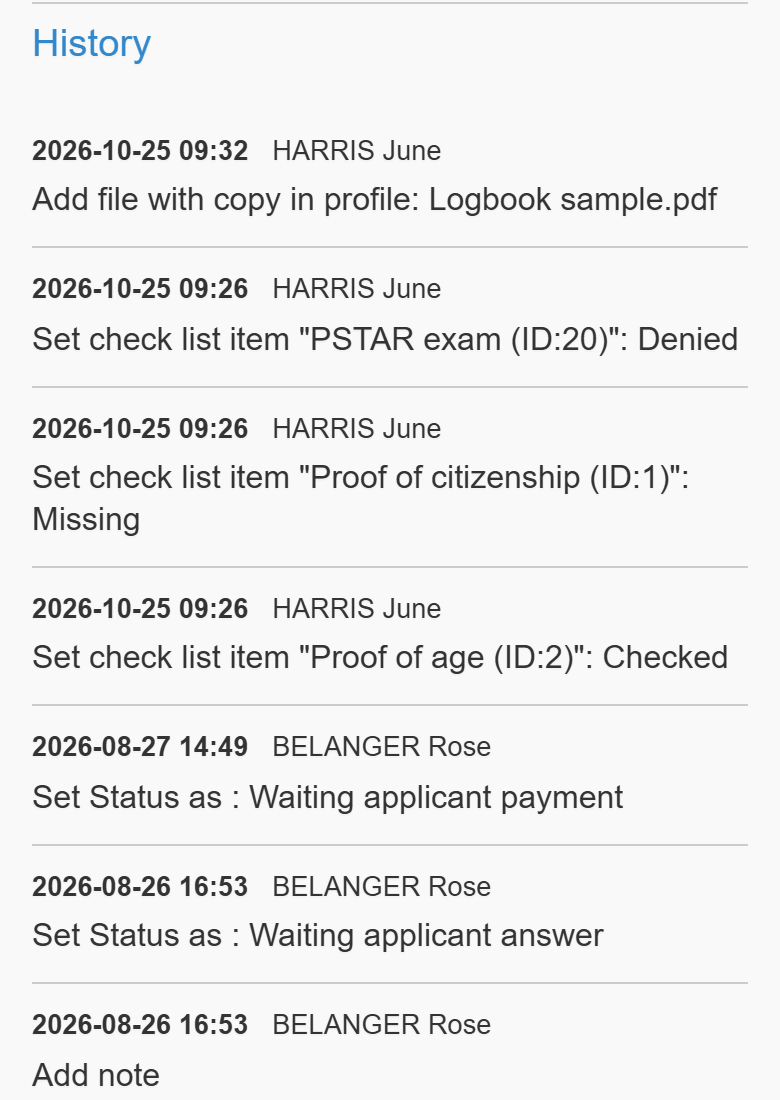
- History: everything that happened to the case, newest first.
Licence cases in the member profile
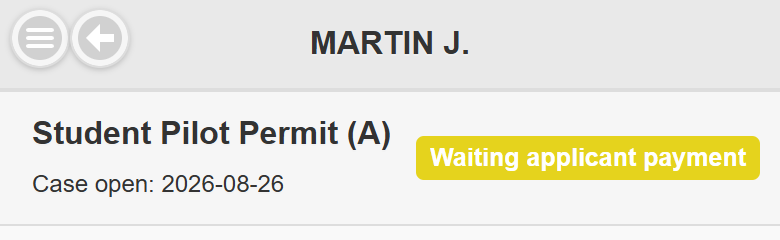
From a member’s mobile profile, the licences list shows each case with its type, opening date, signed date and status (green when completed). Licensing users tap a case to open its details.