Published 15 October 2026, Updated 15 October 2026
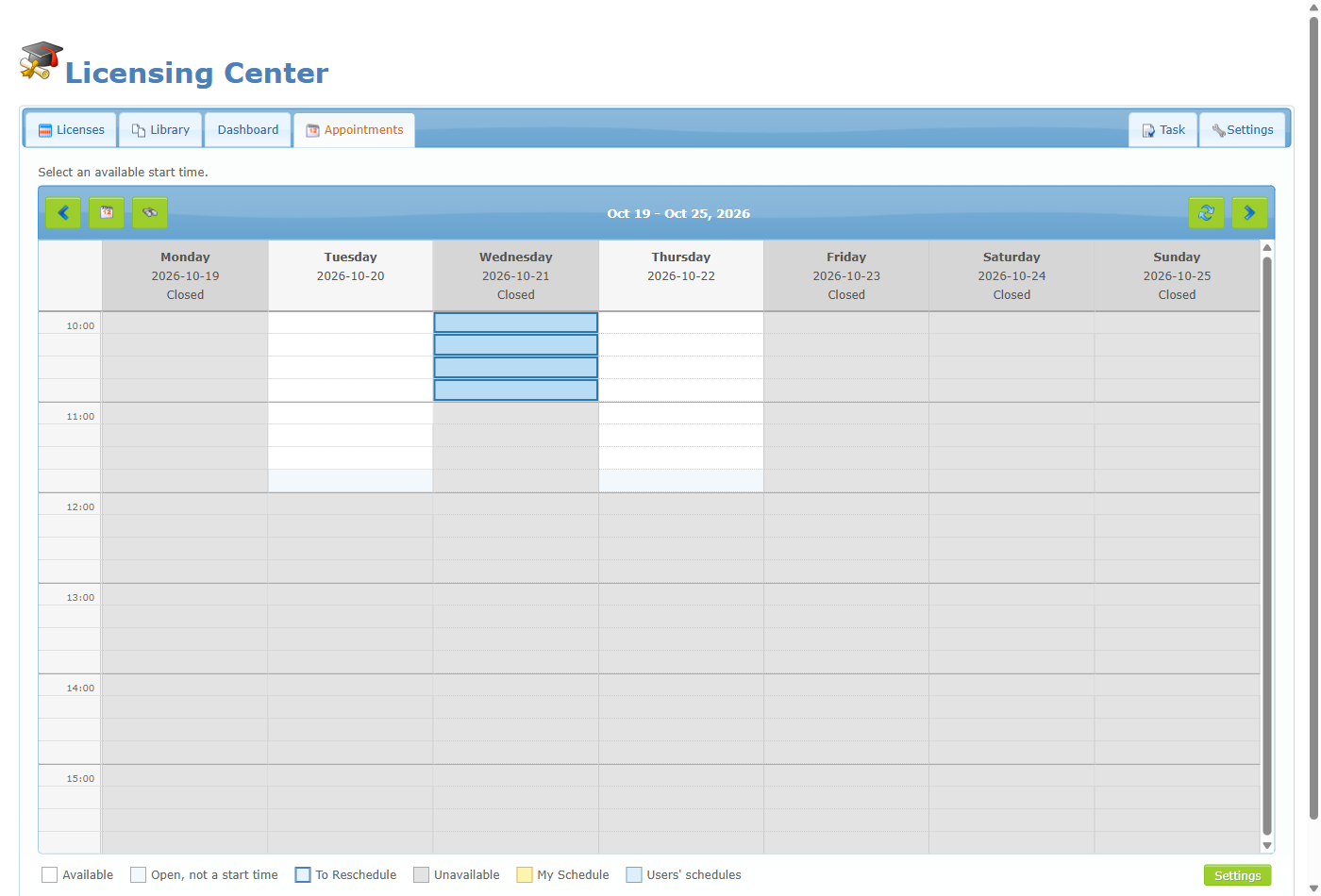
If a time is greyed out because the type is closed, you can open it for a single occasion.
- Make sure you are on the Appointments tab of the Licence center.
- Press the mouse on a grey or closed cell and drag down over the rows you want to open. The selection stays within a single day.
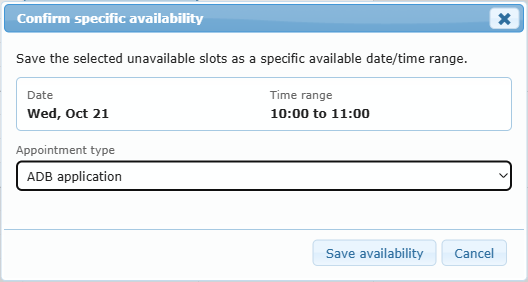
- Release the mouse. Confirm specific availability opens, showing the Date and Time range.
- Select the Appointment type to make available (it is pre-selected when only one exists).
- Click Save availability. The calendar reloads and the range is bookable.
The new range is added to the type’s Specific available date/time ranges in the settings. To remove it later, edit that list in Settings.