Published 15 October 2026, Updated 15 October 2026
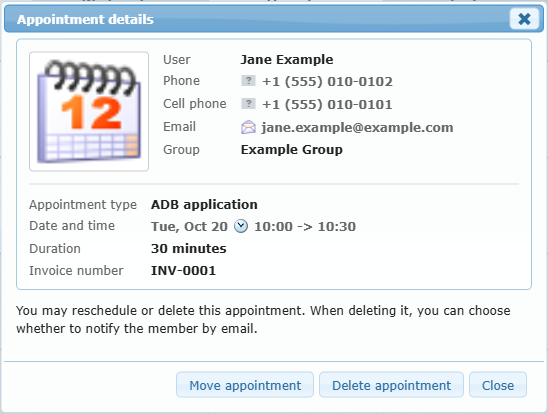
Click any appointment to open Appointment details.
| Field | Meaning |
|---|---|
| User | Member name; the id-card icon opens their profile in a new window. |
| Phone / Cell phone | With the country flag. |
| The envelope icon starts an email. | |
| Group | Shown when the member belongs to a group. |
| Appointment type, Date and time, Duration | The booking. |
| Invoice number | Shown when one is attached. |
Buttons: Move appointment (if allowed), Delete appointment, Close.
Moving
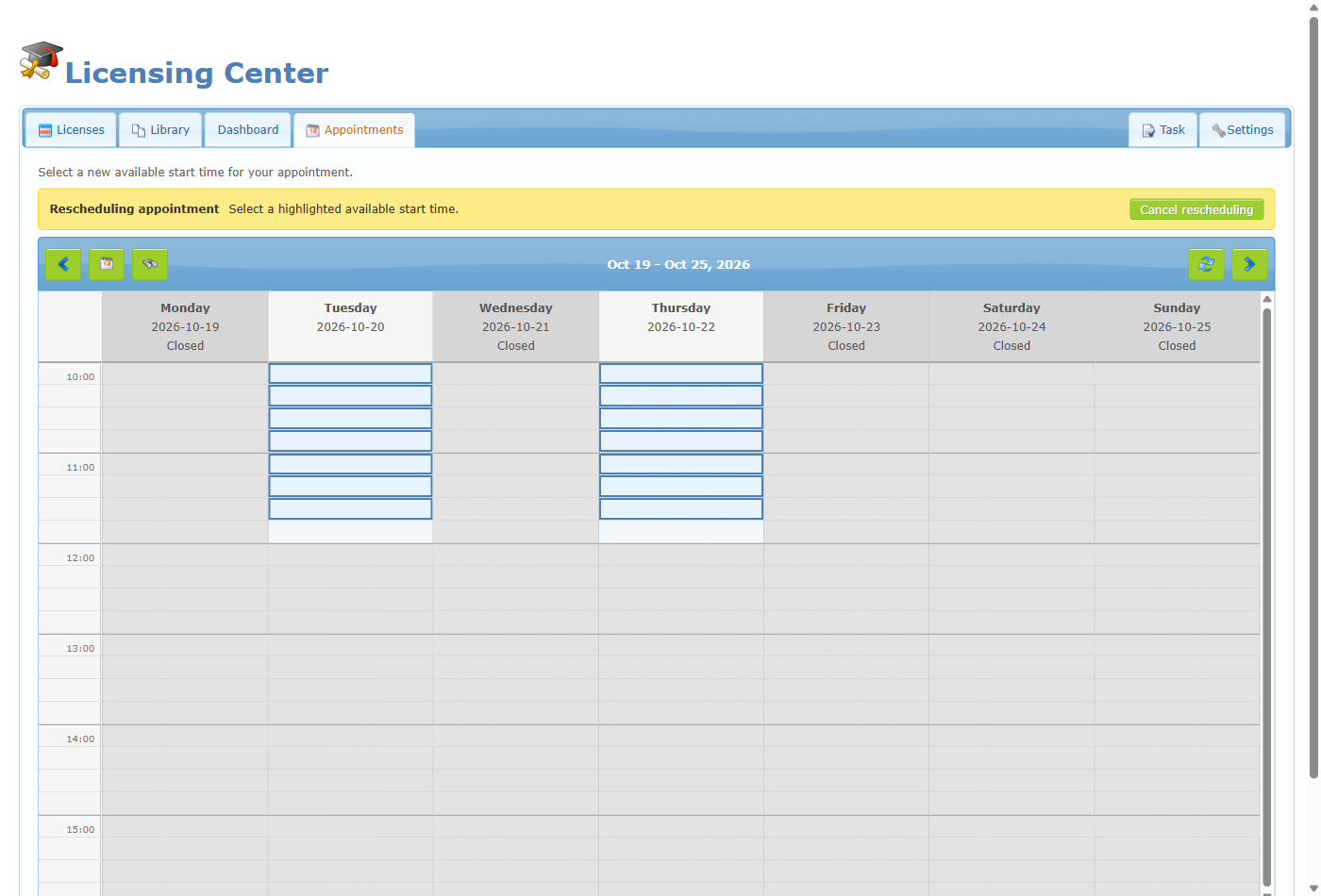
Click Move appointment; the banner Rescheduling appointment asks you to select a highlighted start time. Choose the time to move the appointment. Cancel rescheduling (or Esc) abandons the change. The member is notified by email. Rescheduling is never charged again.
Deleting
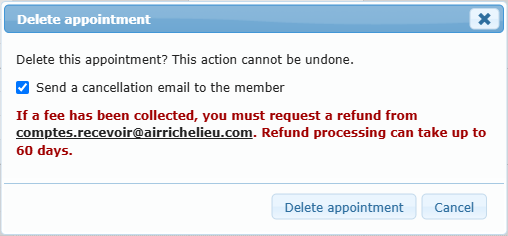
Click Delete appointment. A confirmation lets you tick or untick Send a cancellation email to the member (ticked by default). A warning reminds you that if a fee was collected, a refund must be requested from accounts receivable and may take up to 60 days. Click Delete appointment to confirm.