Published 11 October 2026, Updated 11 October 2026
Click a report in the list to open it on the right. The panel title tells you the kind of report: Event report, Hazard report, QA finding or Squawk report.
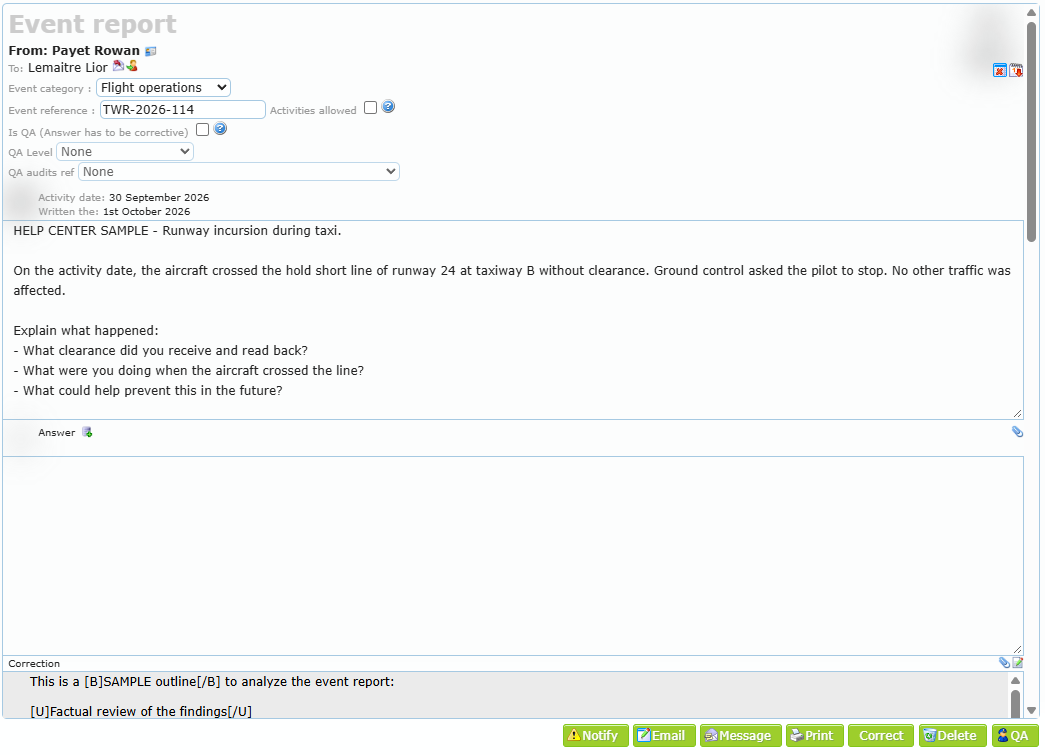
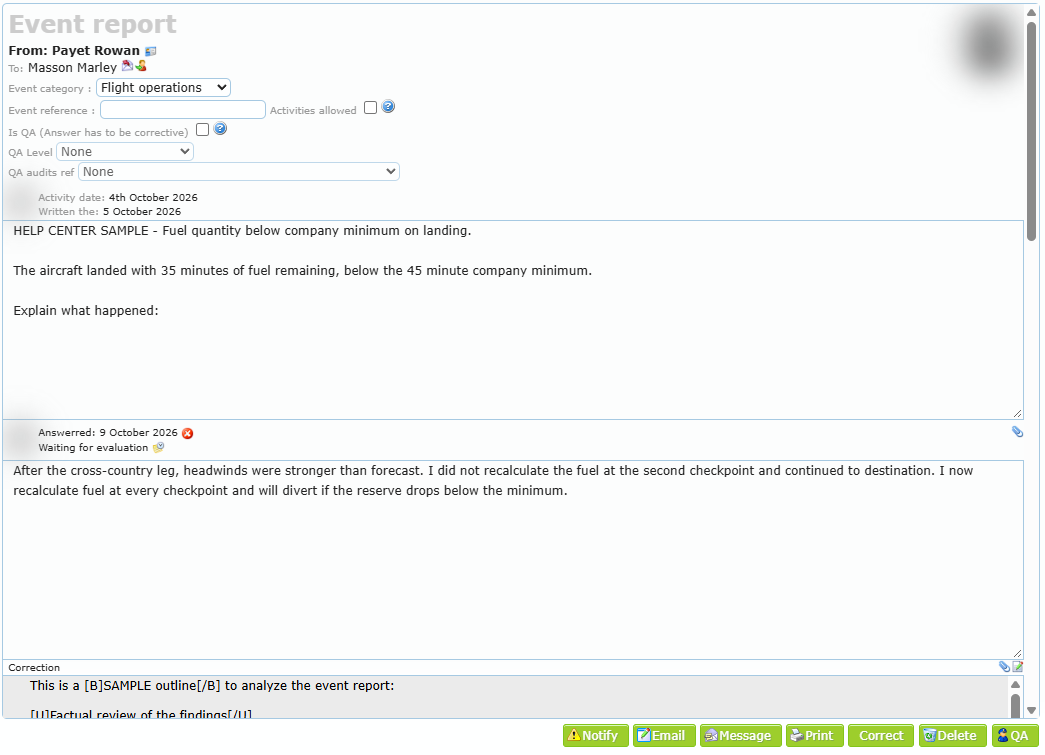
The header
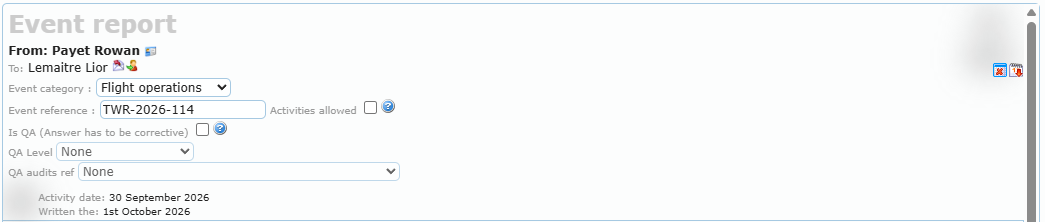
| Field | Meaning and use |
|---|---|
| From | The creator (investigator). Icons let you send them a message or an e-mail. |
| To | The member concerned. The red envelope sends them a reminder (Alert again by mail); the person icon lets you Modify concerned member. |
| Event category | The group of the report. Changing it moves the report to another Event group folder. Saved immediately. |
| Event reference | Your internal reference (for example a tower report number). Saved when you leave the field. |
| Activities allowed | When checked, this report never restricts the member’s scheduling or activities, even if the answer is late. Hover over the help icon to see the delays applied by your organization. |
| Is QA (Answer has to be corrective) | Turns the report into a QA finding: the member must analyze and propose corrective actions (QA team only). |
| QA Level | The level of the QA finding; the delay to answer depends on it (QA findings only). |
| QA audits ref | Links the finding to a QA audit (QA findings only). |
| Activity date | The date of the activity the report is about. |
| Written the | The creation date. The answer delay is counted from this date. |
| Attached files | Files added at creation. Click a file to open or download it. |
| Icons near the member photo | Red calendar: the member can no longer be scheduled because the report was not answered in time. Red table: the member can no longer start an activity (ramp out). Hover to read the delay. |
Every change is recorded in the report History.
Changing the member concerned
Click the person icon next to the name in To. Type at least two letters, choose the new member and click Change!. Leave Notify new member and Notify (previous member) checked to inform both. This is only possible for event reports and QA findings, not for hazards.
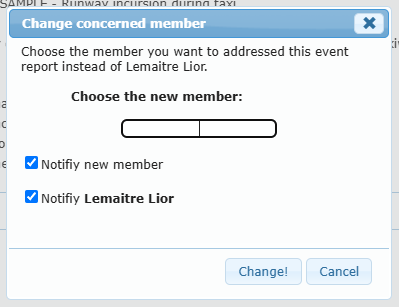
When to use it: the report was addressed to the wrong pilot, or the student moved and the instructor must answer instead.
The answer
Below the report text, the Answer area shows the member’s answer:
- Answer with no date: nothing has been sent yet. The member may have saved a draft, which is not considered an answer.
- Answered: date and Waiting for evaluation: the member requested an evaluation. The restrictions are removed.
| Icon in the Answer line | Action |
|---|---|
| Add answer manually (green plus) | Records an answer for the member, for example when they answered by e-mail or on paper. Shown only while nothing is answered. |
| Paper clip | Adds a file to the answer (for example the member’s e-mail). |
| Red cross next to the answer date | Remove request evaluation: reopens the answer so the member can complete it. |
SMS evaluators can also drag a hazard report from the list onto the answer area to copy the hazard statement into the event report (after a confirmation). A link between both reports is created.
Adding an answer manually
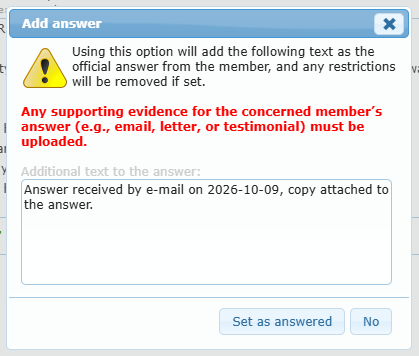
The window warns that the text becomes the official answer and that restrictions are removed. Upload the supporting evidence (e-mail, letter, testimony) with the paper clip. Type the answer or a summary in Additional text to the answer and click Set as answered.
Reopening an answer
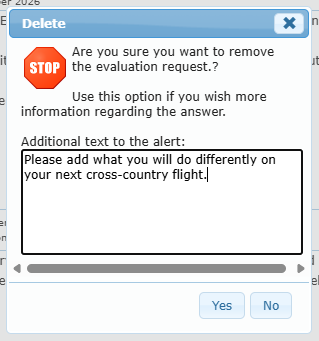
Click the red cross next to the answer date (or Remove, Reopen an Answer in the right-click menu). Type in Additional text to the alert what you need (for example “Please explain what you will do differently”). Click Yes: the member receives a message, the answer becomes editable again and the delay to answer applies again.
Buttons at the bottom
| Button | Shown when | What it does |
|---|---|---|
| Notify | Managers | Sends a copy of the report to chosen members (see below). |
| A safety e-mail address is configured | Opens your e-mail program to write to the safety address about this report. | |
| Message | Internal messaging available | Opens a new internal message with the report attached as a file. |
| Answer | You are the member concerned | Saves or sends your own answer. |
| Always | Prints the report (see below). | |
| Correct | Managers, report not corrected | Saves or closes the correction (see Evaluating and closing a report). |
| Delete | Highest administrator level, report not corrected | Deletes the report. |
| QA | Managers, QA not done | Saves the Quality Assurance inspection. |
Notify members
Choose what to include in the copy (Main text is always included; add Answer, Correction, QA, SMS), search and Add the members, write an Additional text if needed and click Notify. Each notification is recorded in the history.
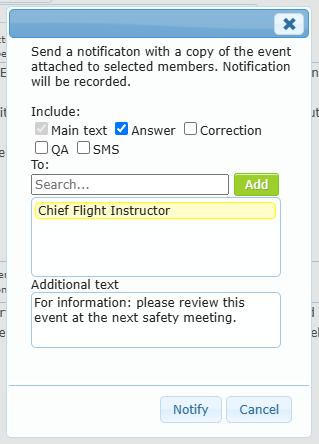
When to use it: inform the Chief Flight Instructor, the maintenance manager or the accountable executive about an event without giving them access to the Event report Center.
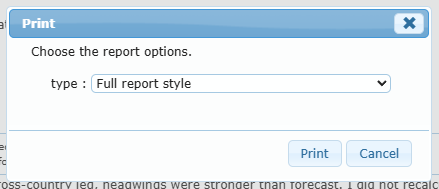
Choose the type: Full report style (everything), Corrective report style (focused on the correction), Add Note (with the notes, managers) or Add Note and history (administrators). Click Print: the document opens in a new tab.
Delete
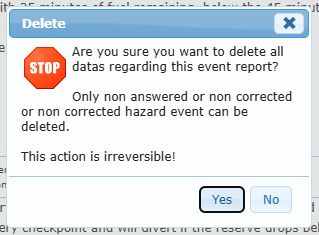
Deletion is permanent and also removes the attached files. It is possible only for a report that is not answered and not corrected, or for a hazard report that is not corrected. Otherwise the page shows “Can not delete this event report.”
Notes and history
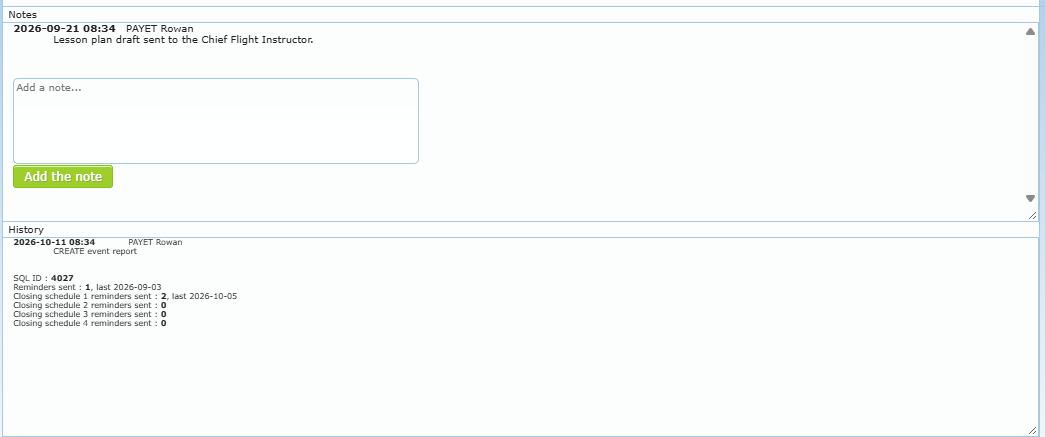
The Notes box (managers) keeps internal comments with date and author. Type in Add a note… and click Add the note. Notes are never sent to the member.
The History box (SMS managers and QA auditors) lists every action with date and author: creation, alerts sent, answer saved, evaluation requested, changes of category, SMS modifications (old value → new value), notifications, files. Its bottom shows the report number, the number of reminders sent (and the last one), the reminders sent for each scheduled action, and all the files grouped by step.