
Published 4 October 2026, Updated 9 October 2026
What this page is for
Course responsible Center is a visual assignment board. Each column represents a responsible member; each card represents one open student course assigned to that person. Use it to see the workload of every responsible member at a glance, find courses that nobody follows, and move responsibility from one person to another.
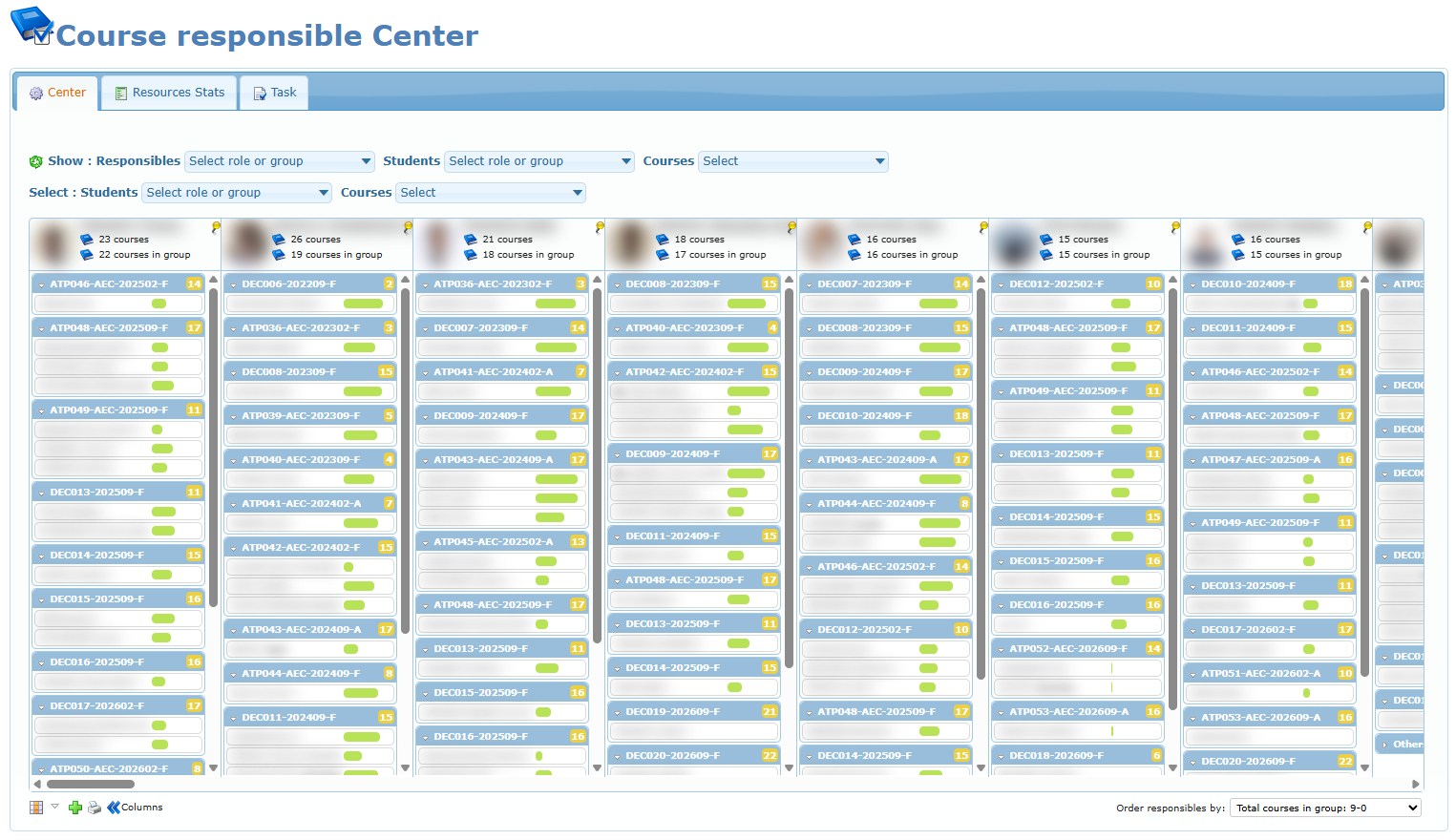
The page has up to three tabs:
| Tab | What it contains | Who sees it |
|---|---|---|
| Center | The assignment board described in this article. | Everyone with access to the page |
| Resources Stats | Current resource availability and instructor allocation statistics. | Full access only |
| Task | Follow-up tasks of the Course responsible Center. | Full access only |
Full access and view-only access
With Can manage course responsible by batch you can assign, transfer and unassign courses, print lists and use all tabs.
With Can see course responsible center only, the title shows Restricted options. You can read the board, open the Unassigned courses window and use hovers, double-clicks and notes, but cards cannot be dragged, Set course as unassigned is not offered, printing is not available, and the Resources Stats and Task tabs are hidden.
Choose what the board shows

The first row begins with Show and controls what appears on the main board:
| Filter | Purpose |
|---|---|
| Responsibles | Choose which responsible members get a column, by My favorites, organization Groups or Roles. |
| Students | Keep only the course cards whose students match the selected favorites, groups or roles. |
| Courses | Keep only the selected active courses. |
The second row begins with Select. Its Students and Courses filters apply only to the Unassigned courses window, not to the cards already on the board.
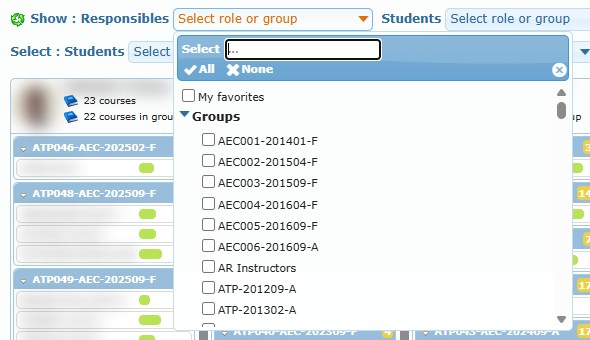
How the selectors work:
- Type in the Select field at the top of an open selector to find an entry quickly.
- All ticks every entry, None clears them. A heading arrow collapses or expands a group of entries.
- The board refreshes when you close the selector, not at each tick.
- Select the recycle icon at the beginning of the Show row to reload the responsible columns and their courses.
Which members get a column: when Responsibles is empty, the board shows every member configured as an instructor plus anyone who is currently responsible for an open course. When you choose groups or roles, only matching instructors are shown.
Read a responsible column
Each column has a heading and a list of course cards.
Column heading
| Element | Meaning |
|---|---|
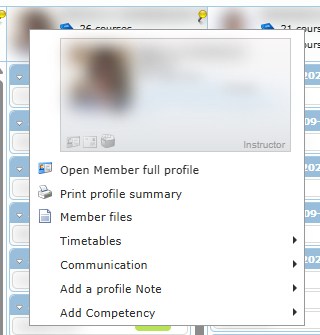
| Photo | Hover to read the member’s profile card. Right-click to open the member menu. Double-click to make this column narrow or wide again. |
| Name | The responsible member. |
| Yellow pin (Undock) | Opens this column in a separate Member view window. |
| First book line | Total number of open courses this person is responsible for. |
| Second book line | Number of those courses whose student belongs to an organization group. |
A faded (greyed) heading means the member is inactive or is not configured as an instructor. Courses can still be listed under that person, but no course can be dropped on that column.
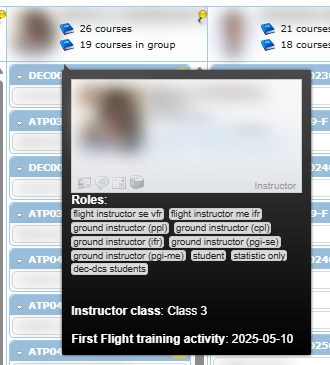
The hover card shows:
- the member’s contact card and shortcut icons,
- Member is inactive! or Not a course responsible! when applicable,
- Roles as small labels: grey when everything is in order, yellow when a required competency will expire soon, red when a required competency is expired or missing,
- Instructor class: the highest instructor class recorded, or N/A,
- First Flight training activity: the date of the member’s first flight training activity, or Never in red.
Group sections and course cards
Inside a column, cards are grouped by the student’s organization group. The group bar shows the group name and a yellow badge with the number of members registered in that group. Students without a group appear under Others…, which starts collapsed.
| Action | Result |
|---|---|
| Select the arrow on a group bar | Collapse or expand that group. |
| Double-click the group badge | Open the member list of that group in a new tab. |
| Hover the student name | Read the course summary (see below). |
| Double-click the student name | Open the student’s profile in a new tab. |
| Hover the progress bar | Read the percentage done and the number of lessons done out of the total. |
| Double-click the progress bar | Open the student’s Training Record for this course in a new tab. |
A small red dot after the student name means the course has a course note. A progress bar turns blue when every lesson is done.
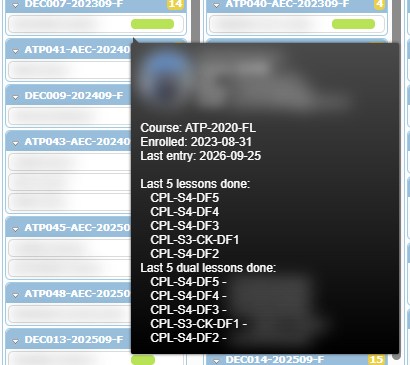
The course hover card shows the student’s contact card, the course, the Enrolled date, the Last entry date, the course note if any, the Last 5 lessons done, and the Last 5 dual lessons done with the instructor of each.
Adjust the display

| Control | Purpose |
|---|---|
| Toggle all column (grid icon) | Switch every column to its narrow form (photo only) or back to full width. |
| Toggle all group (arrow) | Collapse or expand every group in every column. |
| Green plus | Open the Unassigned courses window. See Assign, transfer and unassign courses. |
| Printer | Print the list shown on the board. See Print assignment lists. |
| Columns | Invert the width of each column (a narrow column becomes wide and a wide one narrow). |
Double-clicking one photo changes only that column’s width. The board scrolls horizontally when there are more columns than the screen can show.
Undocked Member view
Select the yellow pin on a column heading to open that column in a separate Member view window on the left of the screen. It is useful to keep one responsible in sight while you scroll the board.
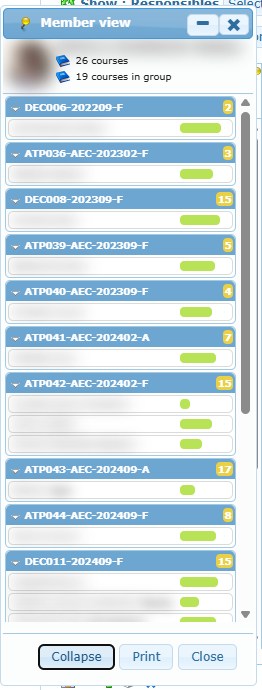
| Button | Result |
|---|---|
| Collapse / Expand | Collapse or expand all groups in the window. |
| Print this responsible member’s assignments (full access only). | |
| Close | Close the window. |
| Minimize (title bar) | Reduce the window to its title bar. |
Order responsible members
Use Order responsibles by on the lower right. The default is Total courses in group: 9-0.
| Order | Meaning |
|---|---|
| name: A-Z / Z-A | Alphabetical order. |
| Total courses: 0-9 / 9-0 | Fewest or most open courses first. |
| Total courses in group: 0-9 / 9-0 | Fewest or most courses of students who belong to a group first. |
| Total activities in last 30 days: 9-0 | Most flight and ground training activity in the last 30 days first. |
| Total activities in last 90 days: 9-0 | Most flight and ground training activity in the last 90 days first. |
| First flight training activity: 0-9 / 9-0 | Earliest or latest first flight training activity first. |
Sorting changes the display order only; it never changes course responsibility.
Recommended assignment workflow
- Select the responsible population in Show Responsibles, then close the selector.
- Apply Show Students and Show Courses only when they help you isolate the assignment.
- Choose a clear order, such as Total courses: 9-0, to see workload.
- Hover the course card and the target responsible’s photo: check total courses, roles, instructor class and recent activity.
- Drag the course and read every name in the confirmation.
- Use Yes and alert when the people involved should be notified.
- Confirm that the card appears in the correct column.
- Add a course note or a task when the reason or follow-up must remain visible.