
Published 11 October 2026, Updated 11 October 2026
Everything starts in the Events tab: the folders on the far left, the search bar and the report list in the middle, and the selected report on the right.
Folders (left panel)
Click a folder to show its reports. A number in brackets shows how many reports in that folder need attention.
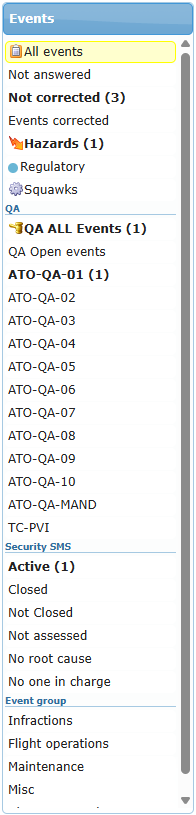
| Folder | What it shows |
|---|---|
| All events | Every event report (hazards, squawks and QA findings have their own folders). |
| Not answered | Event reports the member has not answered yet (no evaluation request). |
| Not corrected | Event reports that are not closed by a correction yet. This is the default folder for managers. |
| Events corrected | Event reports closed by a correction. With a date filter, the filter applies to the correction date. |
| Hazards | Hazard reports. The number shows hazards not yet treated. |
| Regulatory | Reports that have a regulatory reference (for example a reference to an authority’s occurrence report). |
| Squawks | Technical defect reports linked to aircraft (shown when the feature is used). |
| QA ALL Events | All QA findings and all events placed under QA monitoring. |
| QA Open events | QA findings that are not closed yet (QA team only). |
| QA group folders (for example audit series) | QA findings of that group, plus events placed under monitoring for that group (QA team only). |
| Security SMS › Active | Events with an SMS assessment that is not closed. The number shows how many. |
| Security SMS › Closed | Events whose SMS assessment is closed. With a date filter, the filter applies to the SMS closed date. |
| Security SMS › Not Closed | Events with an SMS assessment and no closed date. |
| Security SMS › Not assessed | Events that have never been assessed in the Security SMS section. |
| Security SMS › No root cause | Events without a root cause. |
| Security SMS › No one in charge | Events without a person in charge of closing. |
| Event group folders | Reports of each event category defined by your organization (for example Flight operations or Maintenance). |
When to use it: start your day with Not corrected, Hazards and Security SMS › Active; use Not assessed and No one in charge to find reports that were forgotten in the SMS process.
Searching
Type words in the Search… field and press Enter (or click the binoculars). Several words find reports containing any of them. The search looks in the member names, the report text, the answer, the correction, the QA text and the references; SMS evaluators also search root causes and occurrence categories.
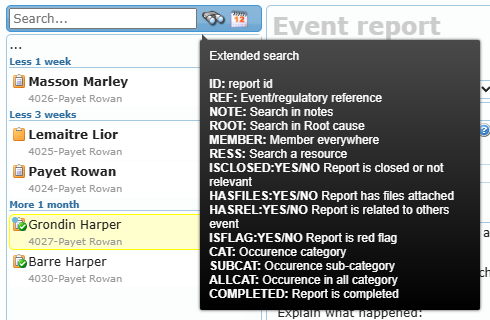
Hover over the search field to see the extended search keywords:
| Keyword | Example | Finds |
|---|---|---|
ID: | ID:4027 | The report with that number. |
REF: | REF:TWR-2026 | Reports whose event reference or regulatory reference contains the text. |
NOTE: | NOTE:lesson plan | Reports whose notes contain the text. |
ROOT: | ROOT:checklist | Reports whose root cause contains the text. |
MEMBER: | MEMBER:Martin | Reports where the member appears anywhere (creator, concerned, corrector, SMS evaluator, person in charge, QA). |
RESS: | RESS:C-FABC | In the Squawks folder, reports about that aircraft or resource. |
ISCLOSED:YES / ISCLOSED:NO | Reports closed (or treated as not relevant) / still open. | |
HASFILES:YES / NO | Reports with / without attached files. | |
HASREL:YES / NO | Reports linked / not linked to other reports. | |
ISFLAG:YES / NO | Reports you have / have not flagged in red. | |
CAT: / SUBCAT: / ALLCAT: | CAT:Bird | Reports by occurrence category, sub-category, or either (SMS members). |
COMPLETED:YES / NO | Reports with / without a completed date (SMS members). |
Filtering by date
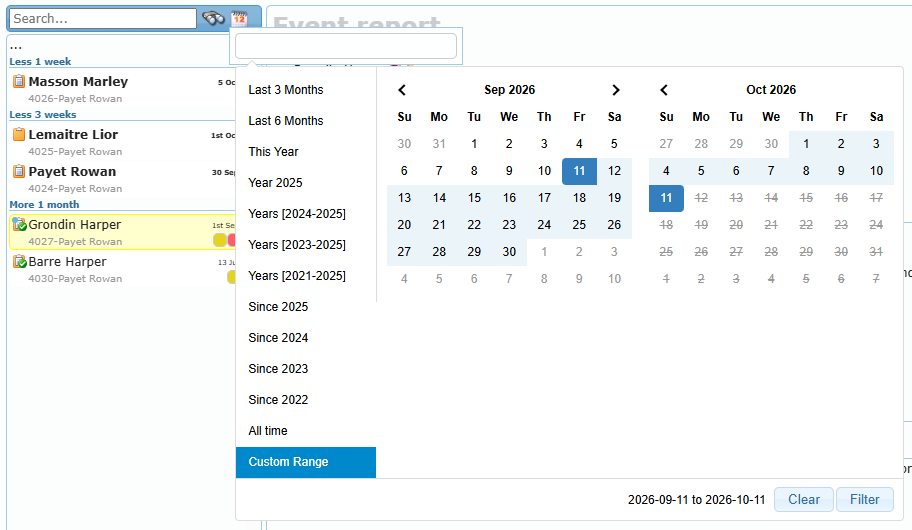
Click the calendar icon next to the search field, then the date box. Choose a ready-made range (Last 3 Months, This Year, Since 2024, All time…) or two dates in the calendars, and click Filter. The calendar icon changes to show that a filter is active. Clear removes the date filter.
Reading the list
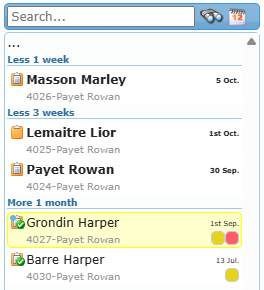
Reports are grouped by age (Today, Yesterday, Less 1 week, Less 3 weeks, More 1 month). More reports load automatically when you scroll down.
| Element | Meaning |
|---|---|
| Bold name | The report still needs an action (not answered, not corrected, or QA not done). |
| First line | The member concerned (for a squawk: the aircraft). |
| Second line | The report number and the creator. |
| Empty clipboard icon | No answer yet. |
| Clipboard with red mark | Answered, not corrected yet. |
| Clipboard with green check | Corrected. |
| Clipboard with arrow | Event under QA monitoring (in QA folders). |
| Small colored square (right) | The safety index color from the risk matrix (SMS). An empty square means no previous occurrence found. Hover for details. |
| Yellow square | A corrective action reaches its projected date soon. |
| Red square | A corrective action is past its projected date. Hover to see how many days late. |
| Crossed-out grey line | A hazard report treated as not relevant. |
| Red pin | A report you flagged. Hover over a line and click the pin area to flag or unflag it. Flags are personal: other managers do not see yours. |
To link two reports, drag a line of the list onto the Drag here references to others reports box of the opened report (see Security SMS).
Right-click menu
Right-click a report in the list to act on it without opening several windows.
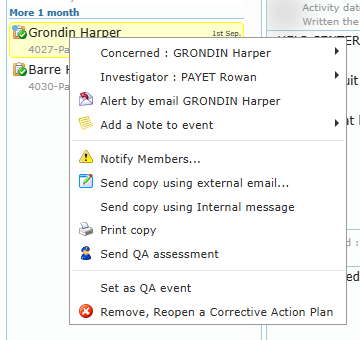
| Menu entry | What it does |
|---|---|
| Concerned : name › | Actions on the member concerned (see below). |
| Investigator : name › | The same actions for the creator of the report. |
| Alert by email name | Sends a reminder to the member concerned to answer. |
| Add a Note to event | Opens a box to type a note; press CTRL+ENTER to save it. |
| Notify Members… | Opens the notification window (report opened only). |
| Send copy using external email… | Opens your e-mail program addressed to the safety e-mail address. |
| Send copy using Internal message | Opens a new internal message with the report attached. |
| Print copy | Opens the print window. |
| Send Correction Action Plan | Opens the correction confirmation (same as Correct). |
| Delete | Deletes the report (administrators only, see conditions). |
| Send QA assessment | Opens the QA confirmation (same as QA). |
| Allow / Restrict activities for concerned member | Checks or unchecks Activities allowed on the report. |
| Set as QA event / Set as SMS event | Converts the report into a QA finding or back into an SMS event. |
| Add an answer manually | Records an answer on behalf of the member. |
| Remove, Reopen an Answer / a Corrective Action Plan / a QA Assessment | Reopens the corresponding step. |
Entries below the first separator appear only when the report is opened on the right. Entries that do not apply to the report are hidden.
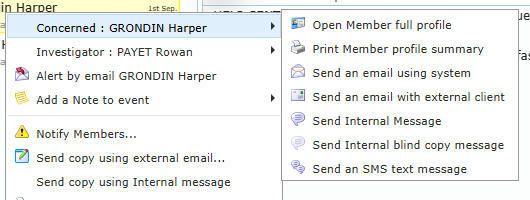
The Concerned and Investigator submenus let you open the member’s full profile, print a profile summary, send an e-mail through the system or your own e-mail program, send an internal message (normal or blind copy), or send an SMS text message when a cell phone is known.