
Published 11 October 2026, Updated 11 October 2026
The Quality Assurance part is optional: it is used when your organization has a QA team (for example an approved training organization audit program).
QA findings
A QA finding is a report where the member concerned must study the finding, analyze it and propose corrective actions. It is shown with the title QA finding.
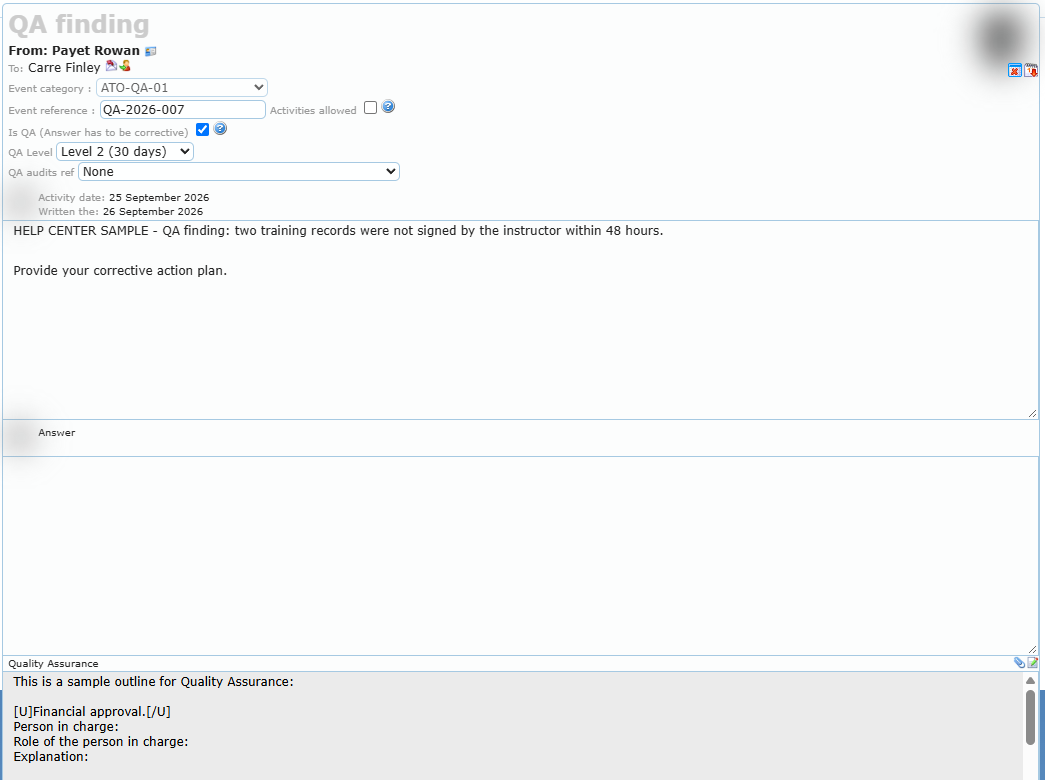
- To create one, create the report with a QA category, or check Is QA (Answer has to be corrective) on an existing report (or right-click › Set as QA event). Set as SMS event does the opposite.
- QA Level sets the level of the finding (the list shows the delay attached to each level, for example *Level 2 (30 days)*).
- QA audits ref links the finding to an audit of the QA program.
- The member receives a QA report notification and answers with their corrective action plan.
- QA findings are listed in QA ALL Events, QA Open events and the QA group folders.
The Quality Assurance inspection
In every report, the Quality Assurance area lets a QA member record the inspection:
- Click the edit icon at the right of Quality Assurance and write the inspection (a sample outline is proposed: financial approval, follow-up actions, persons in charge…). Add files with the paper clip or by dragging them onto the area.
- Click QA at the bottom (or right-click › Send QA assessment).
- Choose who to alert (creator, concerned, corrector, SMS evaluator) and click Save.
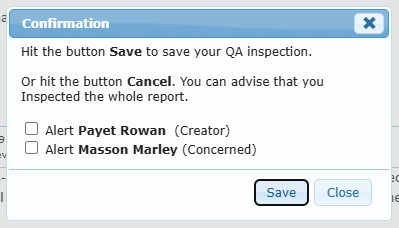
The report then shows Quality assurance Inspect: date by name. A red cross (or right-click › Remove, Reopen a QA Assessment) reopens it.
QA monitoring of an SMS event
For a normal event report, a QA member can select Set QA Monitoring: N/A, To all QA, or a specific QA group. The event then also appears in the QA folders with an arrow icon (“Event monitoring”) so the QA team can follow it without turning it into a QA finding.