
Published 11 October 2026, Updated 11 October 2026
What is a Safety Management System (SMS)?
A Safety Management System is the organized way an aviation organization manages safety risks. It is required by the International Civil Aviation Organization (ICAO Annex 19) and national authorities for flight schools, operators and maintenance organizations. ICAO’s Safety Management Manual (Doc 9859) describes four components:
| Component | In the Event report Center |
|---|---|
| Safety policy and objectives | Your organization’s commitment, responsibilities and reporting policy (for example the confidentiality statement of the hazard form). |
| Safety risk management | Identify hazards and occurrences, assess their risk (severity × probability), decide actions: the Security SMS section. |
| Safety assurance | Monitor that actions are done and effective, follow indicators and trends: scheduled actions, Schedule, SPI, Risk Heatmap, AI. |
| Safety promotion | Training and communication: notifications, lessons learned, safety meetings. |
Key SMS words
| Term | Meaning |
|---|---|
| Hazard | A condition or object that could cause or contribute to an incident or accident (gulls near the threshold, a worn marking, a confusing checklist). |
| Occurrence | Something that actually happened (runway incursion, unstable approach, bird strike). An event report usually describes an occurrence. |
| Occurrence category | A standard classification of what happened. ICAO’s ADREP taxonomy uses common categories developed by the CAST/ICAO Common Taxonomy Team (CICTT), such as runway incursion, loss of control, bird strike or navigation error. Your organization’s list is based on this kind of taxonomy. Using categories makes trends visible. |
| Safety risk | The predicted probability and severity of the consequences of a hazard. |
| Severity | How bad the worst credible consequence would be, usually from A – Catastrophic to E – Negligible. |
| Probability (likelihood) | How often the occurrence is likely to happen, usually from 5 – Frequent to 1 – Extremely improbable. |
| Safety risk matrix | A table that combines probability and severity into a safety risk index such as 4C. ICAO’s example matrix is 5 × 5. |
| Tolerability | What the index means for action: in ICAO’s example, intolerable (stop or act immediately), tolerable (acceptable with mitigation, may need a management decision) or acceptable (acceptable as is). Each organization defines its own matrix colors and tolerability rules. |
| Root cause | The underlying reason that, if corrected, prevents the occurrence from happening again (for example “Stabilized approach criteria not applied” rather than “the pilot landed long”). |
| Corrective Action Plan (CAP) | The actions decided to remove or reduce the risk, each with a person in charge and a date. |
| Safety Performance Indicator (SPI) | A data-based measure used to monitor safety performance over time (for example number of reports, days to provide a CAP, share of unacceptable risks). |
| Just culture | Reports are used to understand and prevent, not to blame; honest errors are not punished, deliberate violations are not protected. |
The Security SMS section of a report
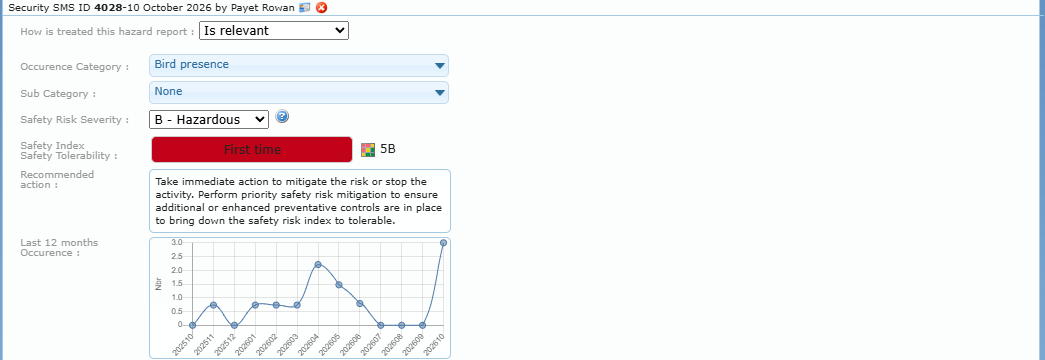
The Security SMS section appears at the bottom of event and hazard reports for managers, QA members and the people in charge of an action. Only SMS evaluators can change it; others see it read-only. Every change is saved immediately (there is no Save button) and written in the history with the old and new values.
The section title shows Security SMS ID number – date by name: the last time the SMS assessment was changed and by whom. The red cross next to it deletes all the SMS data of the report after a confirmation (“This action is irreversible”).
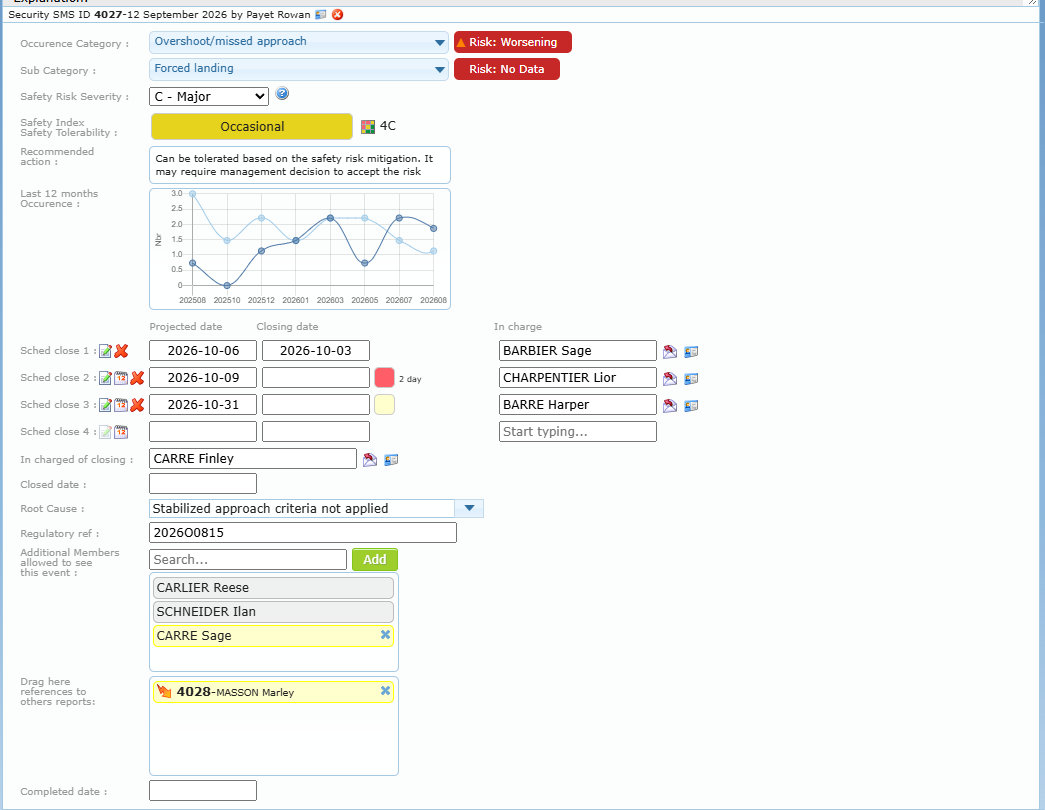
Occurrence Category and Sub Category
Choose the main Occurrence Category and, if useful, a second one in Sub Category. Type in the Search box of the list to filter (for example “runway”).
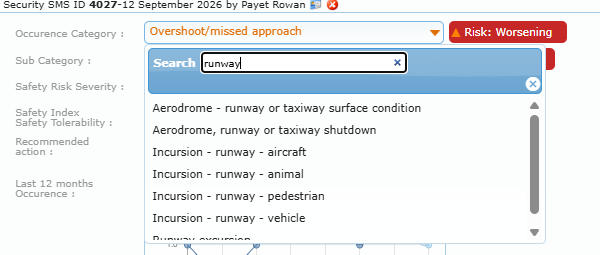
Next to each category, a colored badge shows the current risk trend of that category for the week of the activity, taken from the Risk Heatmap (for example Risk: Worsening, Risk: No Data). Click the badge to open the Risk Heatmap tab.
Tip: choose the category that describes what happened, not the cause. Use the Root Cause field for the cause.
Safety Risk Severity
Choose the severity of the worst credible consequence. Hover over the help icon to read your organization’s definitions.
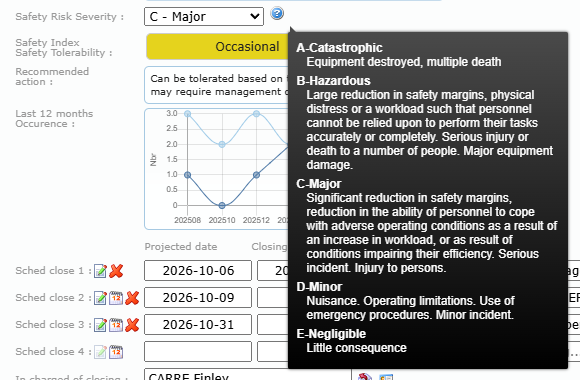
| Typical level | Typical definition (ICAO style) |
|---|---|
| A – Catastrophic | Equipment destroyed, multiple deaths. |
| B – Hazardous | Large reduction in safety margins, serious injury, major equipment damage. |
| C – Major | Significant reduction in safety margins, serious incident, injury. |
| D – Minor | Nuisance, operating limitations, minor incident. |
| E – Negligible | Little consequence. |
Safety Index / Safety Tolerability
You do not choose the probability: the system computes it from your organization’s history. It looks for the most recent previous report with the same occurrence category before this activity date: the more recent the previous occurrence, the higher the probability level. If there is no previous occurrence, the box shows First time. While the SMS assessment is open, the probability follows the history; once a Closed date is set, it is kept as it was.
The colored box shows the probability level (for example Occasional) with the color of the matrix cell. Next to it, the matrix icon and the index (probability number + severity letter, for example 4C). Hover over the box to read the probability definition and the tolerability; hover over the matrix icon to see the Safety Risk Matrix with the cell of this report highlighted.
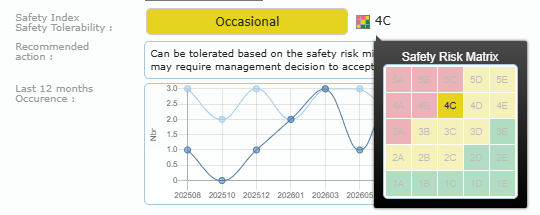
Recommended action shows what your organization’s matrix asks for this index, for example *”Can be tolerated based on the safety risk mitigation. It may require management decision to accept the risk.”*
Example: an unstable approach rated C – Major, and the same occurrence category was reported two months earlier: the probability becomes Occasional (4), index 4C, in the yellow “tolerable with mitigation” zone. The safety team must define mitigation and the management must accept the remaining risk.
Last 12 months Occurrence
The small chart shows, month by month, how many reports had the same occurrence category (and sub-category) during the 12 months before the activity. A rising curve is a warning sign.
Scheduled closings (corrective actions)
Up to four actions (Sched close 1 to 4) can be planned for each report. Each line contains:
| Element | Use |
|---|---|
| Edit icon | Shows a box to describe the action (for example “Brief all phase 2 students on go-around criteria”). The icon is faded while no text is written. |
| Calendar icon | Quick menu to set the projected date: + 7 days, Next monday, + 1 week, + 15 days, End of month, + 30 days, + 1 month, + 3 months, + 6 months, + 1 year, End of year (added to the date already typed, or to today). |
| Red cross | Removes the projected date, closing date, person and text of the action, after confirmation. |
| Projected date | When the action must be done. |
| Closing date | When the action was actually done. Fill it in to close the action. |
| Colored square | Yellow: action pending. Red: projected date passed, with the delay (for example “2 day”). |
| In charge | The member responsible for the action. They can see the report even without manager access, receive automatic reminders, and get locked on the home page if the action is overdue (when your organization uses this option). The red envelope sends them a reminder now. |
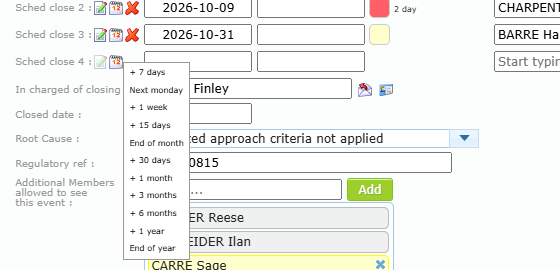
The In charge column is visible when the report panel is wide enough (hide the report list with the arrow at its left if needed).
Other SMS fields
| Field | Use |
|---|---|
| In charged of closing | The member responsible for closing the whole SMS file (often the safety manager). The red envelope sends a reminder. |
| Closed date | Date the SMS assessment is closed. It is refused (“Review closing actions dates before trying to close the whole report”) while a scheduled action has a projected date but no closing date. Setting it moves the report to Security SMS › Closed and freezes the probability. |
| Root Cause | Type at least two letters to pick an existing root cause, or click the arrow to see the list. If you type a new one, the page asks “This root cause does not exists in the database? Do you want to create it and assign it to this event?” — answer Yes to create it. Reusing the same wording makes the Top 5 Root cause statistics meaningful. |
| Regulatory ref | Reference of the report sent to the authority. Reports with a reference appear in the Regulatory folder and in the regulatory SPI charts. |
| Additional Members allowed to see this event | Search a member and click Add to give them read access to this report only (for example a union representative or an external investigator). Grey names are members who always see reports; click the small cross to remove an added member. |
| Drag here references to others reports | Drag reports from the list into this box to link them (for example the event reports created from a hazard). Icons show the type (event, hazard, squawk, QA). Double-click a reference to open it. Reports that refer to this one are shown too. |
| Completed date | Date the whole file is completed (all actions done and verified). Used by the COMPLETED: search keyword and the Grid view. |
Hazard reports in the SMS
For a hazard report, the SMS section starts with How is treated this hazard report:
- Is relevant — the hazard is analyzed like an event: categories, severity, safety index, actions.
- Is unrelated — the hazard is not considered relevant; the SMS fields are hidden and the hazard is crossed out in the list.
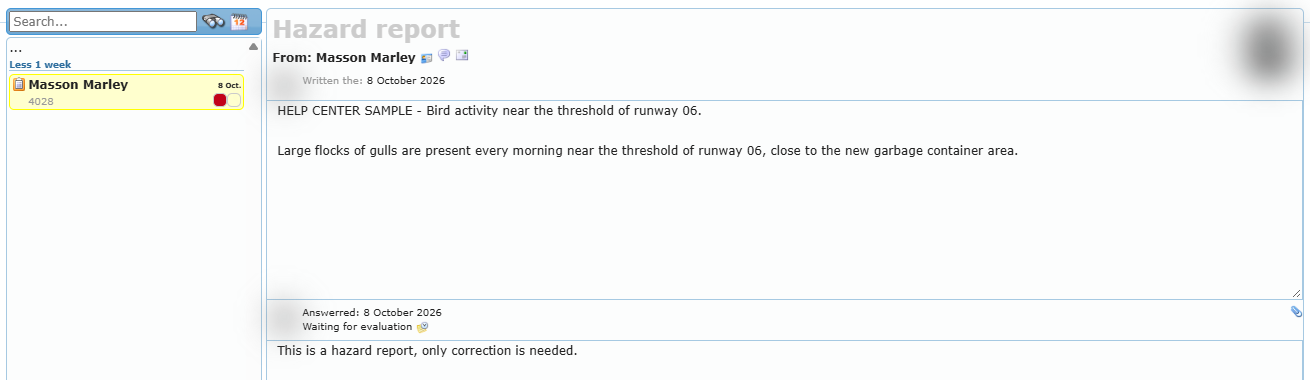
The member who reported the hazard sees a summary: reviewed or not, relevant or not, linked events, occurrence categories, safety index and root cause.
For a squawk report (aircraft defect), the SMS section shows the ATA Chapters list instead: choosing an ATA chapter closes the squawk; choosing None reopens it. The printer icon opens the ATA chapter list.
Recommended SMS workflow
- Open Security SMS › Not assessed every week.
- For each report: set the occurrence category, the severity, read the safety index and the recommended action.
- Plan the actions (Sched close 1 to 4) with a person in charge, a projected date and a description.
- Set the root cause and, if the event was reported to the authority, the regulatory reference.
- Follow the Schedule tab and the red squares; send reminders when needed.
- When all actions have a closing date, set the Closed date, then the Completed date once the effect is verified.
- Review the SPI and Risk Heatmap tabs at the safety meeting.