
Published 11 October 2026, Updated 11 October 2026
The correction is the manager’s evaluation of the event: it closes the event report for the member.
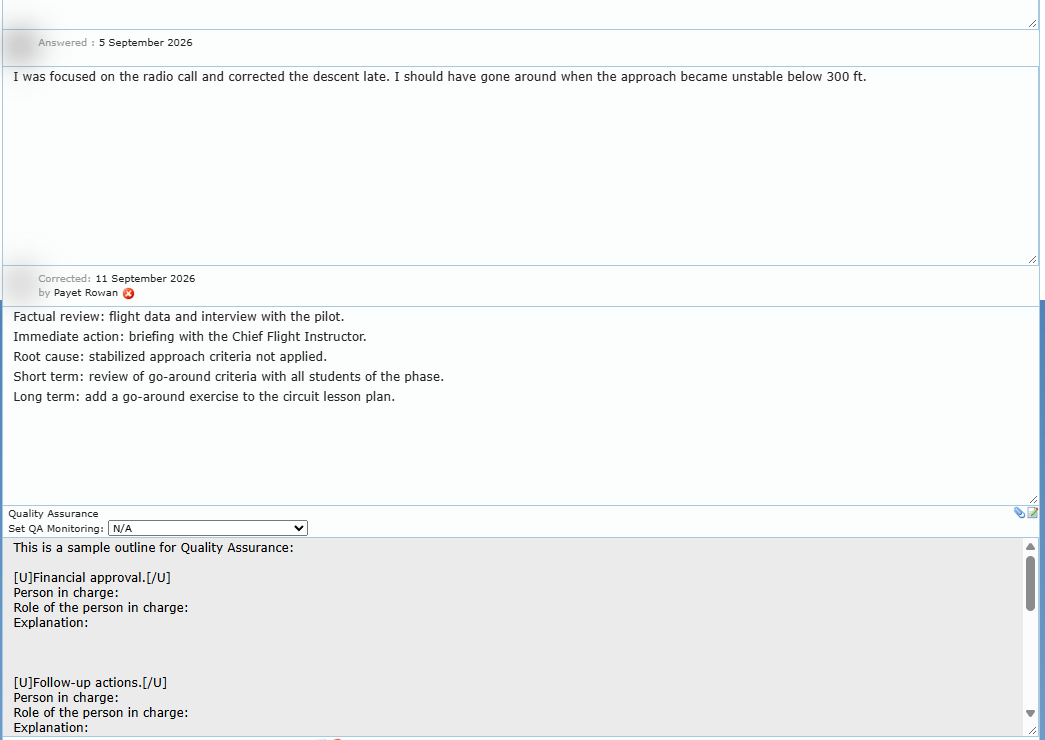
Write the correction
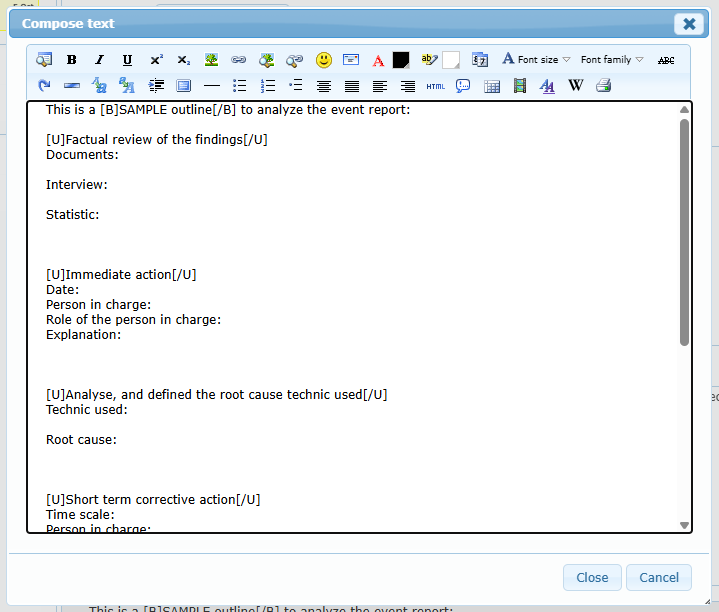
- Open the report. The Correction area (grey) contains a sample outline: — Factual review of the findings (documents, interviews, statistics), — Immediate action (date, person in charge, role, explanation), — Analysis and root cause technique used, — Short term corrective action, Long term corrective action, Long term preventive action (time scale, person in charge, role, explanation).
For a hazard report, the outline asks for the occurrence, the safety barriers that failed, the barriers that worked and the safety committee analysis.
- Click the edit icon at the right of Correction to write comfortably in the Compose text window, then Close to keep the text (Cancel discards it).
- Add files with the paper clip (you can also drag files onto the correction area).
Save or close
Click Correct at the bottom.
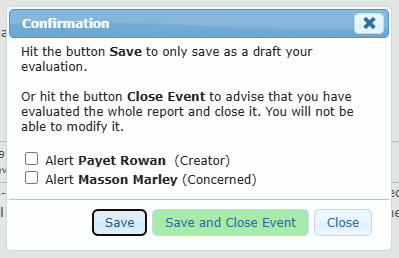
| Button | Result |
|---|---|
| Save | Saves the correction as a draft. Nothing is sent. The report stays in Not corrected. |
| Save and Close Event | Records the correction with today’s date and your name. The report moves to Events corrected; the member sees Corrected with your text. The correction can no longer be edited (it must be reopened first). |
| Close | Closes the window without saving. |
Before closing, check who must receive the evaluation: Alert (Creator), Alert (Concerned), Alert (Corrector), Alert (SMS Evaluator), Alert (QA Inspector) — the boxes appear only for the people known on the report. Copies sent to people other than the member concerned are titled “ALERT COPY”.
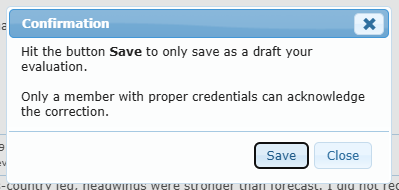
If you do not hold the option Members authorized to correct an event report, the window only offers Save and reminds you that only a member with proper credentials can acknowledge the correction.
Reopen a correction
Click the red cross next to Corrected (or Remove, Reopen a Corrective Action Plan in the right-click menu). Explain why in Additional text to the alert and confirm with Yes. The report returns to Not corrected and the text can be updated.
Good practice: close the event only when the answer is complete and the actions are defined. Use the Security SMS scheduled actions to follow actions that take time; the correction does not need to wait for them.