Published 12 October 2026, Updated 12 October 2026
The Page Options tab controls the page header, who can see and edit the page, and where it appears in the desktop and mobile menus.
Click Update Options to save these settings. If you leave the tab without saving, a reminder offers Save settings. The Duplicate and Delete buttons are also here.
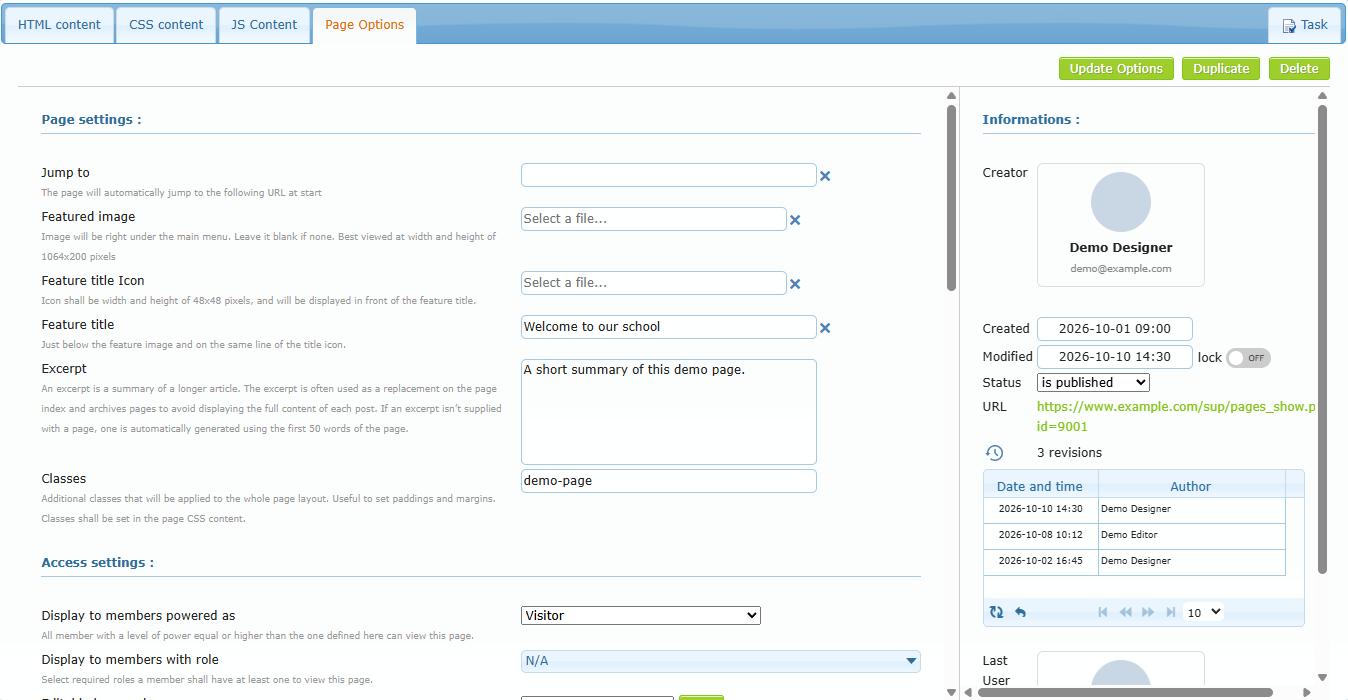
Page Options tab with the Informations panel
Page settings
Option
What it does
When to use
Jump to
Members opening the page are immediately sent to this URL
Turn a menu entry into a shortcut to another site or AirSupervision screen
Featured image
Banner just under the main menu (best size 1064 × 200 px)
Visual header for important pages
Feature title Icon
48 × 48 px icon in front of the feature title
Brand the page title
Feature title
Title shown under the banner, next to the icon
The visible page heading
Excerpt
Short summary used in lists and in the Excerpt block (otherwise the first 50 words are used)
Pages referenced by Excerpt blocks
Classes
CSS classes applied to the whole page (space-separated)
Global spacing or styles defined in the CSS tab
Access settings
Option
What it does
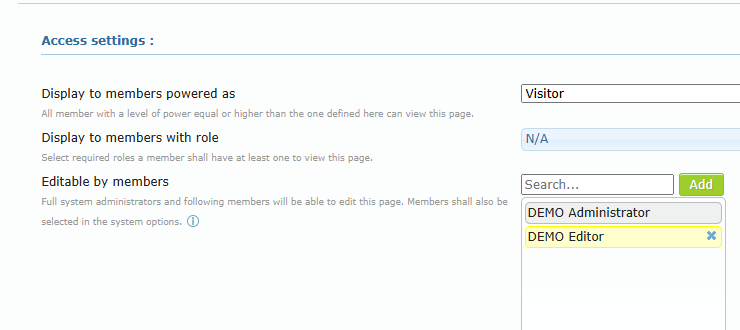
Display to members powered as
Minimum power level required to view the page. Members at this level or higher can see it
Display to members with role
Optional. If roles are selected, the member must have at least one of them. Choose N/A for no role restriction
Editable by members
Members (besides full administrators) who can edit this page. Search a member, click Add. They must also be page designers in System settings
Access settings
Mobile menu settings
Option
What it does
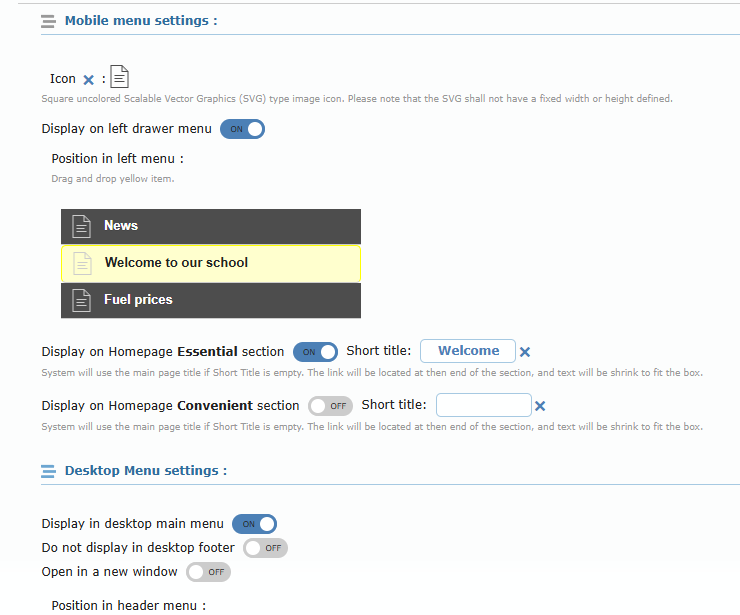
Icon
Click the icon to upload a square SVG icon without colour and without fixed width/height. Click × to remove it
Display on left drawer menu
Adds the page to the mobile app’s left menu*
Position in left menu
Drag the yellow item to choose its position
Display on Homepage Essential section + Short title
Adds a tile in the mobile home page Essential section. Without a short title, the page title is used and shrunk to fit
Display on Homepage Convenient section + Short title
Same, in the Convenient section
Mobile menu settings
Desktop menu settings
Option
What it does
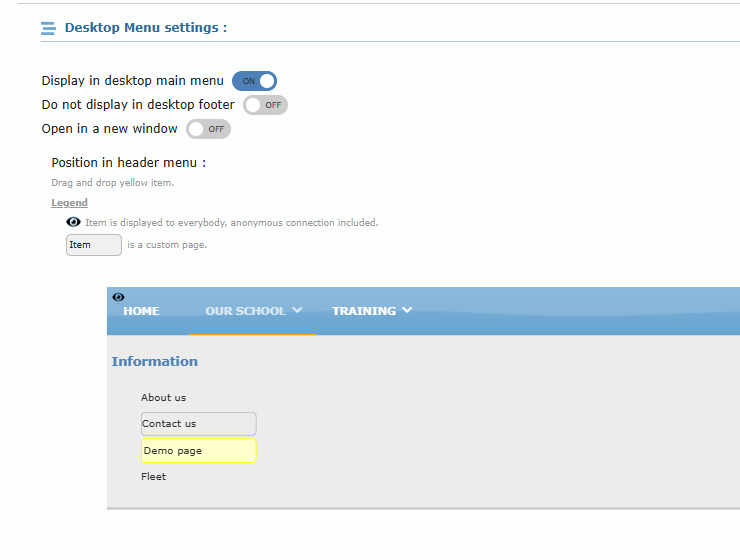
Display in desktop main menu
Adds the page to the main menu at the top of AirSupervision*
Do not display in desktop footer
Hides the page from the footer links
Open in a new window
Opens the page in a new browser tab
Position in header menu
Drag the yellow item to place it. The legend shows items visible to everyone (including anonymous visitors) and custom pages
\* May be restricted to page designer administrators (see Who can use it? in the Pages design center chapter).
Desktop menu settings with the header menu position editor
Informations panel (right side)
Item
Meaning
Creator
Member who created the page
Created / Modified
Dates. lock keeps the modified date fixed (useful with the Modified date block)
Status
is draft, is published (only if you are allowed to publish), To be reviewed
URL
Direct link to the page
Revisions (clock icon)
List of previous versions with date/time and author. Select one and click Reload revision (↶) to restore it after confirmation