
Published 12 October 2026, Updated 12 October 2026
This article explains how pages are saved, sent for review and published, how autosave and revisions protect your work, and where members find your pages.
Buttons depending on your rights
| Page status | You can publish | Approval required (regular designer) |
|---|---|---|
| Draft / To be reviewed | Publish + Save draft | To be reviewed + Save draft |
| Published | Switch to draft + Update Content | Switch to draft only (switch back to draft to make changes) |
- Save draft / Update Content saves the content (“Page content saved!”). On a published page, saving updates what members see immediately.
- To be reviewed sends an e-mail notification to the page designer administrators, who then check and publish the page.
- If you try to publish without permission: “You do not have credential to publish this page! Please contact an administrator.”



Autosave and recovery
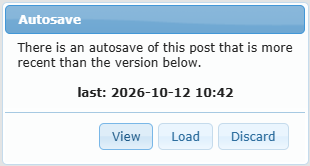
While you edit, AirSupervision automatically saves a backup of your changes. If a backup newer than the saved version exists when you open the page, the Autosave dialog appears:
| Button | Result |
|---|---|
| View | Opens the autosaved version in a new tab |
| Load | Replaces the page content with the autosaved version |
| Discard | Deletes the autosave and keeps the saved version |
If you click another page without saving, a reminder asks you to Save modification.
Editing lock
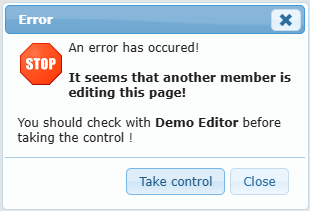
Only one person can edit a page at a time. If another member is working on it, you see “It seems that another member is editing this page!” and “You should check with (member name) before taking the control!”.
| Button | Result |
|---|---|
| Take control | You become the editor of the page. Use it only after checking with the other member, otherwise their unsaved changes may be lost |
| Close | Closes the message without opening the page |
Task tab
The Task tab (right side of the tab bar) lists tasks linked to the Pages design center. Use it to plan work such as “Update fuel prices page” or “Review new SOP page”.
Where members see your pages
| Location | Condition |
|---|---|
| Desktop main menu | Published + Display in desktop main menu |
| Desktop footer | Published, unless Do not display in desktop footer is on |
| Mobile app left drawer menu | Published + Display on left drawer menu |
| Mobile home page Essential/Convenient tiles | Published + the matching toggle |
| Direct link | Use Display links or the URL in Page Options |
Members only see pages that match the power level and role restrictions.
Troubleshooting and FAQ
| Problem | Solution |
|---|---|
| I cannot open the Pages design center | Ask an administrator to add you to System settings → Misc. → Page designers |
| I see the page list but cannot edit a page | Ask to be added to that page’s Editable by members |
| “Another member is editing this page” | Contact them, then use Take control if they agree |
| I cannot select is published | Publishing approval is enabled. Use To be reviewed |
| The menu options are locked (ⓘ) | Only page designer administrators can change menu placement |
| My CSS does nothing | Check for double quotes, the class name spelling, and the Desktop vs Mobile field. Click Update CSS |
| My JavaScript does nothing | Do not include <script> tags. Check the console (F12) in the preview |
| The page doesn’t appear in the menu | Check that it is published, the menu toggle is on, and the viewer meets the level/role restrictions |
| I broke the layout | Use Revisions → Reload revision, or Import into content from an exported file |
| Members are sent to another site | The Jump to option is filled in. Clear it |
Checklist before publishing
- ☐ Title, featured image, and icon set
- ☐ Heading levels correct (no red icon in Outline)
- ☐ Desktop and mobile previews checked
- ☐ Power level and roles set
- ☐ Editors listed
- ☐ Menu placement chosen
- ☐ Content saved, then published or sent for review