
Published 10 October 2026, Updated 13 October 2026
This article is for members allowed to publish memoranda. Other members do not see the New memo, Task and Personal settings tabs, nor the Inactives, Drafts and Waitings folders.
Create the memorandum
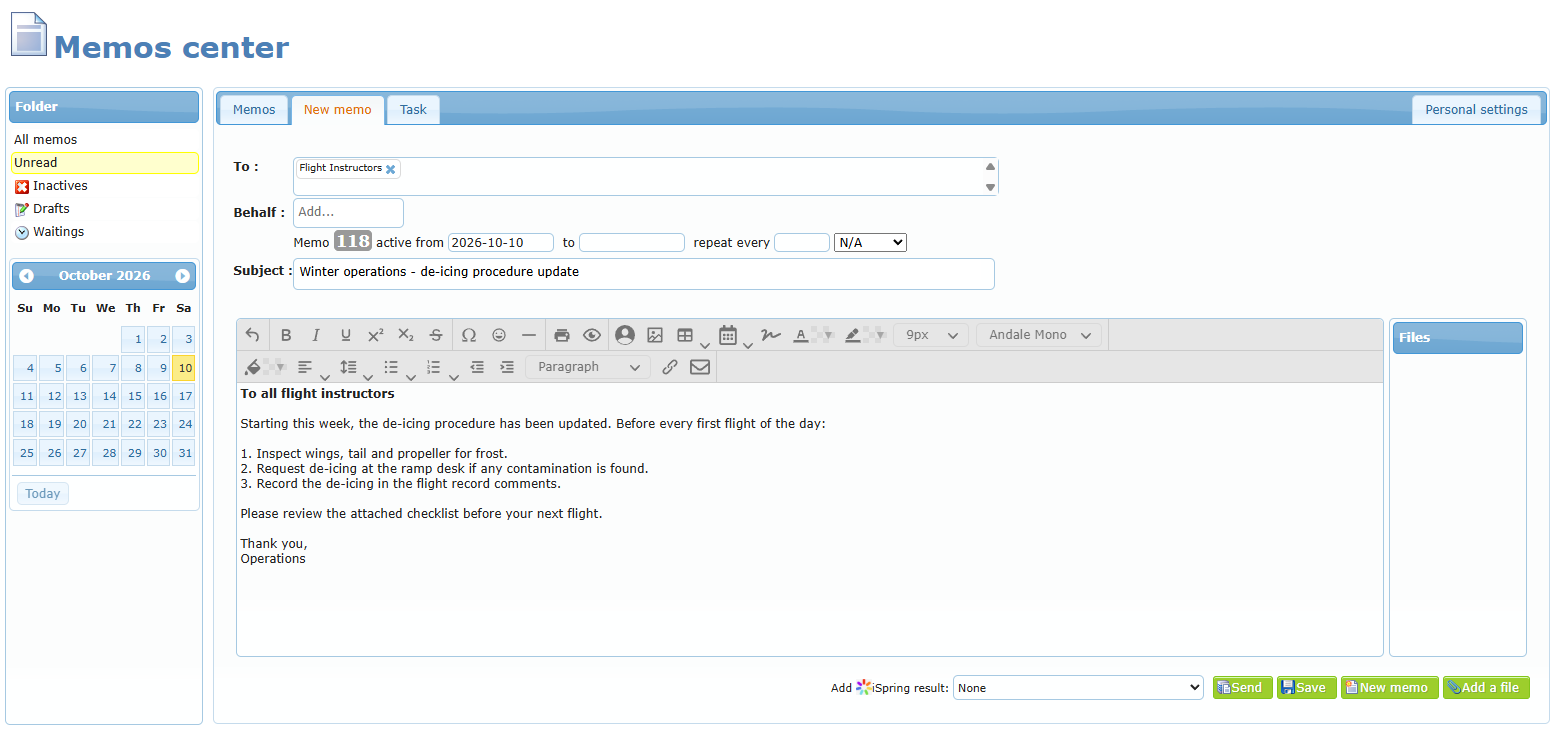
- Open the Memos center and click the New memo tab.
- Click the To box and select the roles concerned in the role chart, then click Validate. The chart shows how many members are selected.
- Optional — Behalf: choose the member on whose behalf the memorandum is published (shown only to members with this permission).
- Set active from (leave empty for today), and if needed to (end date) and repeat every (recurrence).
- Type the Subject and the text. Use Add a file to attach documents: in the Choose a file source window, pick your computer, a scanned file or a cloud service, when available (see The files).
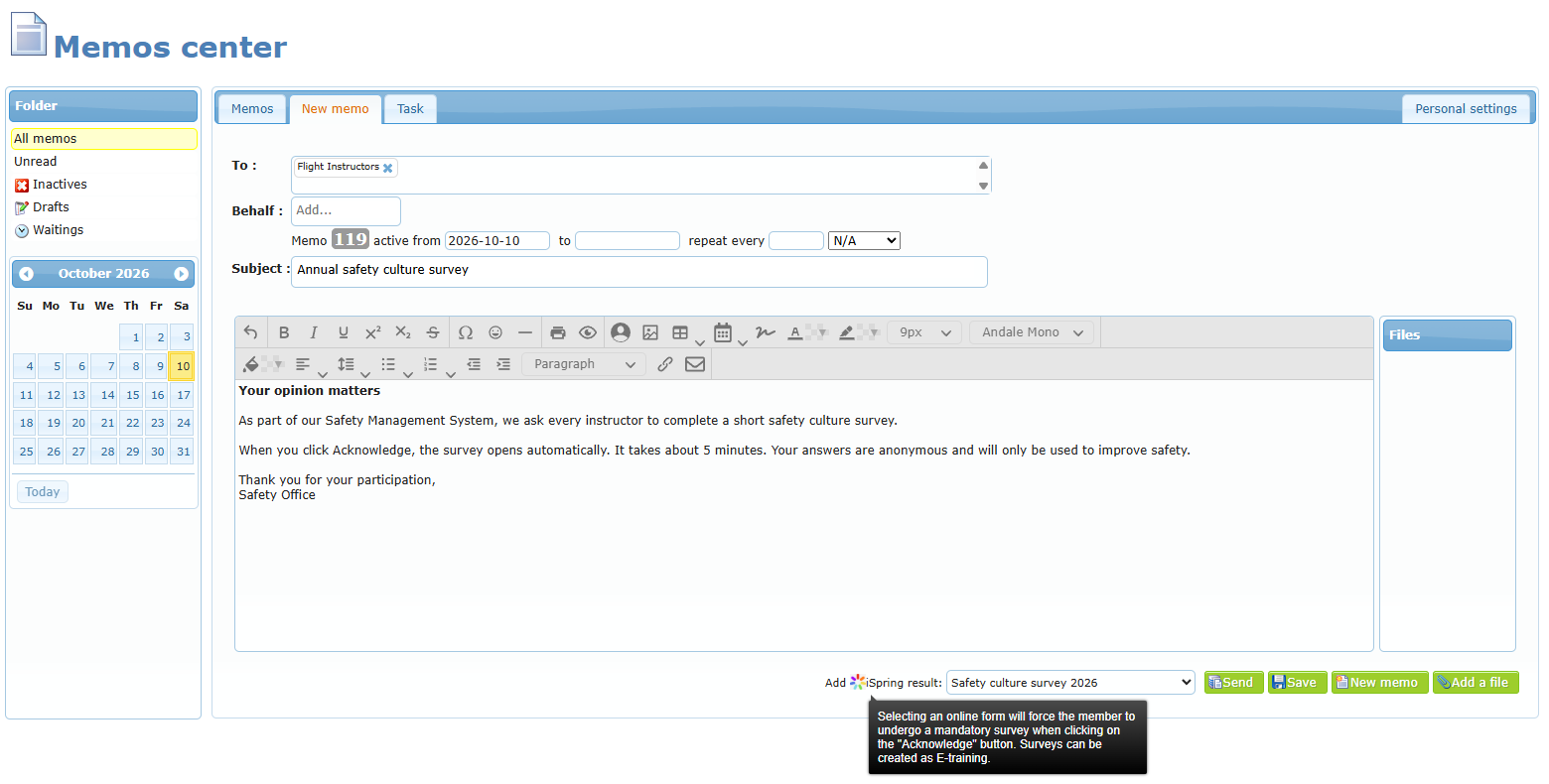
- Optional — choose a survey in Add iSpring result to make it mandatory at acknowledgment.
- Click Save to keep a draft, or Send to publish.
Confirmation before publishing
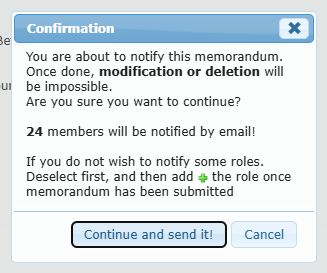
When you click Send, a confirmation window shows how many members will be notified by e-mail. Once published, a memorandum cannot be modified or deleted. To correct it, set it as inactive and publish a new one (the Duplicate button copies its content into a new memorandum).
If you do not want to notify some roles by e-mail, leave them out before sending, then add them afterwards with the green + next to To all: roles added this way are concerned by the memorandum without receiving an e-mail.
Follow who has read it
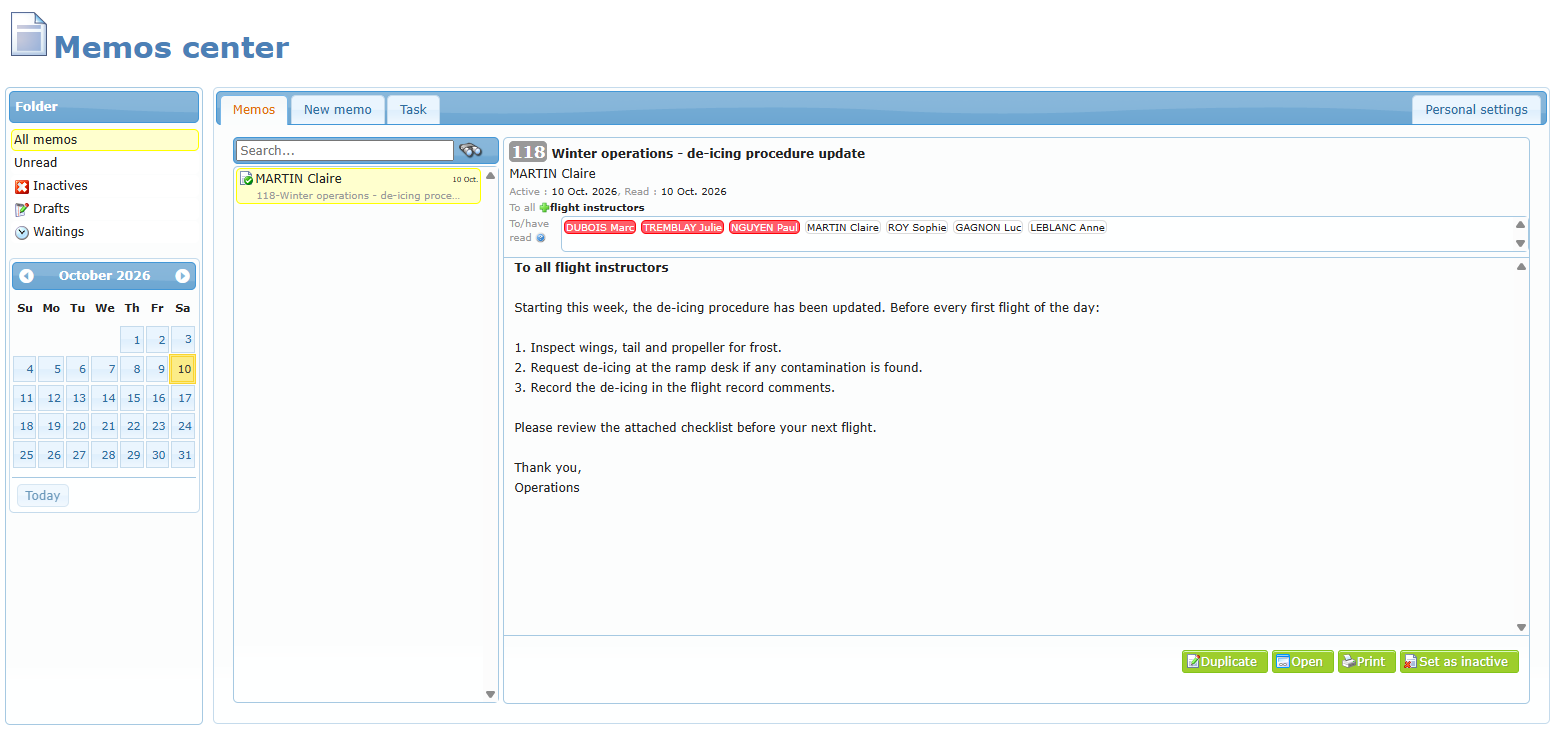
When you open a published memorandum, the To/have read box lists the concerned members:
- names on a red background have not yet acknowledged it — click a name to send that member a reminder message;
- names on a light background have acknowledged it.
The Details icon next to To/have read opens a window with the full list of members who have and have not read the memorandum.
Manager folders and buttons
| Item | Purpose |
|---|---|
| Inactives folder | Memoranda set as inactive or expired. Use Restore to reactivate one. |
| Drafts folder | Memoranda saved but not sent. Use Modify to continue, or Delete. |
| Waitings folder | Memoranda published with a future active date. |
| Set as inactive | Stops the memorandum: it no longer has to be acknowledged and moves to Inactives. |
| Personal settings tab | Send a message alert to all concerned person (e-mail notification at publication) and Include my signature at the end of each memorandum. Click Update to save. |