
Published 11 October 2026, Updated 11 October 2026
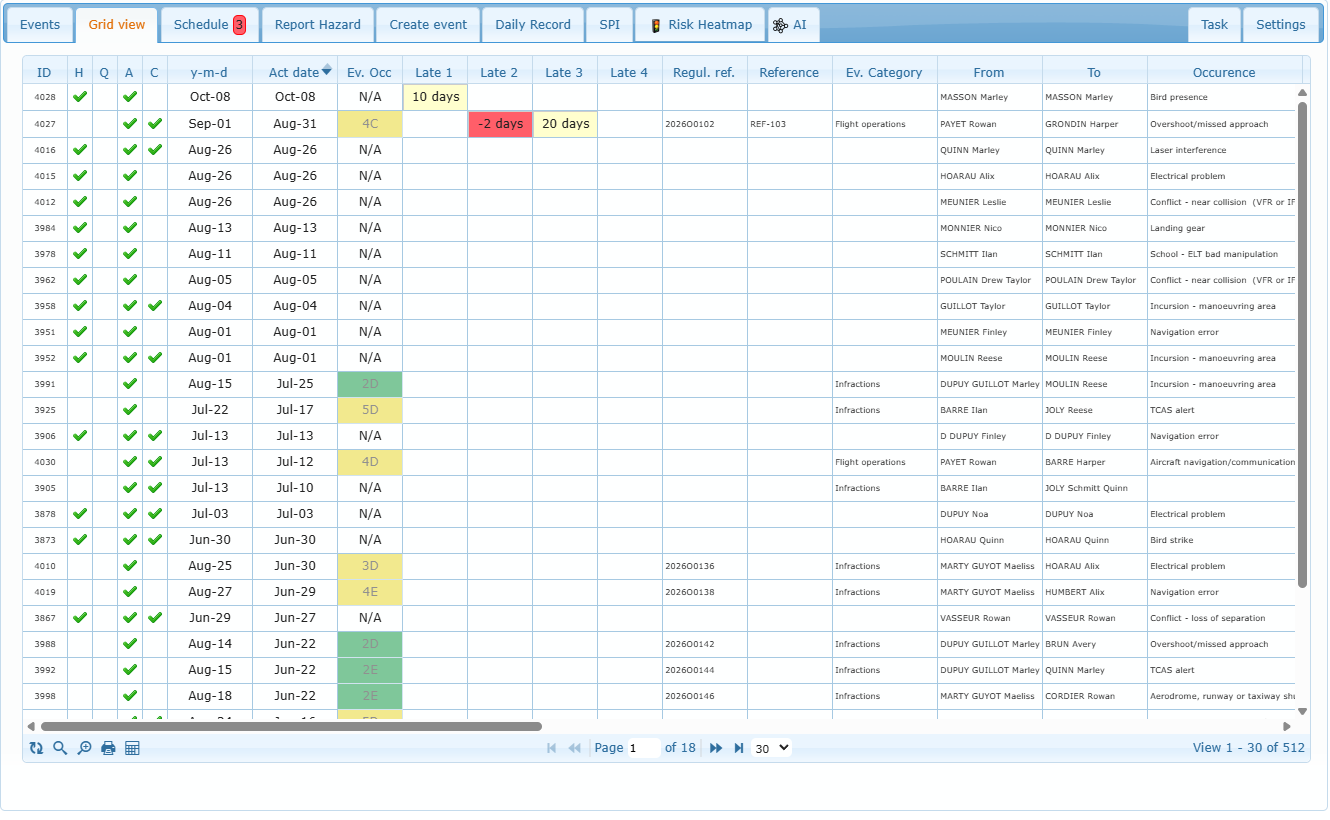
The Grid view shows all reports in a table. Double-click a line to open the report in the Events tab.
| Column | Meaning |
|---|---|
| ID | Report number. |
| H / Q / A / C | Hazard, QA finding, Answered, Corrected (a check mark means yes). Use the search toolbar to filter them. |
| y-m-d / Act date | Creation date / activity date. |
| Ev. Occ | Safety index (for example 4C) in its matrix color; faded when the probability is not frozen yet. |
| Late 1 … Late 4 | Days until (or after) the projected date of each scheduled action; colored when overdue. |
| Regul. ref., Reference, Ev. Category, From, To | References, event group, creator, member concerned. |
| Occurence, 2nd occ., Root Cause | SMS classification. |
| Closing 1…4, Close CAP 1…4 | Projected dates and persons in charge of the actions (greyed when closed; hover for the closing date). |
| In charge, Closed, Completed | Person in charge of closing, SMS closed date, completed date. |
| To Answer, To Correct, To Close | Days from creation to answer, to correction, to closing. |
| To close1…4 | Days gained or lost between projected and actual closing of each action. |
Click a column title to sort; click it again to reverse the order.
Toolbar
| Icon (bottom left) | Use |
|---|---|
| Clear all filters and refresh | Removes every filter and reloads the table. |
| Toggle Search Toolbar | Shows a filter box under each column title. Type text (with a choice of operators such as *contains* or *equals*), pick a value in the H / Q / A / C lists, or choose a date range for the date columns. |
| Advanced search… | Builds a search with several conditions and groups (for example *Occurrence contains runway* AND *Closed is empty*). |
| Opens the export window (see below). | |
| Select columns to show | Shows, hides and reorders the columns. Your choice is remembered for your next visits. |
Exporting to Excel or PDF
Print opens an export window: choose Additionals fields (dates, persons, SMS fields…), the Page format and the Orientation, then Excel XLSX or Acrobat PDF. The export uses the current filters and sort.
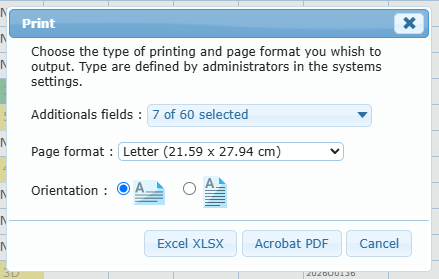
Practical example: to prepare the list of this year’s events for an audit, open the search toolbar, choose This Year in the Act date filter, sort by Regul. ref. so that the regulatory events come first, then export to Excel with the additional fields Regulatory reference, Occurrence category and Root cause.