Published 15 October 2026, Updated 15 October 2026
- Click an Available cell. If several types are possible at that time, you choose the type in the window.
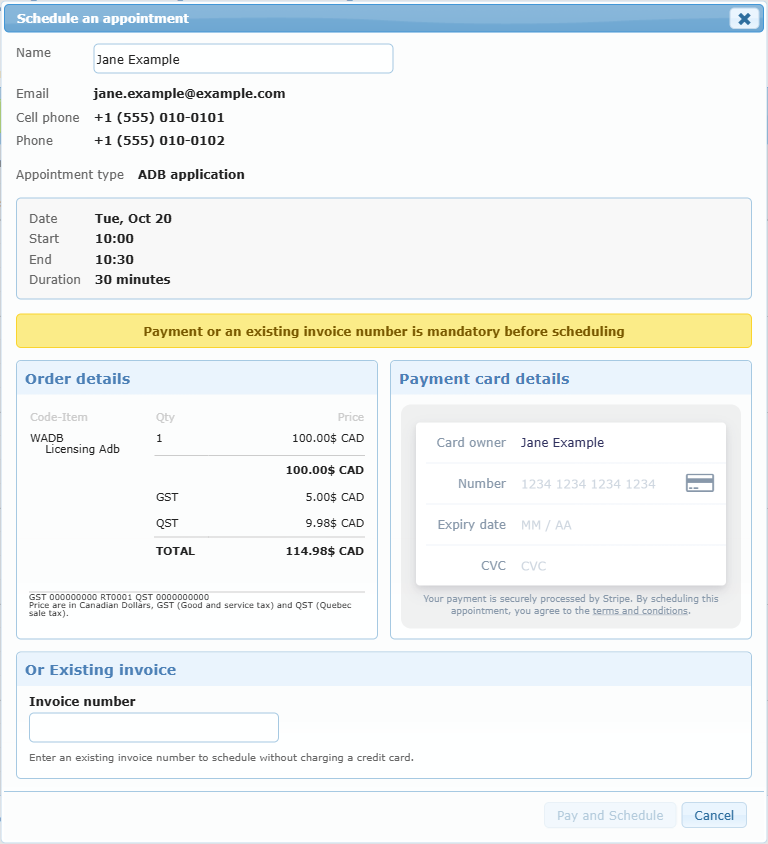
- In Schedule an appointment, start typing the member’s name in Name and select them from the suggestions. Their email and phone numbers fill in.
- Check the Appointment type, Date, Start, End and Duration.
- Handle payment (see the payment choices below).
- Click Schedule (Pay and Schedule when a card payment is required). The member receives the confirmation email.
If you leave the member empty or type a name that is not in the list you are asked to select a member from the list.
Payment choices for managers
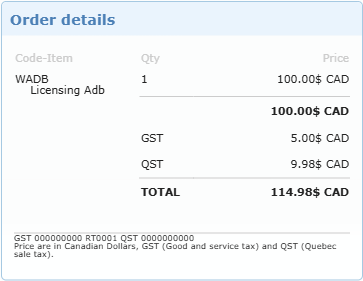
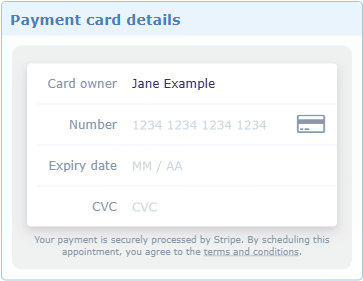
When the type has a price, the window shows Payment or an existing invoice number is mandatory before scheduling and offers two ways to satisfy it:
| Option | When to use |
|---|---|
| Order details + Payment card details | The member pays now by credit card. Enter the cardholder name and card details. A confirmation and a receipt email are sent. |
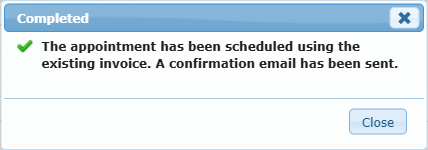
| Or Existing invoice (Invoice number) | The member already paid or will be invoiced. Enter the invoice number to schedule without charging a card. |
When an invoice number is used it is shown in the appointment details afterwards.