Published 14 October 2026, Updated 14 October 2026
Part of the Activities Center guide.
Reading the Current and Accepted lists
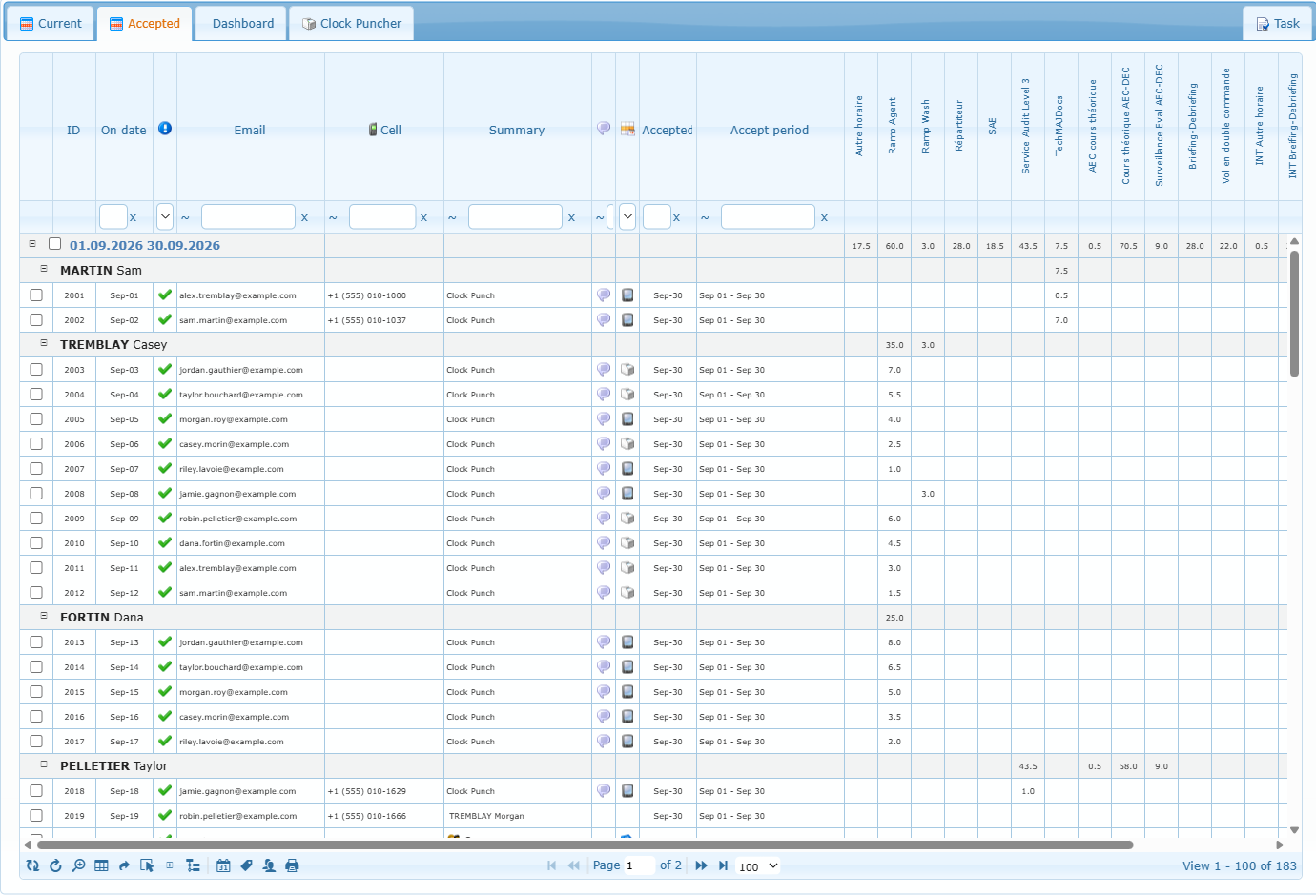
Each line represents one activity entry. The standard columns identify the date, status, staff member, contact information, summary, comment, and where the duration came from. Activity-type columns show the recorded value for that type. Point to an activity heading to read its description and category.
- Current groups entries by staff member and shows totals in the group heading.
- Accepted groups entries first by accepted period and then by staff member. Groups are normally collapsed when the tab opens; use the plus sign or the expand/collapse button to reveal them.
- The checkbox at the start of a row selects that activity. Group checkboxes help select the displayed rows in one group. The toolbar’s Select All button affects the rows currently displayed in the grid.
- The status icon distinguishes entries waiting for validation, waiting at the employee’s request, waiting at accounting’s request, and accepted entries.
- The duration-source filter can distinguish values coming from a flight record, a course, a manual entry, or an unknown source.
Important: the row limit controls what you can see and print
Do not assume that the visible page contains every entry. The row selector at the bottom can limit the list to 20, 30, 50, 100, 200, 500, 1,000, 2,000, or 3,000 rows. The Current tab also offers All and normally opens with All; the Accepted tab normally opens with 1,000. If more matching entries exist than the chosen limit, additional entries are on another page and can be missed during review or printing.
Before payroll or accounting work, compare the displayed range and total record count in the pager. Choose All when practical, or move through every page. A print made with “Only listed items” follows the current page and row limit. Selecting a named accepted period is the safest way to print the complete matching period because that option is not restricted to the current page; any active filters still apply.
Entry status and where the hours come from
Every line in Current and Accepted tells you two things that you should always read together: its status (where it is in the review) and its source (who or what produced the hours). Hover over any icon to see its details.
Entry status
| Icon | Status | What it means | Who sets it |
|---|---|---|---|
 | To validate | New entry waiting for review. Every new entry starts here. | Automatic when the entry is created. A member or a reviewer can also send an entry back to this status. |
 | Waiting – set by the member | The member put their own entry on hold because something needs to be checked. Possible only before acceptance. | The member. |
 | Waiting – set by accounting | A reviewer put the entry on hold to ask for a correction or an explanation. The member receives an alert. | A reviewer with timesheet validation rights. |
 | Accepted | The entry is approved for a pay period. The accepting person and the date are recorded, and the line appears in the Accepted tab under that period. | A reviewer with timesheet validation rights. |
Setting an accepted entry back to To validate or to the waiting list removes its acceptance and its period, and it returns to the Current tab. The status filter “In the waiting list” shows both kinds of waiting entries. Waiting entries are highlighted in the list.
Where the hours come from
The Duration referrer column ( calendar icon in the header) shows the source of each entry. The key question for a reviewer is: did the system calculate these hours, or did a person type them?
| Icon | Source | Who provided the hours | What to know |
|---|---|---|---|
| Flight record | The system – automatic. | The entry was created from a flight record and its hours are taken from it, not typed. Hover to see the flight details; click the icon to open the flight record. The Summary shows the aircraft and the person concerned. |
 | Course lesson – automatic values | The system – taken from the flight record. | A lesson recorded in a course and linked to a flight record. The hours come from that flight record. |
 | Course lesson – typed values | A person – typed. | A lesson recorded in a course without a linked flight record. Hover to see who entered the values. A group course shows the group icon in the Summary. |
    | Clock Puncher | The system – calculated from the punch in and punch out times. | The icon shows how the punch was made: web interface, punch station, administrator console or phone app. Hover to see the punch details and, when recorded, the position on a map. The comment shows the start and end times. |
| (no icon) | Manual entry | The member – typed. | Added with “Add an activity”. These entries have no automatic check, so read the comment and the “Created by” column carefully. |
Filter tip: in the Duration referrer filter, “From Flight record” and “From Courses” keep only those sources. “Unknown referrer” keeps entries linked to neither a flight record nor a course (manual entries and punches), and “Duration is user input” keeps everything that is not linked to a flight record. Punches are recorded by the system, but they appear under these two choices because they are not linked to a flight record or a course.
Who created the line
| Icon / column | What it shows |
|---|---|
| Created by | The person who created the line. It can be the member or someone acting for them. |
 | Hover to see the member’s card (name and contact details). |
 | A group course: the same lesson counted for several members. |
 | The line has a comment. Hover to read it. |
 | Header of the Status column. See the status icons above. |
  | In the source tooltips, the resource used: an aircraft or a classroom. |
Review habit: automatic hours (flight record, green book, Clock Puncher) rarely need more than a quick look. Spend your time on typed hours (blue book and manual entries): compare them with the comment, the date and the member’s other entries before accepting.
Toolbar icons
These buttons are at the bottom left of the Current and Accepted lists.
| Icon | Name | What it does |
|---|---|---|
 | Clear and refresh | Removes all filters and reloads the list. |
 | Refresh with actual filters | Reloads the list and keeps the filters you have set. |
 | Advanced search | Opens a search window to combine several conditions. |
 | Select columns to show | Chooses which columns and activity types are displayed. |
 | Reset columns order | Puts the columns back in their default order. |
 | Toggle select all | Selects or unselects every line in the list. |
 | Collapse / expand all groups | Opens or closes all the member groups at once. |
 | Toggle grouping | Turns the grouping by member on or off. |
 | Manage periods | Opens the Periods manager. |
 | Manage activity codes | Opens the activity codes list (accounting administrators only). |
 | Active punched-in members | Shows the members who are punched in right now. |
 | Opens the printing options for PDF and Excel. |
Filtering, searching, and arranging the list
| Control | What it does | Good use |
|---|---|---|
| Filter boxes below the headings | Filters immediately as you type or choose a value. The date field accepts a date range. | Narrow a payroll run to one period, person, status, or activity. |
| Clear and refresh | Removes the quick filters and the special activity filter, then reloads the list. | Start a clean review and avoid carrying an old filter into a report. |
| Refresh with current filters | Reloads without changing your filter choices. | Check for newly submitted or updated entries. |
| Advanced search | Combines several rules with AND/OR. Searches can be named, saved, reused, overwritten, or deleted. | Regular payroll checks that use the same criteria each time. |
| Select columns | Shows, hides, and reorders fields. You can save the layout for later visits. | Keep only the columns useful to HR or accounting. |
| Only return rows matching selected activities | Limits the rows themselves to the selected activity types. This filter also applies to PDF and Excel output until cleared or the page is reopened. | Prepare a report for one category of paid work. |
| Reset column order | Restores the original layout and asks whether the restored layout should be saved. | Recover after columns were moved or hidden. |
| Select All | Selects or clears all rows currently displayed. | Apply a status action to the visible set. Check the row limit first. |
| Expand/collapse groups | Opens or closes all staff/period groups. | Move quickly through a long accepted period. |
| Toggle grouping | Switches between grouped and ungrouped presentation. | Compare individual entries in a flat list. |
Columns and row filters are different. Hiding an activity column only changes the presentation. Enabling “Only return rows matching selected activities” removes nonmatching rows from the list and from reports. A small “Activities filtered” indicator appears beside the columns button while this filter is active.
Working with an activity
Right-click an activity row to open its action menu. The available choices depend on your permission and on the information stored for that staff member.
- Member information: open the full profile, print a profile summary, or open flight records when that feature is available.
- Communication: send an email through AirSupervision, open your usual email program, send an internal message, send an SMS, or call a listed number.
- Notes and competency: add a quick or full profile note, or add an available competency.
- Activity actions: edit, accept, place in the waiting list, return to validation, or open the activity history.
Edit an activity
The Edit activity choice is available from the Current list. It allows an authorized manager to correct the date and time, activity type, and duration. The staff member, “With” information, status, and original comments are shown for reference but are not changed in this window. Choose Save to apply the correction; totals in the staff group are recalculated.
Use corrections carefully. The History choice shows the activity’s recorded changes and is useful when payroll needs to understand why a value changed.
Statuses and accepted periods
| Action | Meaning | What happens next |
|---|---|---|
| Set to validate | The entry is ready for a manager’s decision. | It remains in Current. |
| Set in the waiting list for review | The entry needs clarification or correction. | It remains in Current and is marked as waiting. The display distinguishes a hold requested by the employee from one set by accounting. |
| Set as accepted | The entry is approved for payroll/accounting. | You must choose a period. The entry moves from Current to Accepted and is grouped under that period. |
For a bulk action, check the required rows first and use the Selected items menu. The system asks for confirmation when many visible rows are affected and warns when more records exist than are currently displayed. Stop and refine the date range or increase the row limit if the selection is broader than intended.
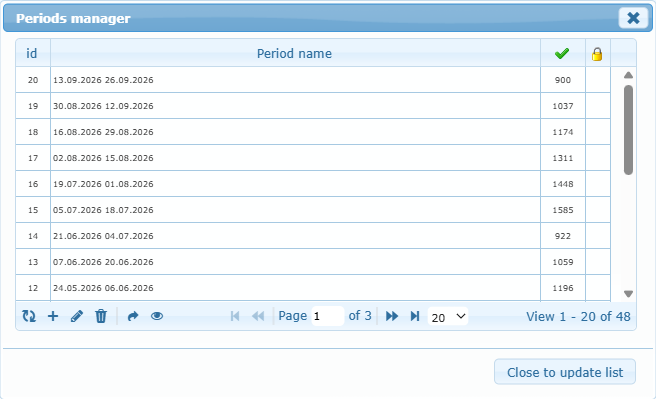
Manage periods
The calendar button opens the Periods manager. A period is the payroll/accounting label assigned when activities are accepted—for example, a weekly, biweekly, or monthly processing period chosen by your organization.
- Add: create a clearly named period before accepting entries.
- Modify: rename the selected period.
- Safe delete: an unused period can be removed. If activities are already attached, the period is kept and made inactive so historical records remain understandable.
- Set as active: reactivate a selected inactive period.
- Display selected period: opens Accepted and filters it to the chosen period. Double-clicking a period has the same practical purpose.
- Refresh: reloads the period list and its activity count.