Published 15 October 2026, Updated 15 October 2026
Business hours
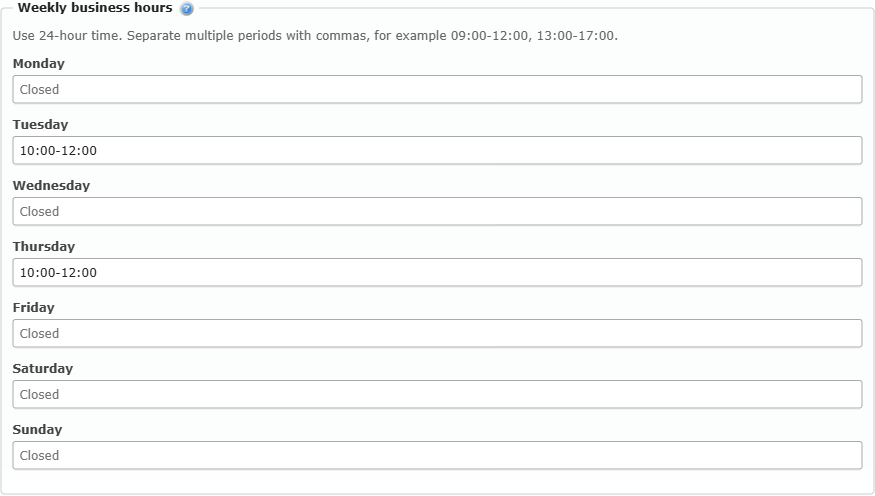
Under Weekly business hours, type the open periods for each weekday in 24-hour format: 09:00-12:00, 13:00-17:00. Separate periods with commas. Leave a day empty to keep it closed. Periods cannot overlap and at least one weekday must have hours.
Closed weekdays, dates and date ranges
- Closed weekdays: tick the weekdays.
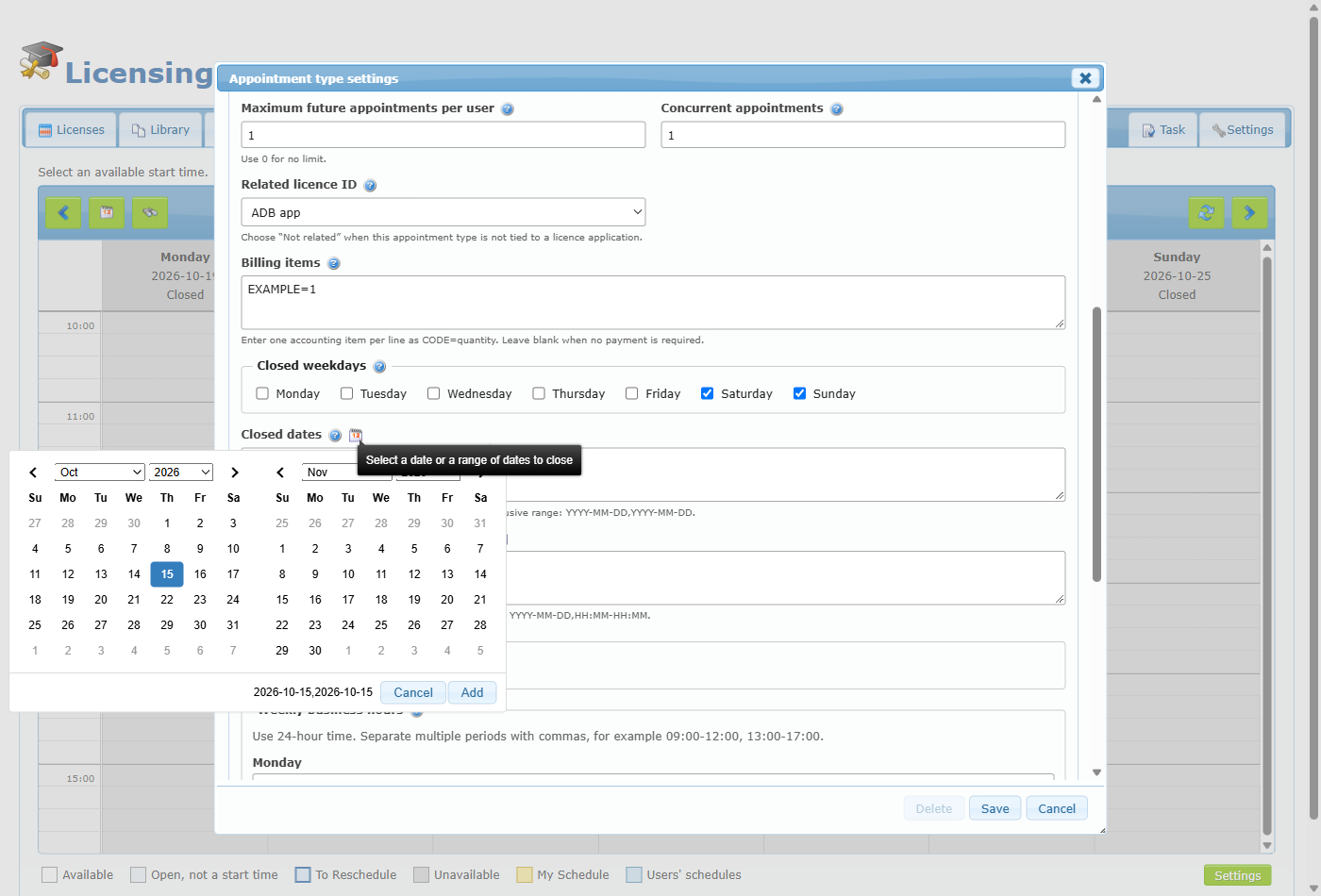
- Closed dates: one entry per line. A single day is
YYYY-MM-DD; a range isYYYY-MM-DD,YYYY-MM-DD(both included). Click the calendar icon next to the label (it is available when the settings are opened from the Appointments tab of the Licence center), click the first day and then the last day of the closure, and press Add to insert the entry automatically. Cancel closes the picker without adding anything.
Example:
2026-12-25
2026-12-24,2027-01-02
Members see these closures in the rules list only if they are managers; members see the days simply as unavailable.


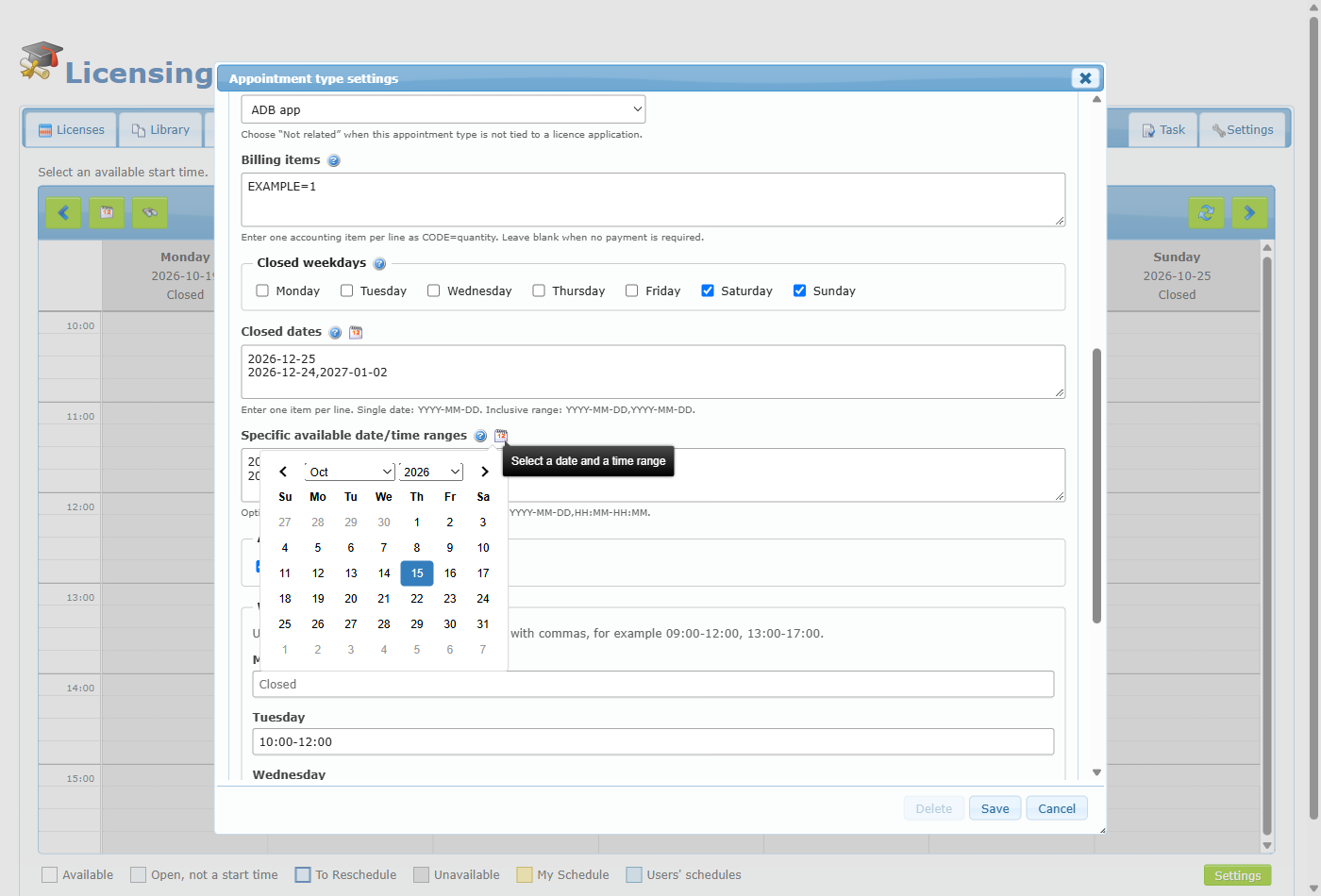
Specific available date/time ranges
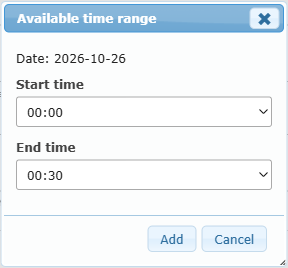
Use this when a normally closed day needs an exceptional opening. Each entry is YYYY-MM-DD,HH:MM-HH:MM, for example 2026-11-07,10:00-15:00. You can type them or click the calendar icon: choose the date, then the Available time range window asks for a Start time and an End time (in 30-minute steps) and Add inserts the entry. The times must fit the fixed duration and the allowed start minutes; if none fit, a message tells you. Ranges added by dragging on the calendar (see Opening a closed time) also appear here.