Published 15 October 2026, Updated 15 October 2026
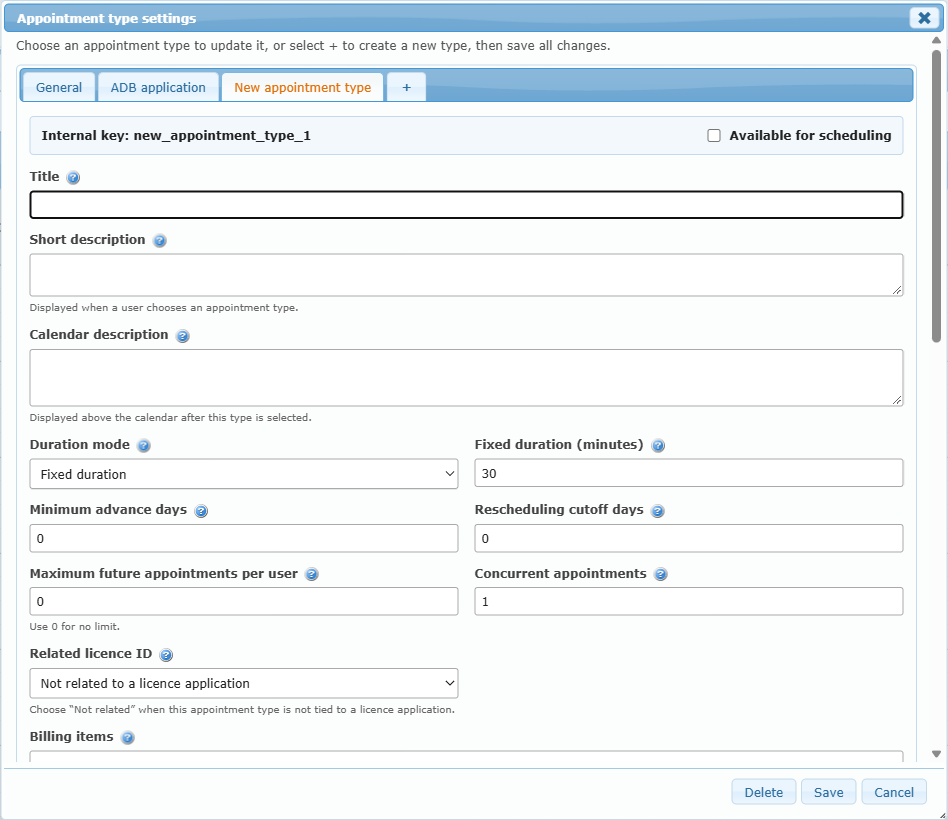
Click Settings. The window Appointment type settings has one tab per type, a General tab and a + tab to create a type. Buttons at the bottom: Delete, Reactivate, Save, Cancel. Changes in several tabs are saved together with Save.
General tab
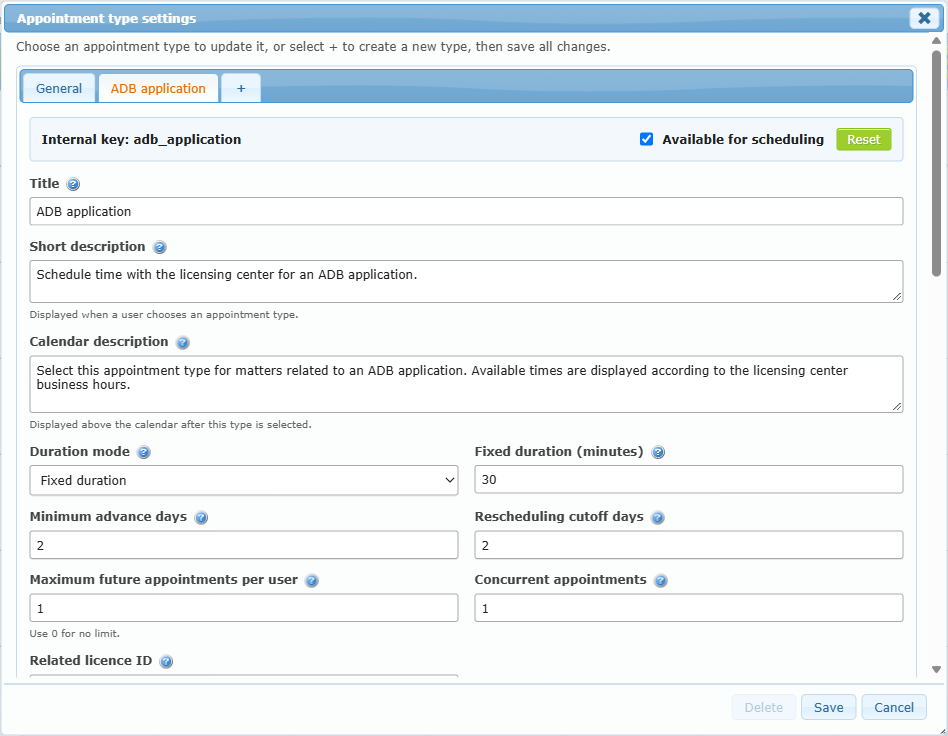
Read-only values defined by the application:
| Value | Meaning |
|---|---|
| Contact email | Contact shown to members. |
| Calendar interval | Length of one row of the calendar, in minutes. |
| Maximum months in advance | How far ahead members can book (or No limit). |
| Display start time / end time | Hours shown on the calendar. |
| Closed weekdays / Closed dates | Closures that apply to every type. |
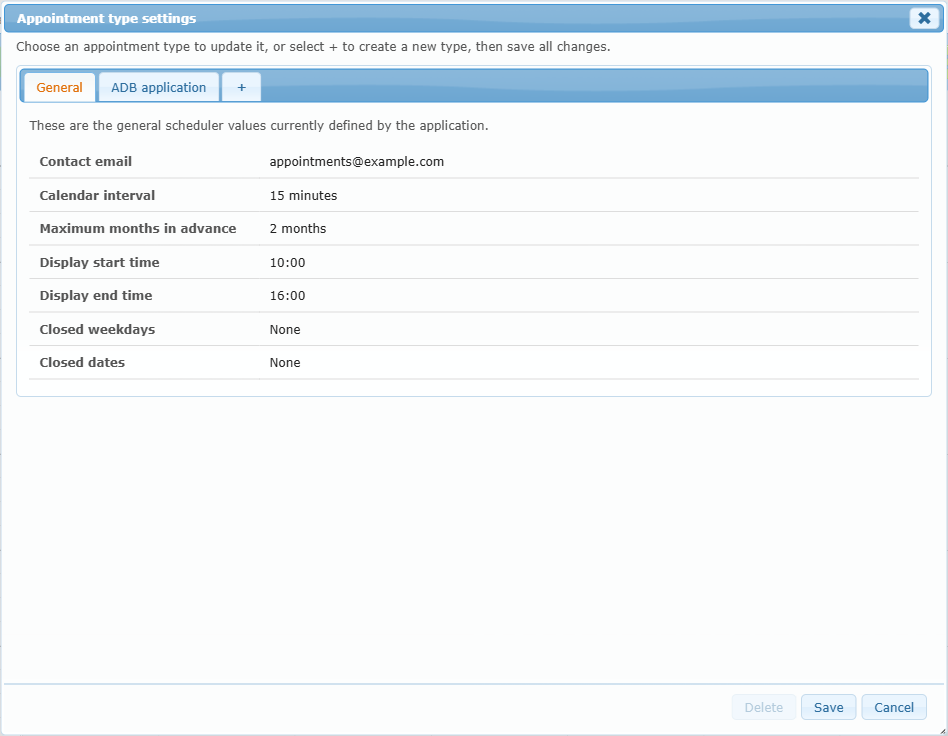
Type tab: full option reference
| Option | Purpose | Effect for members | Recommended use |
|---|---|---|---|
| Internal key | Fixed identifier created for a new type. | Not shown. | Read only. |
| Available for scheduling | Switches the type on or off. | Off: members can no longer book it. | Keep off while preparing a new type. |
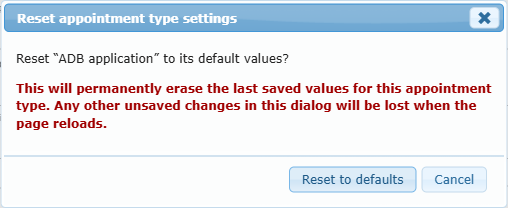
| Reset | Restores the type’s default values after confirmation. | Unsaved changes in the window are lost. | Use if the type was set up wrongly. |
| Title | Name of the type. Required. | Shown in the type list. | Short and clear. |
| Short description | One-line summary. | Shown under the list when choosing. | Say what the appointment is for. |
| Calendar description | Longer explanation. | Shown above the calendar. | Instructions, documents to bring. |
| Duration mode | Fixed duration or Flexible duration. | Fixed: every appointment same length. Flexible: the member chooses up to a maximum. | Fixed for standard visits. |
| Fixed duration (minutes) | Length of each appointment. Also sets the time step of the range picker. | Seen as “Each appointment lasts exactly N minutes”. | Match the real meeting time. |
| Maximum duration (minutes) | Longest flexible appointment. Blank = until the end of the business period. | Seen as “up to N minutes”. | Limit long bookings. |
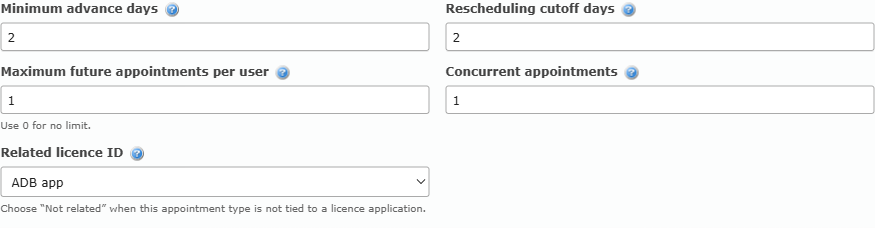
| Minimum advance days | Days of notice needed. 0 = same day allowed. | Earlier days are not offered. | 1 or more to avoid last-minute bookings. |
| Rescheduling cutoff days | Days that must remain before the start for a member to move it. 0 = until it starts. | After the deadline the member can only cancel. | Protect your preparation time. |
| Maximum future appointments per user | Upcoming bookings of this type per person. 0 = no limit. | Blocks extra bookings with a message. | 1 for one-time services. |
| Concurrent appointments | How many appointments may share a time. | When full, the time shows Already scheduled. | Number of staff able to receive members. |
| Related licence | Links the type to a licence application. | The type is hidden for members who still have that application open. | Use to avoid duplicate bookings. |
| Billing items | One accounting item per line as CODE=quantity. Blank = free. | Member sees Order details and must pay by card (managers may enter an invoice number). | Only enter codes that exist in accounting. |
| Closed weekdays | Days when the type is never offered. | Cells marked Closed. | Weekends. |
| Closed dates | Single dates or ranges that are closed, one per line. | Cells unavailable on those dates. | Holidays and vacations. |
| Specific available date/time ranges | Exceptions that open a time even on a closed day. | Cells become Available. | Extra Saturday sessions. |
| Allowed start minutes | Minutes past the hour when an appointment may begin (0, 15, 30, 45). At least one needed. | Only those cells are Available; others are “Open, not a start time”. | 0 and 30 for half-hour slots. |
| Weekly business hours | Periods per weekday. Empty = closed. | Only these hours can be booked. | Match the opening hours. |





Creating a new appointment type
- Click the + tab. A new tab named New appointment type appears.
- Fill Title; the internal key follows it automatically.
- Complete descriptions, duration, limits, billing, closures, start minutes and business hours.
- Tick Available for scheduling once ready (new types start switched off).
- Click Save. A confirmation message appears and the page reloads.
Deleting, reactivating and resetting
| Action | Effect |
|---|---|
| Delete | Removes the type from members. It becomes “(inactive)” in the tab title. Existing appointments are kept; owners can still manage their upcoming ones. |
| Reactivate | Brings an inactive type back. |
| Reset | Restores defaults after a confirmation (“Reset to defaults”). |
| Save | Validates and stores all tabs. Errors appear in red at the bottom, for example a missing title, invalid business hours, overlapping periods or an invalid billing item. |