Published 14 October 2026, Updated 26 October 2026
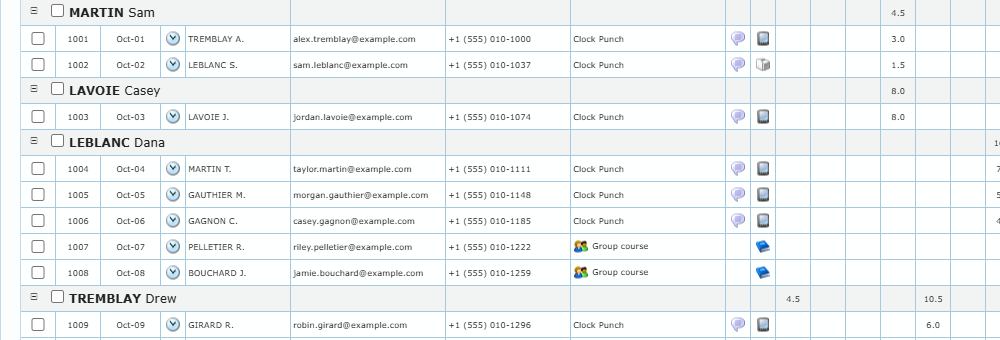
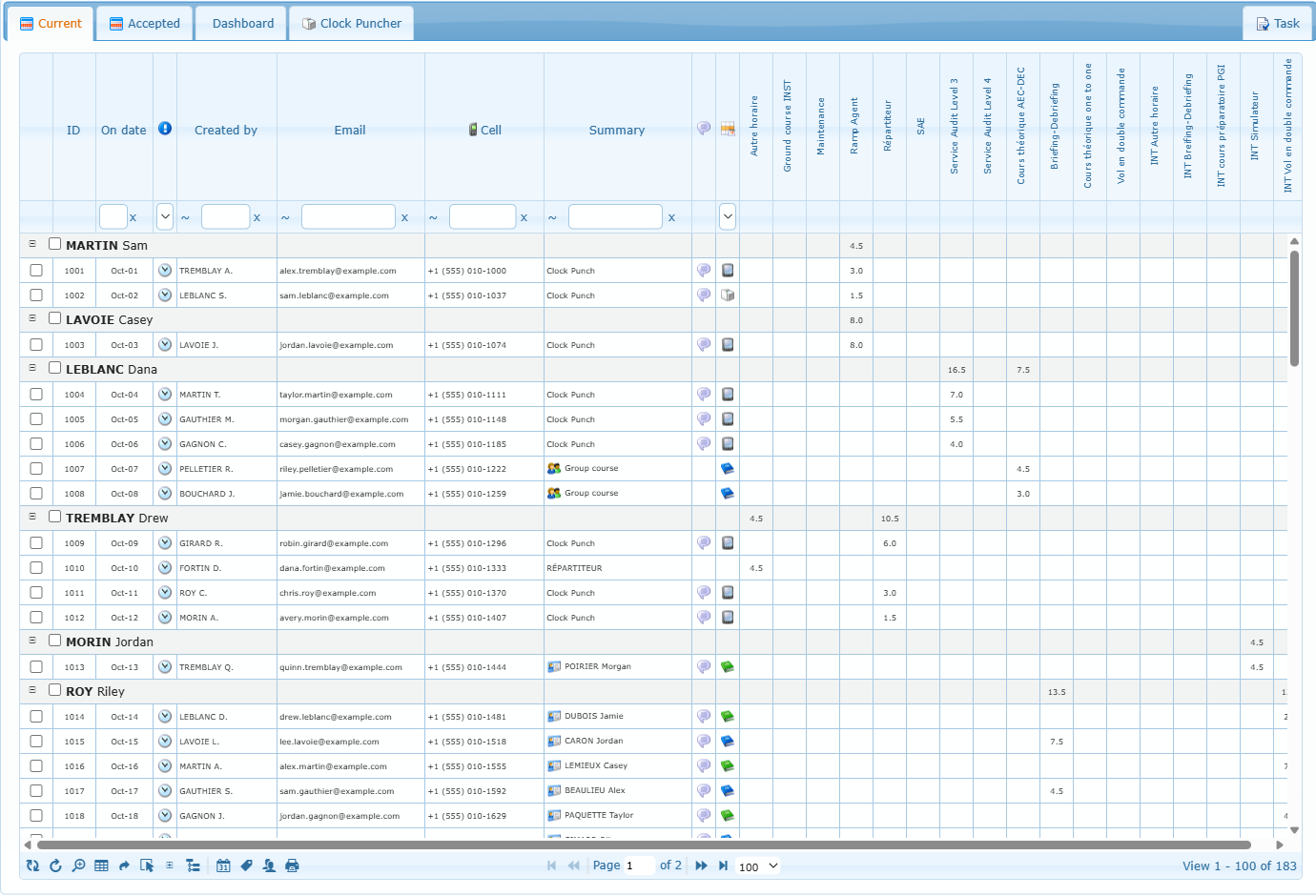
The Activities Center is the manager’s workspace for reviewing staff activities, preparing payroll or accounting reports, and following entries from submission through acceptance. It brings together current entries, accepted periods, summary charts, Clock Puncher information, and manager tasks.
Restricted area. The Activities Center is available only when the Activities feature is enabled for the organization and your profile has the required permission. Some people receive full management access, while others see “View only.” Tabs and buttons may also be hidden when your profile does not allow that action. If a colleague cannot see this area, an administrator must review the colleague’s profile permissions.
At a glance
| Tab | What it is for | Who normally uses it |
|---|---|---|
| Current | Activities still being reviewed. Use it to check, correct, hold, validate, or accept entries. | Managers, HR, payroll, and accounting staff with management access. |
| Accepted | Activities that have been accepted. They are grouped by payroll/accounting period and then by staff member. | Managers, payroll, and accounting staff. |
| Dashboard | A quick “Actual” summary plus a detailed view for a chosen date range and selected activity types. | Authorized managers and administrators. |
| Clock Puncher | Punch-in and punch-out records, devices, mobile access, reports, and related controls. | Only profiles allowed to manage Clock Puncher. |
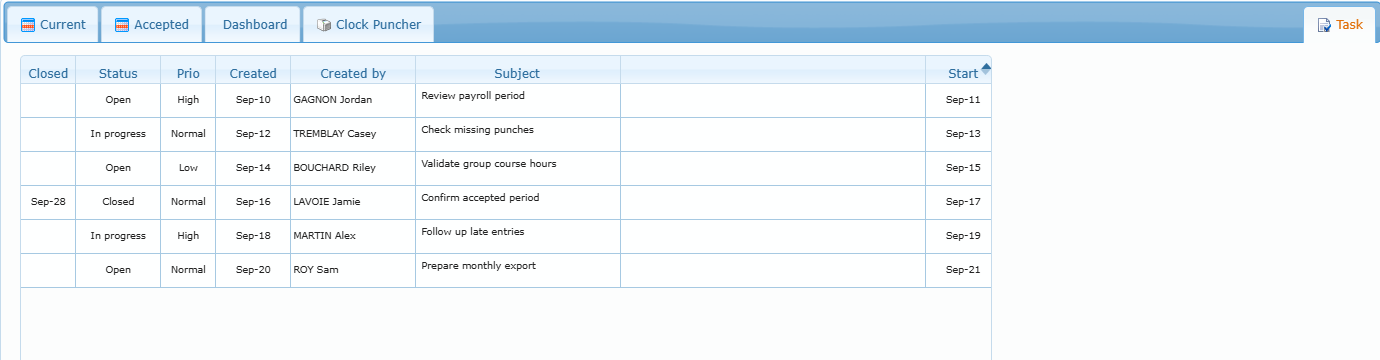
| Task | Manager tasks connected to this work area. | Profiles with full Activities management access. |
Recommended payroll review workflow
- Open Current. See Current and Accepted Lists to read the lines and their icons.
- At the bottom of the list, check the row limit. Choose All when you must review or print every matching line, and compare the counter (for example “View 1 – 12 of 12”).
- Filter the list on the dates of the pay period, and on the status if needed. Clear old filters before starting. See Filters, advanced search and columns.
- Check each line: where the hours come from, the duration, the activity type and the comment. Typed hours deserve the closest look.
- When a line needs an explanation, right-click it and choose Activity → Set in the waiting list for review. The member is warned by e-mail. Once the answer is received, correct the line if needed (Edit activity) and choose Set to validate. See Activity actions.
- Tick the lines you have checked, right-click one of them and choose Selected items → Set as accepted. Choose the period. See Working with several entries at once.
- Open Accepted, display the period, and create the PDF or Excel report. See Printing and Excel export.
Everything starts with a right-click
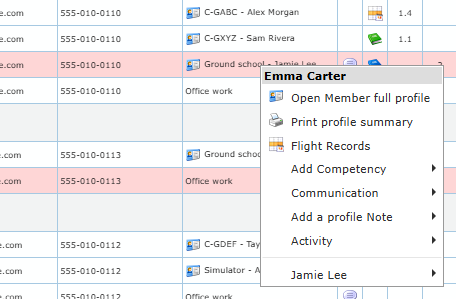
Most actions on a line are not buttons on the screen: they are in the menu that opens when you right-click a line. The menu shows the member’s name at the top and offers their profile, notes, messages and, above all, the Activity actions (correct, accept, put on hold, send back for validation, history). The Right-click menu chapter explains every entry with screenshots.
In this guide
This guide is split into chapters. Start here for the overview and the payroll review workflow, then open the chapter you need.
- Current and Accepted Lists – how to read the lists, entry status and where the hours come from, icon reference, statuses and accepted periods.
- Filters, advanced search and columns – narrow the list to one period, one member, one status or one activity; save searches; choose columns.
- Accounting periods (Periods manager) – create, rename, close and reopen pay periods.
- Right-click menu – every action available on a line, with screenshots.
- Member profile, notes and competencies – profile, flight records, the second person on a line, competencies and notes.
- E-mail, messages, SMS and calls – contact the member from the list.
- Activity actions: edit, accept, waiting list, validate and history – the accounting decisions on one line.
- Working with several entries at once – bulk acceptance and the safety questions.
- Printing and Excel Export – what is printed or exported and what each printing option does.
- Dashboard – the “Actual” summary, the key figures and an explanation of every chart.
- Activity codes – for accounting administrators: the list of activities members can declare.
Clock Puncher and Task tabs
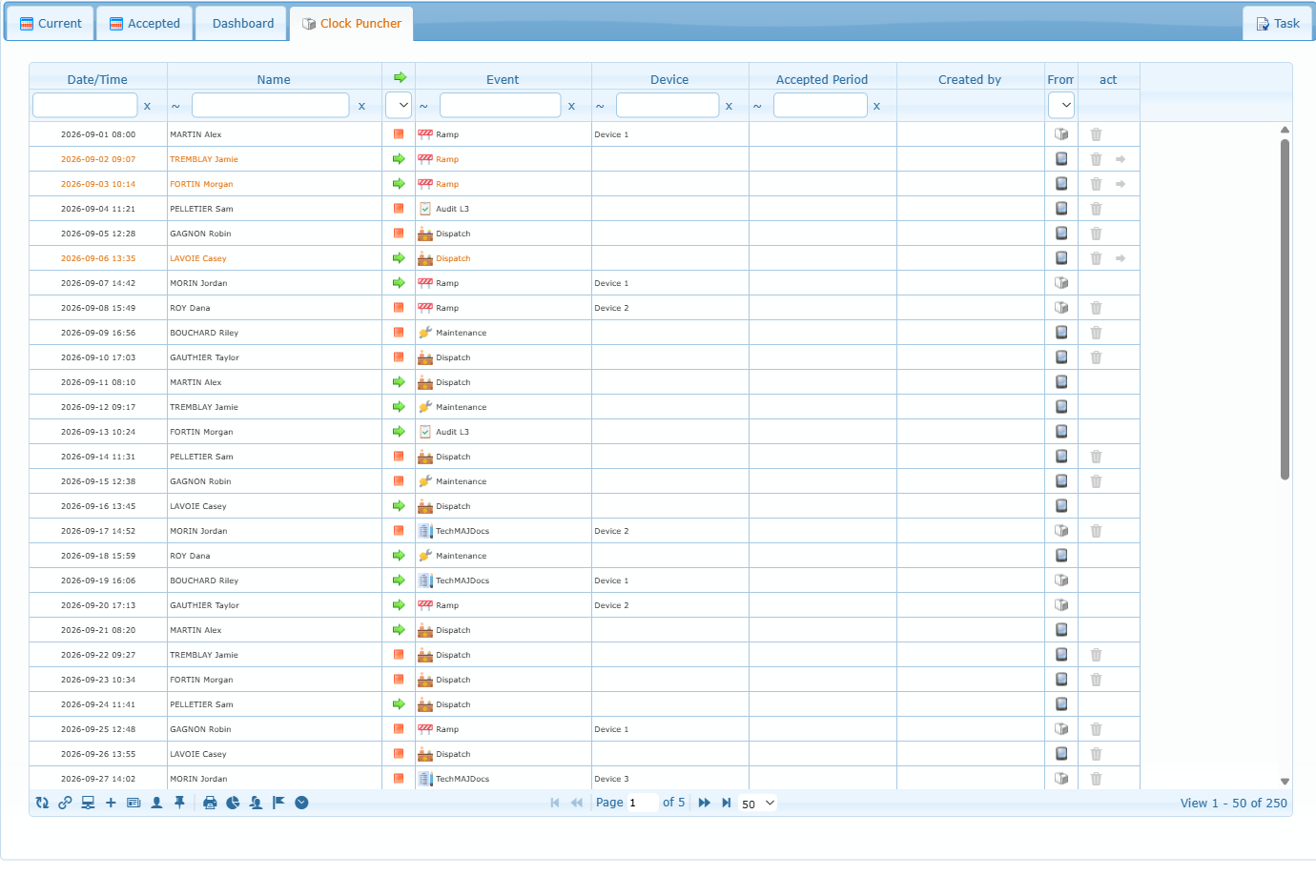
The Clock Puncher tab is itself permission-controlled and contains specialized controls for punch records, devices, mobile punching, geolocation rules, active sessions, history, statistics, and Clock Puncher reports. See the dedicated Clock Puncher guide for the complete workflow.
The Task tab shows manager tasks in the shared task grid. It supports task creation, editing, status, dates, priority, searching, and row limits. See Tasks and Task Center for full instructions.
Activity codes (accounting administrators only)
The tag button at the bottom of the lists opens the activity-code manager. Activity codes are the kinds of work members can declare (for example flight instruction, ground course or office work) and they decide whether the work is counted in hours or in units. This button is restricted to profiles responsible for accounting setup. The Activity codes chapter explains how to add, modify, hide, retire or group codes, with screenshots.
Common checks when something seems missing
- Check whether you are in Current or Accepted.
- Look at the page number, total record count, and row limit.
- Clear the quick filters and any Advanced search.
- Open Select columns and check whether “Only return rows matching the selected activities” is enabled.
- Expand collapsed staff or accepted-period groups.
- Confirm the period is active and that the entry was accepted into the expected period.
- If a tab or button is absent, ask an administrator to check your Activities, accounting, Clock Puncher, or task permissions.
Final payroll habit: clear filters, verify the row count, choose the intended period, and read the print-scope message before producing the final PDF or Excel file.