
Published 18 October 2026, Updated 18 October 2026
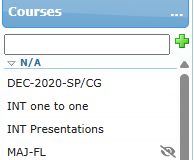
The Courses panel lists every course you are allowed to see, organized in groups. Click a course to select it; the selected course is highlighted in yellow.
Reading the course list
| What you see | Meaning |
|---|---|
| Group heading with a small triangle | A course group. Click the triangle to fold or unfold it. Courses without a group are under N/A. |
| Crossed-out eye icon | The course is not published: it cannot be attached to members yet. |
| Title in grey | The course cannot be modified (assigned to students and not modifiable) or is inactive. |
| Hidden courses | Inactive courses are hidden until you display them with the … menu. |
Hover a course to see its tooltip: whether it is modifiable, and how many members are registered and closed.
Create a course
Type the title in the field at the top of the panel and click the green +. A course created with an empty title is named No title. The new course is unpublished, modifiable, and you are listed as one of its editors. It is selected automatically so you can start designing it.
The … options menu
Click … in the Courses header to filter and organize the list.
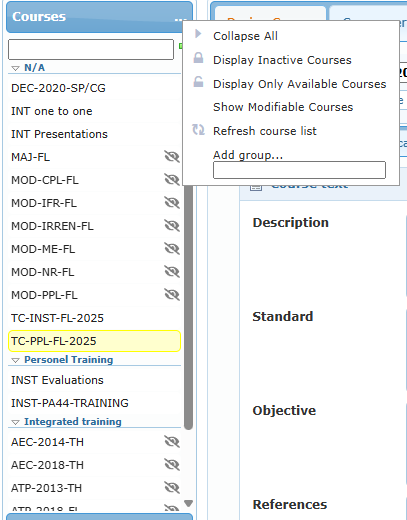
| Option | What it does |
|---|---|
| Collapse All / Expand All | Folds or unfolds all groups. |
| Display Inactive Courses / Hide Inactive Courses | Shows or hides inactive courses. |
| Display Only Available Courses / Display All | Hides or shows unpublished courses. |
| Show Modifiable Courses / Show Modifiable and Non-Modifiable | Hides or shows courses that can no longer be modified. |
| Refresh course list | Reloads the list. |
| Add group… | Type a group name and press Enter to create a course group. Available to administrators only. |
Course groups
Groups help you organize long lists (for example Integrated training, Modular training, Personnel training). They are managed by administrators:
- Create a group with … › Add group….
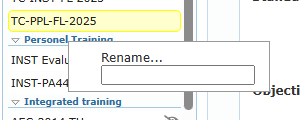
- Rename a group: right-click its heading, choose Rename…, type the new name and press Enter.
- Delete a group: right-click its heading and choose Delete, then confirm. This option appears only when the group is empty.
- Move a course to another group: drag the course onto the target group and confirm the move.
The course right-click menu
Right-click a course to open its tools.
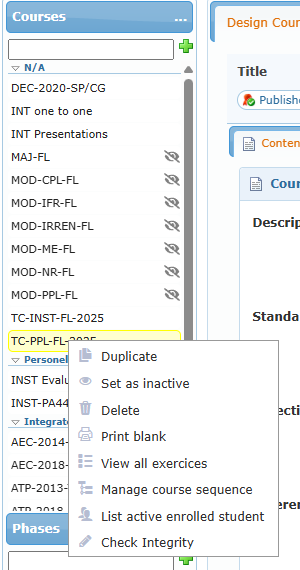
| Option | What it does |
|---|---|
| Duplicate | Creates a copy of the course with the phases you choose. See Course tools. Not available for an inactive course. |
| Set as inactive | Retires the course: it disappears from the normal list and can no longer be used for new work. Records are kept. |
| Delete | Deletes the course with all its phases and lessons after a confirmation (This action is irreversible). If the course is already assigned to students, it cannot be deleted: the system sets it as inactive instead and tells you how many students use it. |
| Un-Delete | Shown for an inactive course: makes it active again. |
| Print blank | Opens the print options to produce a blank copy of the course (PDF or Excel). |
| View all exercices | Lists every exercise item used in the course. |
| Manage course sequence | Shows the course structure with all prerequisites and lets you add or remove them by drag and drop. |
| List active enrolled student | Opens, in a new tab, the Courses Center list filtered on this course. |
| Check Integrity | Scans the course for design problems. |
These tools are detailed in Course tools: duplicate, print, sequence and integrity check.
Tip: prefer Set as inactive to Delete for a course that has been used, even if no student is currently enrolled. It keeps the history and can be undone with Un-Delete.