
Published 25 October 2026, Updated 25 October 2026
- Click + in the toolbar. The Add a case window opens.
- In Concerned, type at least two letters of the member’s name and pick the member in the suggestions. The member’s details appear (photo, licence, name, group, citizenship, date of birth, gender, addresses, phones, email).
- Choose the Case type. The types the member already has are greyed out and cannot be chosen. A red member chip means the member has no email address, so they will not receive requests or notifications by email.
- Click Add the case. The case appears in the list with the status To assess.
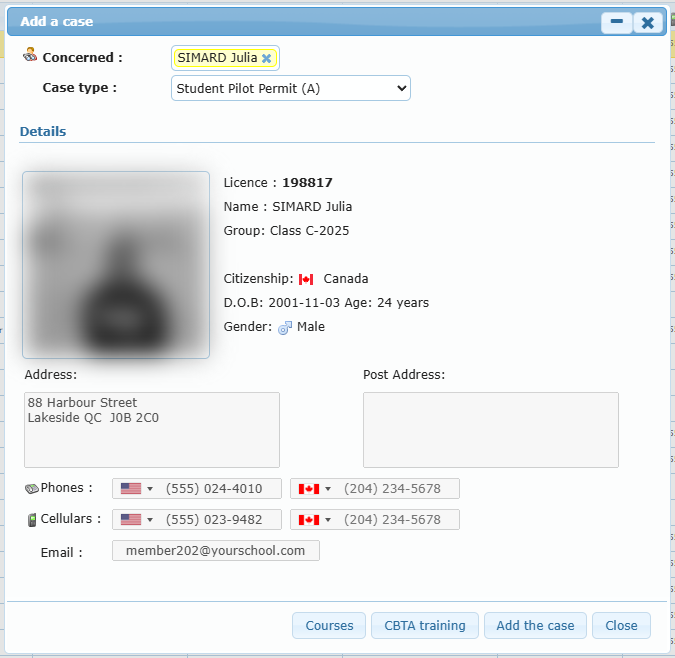
Before creating the case you can check the member’s training with Courses (their courses and hours) and CBTA training. Click the x of the member chip to choose another member.
A case cannot be created when:
- no member or no case type is selected (Select an file type or a candidate first!);
- the member is inactive or has no licence number in their profile;
- the member already has a case of the same type.
The group of the member at that moment is stored as Group at creation. If a case of the same type was deleted earlier for this member, its files are restored automatically in the new case.