
Published 18 October 2026, Updated 18 October 2026
This chapter gives the recommended order for building a new course. Each step links to the chapter that explains the screen in detail. Follow it the first time you create a course; experienced designers can use it as a checklist.
Why this order matters: prerequisites, credited lessons and certificates point to lessons, so lessons must exist first. Publication comes last, because a course becomes difficult to change once students are assigned to it.
Before you start
Prepare the approved syllabus: the list of phases, the lessons of each phase, their objectives and standards, the planned durations, the exercises to grade and the conditions to pass. Agree on who will maintain the course.
Step 1 — Create the course
- In the Courses panel, type the course title in the empty field and click the green +.
- The course is created unpublished and modifiable, and you are automatically listed as a member who can modify it.
- Select the course to open Design Course.
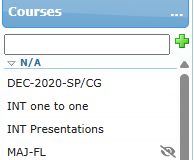
Details: Course list and course groups.
Step 2 — Describe the course
In Design Course › Content, fill in Description, Standard, Objective, References and Notes, and set a Print title if printed documents need a formal name. Add Additional fields only for information your organization really uses. Click Save.
Step 3 — Set who can work on and use the course
In Publication and access, list the Members that can modify this course (course editors), choose the Minimum member’s level to attach this course, the Credentials set when the course is attached and, if needed, the Roles that have access to this course. Leave The course is published switched off for now.
In Members, choose who is alerted when a planned date is overdue, who can hide or display phases, who can correct lessons and who can modify scores.
Step 4 — Set the general lesson rules
In Lesson rules, decide whether lessons need electronic signatures, a mandatory duration, grade or resource, whether multiple entries are allowed, and how the activity sheet is fed. These rules apply to every lesson of the course. Click Save.
Details: Design Course: course settings.
Step 5 — Add the phases
In the Phases panel, type each phase title and click +. Drag the phases into the right order. Select a phase to complete its Standard, Objective, References and Notes in Design phases, and check its Published switch.
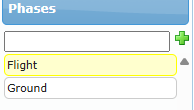
Details: Phases.
Step 6 — Add the lessons of each phase
Select a phase, open Design a lesson, type each lesson title in the field under the search box and click +. Drag lessons into the right order. Use Duplicate in the lesson right-click menu to create similar lessons quickly.
Details: Lesson list: add, find and organize lessons.
Step 7 — Configure each lesson
For each lesson, work through the sub-tabs:
- Header: choose the Activity and a Short description.
- Content: objective, standard, references, notes, instructor guide, default comment and public files.
- Session setup: required resources, co-pilot, instructor recommendation, Duration objective, Flight Record and scheduler options, accounting.
- Items: add the exercise items to grade and choose their grading.
Click Save after each lesson.
Details: Design a lesson: content, session setup and access rules and Design a lesson: completion, repeats, items and history.
Step 8 — Add the rules that link lessons together
Once all lessons exist, go back to the lessons that need them and set:
- Access rules: pre-requisite lessons and exercises, qualifications and roles, duration experience, recency;
- Completion and grading: must pass, must be scored, failure threshold, competencies renewed, lessons credited, dynamic documents;
- Repeats and notifications: repeat limits, Flight Record lock, e-mail notifications.
Tip: Manage course sequence (course right-click menu) shows every prerequisite of the course on one screen and lets you add them by drag and drop.
Step 9 — Link competencies and documents (if used)
Link lessons to CBTA competencies, attach OBs to exercise items, and select the Dynamic documents that become downloadable when a lesson is passed.
Details: Exercise items and Observable Behaviours, CBTA competencies, Dynamic documents and course certificates.
Step 10 — Create the course certificates
In Course certificates, create each certificate, set its pre-requisite lessons, duration requirements, minimum level and text, and make it Active.
Step 11 — Review and check
- Print the course (Print blank in the course right-click menu) or open Manage course sequence to review the structure.
- Run Check Integrity and correct the issues that matter. Run it again until the result is acceptable.
- Ask a colleague to review the course with Only show configured options ticked in each designer.
Details: Course tools.
Step 12 — Test, publish and maintain
- Test the course with a test member: assign it, record lessons, check prerequisites, signatures, documents and certificates.
- Obtain the internal approval required by your organization.
- In Design Course › Publication and access, switch The course is published on. The switch is saved immediately.
- Decide whether The course is modifiable must stay ticked. Untick it if the content must be frozen once students are enrolled.
Safe-use rule: if you are not sure how a change affects students already enrolled, duplicate the course and work on the copy, or ask the course administrator before saving.