Published 25 October 2026, Updated 25 October 2026
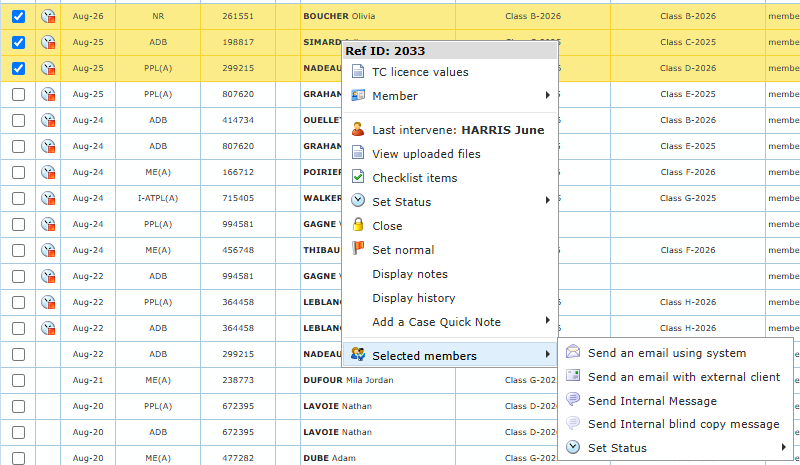
Right-click a case in the list to open its menu. The menu title shows the case reference.
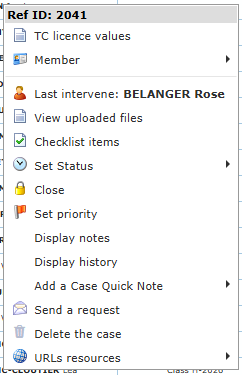
| Menu item | What it does | When it is shown |
|---|---|---|
| TC licence values | Read-only summary of the values to copy into the Transport Canada application, with the case files and the flight time of an enrolled course. | Always |
| Member › … | Member tools (see below). | Always |
| Last intervene | Name of the last person who worked on the case. | Always |
| View uploaded files | Opens the case files. | Always |
| Checklist items | Opens the checklist. | Always |
| Set Status › … | Choose a new status. | Always |
| Close / Open | Closes or reopens the case. | Depends on the case |
| Set priority / Set normal | Sets or removes the priority flag. | Depends on the case |
| Display notes | Opens the case notes. | Always |
| Display history | Opens the case history. | Always |
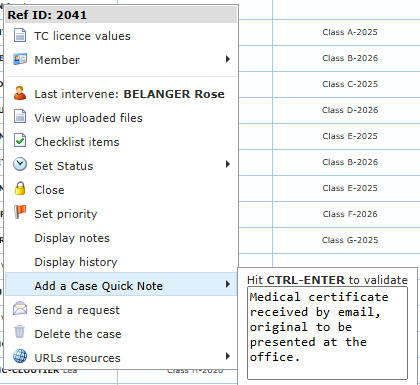
| Add a Case Quick Note | Type a note and press Ctrl+Enter to save it. | Always |
| Send a request | Prepares the request email to the applicant. | Unsigned cases |
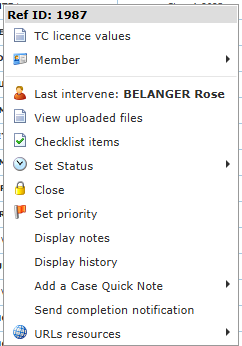
| Send completion notification | Prepares the completion email. | Signed cases whose type has a completion text |
| Delete the case | Deletes the case after confirmation. | Unsigned cases |
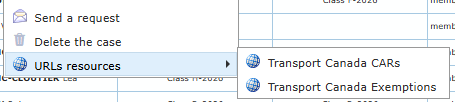
| URLs resources › … | Opens the reference links set on the case type (for example Transport Canada pages). | When the type has links |
| Selected members › … | Actions on all ticked cases. | When two or more cases are ticked |
Once a case is signed, Send a request and Delete the case disappear and Send completion notification appears (when the case type has a completion text).
The Member submenu
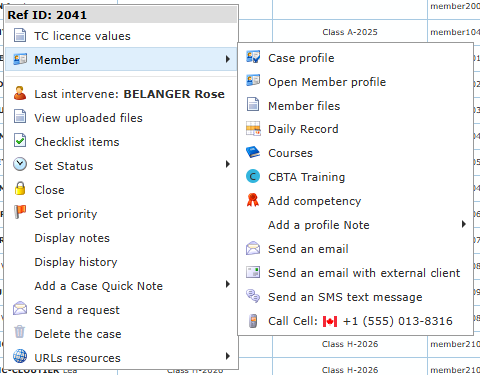
| Item | What it does |
|---|---|
| Case profile | Shows the member’s details for this case (photo, licence, group, citizenship, date of birth, addresses, phones, email). |
| Open Member profile | Opens the full member profile in a new window (see Members). |
| Member files | Opens the member’s personal files. |
| Daily Record | The member’s flights and sessions, with totals. |
| Courses | The member’s courses with their hours. |
| CBTA Training | Competency-based training results of the member’s courses. |
| Add competency | Adds a competency (licence, rating, medical…) to the member’s profile. |
| Add a profile Note | A quick note in the member profile (Ctrl+Enter to save; only your level and above will see it) or Add full Note… for a complete note. |
| Send an email | Opens the email window with the member as recipient. |
| Send an email with external client | Opens your own email program. |
| Send an SMS text message | Shown when the member has a cellular number. |
| Call Cell / Call Phone | Calls the number (on devices that can call). |
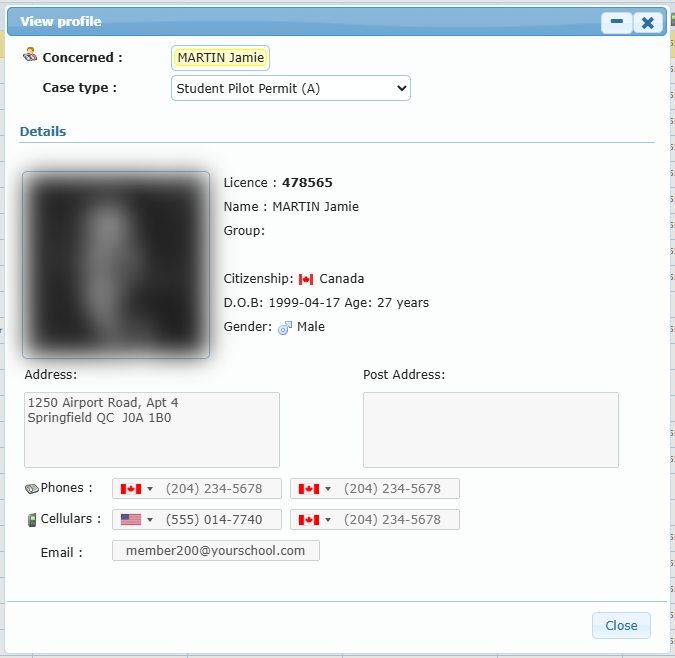
Quick notes, status and links from the menu
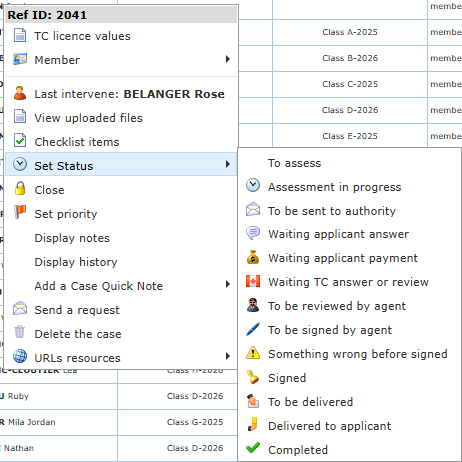
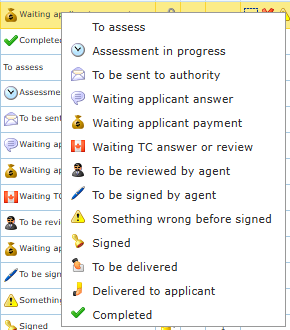
You can also right-click the Status cell of a line to get the status list directly.
Working on several cases
Tick the checkboxes of two or more cases, then right-click one of them and open Selected members:
- Send an email using system: one email to each selected applicant who has an email address.
- Send an email with external client: opens your email program with all the addresses.
- Send Internal Message / Send Internal blind copy message: an internal message to the selected members.
- Set Status: gives the same status to all selected cases. A confirmation reminds you that an undo must be done one case at a time.