
Published 18 October 2026, Updated 18 October 2026
Select a phase and open Design a lesson. The left column lists the lessons of the phase; the right part is the lesson designer. Click the small arrow at the top left to hide or show the lesson list.
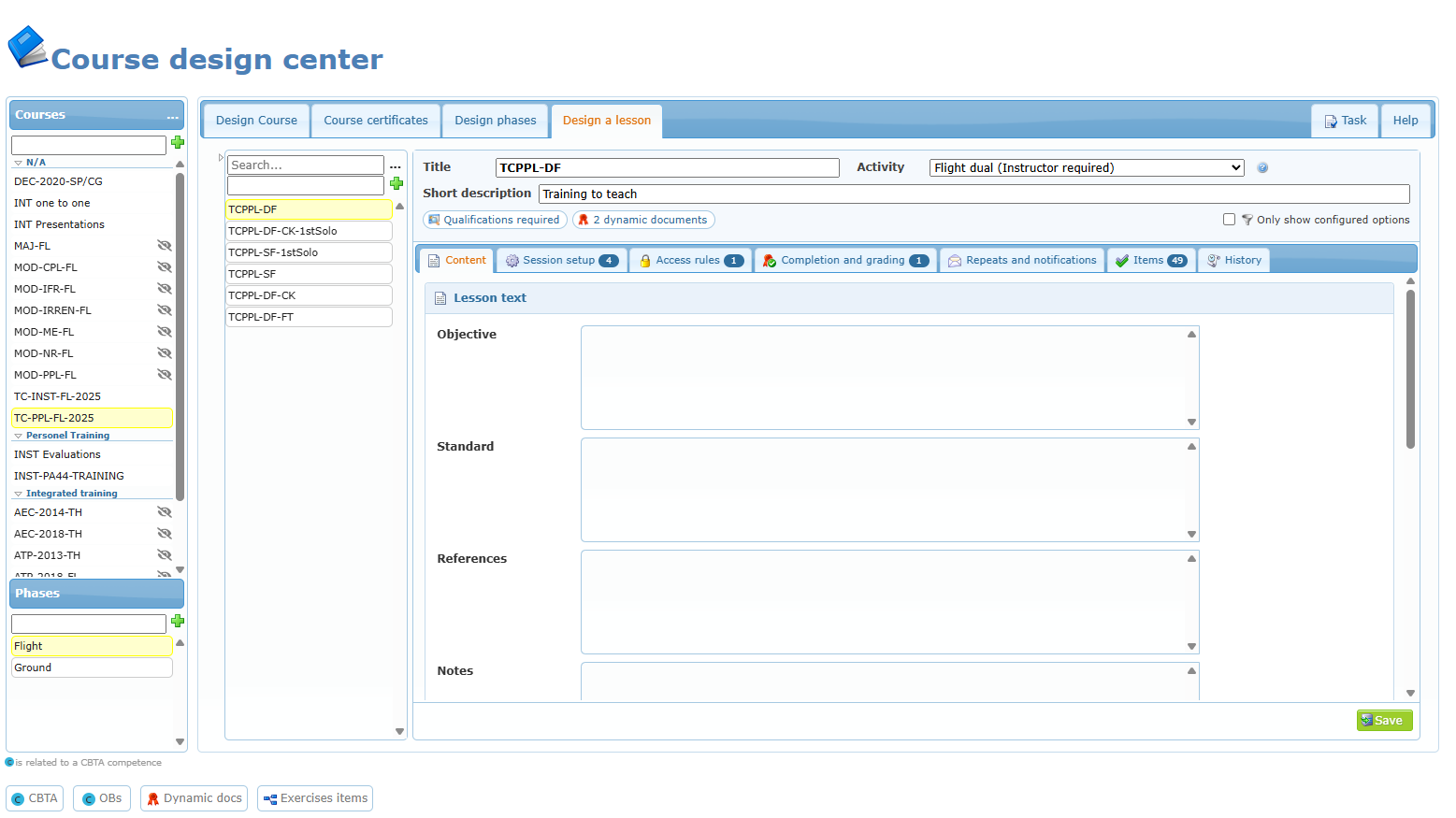
Add and order lessons
- Type the lesson title in the field under Search… and click the green + (shown only when the course can be modified).
- The lesson is added at the end of the phase. Drag lessons to change their order.
- Click a lesson to open it in the designer.
Inactive lessons are shown in grey.
Find lessons
Click … beside the search field.
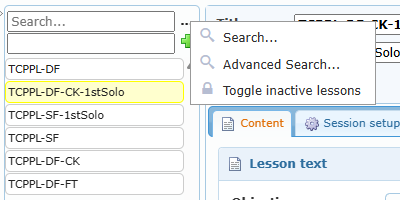
| Option | What it does |
|---|---|
| Search… | Filters the lessons of the phase on the text typed in the search field (any text of the lesson). |
| Advanced Search… | Opens a filter builder where you combine conditions with and / or. |
| Toggle inactive lessons | Hides or shows inactive lessons. |
In Advanced Search, click + to add a condition, choose a criterion, an operator and a value, then click Search. Clear removes all conditions. Useful criteria include: lesson ID, creator or last modifier, any text, required resource, attached files, duration set, exercise item, required co-pilot, required previous lessons, member requirements, must be passed, scored, repeat limit, type of lesson, forced Flight Record activity, activity sheet, recency limit, competency renewal, duration from Flight Record only, duration experience, recommending instructor, requested files, dynamic documents, minimum score, lock rules, prerequisite links, CBTA links and Observable Behaviours.
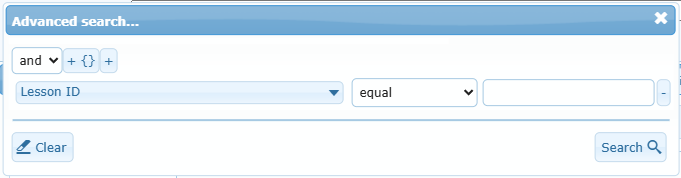
The search applies to the lessons of the selected phase.
Lesson right-click menu
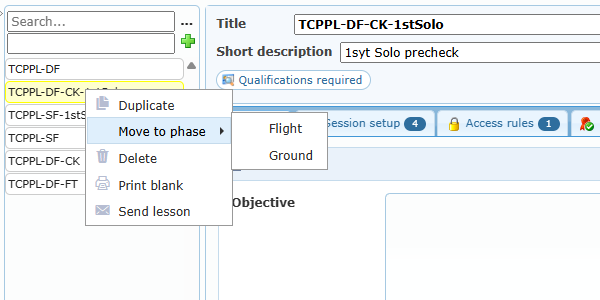
| Option | What it does |
|---|---|
| Duplicate | Adds a copy at the end of the phase, named title (copy n), with all settings and items. Lessons credited by the original are kept. |
| Move to phase | Choose a phase of the same course, then confirm. The lesson keeps its settings. Not possible in a non-modifiable course. |
| Delete | Asks for confirmation. A lesson that has never been recorded is deleted. A lesson already recorded for students is set inactive instead, so the history is kept. A lesson required by other lessons cannot be deleted: the message lists the lessons whose prerequisite must be removed first. |
| Un-Delete | Shown for an inactive lesson: makes it active again. |
| Print blank | Opens a blank PDF of the lesson, ready to print. |
| Send lesson | Creates a PDF of the lesson and opens a new internal message with the PDF attached. Shown when messaging is available. |
Tip: to replace an old lesson in a live course, add the new lesson, move the prerequisites to it, then delete (deactivate) the old one.