
Published 25 October 2026, Updated 25 October 2026
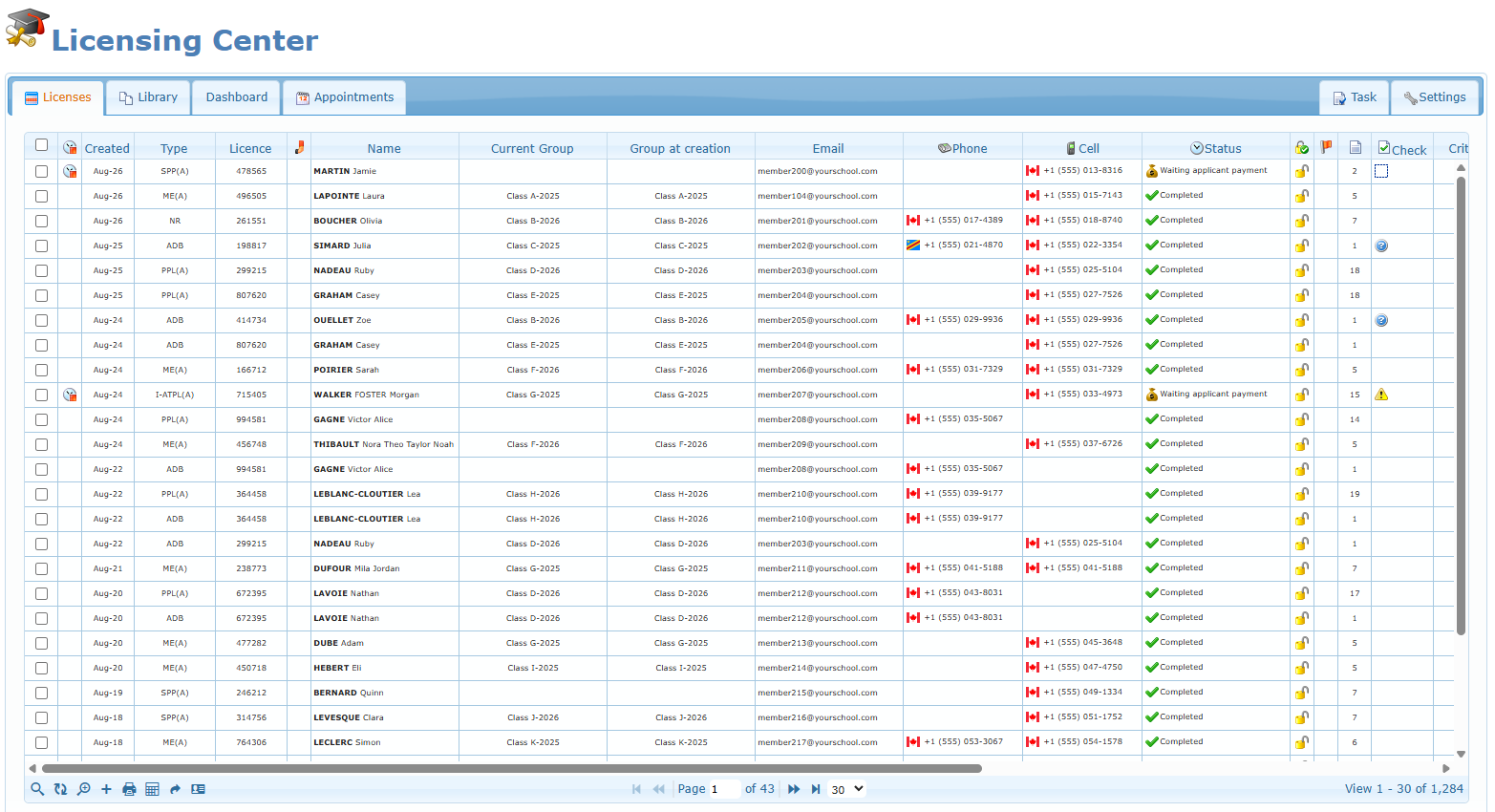
The Licensing Center is where the licensing team follows every permit, licence and rating application (“case”) from the first check of the documents to the delivery of the licence to the applicant. A case links one member to one case type (for example Student Pilot Permit (A) or Private Pilot licence (A)). For each case you can follow its status, check the required documents, upload files, write notes, send requests to the applicant, record the authorized agent’s signature and confirm the accounting acknowledgment.
The center has a desktop page (opened from the manager menu) and a mobile version (the Licensing button on the mobile home page). Both work on the same cases: a change made on the phone is visible right away on the desktop, and vice versa.
Who can use the Licensing Center
Access is controlled by lists of members kept in the center’s Settings tab. Members who are not in one of these lists do not see the page or the mobile button; if they open the address directly they are sent back to the home page.
| Role | Where it is set | What the member can do |
|---|---|---|
| Authorized user | Settings › General settings › Users › Authorized users | Open the Licensing Center (desktop and mobile), create cases, change statuses, check items, upload files, write notes, send requests and notifications, close, reopen and delete unsigned cases. Cannot open the Settings tab. |
| Administrator | Settings › General settings › Users › Administrators | Everything an authorized user can do, plus the Settings tab (case types, request template, overdue delay, user lists, case items). |
| Authorized agent of a case type | Settings › case type › Authorized agent | Signs the cases of that type (the Signed date on desktop, Sign the case on mobile). Only the agents of a type can sign, change or remove its signature. On mobile, agents also get the To sign counter and filter. |
| Local authority authorized agent | Settings › General settings › Users › Local authority authorized agent | The general list of members recognised as agents of the local authority. The right to sign a case still comes from the case type’s Authorized agent list. |
Good to know: a member can see the list of their own licence cases (case type, opening date, signed date and status) in their mobile profile. Opening the details of a case is reserved to authorized users and administrators.
The tabs
| Tab | Who sees it | Purpose |
|---|---|---|
| Licenses | All licensing users | The list of all cases, with filters, icons, editable columns and the right-click menu. |
| Library | All licensing users | Shared folders of reference documents (application forms, medical forms, agent documents…). |
| Dashboard | All licensing users | Live counters, average processing time and charts of created and signed cases. |
| Appointments | All licensing users | The appointments calendar, embedded in the center. |
| Task | All licensing users | The tasks of the licensing team. |
| Settings | Administrators only | Case types, request template, overdue delay, user lists and case items. |
Status and badge colours
Each case has one status. The desktop list shows the status with its icon; the mobile version shows it as a coloured badge. The same colours are used everywhere in this chapter.
| Status | Meaning |
|---|---|
| To assess | New case, nobody has looked at the documents yet. |
| Assessment in progress | A licensing user is checking the file. |
| To be sent to authority | The file is complete and must be sent to the authority. |
| Waiting applicant answer | A question or a request was sent to the applicant. |
| Waiting applicant payment | The applicant must pay before the case can continue. |
| Waiting TC answer or review | Waiting for an answer or a review from Transport Canada. |
| To be reviewed by agent | Ready for the authorized agent’s review. |
| To be signed by agent | Reviewed, waiting for the agent’s signature. |
| Something wrong before signed | A problem was found before signing. |
| Signed | The agent signed the case. |
| To be delivered | The licence or document must be handed to the applicant. |
| Delivered to applicant | The applicant received the document. |
| Completed | The case is finished. Completed cases no longer count as overdue. |
Extra badges can appear next to the status:
| Badge | When it appears |
|---|---|
| Priority | The case was flagged as a priority. |
| Overdue | The case is open, not completed, and was created more days ago than the overdue delay set by the administrators (30 days by default). |
| Critical 2026-11-02 | The critical date is today or already passed (open, not completed cases only). |
| Critical 2026-12-15 | A critical date is set in the future. |
| Closed | The case is closed. |
| Accounting not acknowledged | Accounting has not acknowledged the case yet (shown until the case is Completed). |
| No licence set | The member’s profile holds the competency that flags a missing licence, and the case is not signed yet. |
Articles
- The Licenses list
- Creating a case
- The right-click menus
- Status, priority, closing and deleting
- Checklist items
- Case files and member files
- Notes and history
- Requests and completion notifications
- Signature and accounting acknowledgment
- Member information windows
- Library, Dashboard, Appointments and Task tabs
- Settings (administrators)
- Licensing on mobile
- Troubleshooting