
Published 25 October 2026, Updated 25 October 2026
Sending a request to the applicant
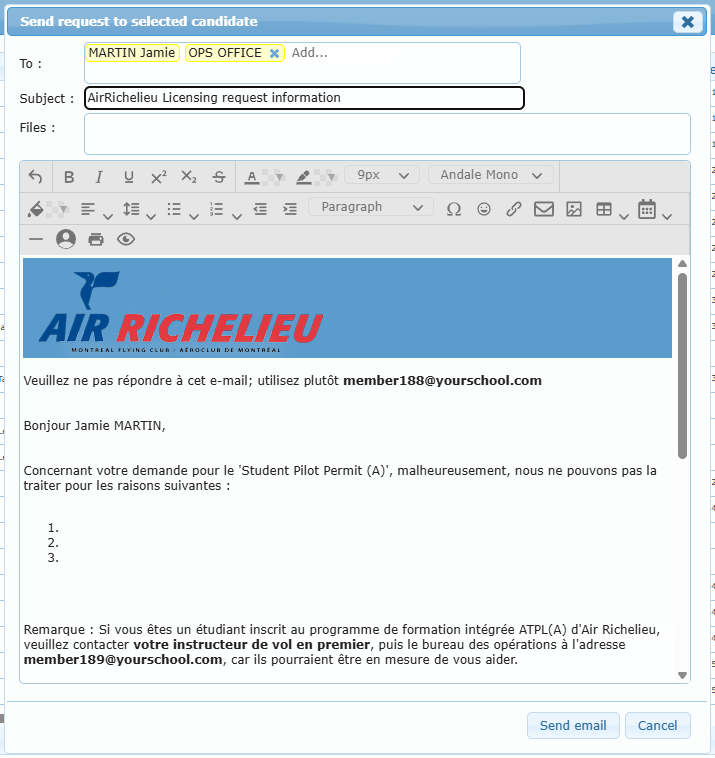
Use Send a request (unsigned cases only) when the application cannot be processed, for example because a document is missing.
- The email window opens with the applicant and the members listed in the case type’s Send request to additional members as recipients. Remove a recipient with its x or add one by typing in Add….
- The subject Licensing request information and the text come from the Request template (Settings). The applicant’s name, group, licence number and the case type are filled in automatically.
- Replace the empty numbered lines with the reasons the application cannot be processed. Drag files into Files to attach them.
- Click Send email, or Cancel.
Sending the completion notification
Once a case is signed, Send completion notification prepares the completion email, using the case type’s Completion text and its Additional Completion members. Check the text and click Send email. This item appears only when the case type has a completion text.
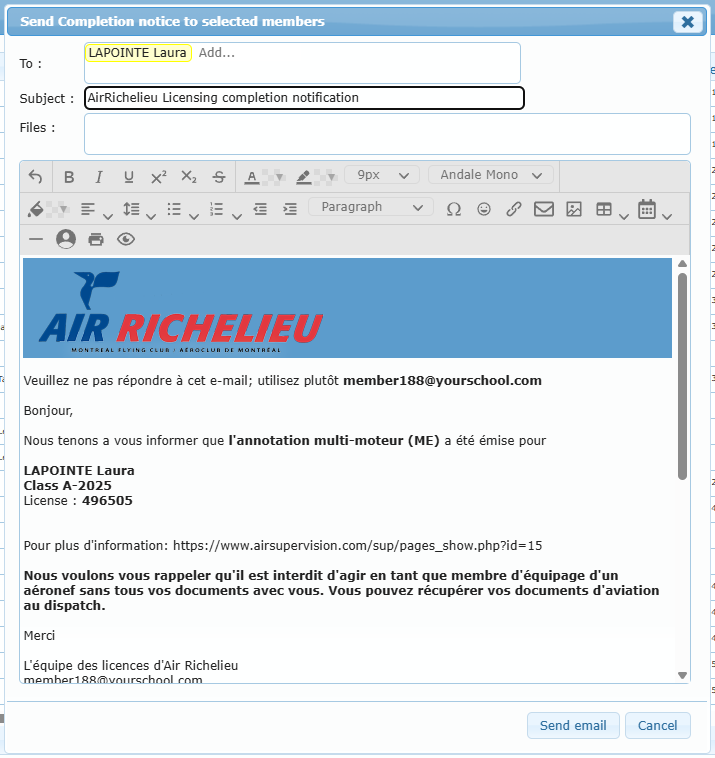
Every email sent from a case is recorded in the case history with its recipients. Members without an email address do not receive it.
The plain Send an email of the Member submenu uses the same window with four extra options: Send me a copy, Add my signature, Send using my own email address and Notify me when read.