Published 18 October 2026, Updated 23 October 2026
Select a course to open the Design Course tab. The header shows the Title and Print title, the rule badges and the Only show configured options filter. The settings are grouped in nine sub-tabs. Click Save at the bottom right to keep your changes (the Published switch and the additional fields are saved immediately).

| Header field | Purpose |
|---|---|
| Title | Name of the course in all course-management screens. Use a short, unique code (for example PPL-2025). |
| Print title | Title printed on course documents (for example Private Pilot Licence). |
Content
| Field | What to write |
|---|---|
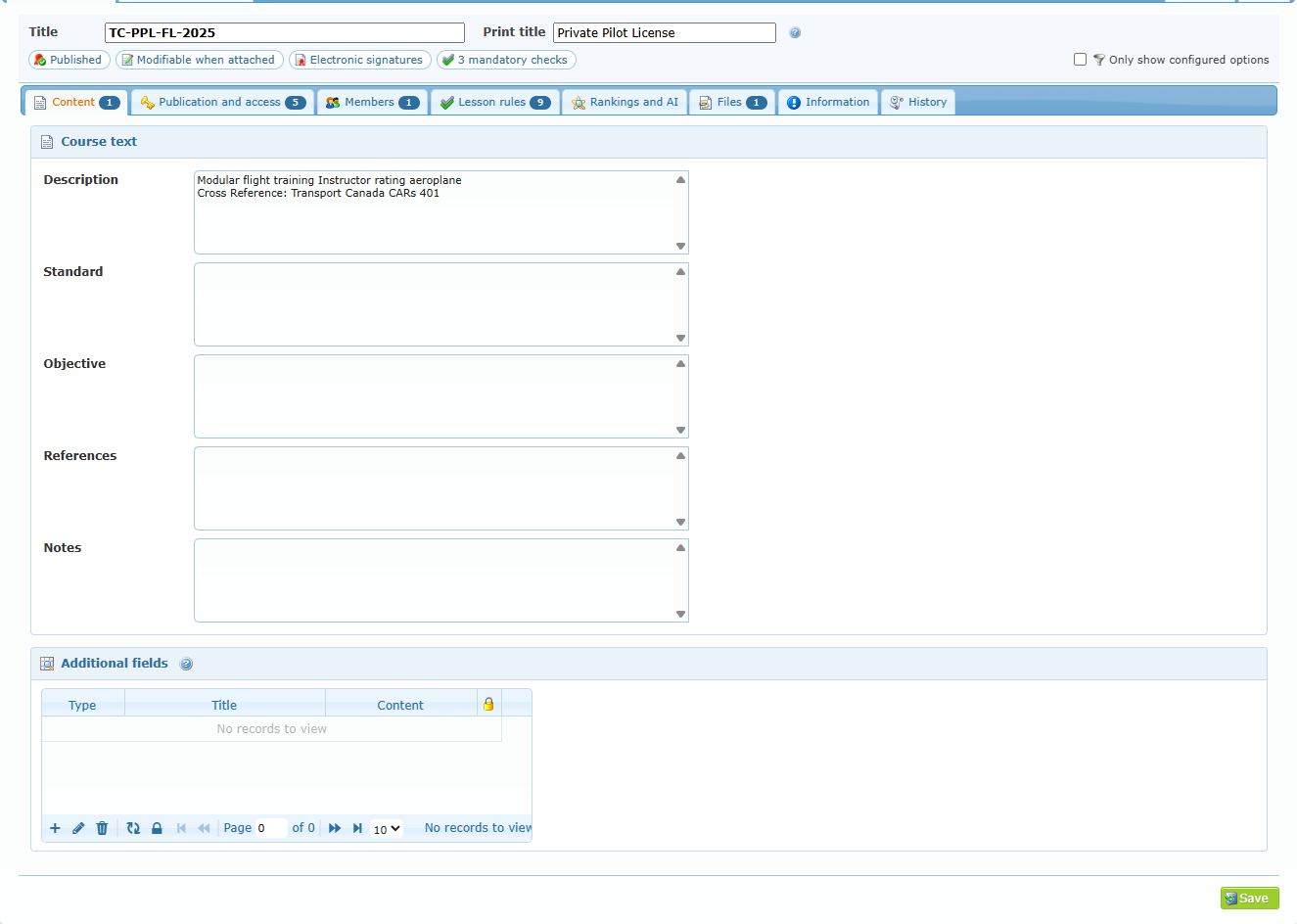
| Description | What the course covers, in a few lines. |
| Standard | The completion or performance standard. |
| Objective | What a successful student is able to do at the end. |
| References | Manuals, regulations and internal documents. |
| Notes | Any other guidance for course users. |
Additional fields let you add your own information fields to the course. Each line has a Type (text input, dropdown, radio button, check box, members, text area, groups, date or number), a Title and a Content (the value or the list of choices). Use the grid buttons to add, edit or delete a line; the lock column shows deactivated lines, and Unlock reactivates the selected line. Changes in this grid are saved immediately. The whole table can be printed on documents with the dynamic variable for additional fields.

Publication and access
| Option | What it changes | When to use it |
|---|---|---|
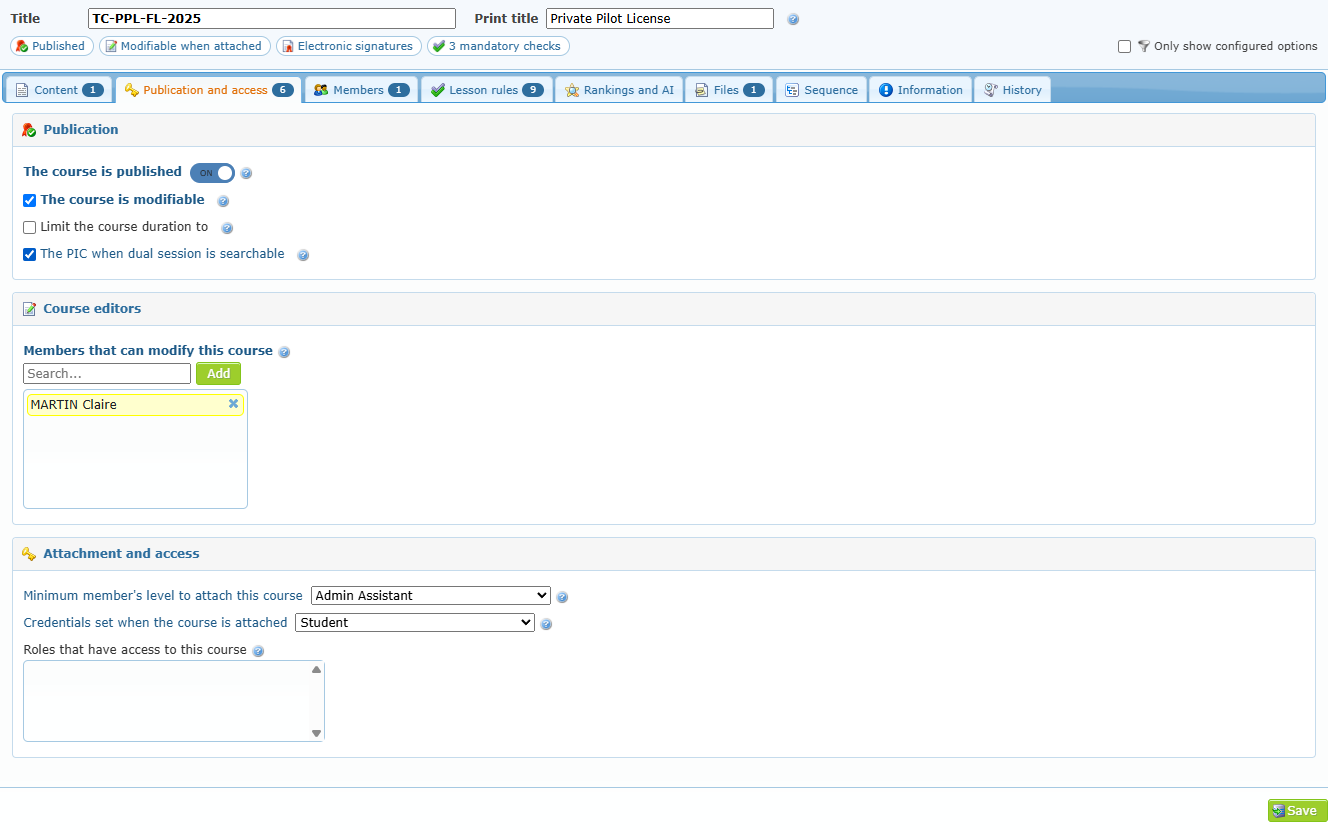
| The course is published | When on, authorized members can attach the course to members. Saved immediately. | Switch on only when the course is ready and approved. |
| The course is modifiable | Allows the content to be changed even when students are enrolled. | Keep ticked while the course is being built. Untick to freeze a live course. Deleting phases or lessons of a live course destroys the related records. |
| Limit the course duration to … months | Maximum duration of the course. Untick for unlimited. | When the program must be completed within a defined time. Also used as context by the AI analysis. |
| The PIC when dual session is searchable | Off by default. When on, the training record shows a search icon next to PIC qualifications and roles on every dual lesson that is not done yet and that requires PIC qualifications or roles. The icon lists the members who meet these requirements today. The list is for information only: it does not choose the PIC. | When finding an instructor with the right ratings, roles or memos read is often difficult (for example type ratings, instrument or night lessons). Leave off when any instructor can give the lessons. |
| Members that can modify this course (Course editors) | Only the listed members can manage this course (they also need course-creation rights in their profile). Leave empty to allow all course designers. | To control ownership. Never remove yourself unless another editor or an administrator can give you access back. |
| Minimum member’s level to attach this course | The level a member needs to attach this course to someone. General setting uses the organization default. | For advanced or controlled programs. |
| Credentials set when the course is attached | Raises the attached member to the selected level, never lowers a higher level. | When enrolment must give a minimum working level. |
| Roles that have access to this course | Members of these roles can view the course and, depending on their permissions, add, edit or sign entries. The student always sees his own course. Click the box to choose roles; click the small cross to remove one. | When access must follow your organizational roles. |
Members
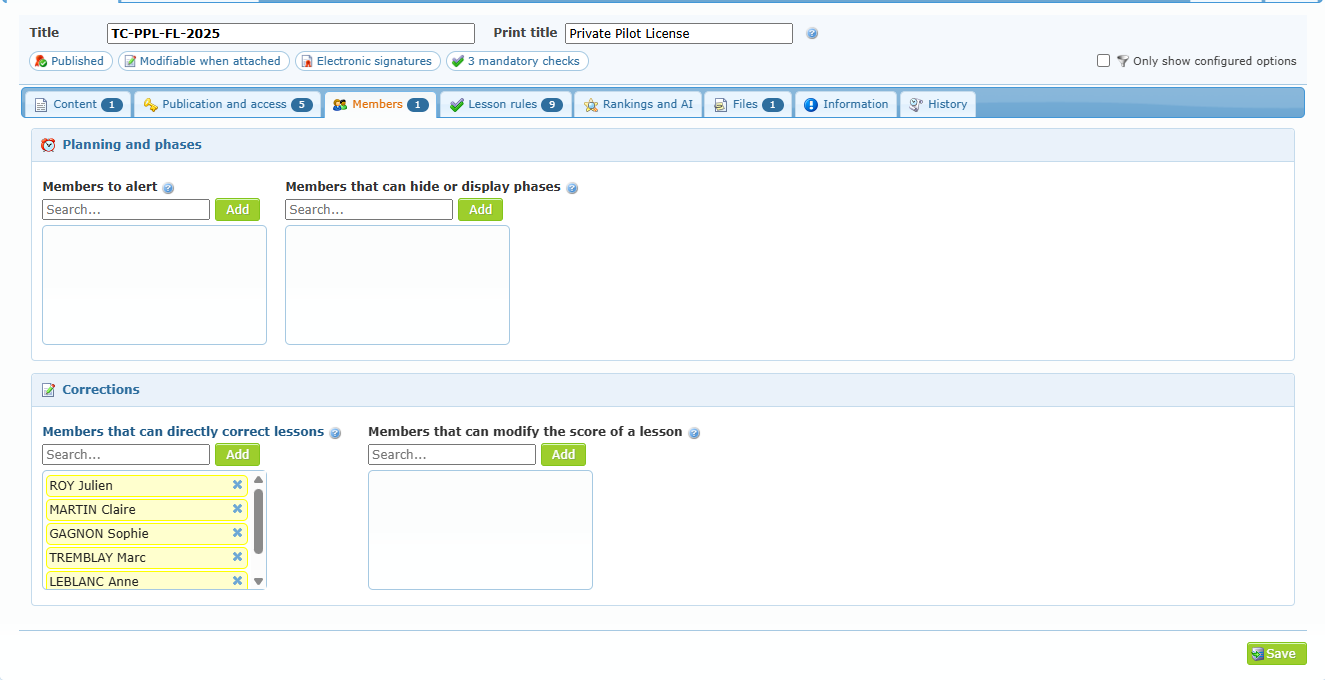
Each list works the same way: type a few letters in Search…, pick the member, click Add; click the cross on a name to remove it.
| List | Effect |
|---|---|
| Members to alert | Receive an alert when a planned date of a student is overdue. |
| Members that can hide or display phases | Can switch optional phases on or off for each student. Useful when a course contains alternative or later training paths. |
| Members that can directly correct lessons | Receive an e-mail for each correction request and can correct saved lessons. They also need lesson-correction rights in their profile. Not used when Force multiple entries is ticked. |
| Members that can modify the score of a lesson | Can change the score of a saved lesson. They also need lesson-correction rights. |
Lesson rules
These rules apply to every lesson of the course.
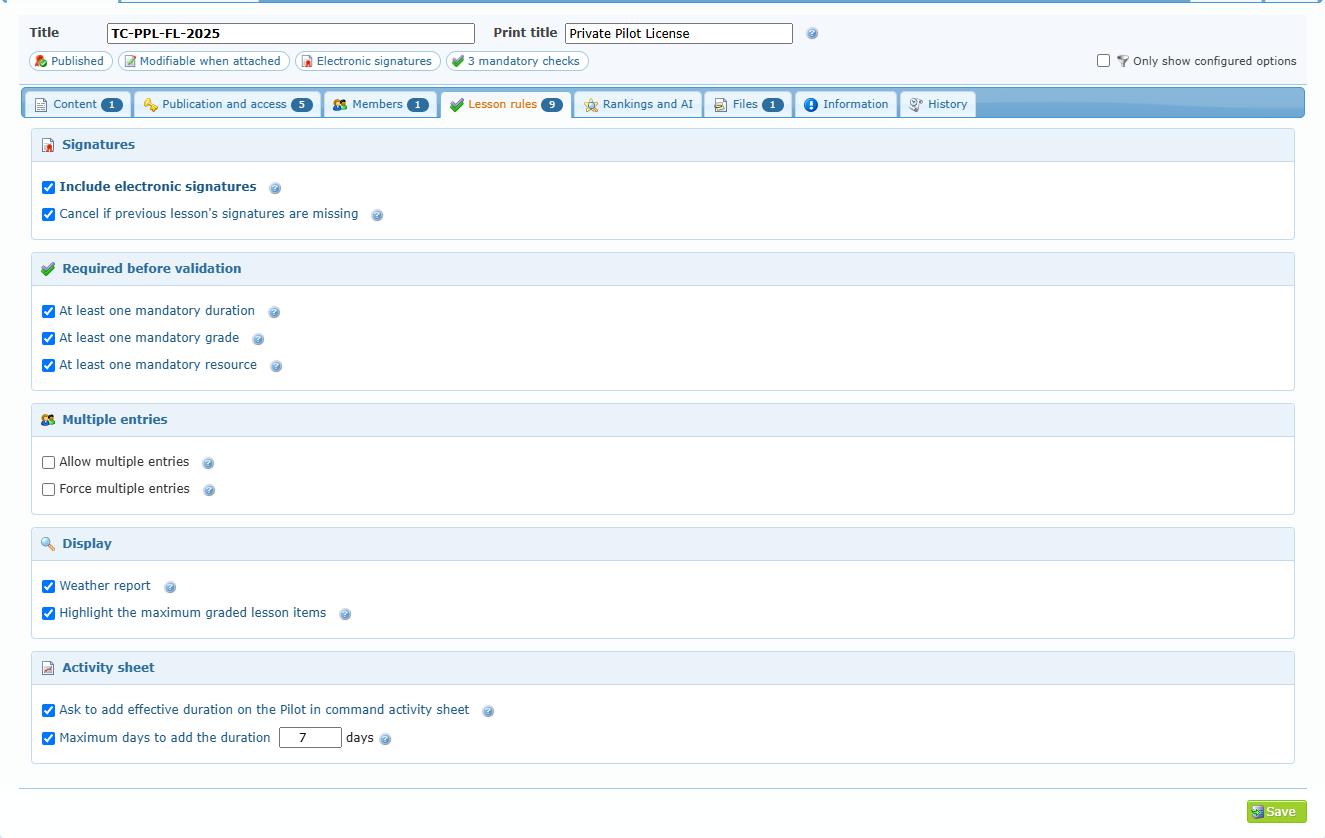
| Option | Effect for instructors and students |
|---|---|
| Include electronic signatures | Signatures are recorded when a lesson is saved and cannot be changed afterwards (a correction request is needed). |
| Cancel if previous lesson’s signatures are missing | Saving is refused while a previous lesson is missing its signatures. |
| At least one mandatory duration | A duration must be entered before the lesson can be validated. |
| At least one mandatory grade | At least one grade must be given. |
| At least one mandatory resource | A resource (aircraft, simulator, room…) must be selected. |
| Allow multiple entries | The course is available in Multiple Entries, to record one lesson for a whole group. |
| Force multiple entries | Multiple Entries becomes the only way to record lessons of this course. |
| Weather report | Weather is retrieved for every non-ground session, even if the general option is off. |
| Highlight the maximum graded lesson items | Once completed, the highest graded item is shown in pink. |
| Ask to add effective duration on the Pilot in command activity sheet | After a lesson, the pilot in command is offered to add its duration to his activity sheet (marked Added by the system, editable, not a verified value). With a co-pilot lesson, only the main instructor gets the duty. |
| Maximum days to add the duration | Number of days after the lesson during which the duration can still be added. Untick for no limit. |
Rankings and AI
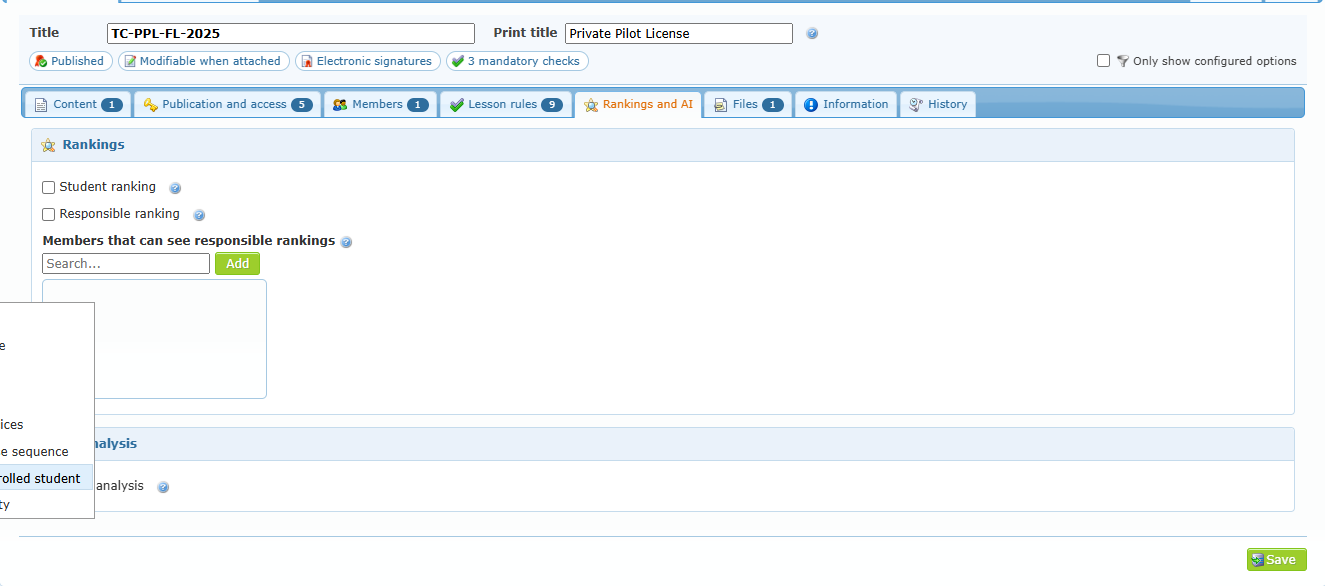
| Option | Effect |
|---|---|
| Student ranking | Includes the course in the student ranking: open enrolments of the same course and group, ordered by completed lessons. Visible to the student, Course Center authorized members and the responsible person. |
| Responsible ranking | Includes the course in the ranking of responsible persons (based on student results and group size). |
| Members that can see responsible rankings | Limits who can see the responsible ranking. Empty = all Course Center members; each responsible always sees his own rank. |
| AI analysis | Shown only when AI is enabled for your organization. Activates a scheduled progress analysis of each enrolled member; the maximum course duration is used as context. AI output can be wrong and never replaces human review. |
Files
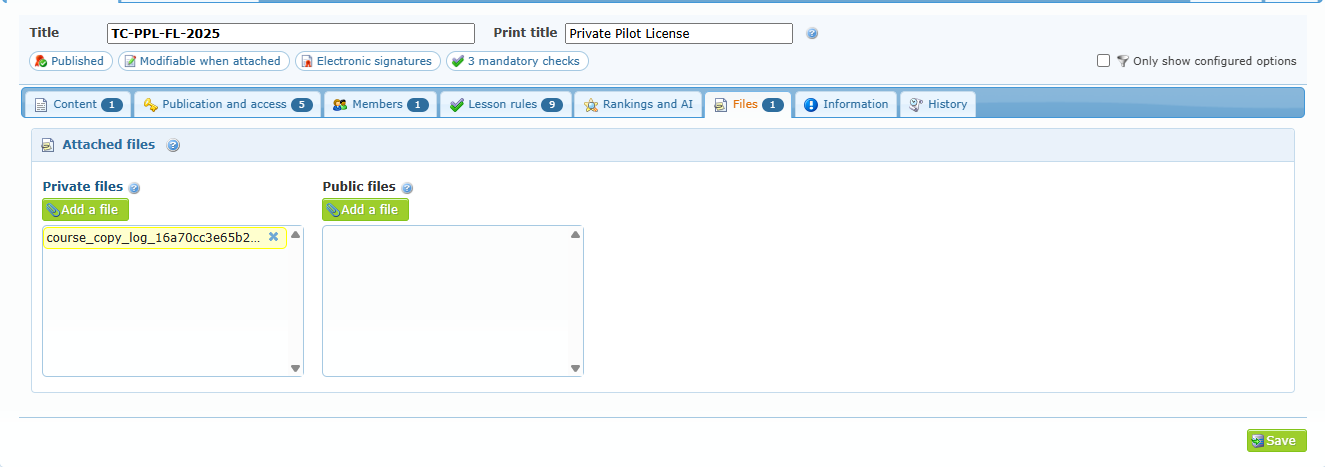
| Area | Who sees the files |
|---|---|
| Private files | Only course designers, while creating or modifying the course (source documents, design notes). |
| Public files | All members who preview the course (approved student material). |
Click Add a file to choose a file from your computer, a scan or a cloud service when available. Files are uploaded immediately. Click a file to open it; click its cross to remove it.
Sequence
The Sequence sub-tab shows the complete structure of the selected course and lets you set the order in which lessons must be completed, by adding or removing pre-requisite lessons. It is loaded the first time you open it and always shows the course selected in the course list. The same tool also opens in its own window when you right-click a course and choose Manage course sequence.
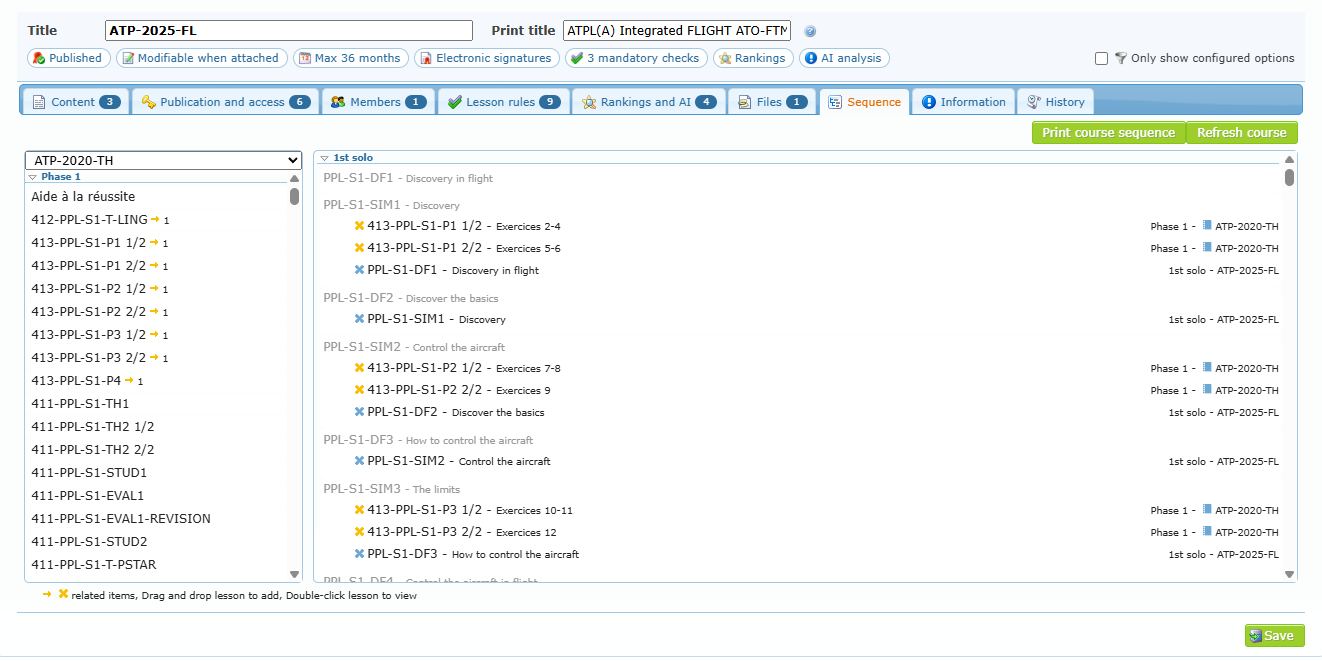
| Area or action | Use |
|---|---|
| Print course sequence | Prints the structure of the course with its pre-requisites. |
| Refresh course | Reloads the view, for example after lessons were changed in another tab. |
| Left list | Choose a course (this course or another one) to list its lessons by phase. The arrow and number beside a lesson tell how many lessons of the selected course require it; hover over the lesson and click Hightlight items to find them in the right panel. |
| Right panel | Every phase and lesson of the selected course and, under each lesson, its pre-requisites with their phase and course. A stamp marks lessons that must be passed to continue, dimmed lessons are inactive and a small icon marks a pre-requisite from another course. Click the arrow beside a phase to collapse or expand it. |
| Drag and drop | Drag a lesson from the left list and drop it on a lesson of the right panel to make it a pre-requisite of that lesson. |
| Cross | Removes a pre-requisite. Orange crosses mark the pre-requisites that come from the course chosen in the left list. |
| Double-click | Opens the lesson. |
Pre-requisites added or removed here are saved immediately: the Save button is not needed. They are accepted only when you are allowed to modify the course and the option The course is modifiable is enabled in Publication and access. See Course tools: duplicate, print, sequence and integrity check for the same tool opened from the right-click menu.
Information
Shows the creation date, the creator, the last modification, the status (Active / Inactive, and no modification allowed when the course is locked) and Statistics: a summary of the planned durations of all lessons, counters (flight dual, flight solo, ground, total lessons, lessons without objective, standard or instructor guide), the resource types required and the instructor qualifications required.
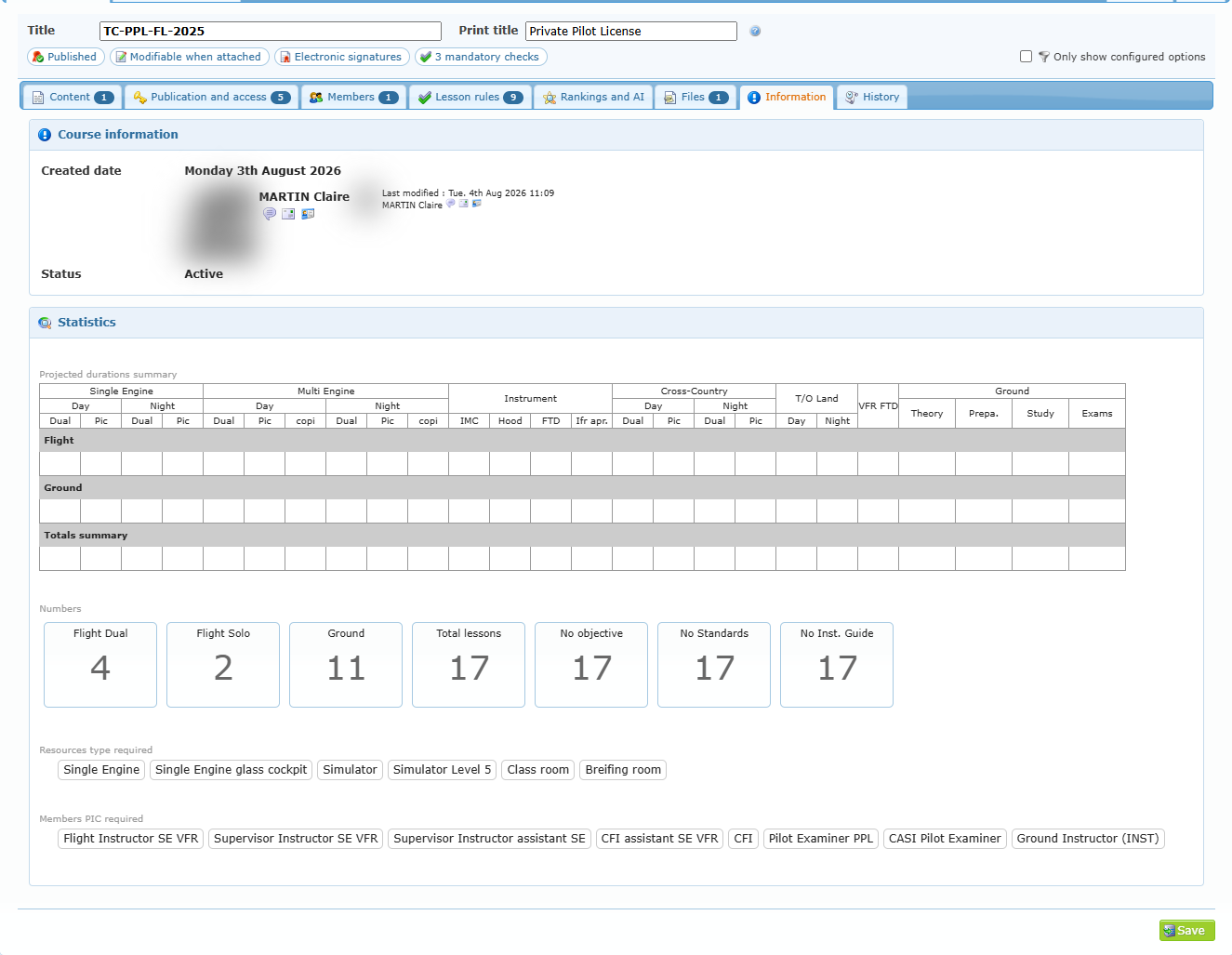
Tip: the counters No objective, No Standards and No Inst. Guide are a quick way to find lessons that are not fully documented.
History
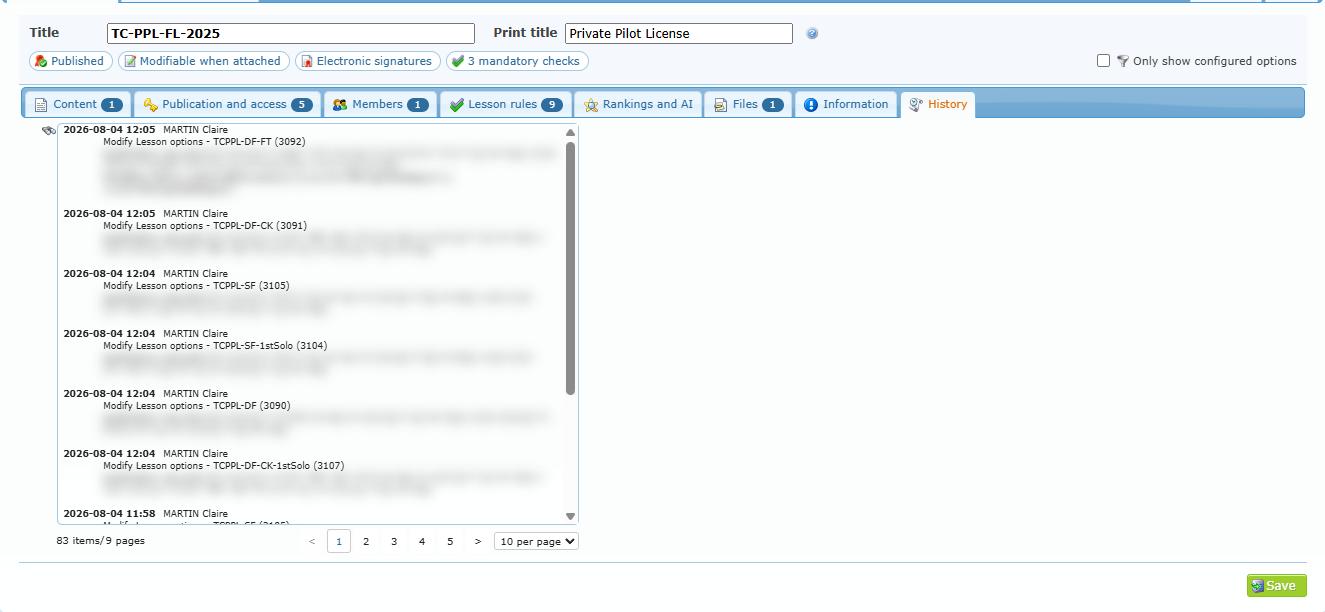
Visible to administrators. Lists every recorded change of the course (date, member, lesson and type of change). Use the magnifier to search and the pager to browse.