Published 18 October 2026, Updated 19 October 2026
These tools are in the course right-click menu (see Course list and course groups).
Duplicate a course
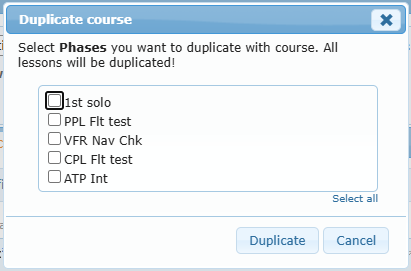
Choose Duplicate, tick the phases to copy (or Select all) and click Duplicate. All lessons of the selected phases are copied.
The copy is named title (copie), is unpublished, and its notes start with a reminder of the original course. Lessons credited when a lesson is passed are copied and point to the copied lessons; a link to a lesson of a phase that was not copied is dropped. Review the copy before publishing: editors, permissions, documents, prerequisites to other courses, notifications and certificates may need changes.
Tip: to rework a live course, duplicate it, change the copy, test it, then publish the copy and set the old course as inactive.
Print a course
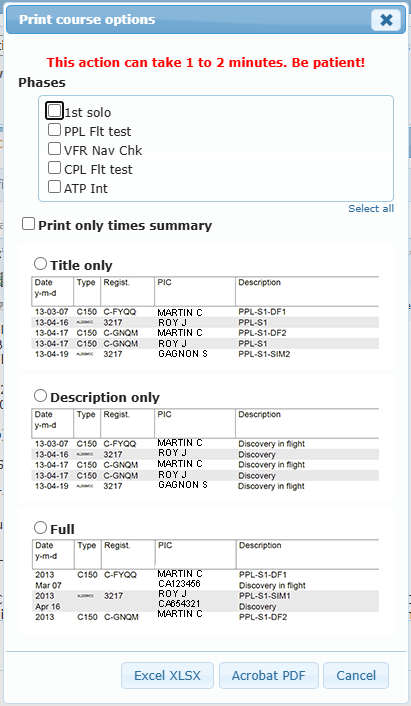
Print blank opens Print course options:
- Tick the Phases to print (or Select all).
- Optionally tick Print only times summary.
- Choose the detail level: Title only, Description only or Full.
- Click Acrobat PDF or Excel XLSX. Large courses can take one to two minutes.
Manage course sequence
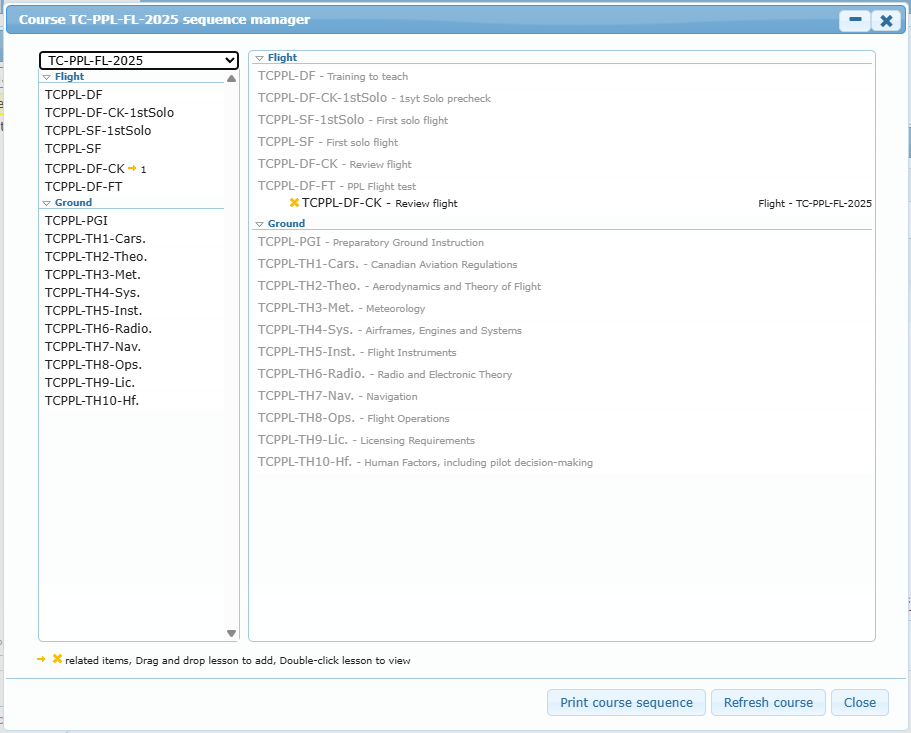
Manage course sequence shows the whole course with its prerequisites, and lets you edit them visually.
The same tool is also available as the Sequence sub-tab of Design Course, between Files and Information (see Design Course: course settings). In the sub-tab it uses the full width of the panel and always shows the selected course; the right-click window can be moved or minimized. Both work the same way and show the same data.
| Part | Use |
|---|---|
| Right panel | Every phase and lesson of the course. Under each lesson, its pre-requisite lessons (with their phase and course). A stamp marks lessons that must be passed to continue. |
| Left panel | Choose a course, then drag a lesson onto a lesson of the right panel to add it as a prerequisite. The arrow and number beside a lesson tell how many lessons depend on it. |
| Cross | Removes a prerequisite. |
| Double-click | Opens the lesson. |
| Print course sequence | Prints the structure without durations. |
| Refresh course | Reloads the view. |
Adding or removing a pre-requisite is saved immediately. It is accepted only when you are allowed to modify the course and the option The course is modifiable is enabled in Design Course › Publication and access.
Check Integrity
Check Integrity scans the course structure, prerequisites, duration experience requirements and formulas, exercises, members, dynamic documents and competency links. It does not change anything.
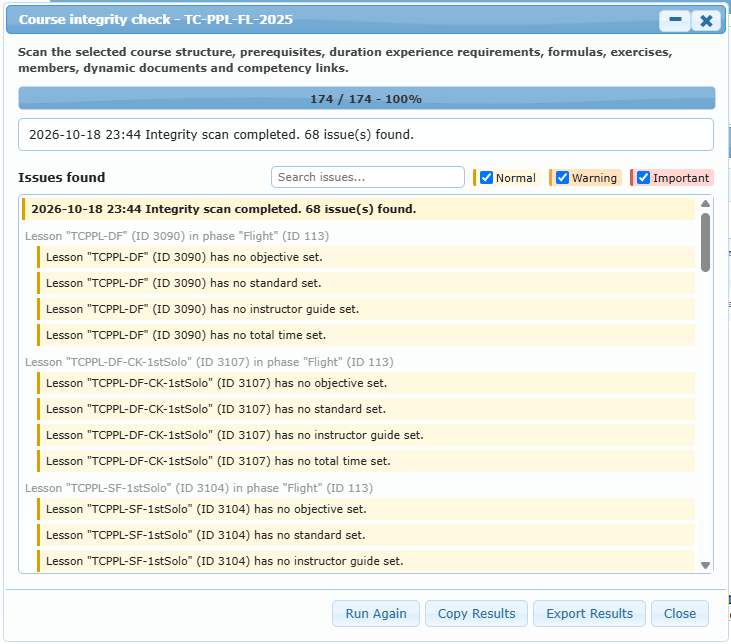
- Click Start Check Integrity. A progress bar shows the scan.
- Read the summary (Integrity scan completed. n issue(s) found.).
- Filter by Normal, Warning and Important, or type in Search issues….
- Use Copy Results or Export Results to keep a record.
- Correct the course and click Run Again.
Typical findings: lessons without objective, standard, instructor guide or planned time; prerequisites pointing to inactive lessons; invalid duration formulas or formulas that cannot be reached with the durations planned by the previous lessons (see Duration experience requirement); members who no longer have access; missing documents.
A clean result does not replace testing and approval.
List active enrolled students
Opens the Courses Center list filtered on the course, in a new tab, so you can see who is affected before changing a live course.
Task and Help tabs
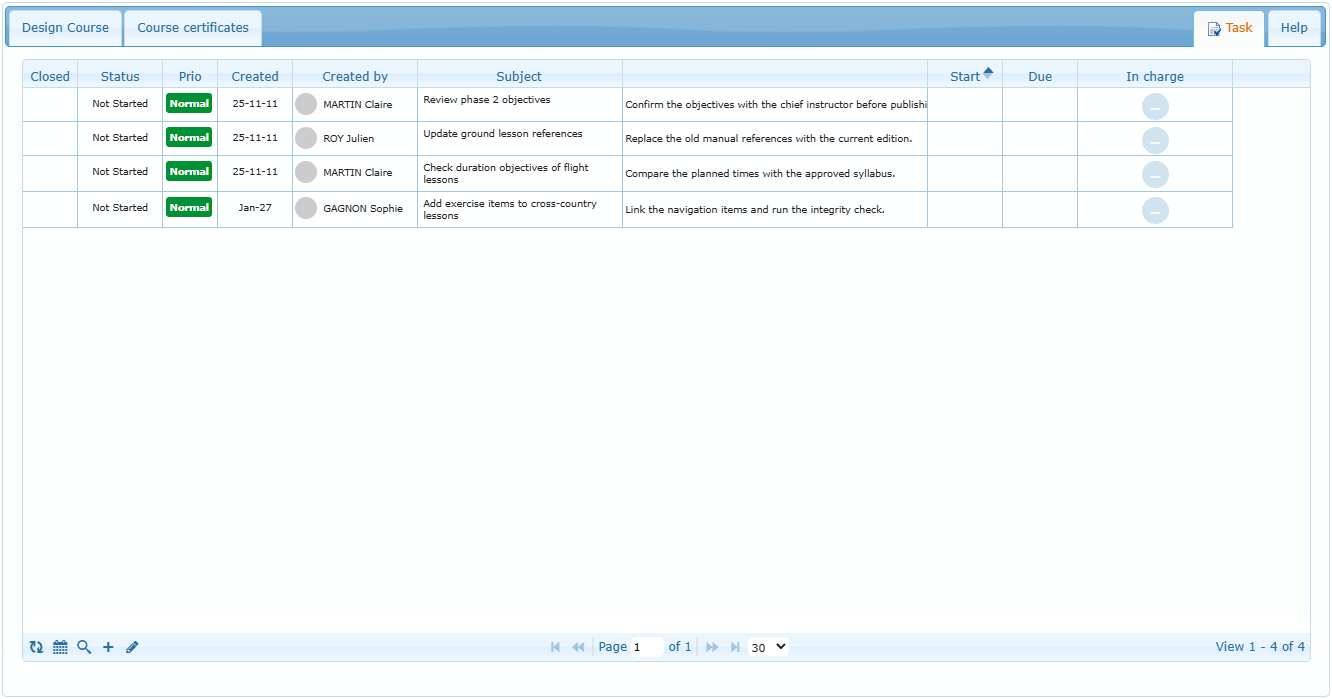
Task lists the tasks related to course design (status, priority, creation, creator, subject, start, due date, person in charge). Use the toolbar to refresh, search, add or edit a task.
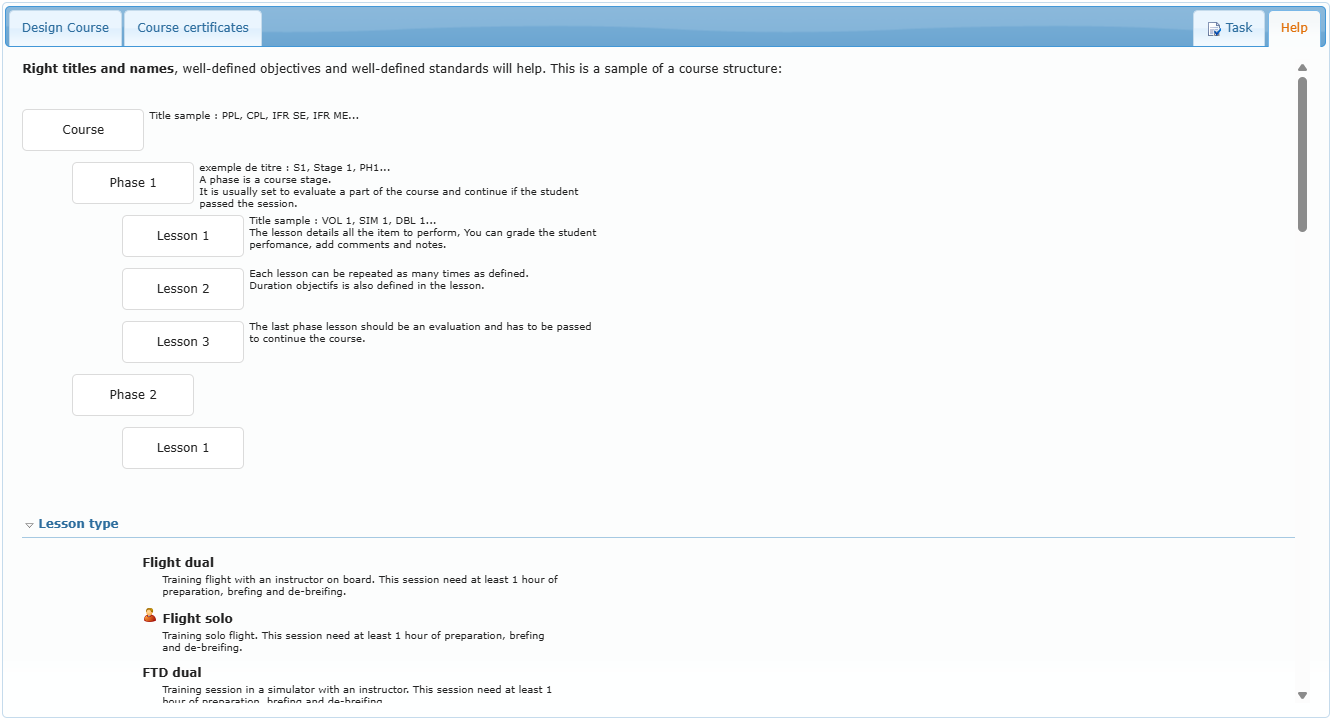
Help reminds you of the course structure (course › phases › lessons) and describes the Lesson type, Items grades and Items type configured for your organization.