Published 25 October 2026, Updated 25 October 2026
Changing the status
Use Set Status in the right-click menu, right-click the Status cell, or (on mobile) Set case status. Every change is written in the case history with your name and the time.
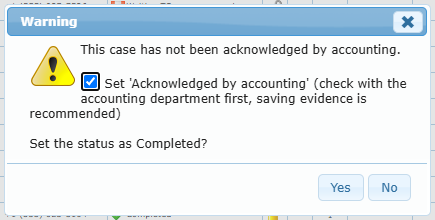
When you choose Signed or Completed while accounting has not acknowledged the case, a Warning appears. The option Set ‘Acknowledged by accounting’ is ticked by default: leave it ticked only after checking with the accounting department (keeping evidence is recommended). Click Yes to apply the status, or No to cancel.
Priority
Click the flag cell, or use Set priority / Set normal. Priority cases show a red flag on desktop and a Priority badge on mobile, and they are counted in the mobile Priority tile.
Closing and reopening
Click the padlock or use Close / Open. A closed case is greyed out, hidden by the default filter and no longer counted as overdue. Reopen it at any time.
Deleting a case
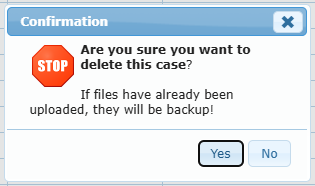
Delete the case is offered only while the case is not signed. After you confirm, the case is removed from the list. Its uploaded files are kept as a backup: if the same case type is created again for this member, the files come back automatically.