
Published 26 October 2026, Updated 26 October 2026
Part of the Right-click menu chapter of the Activities Center guide.
The Activity submenu is where the accounting work really happens. From here you correct a line, accept it into a pay period, put it on hold while you wait for an answer, send it back for validation, or read everything that happened to it. This submenu is shown only to profiles allowed to validate activities.
The Activity submenu changes with the line
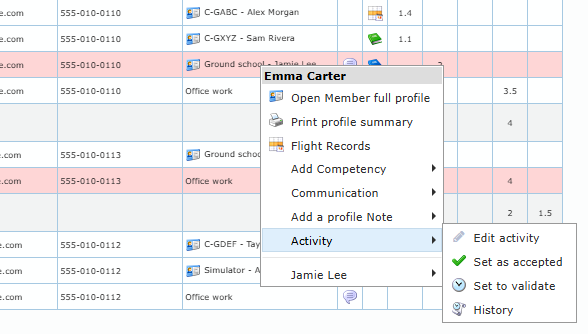
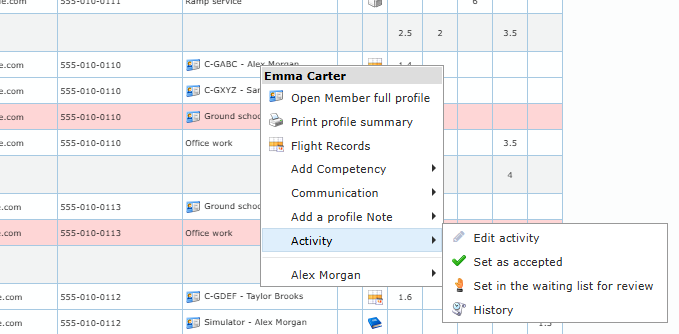
The submenu never offers an action that makes no sense for the line. Compare the three examples below.
A line waiting in the waiting list (Current tab)
A new line to validate (Current tab)
A line already accepted (Accepted tab)
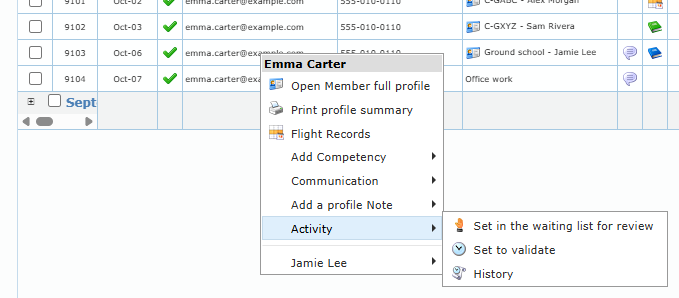
| Action | Current tab | Accepted tab |
|---|---|---|
| Edit activity | Yes | No |
| Set as accepted | Yes | No (already accepted) |
| Set in the waiting list for review | Yes, unless the line is already on hold | Yes |
| Set to validate | Yes, unless the line is already “to validate” | Yes |
| History | Yes (content shown to accounting administrators) | Yes (content shown to accounting administrators) |
Edit activity: correct a line
Use Edit activity when the member made a typing error, for example a wrong duration, the wrong activity type, or the wrong date. The correction window opens.
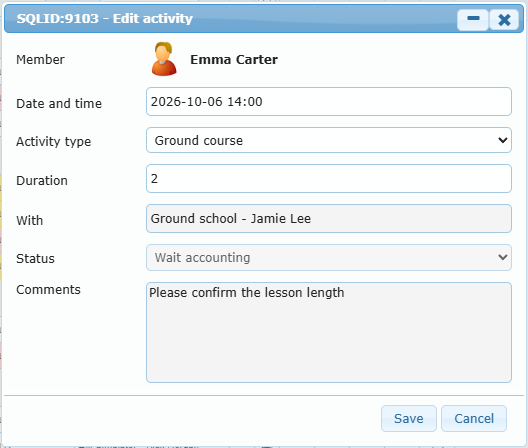
| Field | Can I change it? | What to enter |
|---|---|---|
| Member | No | The person who owns the line. |
| Date and time | Yes | The date and time of the activity, written as year-month-day hour:minute, for example 2026-10-06 14:00. |
| Activity type | Yes | Choose the correct activity in the list. |
| Duration | Yes | A number of hours (or units for unit-based activities). Use a dot for decimals: 1.5 means one hour and a half. |
| With | No | The other person or the context of the activity, when there is one. |
| Status | No | The current status. It is changed with the actions of the menu, not here. |
| Comments | No | The member’s comment. |
Click Save to record the correction, or Cancel to close without changing anything. After saving, the line and the member’s totals are updated in the list.
Messages you may see when saving:
| Message | What to do |
|---|---|
| “Please enter a valid date and time.” | Check the format: year-month-day, a space, then hour:minute. |
| “Please select a valid activity type.” | Choose an activity in the list. |
| “Please enter a valid duration.” | Enter a number of zero or more, with a dot for decimals. |
| “You do not have permission to modify this activity.” | Your profile is not allowed to correct this line. Ask an accounting administrator. |
Every correction is traced. The old and the new value are written in the line’s History (for example “Duration: 2.5 -> 2”), with your name and the time. If the correction changes pay, consider adding a short note to the member’s profile as well.
Set as accepted: approve a line for a pay period
Set as accepted approves the line and attaches it to an accounting period (for example “October 2026 – 1st half”). A window asks you to confirm and to choose the period.
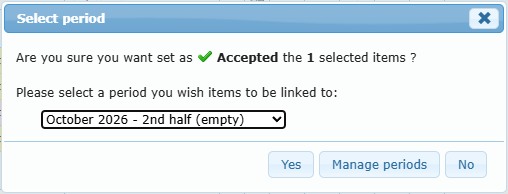
- Read the question: it repeats how many lines will be accepted.
- Choose the period in the list. Only active periods are offered. A period marked (empty) has no accepted line yet; it is typically the new period you just created.
- If the right period does not exist yet, click Manage periods to create it (see Accounting periods), then choose it.
- Click Yes to accept, or No to cancel.
What happens next: the line leaves the Current tab and appears in the Accepted tab, grouped under the chosen period. The date of acceptance and your name are recorded.
Before accepting, check the duration source (flight record, course, punch or typed by hand) and the comment. Typed hours deserve the closest look. See Entry status and where the hours come from.
Set in the waiting list for review: put a line on hold
Use this when something must be clarified before the line can be accepted. For one line, the change is immediate; there is no confirmation window.
- The line stays in (or comes back to) the Current tab, highlighted, with the red hand icon “waiting, set by accounting”.
- The member automatically receives an e-mail telling them that one of their activity entries was placed in the waiting list and will not be accounted until it is reviewed. The sending of this e-mail is written in the History.
- If the line was accepted, its acceptance and its period are removed.
Typical uses: the duration looks too high, the activity type seems wrong, a comment is missing, or the date falls in a period that is already closed.
Set to validate: send a line back for validation
Use this to release a line from the waiting list once the question is solved, or to take back an accepted line that must be checked again. For one line, the change is immediate.
- The line gets the clock icon “to validate” and is ready for a new decision in the Current tab.
- If the line was accepted, its acceptance and its period are removed, so it disappears from the Accepted tab and from that period’s reports.
Caution with accepted lines: taking a line out of a period that was already paid or exported changes the period totals. Agree with payroll before doing it.
History: see everything that happened to a line
History shows the life of the line, newest event first: its creation, every status change, every correction with old and new values, and the automatic e-mails sent to the member. Each event shows the date, the time and the person who did it. The entry is listed for everyone who sees the Activity submenu, but the history is displayed only for accounting administrator profiles.
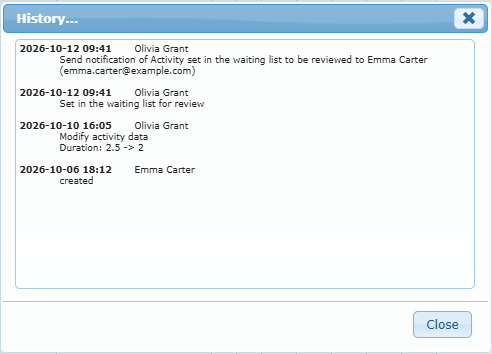
Click Close to return to the list. History is read-only: nothing can be changed from this window.
When to use it: a member asks why their hours changed, or an auditor asks who accepted a line and when.